MCP Server
The MCP server lets your own AI agent work inside DbSchema. An AI agent is an AI program that does tasks for you, such as Claude Code, Codex, Cursor or GitHub Copilot. Through the server, the agent can read and change your design, and query the databases that you allow.
MCP stands for Model Context Protocol. It is an open standard that lets an AI agent use the tools of another program. Each tool is one action that the agent can ask DbSchema to do, such as "list the tables" or "add a column".
Beta feature. The MCP server settings show only after you turn on beta features. The server needs DbSchema Pro or Architect.
What the agent can do
You ask the agent in your own words, as you would ask a colleague. For example: "In DbSchema, list the tables of the open project and explain how orders relate to customers." The agent then chooses the DbSchema tools that the task needs.
| Area | What the agent can do |
|---|---|
| Projects | List the open projects. Open, create or save a project. |
| The design | Read tables and columns. Create and change tables, columns, indexes and foreign keys. |
| Diagrams | Create a diagram, add tables to it and arrange them. Add groups, notes and shapes. |
| Databases | Read sample rows, run a query and show its query plan, on the connections that you allow. |
| Changes | Compare the design with a database, and open the synchronization dialog for you to review. |
| Editors | Open the SQL Editor, the Query Builder or the Data Explorer with the agent's work in it. |
The design is your DbSchema project: the tables, columns and diagrams that you see in DbSchema. The database is the real database on the server. A change to the design does not change the database until you apply it.
Turn on the MCP server
- Choose Edit → Settings.
- Choose Projects in the tree, and tick Enable Beta Features.
- Choose AI → MCP in the tree, and tick Enable MCP server.
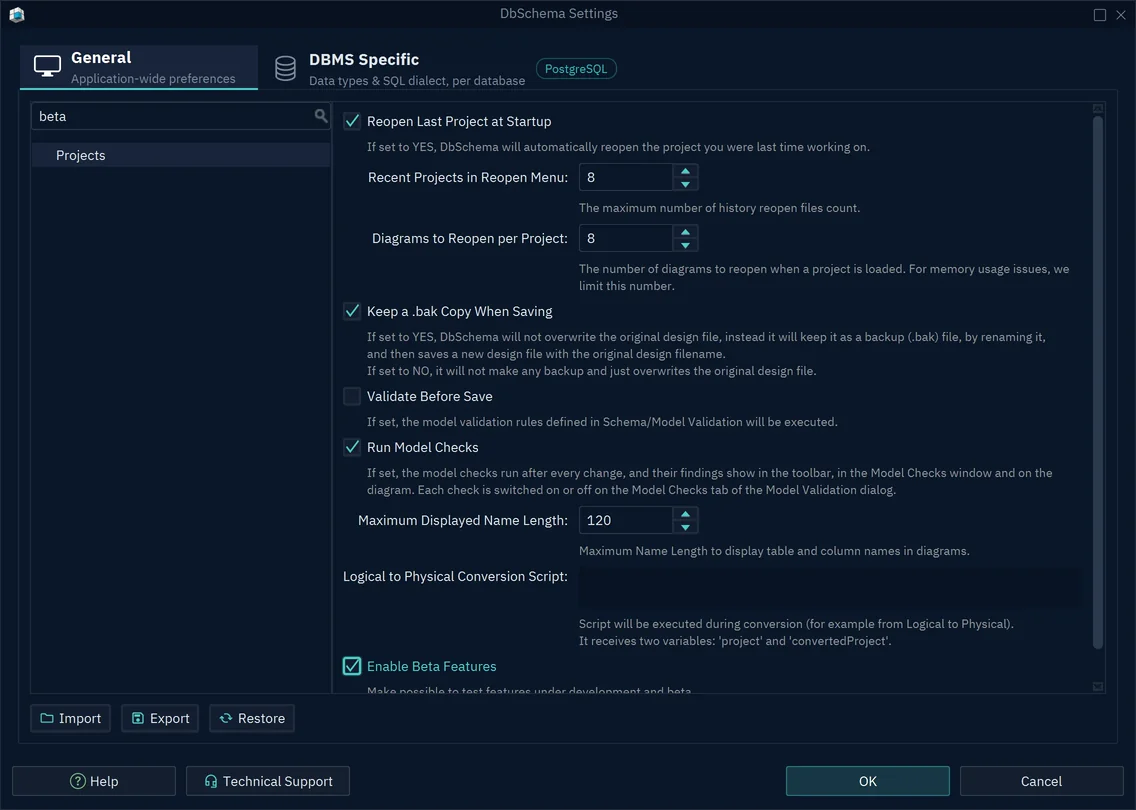
The server starts at once. The line under the check box says where it runs, such as "Serving at http://127.0.0.1:29292/mcp, no calls yet". The number at the end of the address is the port, 29292 by default.
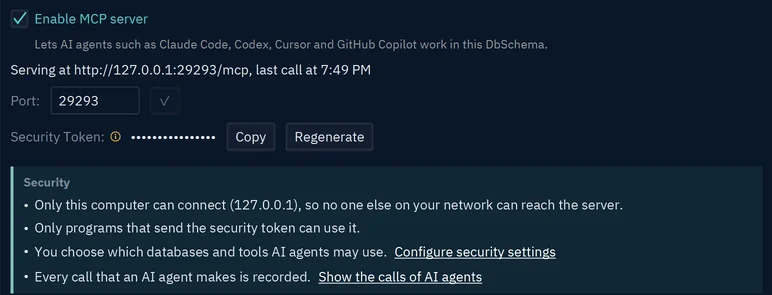
The server starts again each time you start DbSchema, until you untick Enable MCP server. With the free Community edition, ticking the box asks you to upgrade first.
Connect your AI agent
Each AI agent has a settings file. The file tells the agent the address of the server and the security token, a secret code that proves the agent may connect. DbSchema writes these settings for you.
- On the same AI → MCP page, find your agent in the list of Claude Code, Codex, Cursor and GitHub Copilot.
- Press Configure beside it.
- Restart the agent if it is running, so that it reads the new settings.

The status beside the agent changes to "Configured": the agent's settings file now holds the server's address and token. "Not installed" means that DbSchema did not find the agent on this computer.
For an agent that is not in the list, see Configure other agents.
Try your first request
- Open a project in DbSchema.
- In your agent, type a request that names DbSchema, such as "In DbSchema, list the tables of the open project."
The agent answers with the tables of your project. In DbSchema, the MCP badge in the toolbar pulses while the agent works. See what the agent did shows where to find each request.
Let the agent use a database
The agent can read the design of the open projects. It can use a real database only through a connection that you allow.
- Choose Database → Manage Connections.
- Press the edit button of the connection.
- Open the Access and Model tab, and tick Allow AI tools to access this database connection.
- In the dialog that asks you to confirm, press Allow AI access.

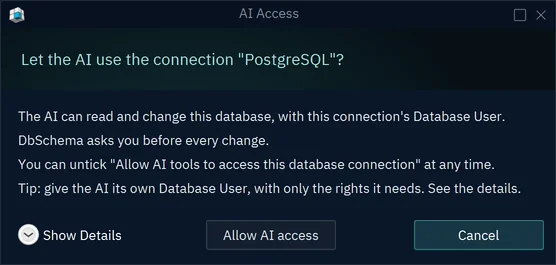
The agent connects with the database user and password of that connection. To limit what the agent can do, create a database user with only the permissions that the agent needs. Then use that user in the connection.
The same check box also lets DbSchema's own AI Assistant use the database.
Approve what the agent asks
Each project has an AI tool preset: a setting that decides which tools run without asking, which ask you first, and which are off. To choose it, choose File → Properties and set AI Tool Preset.
| Preset | What the agent may do in the project |
|---|---|
| No model access | Nothing. |
| Read only | Read the design. |
| Edit access | Read and change the design. It asks before it deletes something or saves the project file. This is the default. |
| Full access | Read and change the design without asking. |
The preset does not control the two kinds of request that use a database:
- DbSchema asks you before the agent reads the rows of a table. You can change that in Edit → Settings → AI → Security.
- DbSchema always asks you before the agent changes a database. No setting turns this question off.
When a request asks first, DbSchema opens Confirm the AI's request, and the agent waits for your answer.
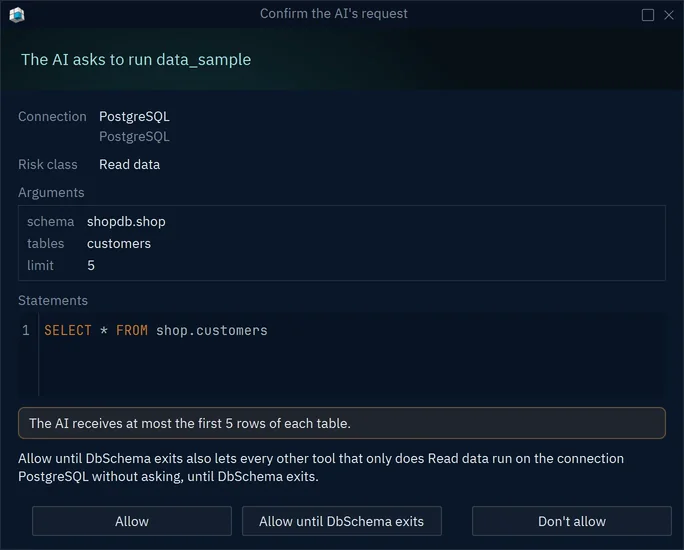
The dialog shows the tool that the agent wants to use, the values that it passes to the tool, and the SQL statement. Then choose one:
- Allow runs this request.
- Allow until DbSchema exits runs this request. Until you close DbSchema, every other request that only reads data on this connection runs without asking.
- Don't allow refuses the request.
Edit → Settings → AI → Security also holds the rules for the tools that are not part of a project, such as running SQL or changing settings. AI Permissions explains every one of these settings.
See what the agent did
While the server runs, an MCP badge shows in the toolbar. Click it to open the AI → MCP page of the settings. The connection box beside it says "AI access" when agents may use that database.

DbSchema records every request that an agent sends to its tools. To see them, choose Help → Output Logs and open the AI tool calls tab. The link Show the calls of AI agents, on the AI → MCP page, opens the same tab.

Click a request to see the database connection, the values that the agent passed to the tool, and your answer.
Keep the server safe
The Security box on the AI → MCP page sums up how the server is protected:
- Only this computer can connect. The server uses the address 127.0.0.1, which always means "this computer". Other computers on your network cannot connect to it.
- Only programs that send the security token can use the server.
- You choose which databases and tools the agents may use.
- DbSchema records every request of an agent.
If someone else may have seen your security token, press Regenerate beside it. Then press Configure again for each agent, and restart the agent. Until then, the agent still sends the old token, and the server refuses it.
Configure other agents
Configure writes these files, where ~ stands for your home folder:
| Agent | Settings file |
|---|---|
| Claude Code | ~/.claude.json |
| Codex | ~/.codex/config.toml |
| Cursor | ~/.cursor/mcp.json |
| GitHub Copilot (VS Code and Copilot CLI) | ~/.copilot/mcp-config.json |
Configure updates only the DbSchema settings in the file, and keeps all your other settings.
Comments in a JSON file are removed, though.
Before DbSchema changes a file for the first time, it saves a copy with .bak added to the name.
For any other agent that supports MCP, press Copy JSON. DbSchema copies the settings that the agent needs, with the address and the security token. Add them to the agent's list of MCP servers. Keep these settings private, because they hold the token.
Common problems
The MCP page is missing from the settings
Beta features are off. Tick Enable Beta Features in Edit → Settings → Projects.
"Couldn't start … port 29292 was in use, possibly by another DbSchema window"
Another program already uses the port, often a second DbSchema window.

Close the other window and press Retry. Or type another port, such as 29293, and press the check-mark button beside it. The server's address changes with the port, so press Configure again for each agent, and restart it.
The status says that the server needs DbSchema Pro
Your license stopped covering Pro while the server was on. DbSchema now runs as the free Community edition, so the server refuses every request. Register a Pro or Architect license.
The agent says that it has no database
No connection allows AI access yet. Tick Allow AI tools to access this database connection, as Let the agent use a database shows.
The agent stopped working after I pressed Regenerate
The agent still sends the old security token. Press Configure for it again, and restart it.