AI Permissions
AI permissions decide what the AI may do in DbSchema. "The AI" means the AI Assistant and the AI agents that you connect through the MCP server, such as Claude Code. Both use the same tools, and the same permissions.
How AI permissions work
A tool is one action that the AI can ask DbSchema to do, such as "list the tables" or "run a query". Each tool has a mode:
- With Allow, the tool runs without asking you.
- With Ask, DbSchema asks you first.
- With Off, the AI cannot use the tool.
The design is your DbSchema project: the tables, columns and diagrams that you see in DbSchema. The database is the real database on the server.
Three settings decide what the AI may do:
| Setting | What it decides | Where |
|---|---|---|
| AI access of a connection | Which databases the AI may use | Each connection, in Database → Manage Connections |
| AI tool preset of a project | What the AI may do with the design of that project | File → Properties |
| Global tool permissions | The tools that are not part of a project, such as running SQL or opening a project | Edit → Settings → AI → Security |
Each tool follows either the project's preset or the global tool permissions. A tool that uses a database also needs AI access on that database's connection.
This table shows which settings some common tasks need, with the default settings:
| Task | What it needs |
|---|---|
| Review the design | A preset that can read the design: any preset but No model access |
| Create a table in the design | The preset Edit access or Full access |
Read the rows of the customers table | AI access on the connection. DbSchema asks you first. |
| Change a table in the database | AI access on the connection, and a database user with that right. DbSchema always asks you first. |
How DbSchema protects your database
- Every connection starts without AI access.
- In a database, the AI can do only what the connection's database user is allowed to do.
- DbSchema always asks you before the AI changes a database. No setting and no preset can turn that question off.
- When the AI only reads, DbSchema uses a read-only connection. Afterwards, DbSchema rolls back the transaction, so anything that the AI's statements changed is undone.
- Everything that the AI reads from the design or from a database is sent to your AI provider. With Ollama, which runs the AI model on your own computer, nothing leaves your computer.
Allow the AI to use a database
- Choose Database → Manage Connections.
- Press the edit button of the connection.
- Open the Access and Model tab, and tick Allow AI tools to access this database connection.
- In the AI Access dialog, press Allow AI access.

The AI Access dialog sums up what you allow. Press Show Details to read every rule:
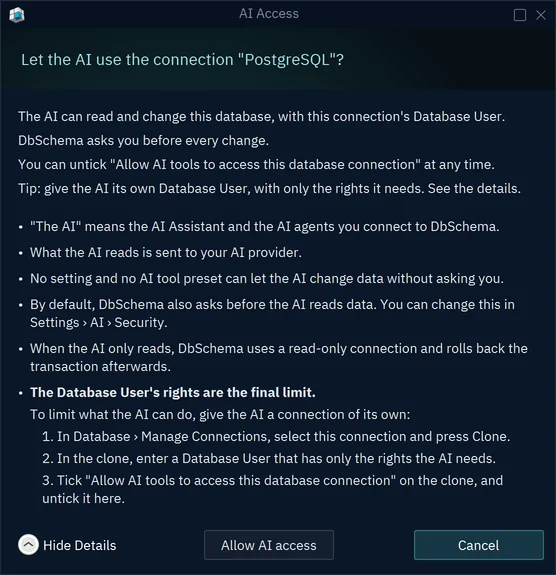
In the toolbar, a connection with AI access shows "AI access" below its name. To remove the access, untick Allow AI tools to access this database connection at any time.
Choose what the AI may do in a project
Each project has an AI tool preset. The preset controls the tools that work on the project's design: each one runs without asking, asks you first, or is off.
- Choose File → Properties.
- Choose a preset in AI Tool Preset.
- Press OK.
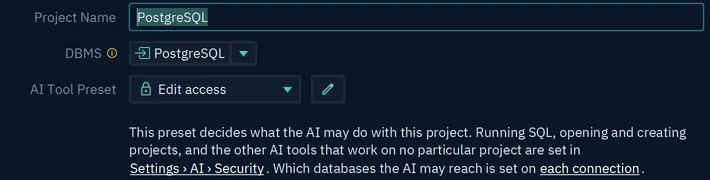
DbSchema has four presets:
| Preset | Read the design | Change the design | Delete from the design | Save the project file | Read the list of tables in a database |
|---|---|---|---|---|---|
| No model access | Off | Off | Off | Off | Off |
| Read only | Allow | Off | Off | Off | Ask |
| Edit access | Allow | Allow | Ask | Ask | Ask |
| Full access | Allow | Allow | Allow | Allow | Allow |
By default, new projects use the Edit access preset. To change that, choose another preset in Default tool preset for new projects, in Edit → Settings → AI → Security.
Even with Full access, DbSchema asks you before the AI changes a database. The preset decides what the AI does with the design; changes to a database always need your answer.
Set the global tool permissions
Some tools are not part of a specific project, such as running SQL, opening and creating projects, and changing settings. Their permissions are global.
- Choose Edit → Settings → AI → Security.
- Press Configure global tool permissions….
- Set the Mode of each tool, or of a whole group.
- Press OK.
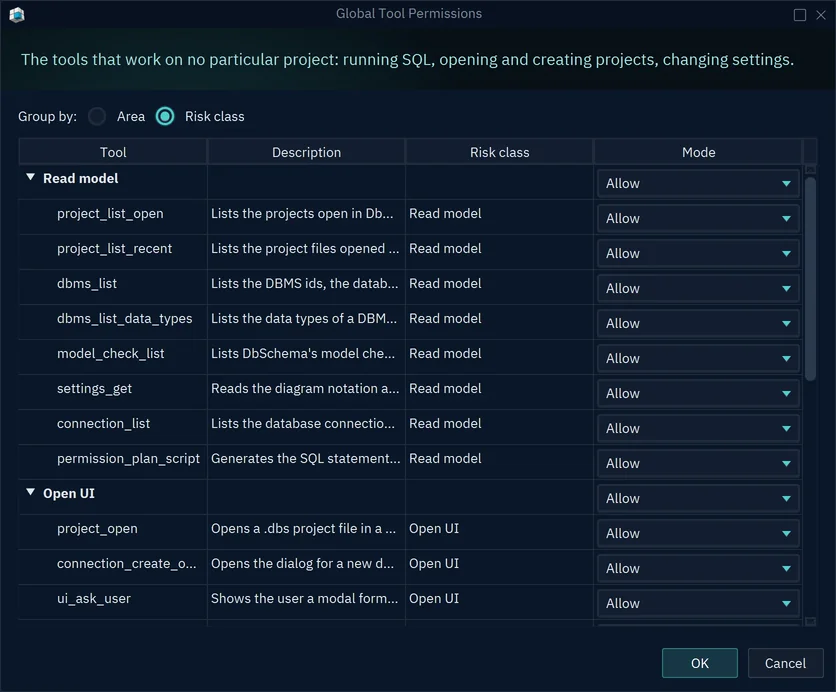
Each tool has a risk class that describes the type of operation it performs. These are the risk classes, with their default modes for the global tools:
| Risk class | What the tool does | Default |
|---|---|---|
| Read model | Reads the design | Allow |
| Open UI | Opens a DbSchema window or dialog | Allow |
| Edit model | Changes the design | Allow |
| Change settings | Changes a DbSchema setting | Ask |
| Read database metadata | Reads the list of tables and other objects in a database | Ask |
| Read data | Reads rows from a database, or shows how the database would run a query | Ask |
| Change database | Changes the data or the structure of a database | Ask |
For tools in the Change database risk class, you can choose Ask or Off, but not Allow. If you choose Allow for a group, its Change database tools are set to Ask.
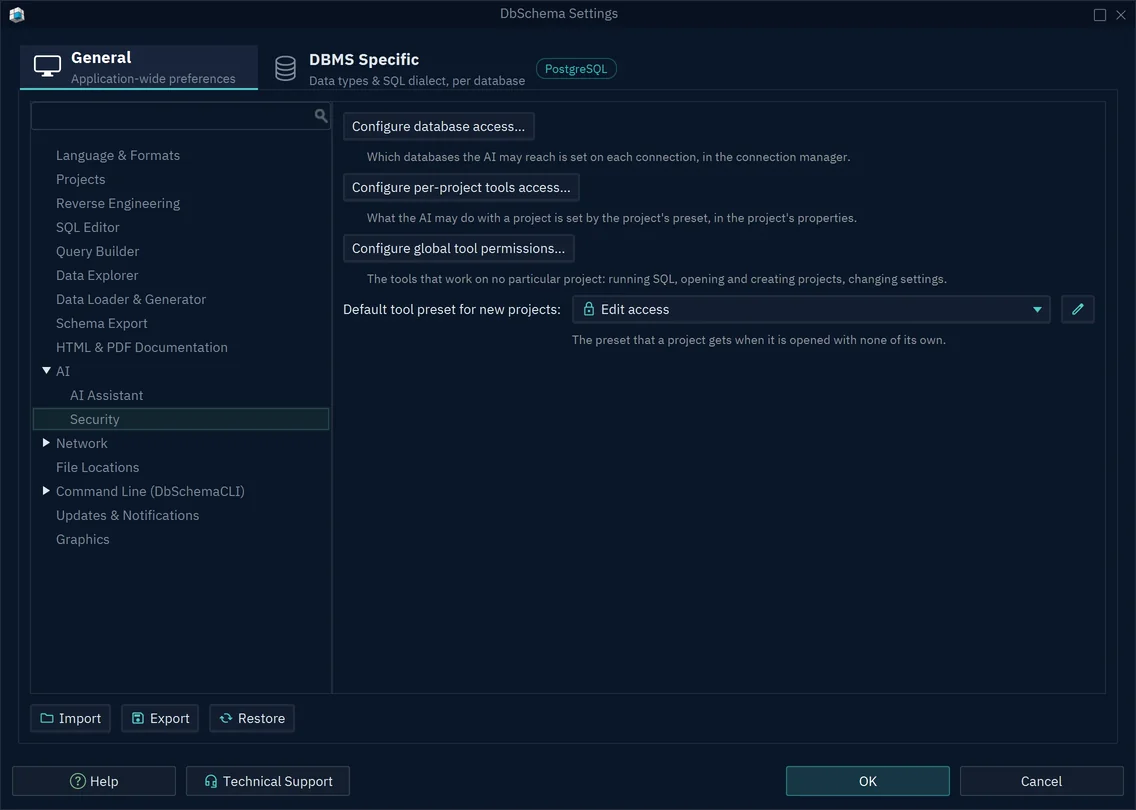
The other buttons on this page open the settings described above. Configure database access… opens the connections, and Configure per-project tools access… opens the project's preset.
Answer a confirmation
When a tool is set to Ask, DbSchema opens the Confirm the AI's request dialog. The AI waits for your answer before the tool runs.
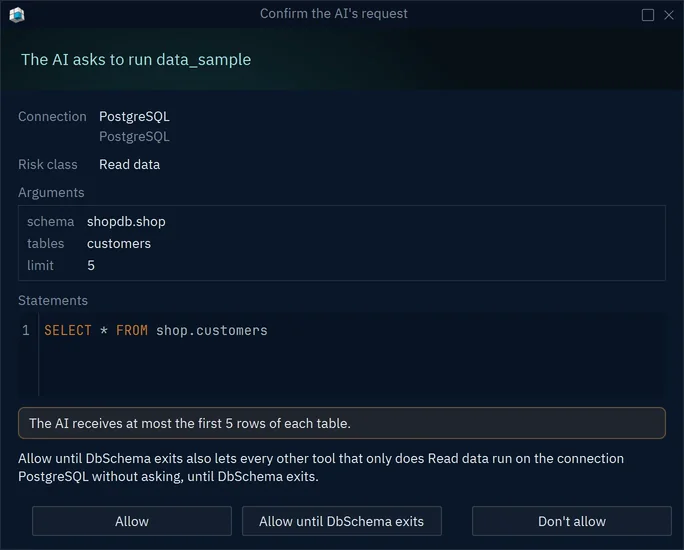
The dialog shows the requested tool, its connection, its risk class, the values that the AI passes to it, and the SQL statement to be run. Then choose one:
- Allow runs this request.
- Allow until DbSchema exits runs this request. Until you close DbSchema, requests of the same risk class on this connection run without asking you. A change to a database still asks every time.
- Don't allow refuses the request.
See what the AI did
DbSchema records every request of the AI, whether it ran, failed or was refused.
- Choose Help → Output Logs.
- Open the AI tool calls tab.

The Consumer column shows who made the request, for example MCP agent. Click a request to see the connection, the values that the AI passed to the tool, and your answer.
Advanced settings
Create a separate database connection for the AI
To limit what the AI can do in a database, give it a connection of its own, with a database user that has fewer rights:
- In Database → Manage Connections, select the connection and press Clone.
- In the clone, enter a database user with only the rights that the AI needs.
- Tick Allow AI tools to access this database connection on the clone, and untick it on the original connection.
Make your own preset
You cannot change the four built-in presets, but you can duplicate one and change the copy.
- In File → Properties, press the pencil button beside AI Tool Preset.
- Choose the preset to start from, and press Duplicate to edit.
- Type a name in Name, and set the Mode of each tool to Allow, Ask or Off.
- Press Close.
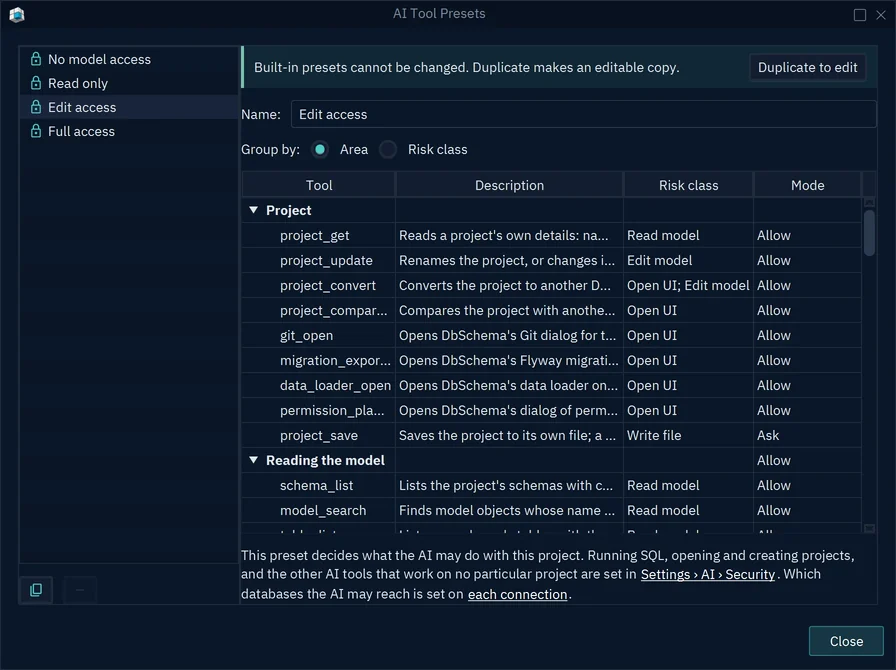
Group by Risk class sorts the tools by the type of operation, such as Read model or Edit model. Changing the Mode of a group applies it to every tool in the group.
Common problems
The AI says that it has no database
No connection allows AI access yet. Tick Allow AI tools to access this database connection, as Allow the AI to use a database shows.
The AI cannot change my design
The project's preset is Read only or No model access. Choose File → Properties and set AI Tool Preset to Edit access.
I set a tool to Allow, but it still asks
The tool changes a database. DbSchema always asks you before such a tool runs, whatever its mode says.
The AI cannot run any SQL, but it can still read rows
Read-Only Mode is on, in Edit → Settings → SQL Editor. It stops every SQL statement that the AI writes, SELECT included. The tools that read sample rows of a table still work. Untick it to let the AI run queries again.