AI Assistant
The AI Assistant is a side bar in DbSchema where you ask an AI model about your schema.
It writes SQL, reviews table designs, and generates CREATE TABLE statements that you can merge into the model.
It works from the structure of the tables that you attach, never from the data in them.
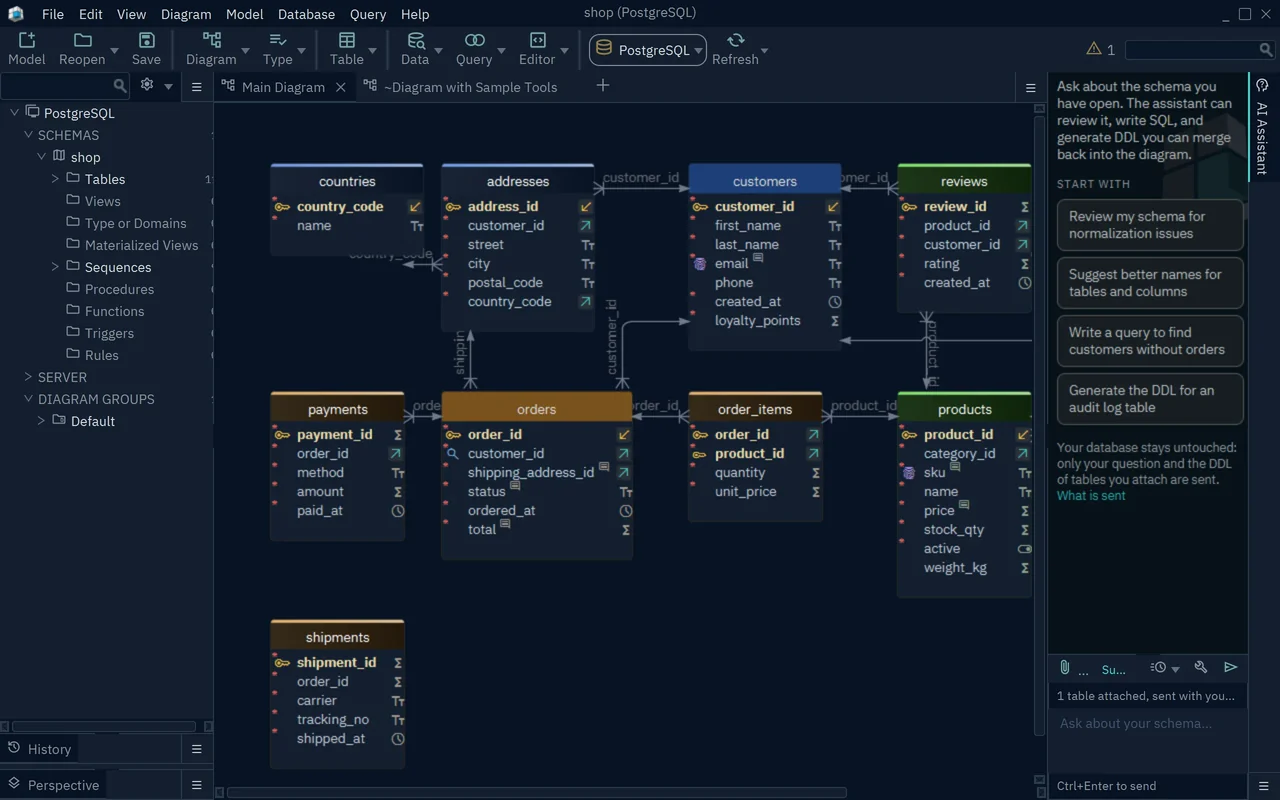
Open the AI Assistant
- Click the vertical AI Assistant tab at the right edge of the DbSchema window.
- If you have no AI subscription yet, the Start your free AI trial dialog opens. See Start the free trial.
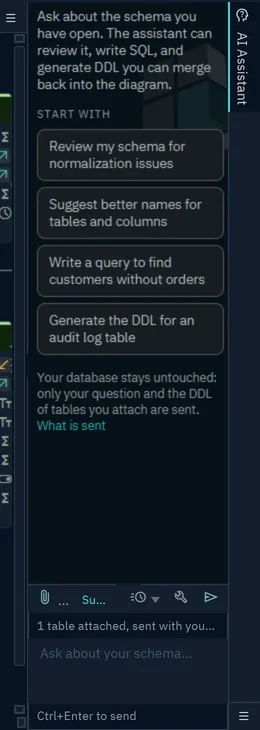
The side bar suggests first questions under Start with, such as Review my schema for normalization issues. Under the answers is the toolbar:
- Attach (the paper clip): add the structure of tables to the question.
- The model name: the model that answers. Click it to choose another one.
- Conversation (the clock): start a new conversation, or open an earlier one.
- Settings (the wrench): the AI Settings dialog.
- Send (the arrow): send the question. Ctrl+Enter sends it too.
Start the free trial
The trial lets you use the AI Assistant without an account at an AI company. DbSchema answers through its own AI subscription.
- Type your email in the Start your free AI trial dialog.
- Press Start Free Trial.
- DbSchema emails you an activation code. Paste it in the next step, and the trial starts.
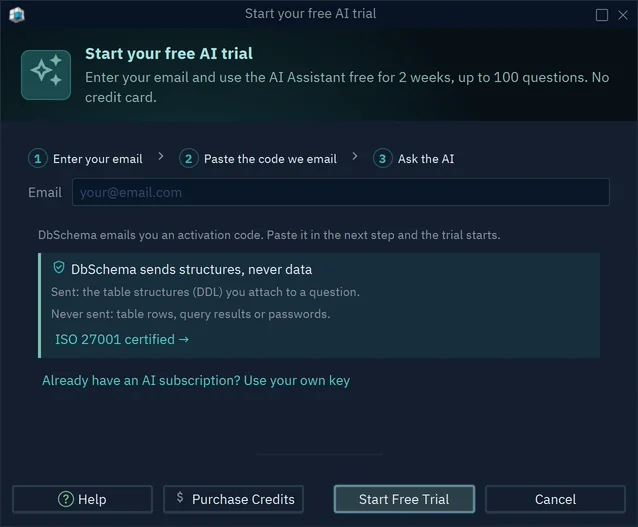
The trial lasts two weeks, for up to 100 questions, with no credit card. After the trial, Purchase Credits buys more questions. The trial and the credits work in every DbSchema edition, the free Community edition included.
Use your own AI provider
If you already pay an AI company, such as OpenAI or Anthropic, DbSchema can use your account. This needs DbSchema Architect.
- Open AI Settings: press Settings in the side bar, or the link Already have an AI subscription? Use your own key in the trial dialog.
- Choose the company in Subscription by: OpenAI, AzureOpenAi, Claude, Gemini, DeepSeek, Grok, Mistral, Venice or Ollama.
- Paste your key in Api Key. The company bills you for the questions.
- Choose the Model.
- Press OK.
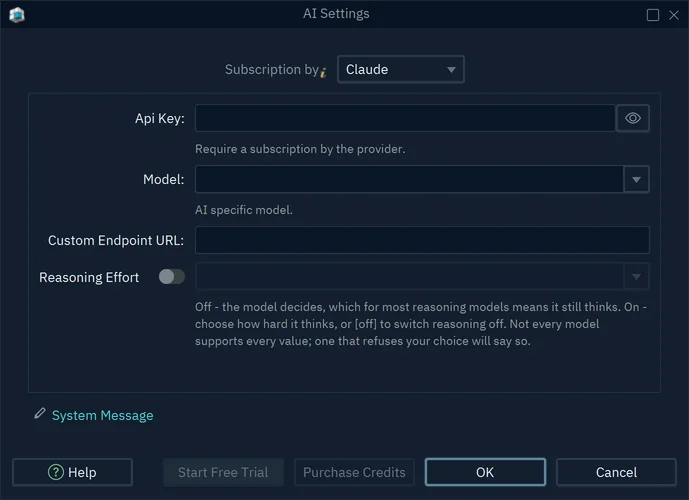
Ollama runs a model on your own computer. It needs no key: you give its Endpoint, and nothing leaves your computer. DbSchema in Subscription by goes back to the DbSchema credits.
Attach tables to a question
The assistant knows only what you send with the question. Attach the tables that the question is about, so the answer uses your real table and column names.
- Select the tables on the diagram. Ctrl+click adds a table to the selection.
- Right-click one of them and choose Attach to AI.
- The Ask AI dialog shows the Attachment: the
CREATE TABLEstatements of the tables. You can edit them. - Choose Ask to pick a question from Question Templates, or Attach only to write the question yourself.
- Press OK.
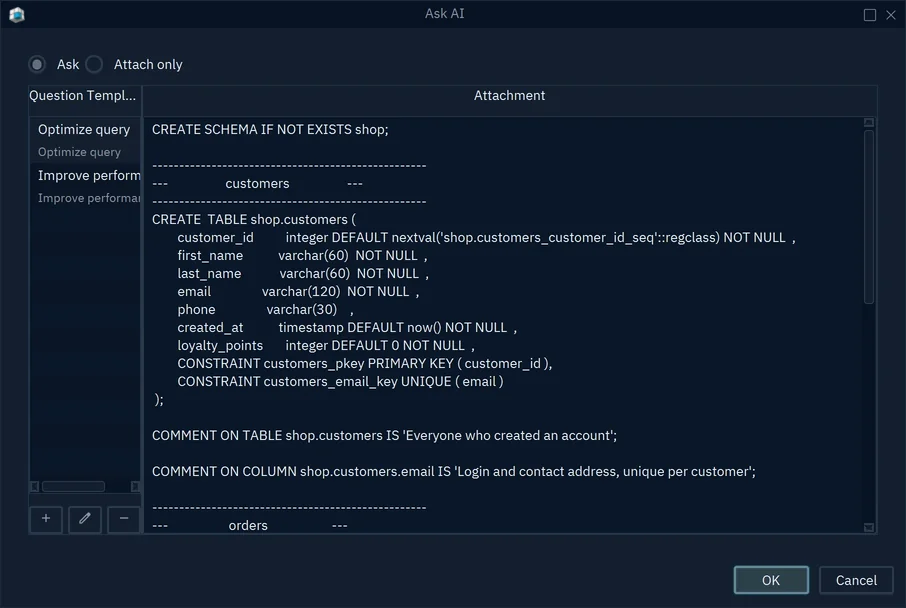
The line above the question box now says what is attached, such as 1 table attached, sent with your next question. The Attach button in the side bar lists what is attached, and can add a text file, such as an SQL script.
Ask a question
- Type the question in the box at the bottom of the side bar, such as "Write a query to find customers without orders".
- Press Send, or Ctrl+Enter.
The answer comes back in the side bar. SQL comes in code blocks, with buttons under each block:
- Copy copies the code.
- Run runs a
SELECTin the database. - Editor opens the code in an SQL Editor.
- Merge adds a
CREATEorALTERstatement to the model. - Preview shows a
CREATE TABLEon a preview diagram before you merge it.
A question in the same conversation sees the earlier questions and answers. Conversation → New Conversation starts over.
What DbSchema sends to the AI
- Sent: your question, the earlier questions and answers of the conversation, the structure (DDL) of the tables that you attach, and the system message.
- Never sent: table rows, query results, passwords or connection details.
The Run button runs SQL on your computer, and its result stays there. With Ollama, nothing leaves your computer at all.
Change the system message or turn the assistant off
The system message holds the instructions that go with every question, such as the SQL dialect to answer in. Add your own rules there, such as a naming convention.
- Choose Edit → Settings.
- Choose AI Assistant in the tree.
- Edit the System Message, or clear Enable to remove the AI Assistant from DbSchema.
- Press OK.
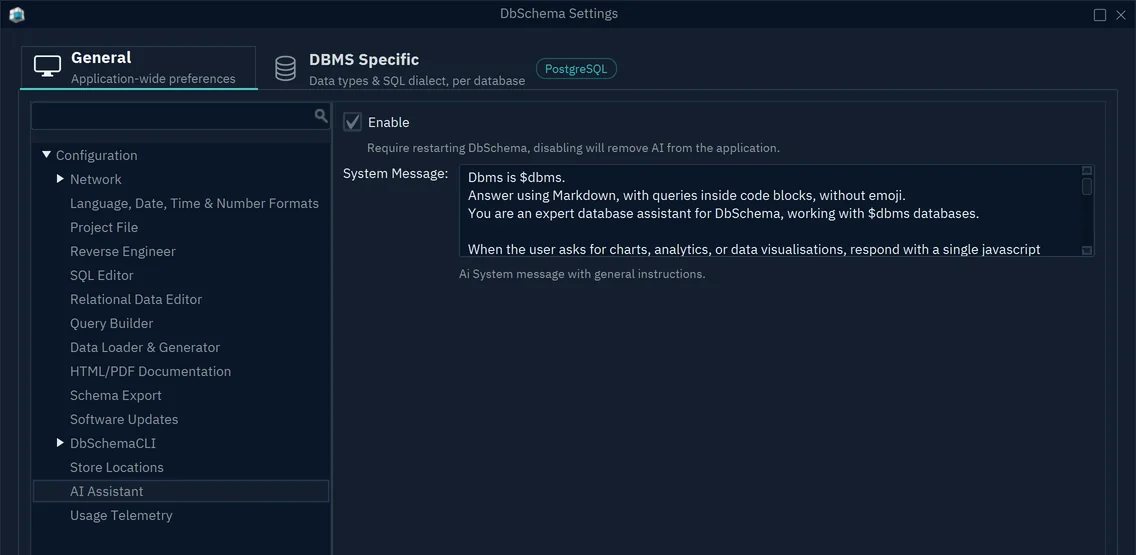
Enable takes effect after you restart DbSchema.
In the system message, $dbms stands for the database type of the model, such as PostgreSQL.
Common problems
The AI Assistant tab is missing
The assistant is turned off. Tick Enable in Edit → Settings → AI Assistant and restart DbSchema.
"This feature requires a DbSchema license key" when I choose my own provider
Your own key needs a DbSchema license. DbSchema switches Subscription by back to DbSchema, which works without a license.