Quick Table Editor
The Quick Table Editor shows the tables of the model and their columns in one grid, like a spreadsheet. Use it to change many columns in one go, instead of opening a dialog for each table.
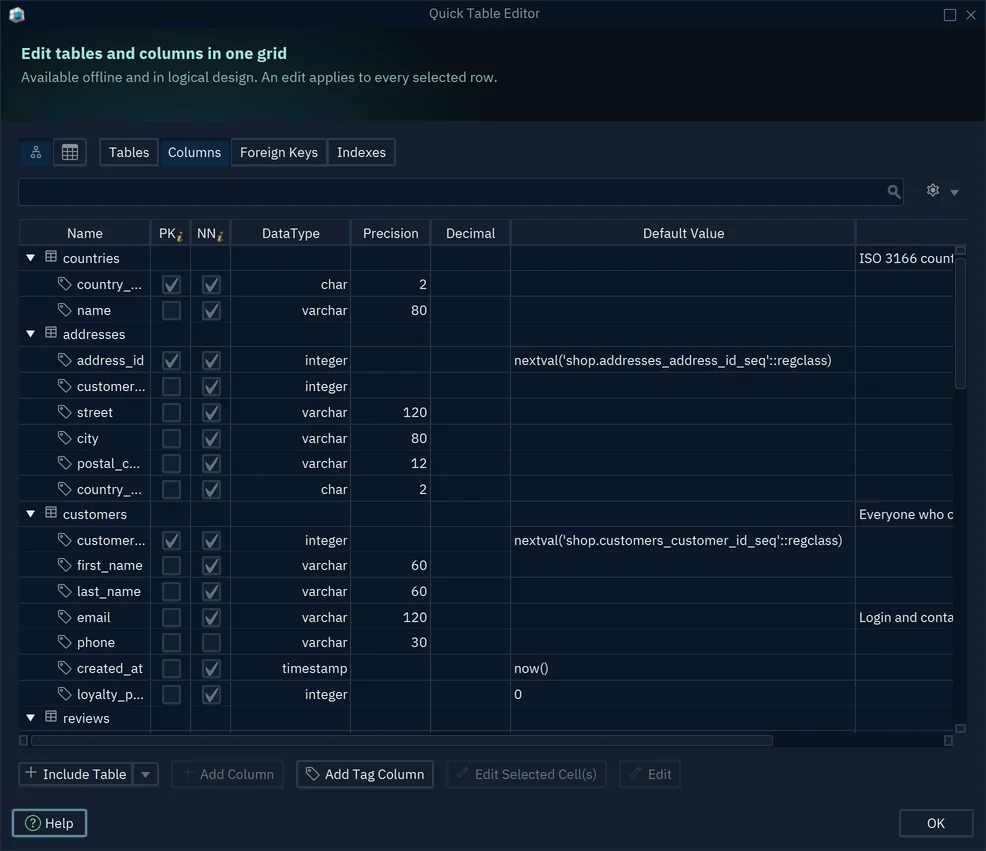
The Quick Table Editor works only offline or in logical design. Its changes go to the model. To bring them to a database, synchronize the model.
Open the Quick Table Editor
- If you are connected, choose Database → Offline (connect later). The toolbar then shows Offline in place of the connection name.
- Choose Model → Quick Table Editor. The Table button of the toolbar has the same item.

While you are connected, Quick Table Editor is disabled in the menu.
Choose what the grid shows
The buttons above the grid choose the rows:
- Tables, Columns, Foreign Keys or Indexes: the kind of object in the rows.
- The two icon buttons on the left switch between a tree, with the columns under their table, and a flat list with a Table column.
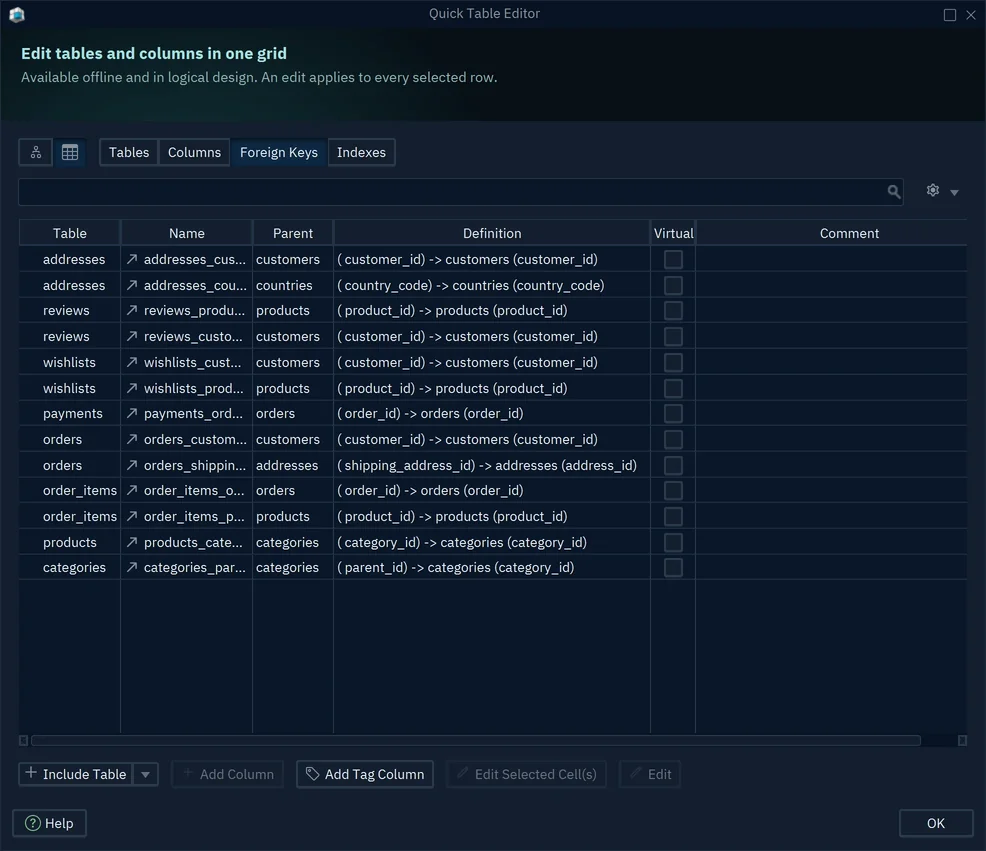
Include Table adds tables of the model to the grid. Its menu item Include Layout Tables adds the tables of a diagram that you choose.
Edit many columns at once
An edit in the data type or in the NN (not null) cell applies to every selected row.
- Click the first row, then Ctrl+click the other rows.
- Change the data type, or tick or clear NN, in one of the selected rows.
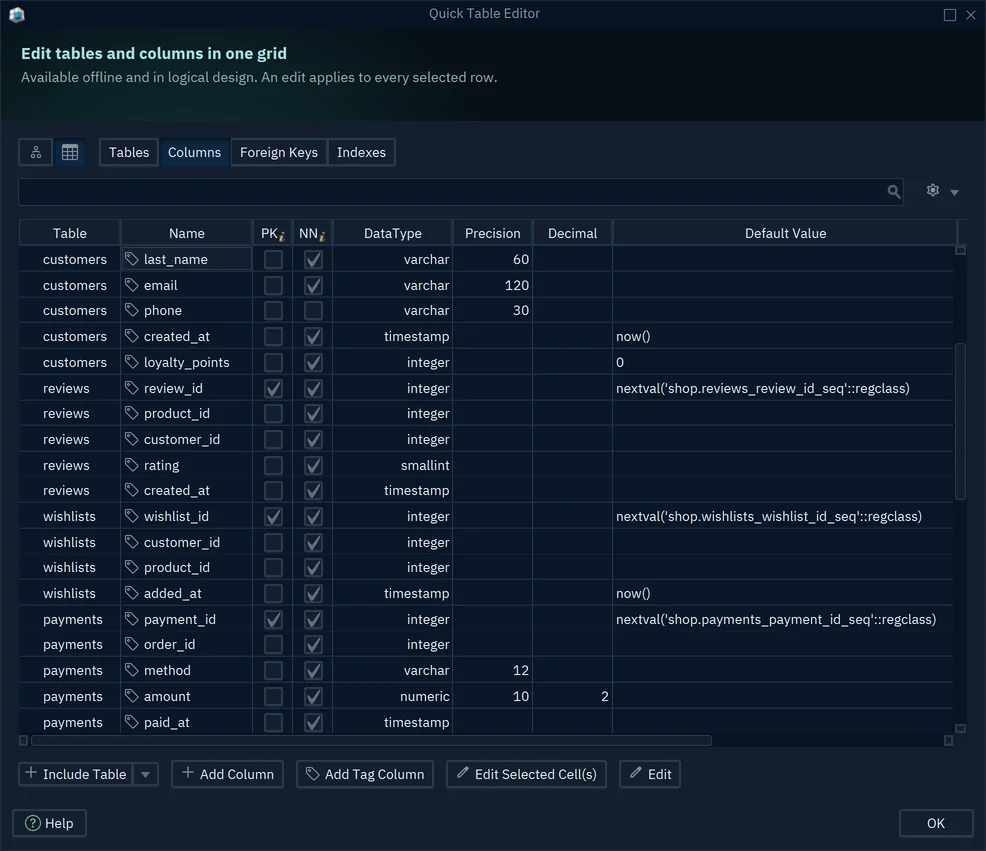
The other cells, such as Precision or Default Value, change one row at a time. To edit a cell, select it and press Edit Selected Cell(s).
Add Column asks for a name and adds that column to the table of each selected row. Add Tag Column adds a column to the grid for a comment tag, so you can fill the tag for every table or column.
Each edit changes the model at once. OK closes the editor.