Licensing and Registration
Once the trial ends, DbSchema keeps the Pro or Architect features on only for a registered license. You register a license in Help → Register License, in one of three ways: sign in with your DbSchema account, paste the license key, or lease a seat from a license server on your network.
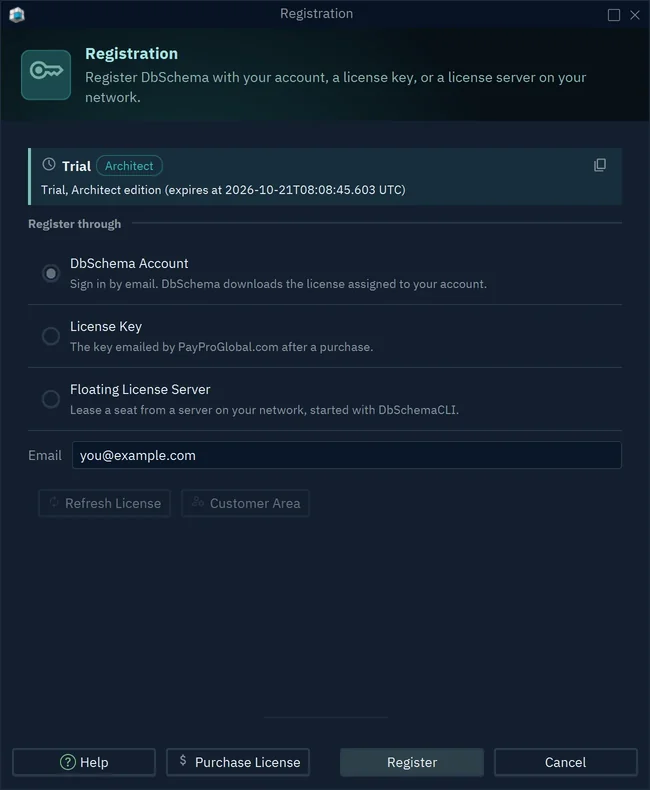
The banner at the top of the Registration dialog shows the state of the license: Licensed, Trial, License expired or No license registered, with the edition beside it. The button beside the banner copies its text, to paste into a message to support.
Choose an edition and a license
DbSchema comes in three editions, and each one adds to the one before. Community is free and covers connecting, diagrams and the SQL editor. Pro adds, among others, saving the model to a file, comparing it with a database, and HTML documentation. Architect adds logical and conceptual design. Help → Purchase or Renew License opens the Compare Plans tab, which lists them side by side, and the purchase page has the prices.
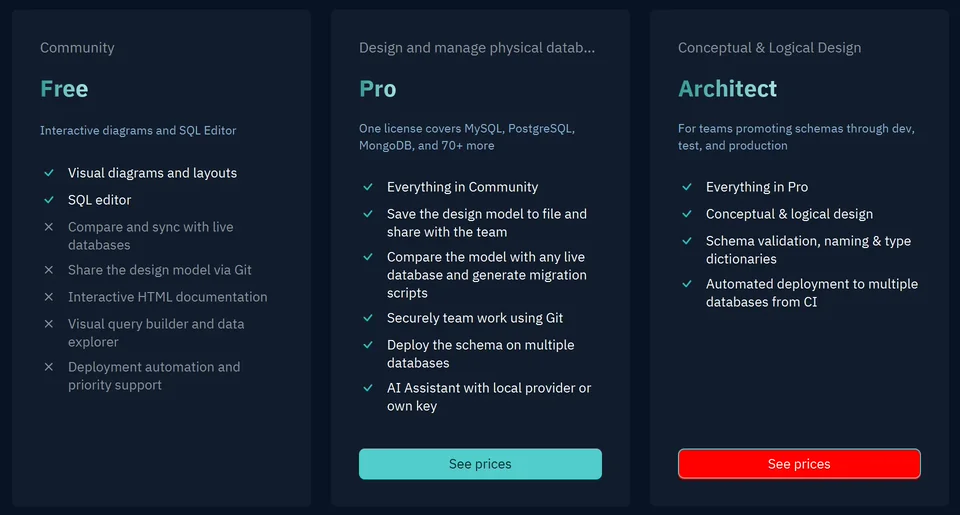
When your license has a renewal to offer, the same menu item opens that renewal instead. The Purchase License button of the Registration dialog opens the purchase page in your browser.
Besides the edition, you choose who pays, how you pay and who uses the license:
| Choice | Option | What it means |
|---|---|---|
| Who pays | Commercial | A company or an organization; seats can be reassigned |
| Who pays | Personal | An individual |
| Who pays | Educational | Students and teachers |
| How you pay | Perpetual | One payment, with one year of new versions |
| How you pay | Monthly subscription | Every version, while you pay |
| Who uses it | Regular | One person per seat, on up to two computers |
| Who uses it | Floating | A team that shares a number of seats |
Which versions a license runs explains the year of a perpetual license, and Share seats with a floating license how a floating license works.
Register with your DbSchema account
Signing in with your email is the simplest way: there is no key to copy, and it works for regular and floating licenses alike.
- Choose Help → Register License.
- Choose DbSchema Account.
- Type in Email the address of the purchase, or the one that the license owner assigned to you in the Customer Area.
- Press Register. DbSchema emails you a validation code.
- Type the code into the Validation Code dialog and press OK.
DbSchema downloads the license assigned to your email and closes the dialog. For a floating license, it takes a seat. If you mistype the code, DbSchema says "The validation code is wrong" and asks again, and the code from the email still works.
Once you're signed in, the dialog offers three more buttons under the Email field. Refresh License downloads the license again, such as after a renewal. Customer Area opens the Customer Area in your browser, and Unregister signs you out.
Register with a license key
Use the license key when you don't want to sign in, or when the computer has no internet access. PayProGlobal emails the key after the purchase, and the Customer Area keeps a copy.
- Choose Help → Register License.
- Choose License Key.
- Type the Email of the purchase, or the email assigned to you in the Customer Area.
- Paste the whole key, including its first and last
###lines, or press Load From File to read it from a text file. - Press Register. DbSchema activates the key online and shows "Key Successfully Loaded!".
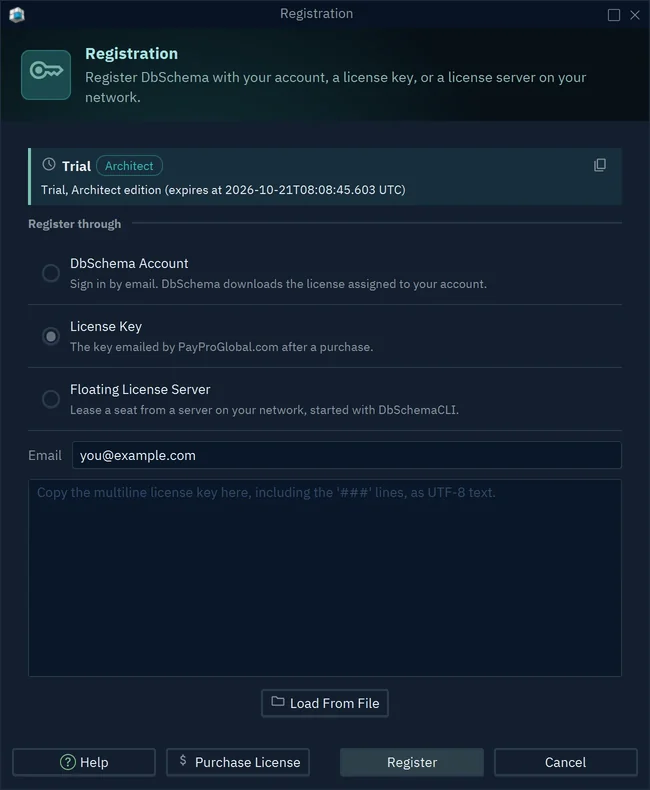
A file that holds several keys, one per seat, makes DbSchema ask which seat to use. A regular key can be active on two computers at a time. A floating key is refused here, because it belongs to a license server, as Run a floating license server shows. License keys issued since DbSchema 10.4.0 need that version or a later one, so register a new or renewed key in a current version.
Activate a computer without internet access
If DbSchema cannot reach the licensing server, the dialog Activate DbSchema from another computer opens.
- Copy the link that the dialog shows, with the button next to it.
- Open the link on any computer with internet access. The page shows a 5-character code.
- Type the code into Response Code and press OK.
Registration and activation connect to https://dbschema.com and to no other host. Behind a company proxy, set the proxy in Edit → Settings → Network → Proxy, as Firewall, Proxy & SSH Tunnel explains.
Move a license to another computer
A regular key is active on at most two computers, so free one before you register the key on a third.
- On the computer you stop using, choose Help → Unregister License.
- DbSchema asks "Are you sure you want to unregister DbSchema?". Press Unregister.
- Register the key on the new computer.
DbSchema frees the activation on the licensing server. If it cannot reach the server, it says "Unregister done locally, but failed to deactivate from the DbSchema server.", and the activation stays counted. During a trial, Help → Unregister License is disabled.
If the old computer was reformatted, replaced or lost, open a support ticket. We clear its activations, and you can register the key again.
Register with a floating license server
If your company runs its own floating license server, DbSchema leases a seat from it.
- Choose Help → Register License.
- Choose Floating License Server.
- Type your Email and the Server URL, such as
http://myhost:8080orhttps://license.example.com. The address has to start withhttp://orhttps://. - Press Register.
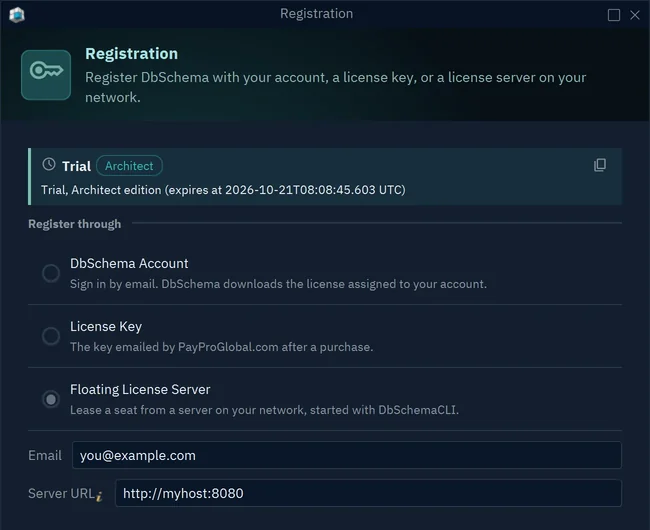
DbSchema saves the address only once the server grants a seat, so a mistyped address leaves your registration as it was.
Which versions a license runs
A perpetual license runs every DbSchema version released within one year of its purchase, and it keeps running those versions after the year ends. A renewal adds another year of new versions, and keeps your license ID and your activations. A monthly subscription runs every version for as long as you pay.
If you install a version released after that year, DbSchema shows "License expired: Renew your license", and the licensed features stay off in that version. The start window names your cutoff date: "Your license covers every version released before …". You have two ways out:
- Renew the license with Help → Purchase or Renew License, which opens the renewal of your license.
- Install a version released before the cutoff date from Previous Releases, and register it with the same key.
Manage licenses in the Customer Area
The Customer Area is where the license owner manages orders, keys and the people who use them. You sign in with your email and receive a one-time login link.
The dashboard lists your subscriptions. Keys opens the Manage End-Users page of a subscription, and the menu of a subscription, ⋯, holds End-Users & Keys, Invoice and Reassign end-user.
Assign the seats of a regular license
On the Manage End-Users page of a regular subscription, the Assign End-Users panel lists one email per seat, and the Download Keys panel one key per seat. Edit the email of a seat to give it to someone else. That person then registers with their own email, not the buyer's.
When a license is generated, seat 1 goes to the end-user email of the order, and a renewal keeps every seat's email. Only a commercial license can be reassigned. A seat that you assigned by hand stays with that email for 3 months, while a seat assigned automatically can change at any time. Reassign end-user in the ⋯ menu changes the end-user of the whole subscription.
Manage the users of a floating license
On the Manage End-Users page of a floating subscription, type an address into End-User Email and press Add User for each person allowed to use the license. The trash icon removes one. The list can be longer than the number of seats, which limits only how many people work at the same time. Each of them registers with DbSchema Account and the email on the list.
Educational and class licenses
A teacher asks for a free class license with a support ticket sent from the school email address, and the license is renewed for each school year on request. The teacher adds each student's email as a user of the floating license, and each student registers with DbSchema Account and that email.
Share seats with a floating license
A floating license lets a team share a number of seats: as many people as you bought can work at the same time. DbSchema holds a seat while it runs, and frees it when you close DbSchema or choose Help → Unregister License, so a larger team can share the seats across time zones.
With a DbSchema account there is no server to install. The license owner adds the users' emails in the Customer Area, and each user registers with DbSchema Account, as Register with your DbSchema account shows. A running DbSchema keeps its seat however long it sits idle. If DbSchema crashes or loses its network, the seat is freed once it stops contacting the licensing server.
Run a floating license server
On a network without internet access, run your own floating license server. Download the floating key from the Customer Area, in the Download Key panel of the floating subscription.
The server is DbSchemaCLI, which every DbSchema installation includes. The server answers plain HTTP on its port, 8080 unless you choose another. The license needs no internet access: the server contacts https://dbschema.com only to download the H2 database driver at its first start, if the driver is missing.
Run a server at least as new as the DbSchema it serves. DbSchema 10.4 and later refuse an older server with "This DbSchema version requires a newer version of the Floating License Server.", so update the server before you roll out a new DbSchema version.
Start the server from DbSchemaCLI
- Open a terminal and start DbSchemaCLI.
- Load the floating key from its file:
register -f "path/to/license-file.txt"
- Start the server, on port 8080 unless you give another one with
-p:
license server -s -p 8080
From the same DbSchemaCLI or another one, license server -i shows the active users out of the licensed number, and license server -l shows the server log. Add -H <host> -p <port>, or -U <url>, to ask a server on another computer.
To keep the server running, save the commands as a DbSchemaCLI script, such as license-server.txt, and run DbSchemaCLI license-server.txt at system startup, from Windows Task Scheduler or a Linux service:
register -f "path/to/license-file.txt"
license server -s -p 8080
sleep
The server writes its log to .DbSchema/logs/logs.txt, in the home folder of the user that runs it.
Run the server in Docker
The image dbschema/dbschema-license-server runs the same commands. Mount the floating key at /dbschema/license.txt and publish port 8080:
docker container run --rm \
    --volume "/path/to/license-file.txt:/dbschema/license.txt:ro" \
    --publish 8080:8080 \
    dbschema/dbschema-license-server:latest
The same with Docker Compose:
services:
  dbschema-license-server:
    image: dbschema/dbschema-license-server:latest
    volumes:
      - "./DbSchemaLicense.txt:/dbschema/license.txt:ro"
    ports:
      - "8080:8080"
Behind a company proxy, give the container the proxy in https_proxy, all_proxy or http_proxy, such as http://proxy.corp:3128, and the hosts to reach directly in no_proxy. To trust a company certificate authority, mount the certificate and name it in SSL_CERT_FILE, or its folder in SSL_CERT_DIR. A value that the server cannot use stops the container with a message, which docker logs shows.
Point DbSchema at the server
Each user registers once with Help → Register License → Floating License Server, as Register with a floating license server shows. To fill in the Server URL for every user, set the environment variable DBSCHEMA_FLS_URL on their computers, such as DBSCHEMA_FLS_URL=http://myhost:8080. The older pair DBSCHEMA_FLS_HOST and DBSCHEMA_FLS_PORT still works, for plain HTTP.
DbSchema reaches the license server through the proxy in Edit → Settings → Network → Proxy. If that proxy cannot reach your internal network, add the server to No proxy for, as Proxy bypass rules explains.
Get help with a license
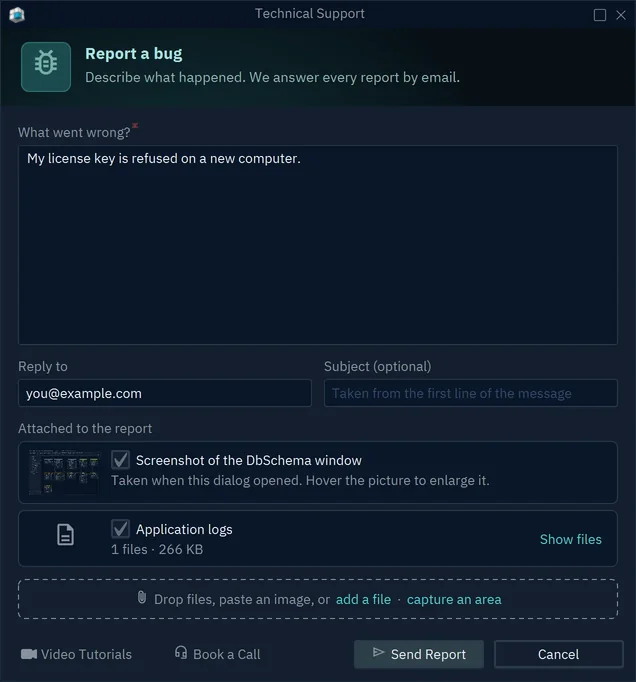
Choose Help → Report a Bug to write to support from inside DbSchema. The report can carry a screenshot of the DbSchema window and the application logs, and we answer by email. For invoices and subscriptions, the Support page lists the other ways to reach us.
Common problems
"This license key is already in use on 2 computers"
The key is active on two computers already. Choose Help → Unregister License on one of them, then register again. If that computer is gone, open a support ticket, and we clear its activations.
"License expired: Renew your license" after an update
The installed version came out after your license year. Renew the license, or install an earlier version, as Which versions a license runs explains.
"This license key text is incomplete"
Part of the key is missing. Copy the key from the email again and paste all of it, including the first and last ### lines.
The license server does not start: "Address already in use"
Another program uses the port. Start the server on another port with -p, and give the users that port in the Server URL.
"This DbSchema version requires a newer version of the Floating License Server"
Update the server to at least the version of the DbSchema it serves, as Run a floating license server explains.
DbSchema cannot reach the license server
On the computer that runs DbSchema, open http://<server>:8080/live in a browser. The server answers with an empty page, status 204. If it doesn't, check the Server URL, the firewall between the two computers, and the proxy in Edit → Settings → Network → Proxy. The DbSchema log is in Help → Output Logs.