Synchronize with the Database
DbSchema keeps a local copy of your schema in the .dbs design model file. Synchronization lets
you keep that model in sync with a live database — in both directions — without writing migration
scripts by hand.
Online vs Offline Mode
DbSchema works in two modes:
- Online — connected to a database. Schema changes you make are immediately executed against the live database and logged in the SQL History pane.
- Offline (disconnected) — no active database connection. You can still design and edit the model freely. When you reconnect, you review and selectively apply the accumulated differences.
Switch to disconnected mode from the connection menu in the toolbar.

Refresh Schema from Database
To pull the current database state into your model, click Refresh in the toolbar or go to Schema → Refresh Schema from Database. If the database has changed since you last synced (for example a colleague deployed a migration), DbSchema detects the differences and prompts you to choose an action.
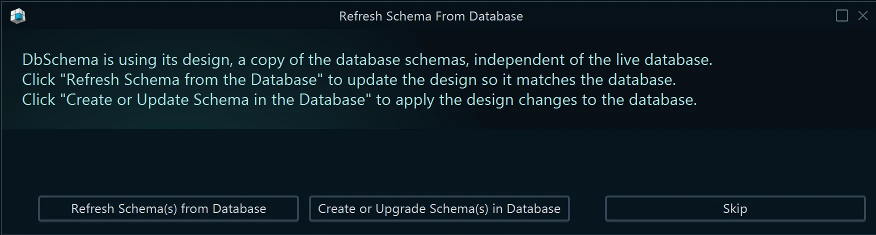
Review Differences


Before applying any changes, DbSchema shows you exactly what differs between your local model and the live database. Open it from Schema → Compare Model with Database, or click Review Changes after a refresh.
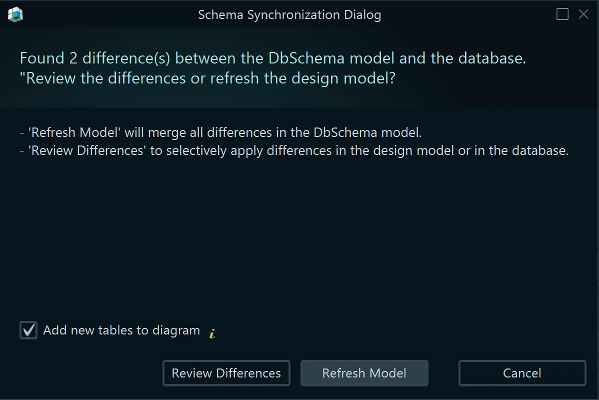
The diff view lists added, removed, and modified objects — tables, columns, indexes, foreign keys. For each difference you can choose to update the model, push the change to the database, or skip it.
Apply Changes via Sync Dialog
The Sync Dialog generates the SQL migration statements needed to bring the database in line with your model (or vice versa).
- Open Schema → Synchronize Model with Database.
- Choose the target schema / catalog.

- Review the generated SQL statements — you can edit them directly before executing.
- Click Execute to apply the changes.
Tip: Save your model to a .dbs file before synchronizing. If something goes wrong, you can
restore the previous state from the file.
Create or Upgrade Schema in the Database
If you designed a schema offline and want to create it in a database for the first time, or upgrade an existing database to match your model:
- Go to Schema → Create or Upgrade Schema in Database.
- If not connected, DbSchema prompts you to connect first.
- Select the schemas to create or upgrade.
- Review the generated DDL statements and click Execute.
Convert Schema to a Different Database
DbSchema can migrate a schema from one database engine to another (e.g. MySQL to PostgreSQL) by remapping data types automatically.
Note: Changing the target database modifies the type mapping in your model. Make a backup copy
of the .dbs file before converting.
- Open Model → Model Properties.
- Change the RDBMS field to the target database engine.
- DbSchema remaps data types using built-in conversion rules.
- Procedures, functions, and triggers with vendor-specific syntax must be rewritten manually.
Automate Synchronization via CLI
Schema synchronization can be scripted and run in headless mode using Groovy automation scripts or the DbSchemaCLI. This is useful for integrating schema deployments into CI/CD pipelines.
See also: Git Integration · Diagrams