DbSchema Documentation
DbSchema is a tool to design, document and query databases with diagrams. Each guide here explains one task, step by step, with screenshots and short videos.
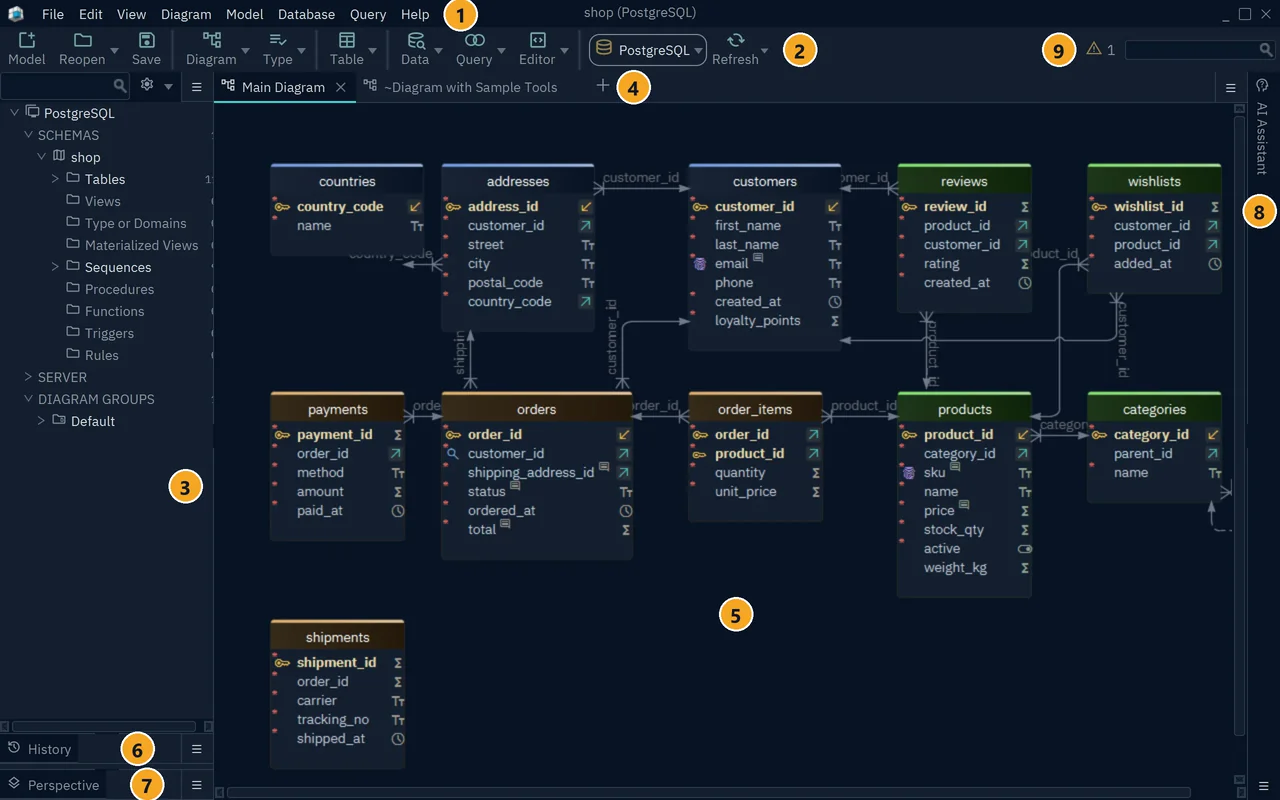
New to DbSchema? Start with the tutorial. It takes you from a connection to generated documentation in six steps.
Looking for a menu that moved in 10.5? Menus and Layout maps every task to its menu.
Get started
- What is DbSchema?: the design model and the editions.
- Install DbSchema on Windows, macOS or Linux.
- DbSchema Tutorial: your first project in six steps.
- Welcome Screen: start a new project or reopen one.
- Menus and Layout: where each command is.
- Memory and Java Options: fix memory errors and slow drawing.
Connect to a database
- Connect to Database: the connection dialog, SSL and SSH.
- JDBC Drivers Manager: update or upload a driver.
- Firewall, Proxy and SSH Tunnel: fix a blocked connection.
- Supported databases: setup notes for each database.
Design the schema
- Diagrams: several diagrams per model, groups, notes and export.
- Tables, Columns and Indexes: create and edit tables.
- Foreign Keys: link tables and read the cardinality.
- User Data Types: domains and enum types.
- Logical Design: design before you choose the database.
- Quick Table Editor: edit many columns in one grid.
- Model Validation: find design errors.
- Sample Projects: try DbSchema on a ready-made schema.
Compare and deploy
- Schema Synchronization: work offline, then compare the model with the database and apply the changes.
- Import and Export the Model: SQL files, Flyway migrations and custom exports.
Document
- Schema Documentation: interactive HTML5, PDF or Markdown.
- Diagram and Documentation Styles: themes, colors and custom CSS.
- Settings: find and change any setting.
Query and edit data
- SQL Editor: write queries with auto-complete and run scripts.
- Query Builder: build a query by clicking.
- Data Explorer: follow foreign keys from one table to the next.
- CSV Editor: open and edit CSV files.
- Data Generator: fill tables with test data.
- Data Importer: load CSV, Excel, XML or JSON files.
Work as a team
- Git Collaboration: keep the model in Git and merge your team's changes.
Automate
- AI Assistant: ask for SQL or a schema review.
- Automation Scripts: Groovy scripts that change the model or the data.
- DbSchemaCLI: run SQL from the command line.
- DbSchema API: the Javadoc of the scripting API.
MongoDB
- MongoDB: collections as diagrams, with nested fields and virtual relations.
Licensing
- Licensing and Registration: register, activate offline and move a license.