Diagrams
When every table of a schema sits on one diagram, the tables you're working on get lost among the rest. In DbSchema one model holds as many diagrams as you need, each with the tables of one part of the application and the foreign keys between them drawn as lines. A table can show on several diagrams.
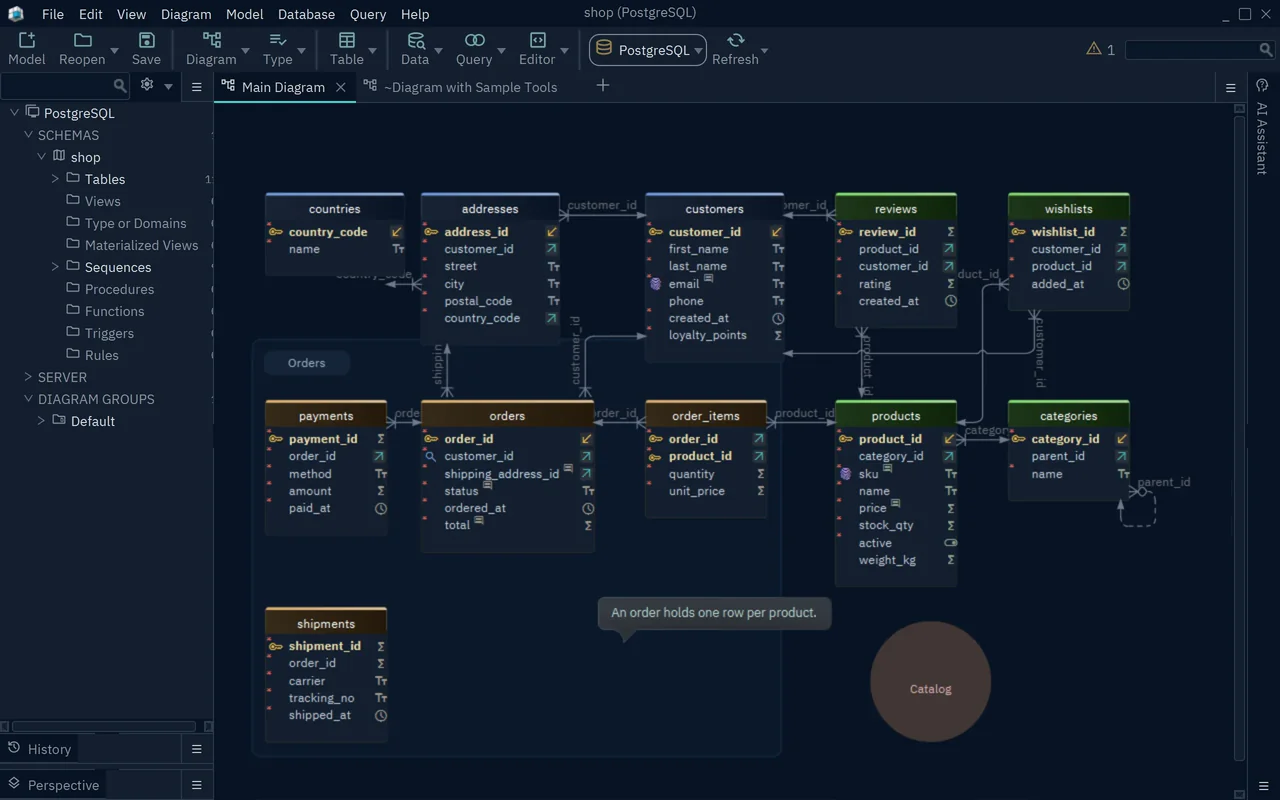
Everything on this page changes only the model: moving a table, grouping tables or adding a callout never changes the database. DbSchema saves the diagrams with the model in its .dbs file, and saving the model to a file needs DbSchema Pro.
Create a diagram
A diagram for each part of the application, such as orders or the product catalog, shows only the tables that you work on together.
- Choose Diagram → New Diagram, or press Ctrl+L.
- Type a Name.
- Pick a table in the list on the left and press Include >>.
- Press Ok.
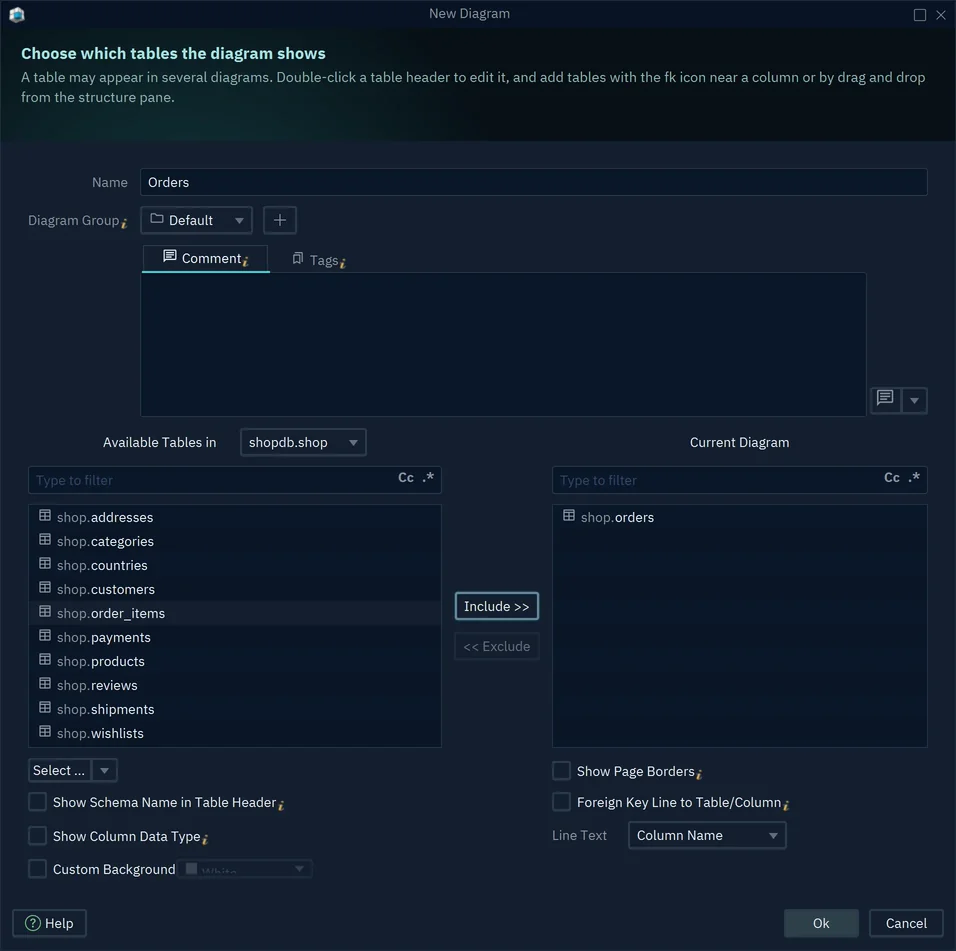
The new diagram opens in its own tab. The Select ... menu under the list selects tables in the left list, and Include >> then moves them over:
| Select ... item | Tables it selects |
|---|---|
| All | Every table of the schema |
| Tables Not in Any Diagram | The tables that no diagram shows yet |
| Parent Tables of Selected Included Tables (referred) | The tables that the selected tables on the right refer to |
| Child Tables of Selected Included Tables (referring) | The tables that refer to the selected tables on the right |
Diagram → New Empty Diagram, or Ctrl+Shift+L, opens a diagram with no tables. Diagram → Duplicate Diagram copies the open diagram, and Diagram → Diagram Properties opens the same dialog for the open diagram, to rename it or give it a Custom Background.
If DbSchema asks "Save this Diagram to the Project ?" when you close a diagram's tab, Save and Close keeps the diagram in the model and Don't save deletes it. Diagram → Restore... lists every diagram of the model and opens the one you pick.
Add the related tables
Every column that takes part in a foreign key has an arrow icon at its right. The icon lists the tables linked through that column, so you can grow a diagram one step at a time.
- Drag a table, such as
orders, from the tree on the left onto the diagram. - Click the arrow icon at the right of a column, such as
order_id. - Choose Add All, or one table, such as Add payments via payments_order_id_fkey.
The tables appear next to the table you started from. If you hold Ctrl while you click the icon, the list offers each linked table with Show in this diagram, and with Show in Diagram for each other diagram that shows it.
To take a table off a diagram, right-click its header and choose Exclude from Diagram, or press Delete. The table stays in the model and in the database. Drop, in the same menu, deletes the table, as Drop a table shows.
Group tables
A group is a colored box around tables that belong together, with its name in the corner.
- Click the first table header, then Ctrl+click the other tables.
- Choose Diagram → Create Group of Tables, or Table → Create Group of Tables in the toolbar.
- Type the Group Name and press OK.
The Edit Group dialog also sets the group Color. Its lists Tables In No Group and Current Group Tables move tables in and out of the group with Include and Exclude.
To put one more table into a group later, right-click the table and choose Grouping → Add to Group, then pick the group in the list. The same list offers "-- Create New Group --".
Add a callout or a shape
A callout is a note on the diagram. A shape is a box with a label that marks an area of the diagram, and its Shape list offers Rectangle, Ellipse, Rhombus and Transparent.
- Click an empty spot of the diagram, where the callout or the shape should go.
- Choose Diagram → Create Callout or Diagram → Create Shape.
- Type the text. For a shape, choose the Shape and the Color.
- Press OK.

If a table or a group is selected when you create a callout, the callout points at it, and the dialog title names it, such as Callout Dialog on Orders. Set Callout, in the right-click menu of a table or a group, does the same.
Arrange the tables automatically
Auto Arrange Tables lays out the tables of the diagram by their foreign keys. Use it after you load a large schema, when the tables overlap.
- Choose Diagram → Auto Arrange Tables.
- Choose Arrange Only to move the tables, or Group and Arrange to also put related tables into groups.
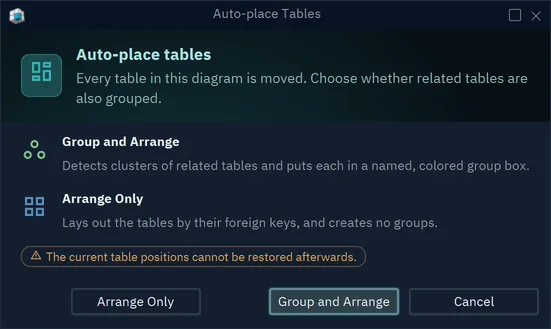
Edit → Undo can't bring the old positions back. To keep them, choose Diagram → Duplicate Diagram first and arrange the copy.
DbSchema shows this dialog only on a diagram without groups. On a diagram with a group, it asks only whether to continue, then arranges the tables without making new groups.
To arrange the tables of one group only, right-click the group and choose Auto Arrange Tables. DbSchema then lays out the tables of that group without asking, and the tables outside the group keep their places relative to each other.
Show the column data types
By default, a table on the diagram shows the column names and an icon for each data type.
Choose View → Diagram Display → Column Data Type to write the data type next to each column. The Type button of the toolbar has the same switch, and choosing it again hides the data types.

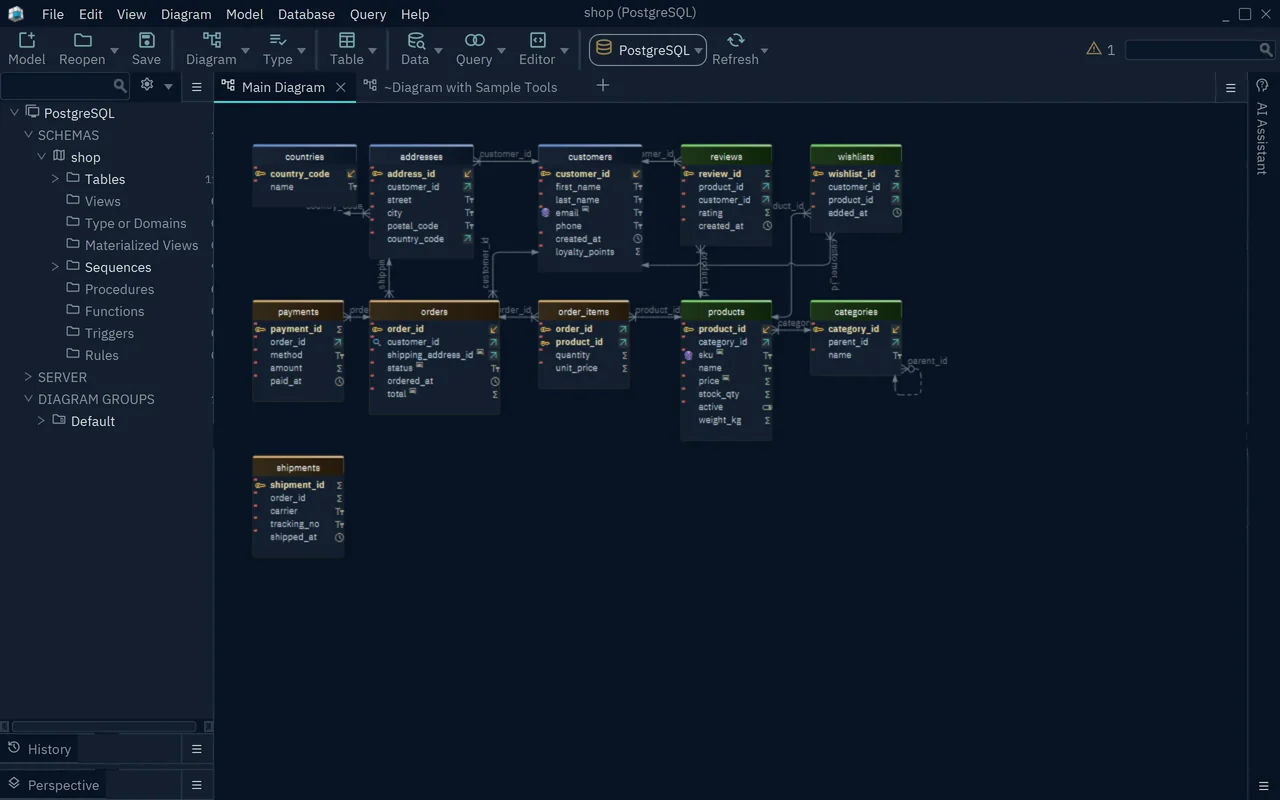
The tables grow wider and can cover their neighbors, as addresses covers countries here. Drag a table header to move the table.
View → Diagram Display holds the other switches of the diagram:
| Item | What it shows |
|---|---|
| Schema Name in Table Header | The schema name in each table header |
| Page Borders | The borders of the printed pages |
| Dot Grid | The dots in the diagram background |
| Deduced Foreign Keys | Dashed lines for the joins in view queries |
Each switch applies to the open diagram, except Dot Grid, which applies to every diagram.
To color a table, right-click its header and choose Change Color, as Color a table shows. Foreign key lines can use another notation, such as Barker or Idef1x, as Change the notation shows.
Zoom in and out
| Menu item | Keys |
|---|---|
| View → Zoom In | Ctrl++ |
| View → Zoom Out | Ctrl+- |
| View → Zoom 100% | Ctrl+0 |
| View → Choose Zoom... | Ctrl+9, which opens a zoom slider |
The mouse wheel zooms too while you hold Ctrl over the diagram.
Export the diagram as an image
- Open the diagram you want to export.
- Choose File → Export As... → Diagram Image.
- Choose PNG Image, GIF Image, JPG Image or SVG Image.
- Choose where to save the file.
The image holds the whole diagram, the parts outside the window too, in light colors whatever the theme of DbSchema.
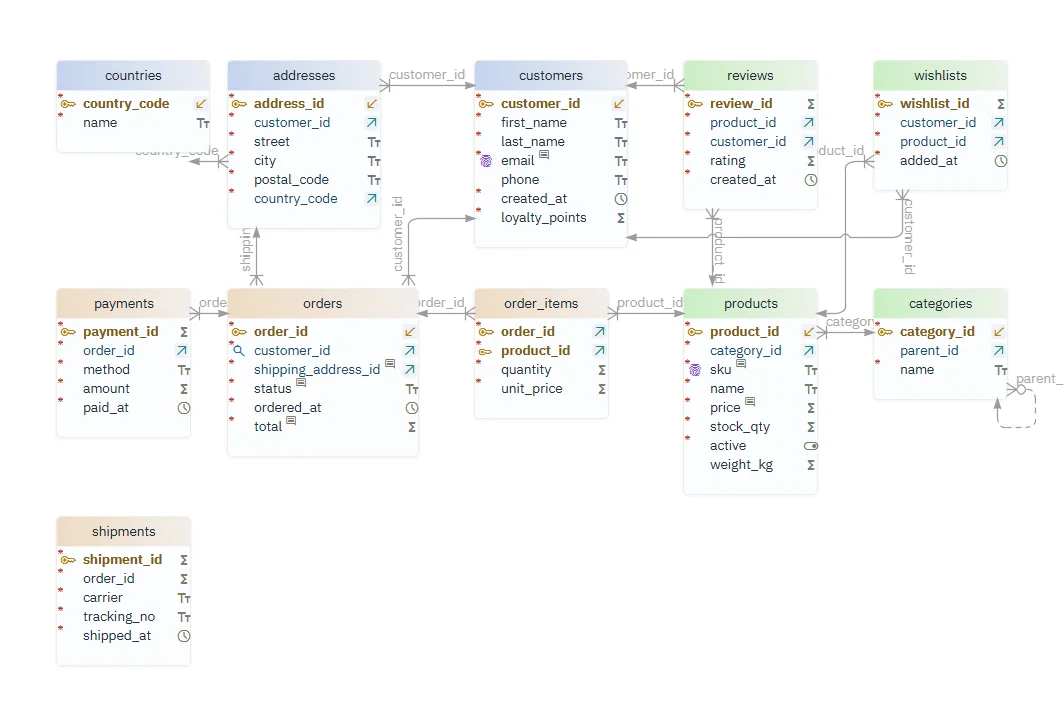
To publish the diagram with the details of every table, generate the HTML5 documentation instead, which needs DbSchema Pro. It holds an interactive diagram.
Common problems
Auto Arrange moved the tables I had placed by hand
Auto Arrange Tables moves every table of the diagram, and Edit → Undo can't bring the positions back. If you saved the model before you arranged it, close the model without saving and open the file again. You lose every change made since you last saved.
To arrange part of a diagram and leave the rest in place, put the tables to arrange into a group, then choose Auto Arrange Tables from the group's right-click menu, as Arrange the tables automatically shows.
How do I add all the tables related to a table?
Click the arrow icon at the right of a foreign key column and choose Add All, as Add the related tables shows. In the New Diagram dialog, Select ... selects the parent or child tables of the tables you included.