Connect to Database
To see the tables of a database as diagrams, DbSchema first needs to reach the database. You pick the database in the New Design Model window, type where it runs and how to sign in, and DbSchema reads its schema into a new model. DbSchema connects to more than 100 SQL and NoSQL databases, and the list of databases has setup notes for each one.
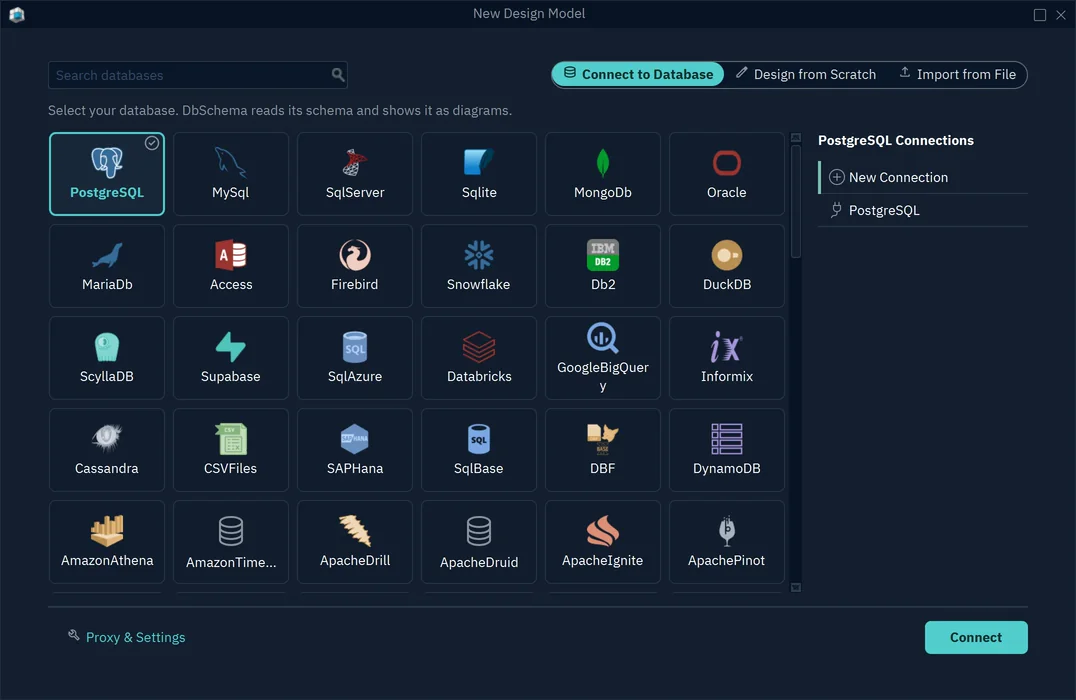
Connecting needs no license: the free Community edition connects to every database.
Connect to a database for the first time
DbSchema saves the connection, so you type it in only once.
- Choose File → New Model. The start window offers the same choice under Start New.
- Keep Connect to Database selected at the top.
- Click your database, such as PostgreSQL. Type in Search databases to find it.
- On the right, choose New Connection, or a connection you saved before.
- Press Connect to PostgreSQL. The button names the database you chose, and the connection dialog opens.
- Fill in the dialog, as the next section shows, and press Connect.
- In Reverse Engineer the Database, tick the schemas to import and press Import.
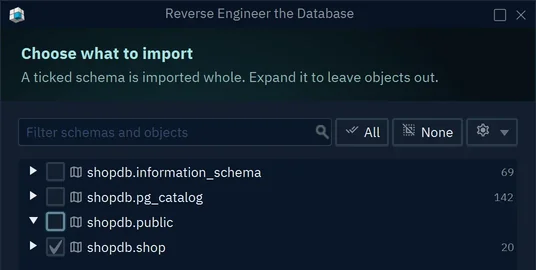
A ticked schema is imported whole. Expand it to leave out single tables or other objects. DbSchema then draws the imported tables in a new model. Connecting and importing only read from the database and change nothing in it. To keep the model as a file, save it, which needs DbSchema Pro.
If your database is in the list, choose it there. Defining a database of your own in the JDBC Drivers Manager is meant for a database that DbSchema doesn't know yet, and DbSchema then knows nothing of its data types and SQL.
Fill in the connection dialog
The connection dialog shows no fields until you choose a Method. Choose Standard, and the dialog asks where the database runs, how to sign in and which database to open.
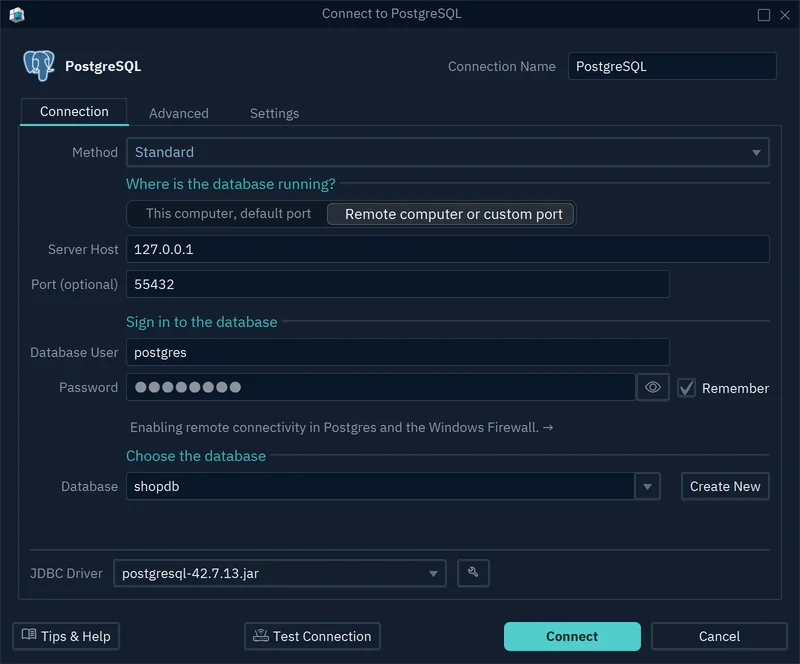
| Field | What it sets |
|---|---|
| Connection Name | The name DbSchema shows for this connection everywhere |
| Method | How DbSchema builds the connection URL |
| This computer, default port | The database runs on your computer, on its usual port |
| Remote computer or custom port | Shows Server Host and Port, for any other server or port |
| Database User, Password | The login defined in the database |
| Remember | Whether DbSchema saves the password on this computer |
| Database | The database to open; Create New creates one on the server |
| JDBC Driver | The driver file that DbSchema talks to the database through |
DbSchema downloads the JDBC driver the first time you connect. The wrench button next to it opens the JDBC Drivers Manager, where you can upload a driver yourself.
Press Test Connection to check the settings before you connect. If the password is empty, the dialog first warns that "The password is empty. PostgreSQL normally requires one." For a database that needs no password, press Test anyway, or Connect anyway when you connect. Tips & Help opens the setup notes for your database on dbschema.com.
Add a connection to an open model
One design can serve several databases, such as a test database and a production database with the same tables. DbSchema keeps the connections of each database type, so every PostgreSQL model can use the PostgreSQL connections you saved.
- Click the connection button in the toolbar. It shows the name of the current connection.
- Choose Add Connection. The same entry is in the Database menu.
- Choose the Method, fill in the dialog, and press Test Connection.
- Press Connect.
The connection button lists your connections: choose one to switch the model to that database, or Offline (connect later) to work without one. To change the current connection, choose Edit Active Connection in the same menu.
Choose a connection method
The Method list holds the ways DbSchema can connect to your database. The entries come from the JDBC driver, so the list differs from one database to another. Each entry shows the URL it builds, and for PostgreSQL the list is:
| Method | URL it builds |
|---|---|
| Standard | jdbc:postgresql://<HOST>[:<PORT>]/<DB> |
| Use SSL - Read 'Help & Tips' | The same, with ?ssl=true&sslfactory=org.postgresql.ssl.NonValidatingFactory |
| Heroku | The same, with ?sslmode=require |
| Paste a JDBC URL | The URL you paste |
Other databases add their own entries. SQL Server adds Windows Authentication and Windows Authentication, Current User, which sign in with a Windows account. Snowflake adds Single Sign-On in the Browser (Okta, Entra ID, Ping), which signs in through your browser and asks for no password, and Private Key File.
Paste a JDBC URL
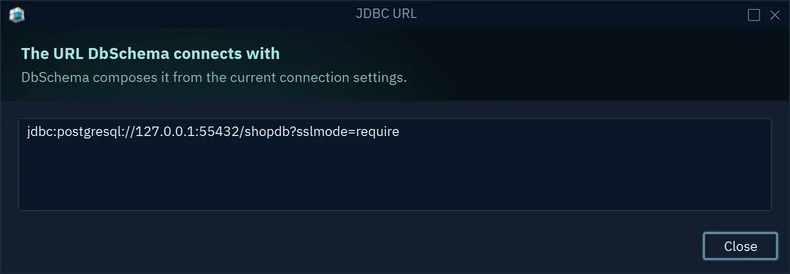
A JDBC URL is the address of a database in one line, such as jdbc:postgresql://127.0.0.1:55432/shopdb. DbSchema builds it from the fields, so you paste one only when you already have it, for example from a cloud console.
- Open the Method list and choose Paste a JDBC URL, the last entry.
- Paste the URL into JDBC URL.
- Type the Database User and Password.
- Press Test Connection, then Connect.
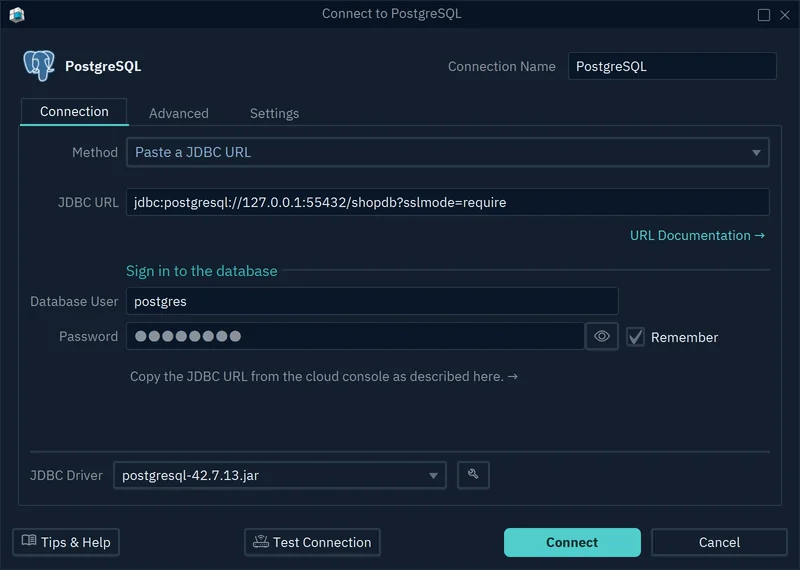
The URL holds the host, the port and the database, so the dialog hides their fields. If you typed them under Standard before, DbSchema fills the JDBC URL from them.
Add SSL and driver parameters
Each driver has its own settings, such as encryption and timeouts. DbSchema lists them for you, so you don't write them into the URL by hand.
- Open the Network and Driver tab of the connection dialog.
- Press the pencil next to SSL & Parameters.
- Pick a group on the left, such as SSL / TLS, tick it, and choose the values.
- Press OK.
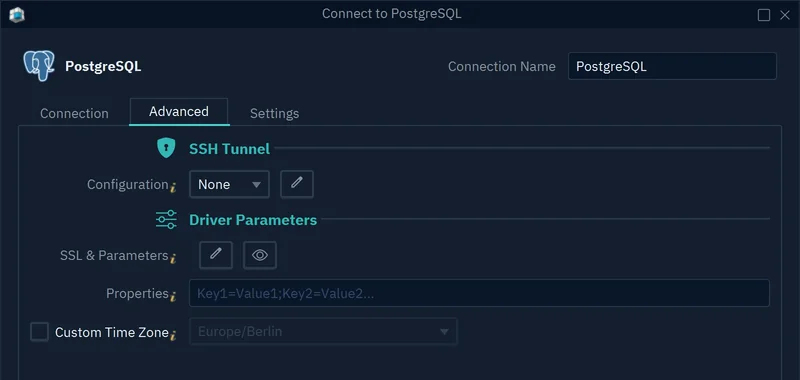
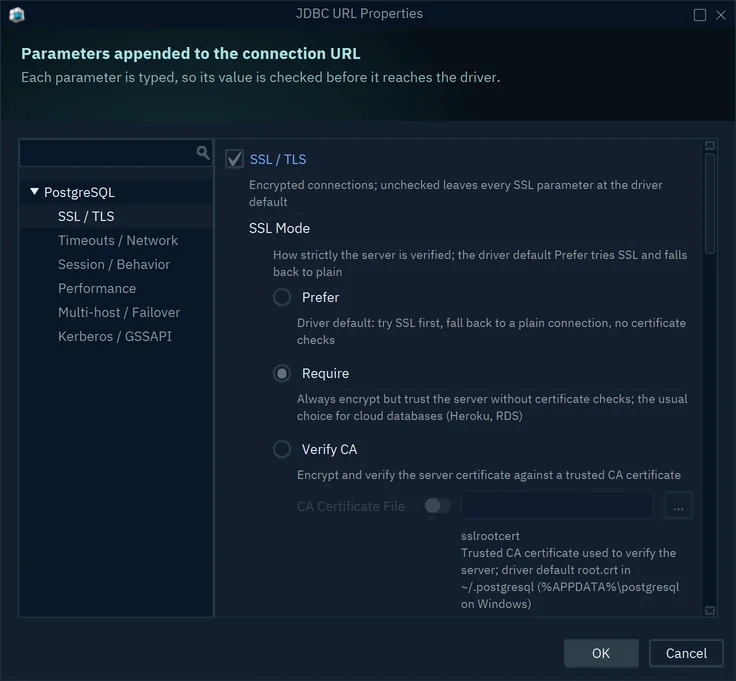
A group you leave unticked stays out of the URL, so the driver keeps its own default. Each value carries a short explanation under it.
For PostgreSQL, the SSL Mode decides how strictly the server is checked:
| SSL Mode | What the driver does |
|---|---|
| Prefer | The driver default: tries SSL, falls back to plain, checks no certificate |
| Require | Always encrypts, checks no certificate; the usual choice for cloud databases |
| Verify CA | Encrypts, and checks the server certificate against the CA Certificate File you choose |
| Verify Full | Also checks that the host name matches the certificate |
| Allow | Connects plain first, and uses SSL only if the server insists |
| Disable | Never uses SSL |
To see the URL that DbSchema will connect with, press the eye button next to SSL & Parameters.
The rest of the Network and Driver tab:
| Field | What it sets |
|---|---|
| Properties | Driver settings as key1=value1;key2=value2, passed outside the URL |
| Custom Time Zone | A fixed time zone for this connection |
| Java Location | Where the Java bundled with DbSchema lives, for sign-in methods that need its certificate file |
Set a Custom Time Zone when timestamps show shifted because your computer and the server use different time zones.
Connect through an SSH tunnel
An SSH tunnel reaches a database that only a jump host can talk to. DbSchema connects to the SSH server, and the SSH server connects to the database.
- Open the Network and Driver tab of the connection dialog.
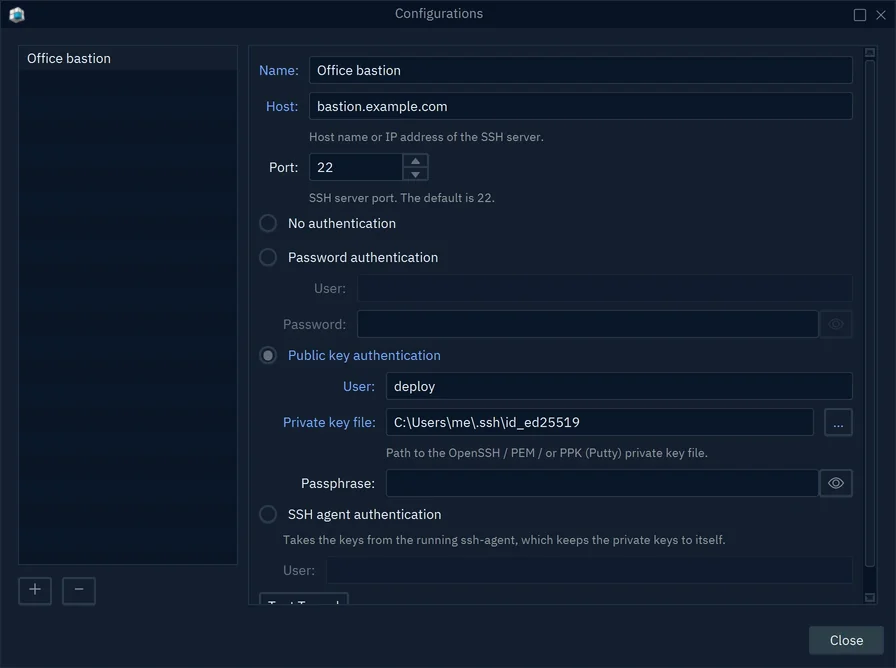
- Under SSH Tunnel, press the pencil next to Configuration.
- Press + to add a configuration.
- Type a Name, the Host of the SSH server, and its Port, 22 by default.
- Choose how to sign in, and fill in its fields.
- Press Test Tunnel, then Close.
- Choose the new configuration in the Configuration list.
| Sign-in | What it asks for |
|---|---|
| No authentication | Nothing, for a server that asks for none |
| Password authentication | The user and password on the SSH server |
| Public key authentication | The user, an OpenSSH, PEM or .ppk key file, and its passphrase |
| SSH agent authentication | The user alone; the keys stay in the running ssh-agent or Pageant |
DbSchema saves each configuration once, so several connections through the same jump host share one entry.
On the Connection tab, type the database host and port as the SSH server sees them. That is often localhost, when the database runs on the SSH server itself. Firewall, Proxy & SSH has more on networks.
Protect a production connection
The Access and Model tab marks a connection, so you don't change the wrong database by mistake.
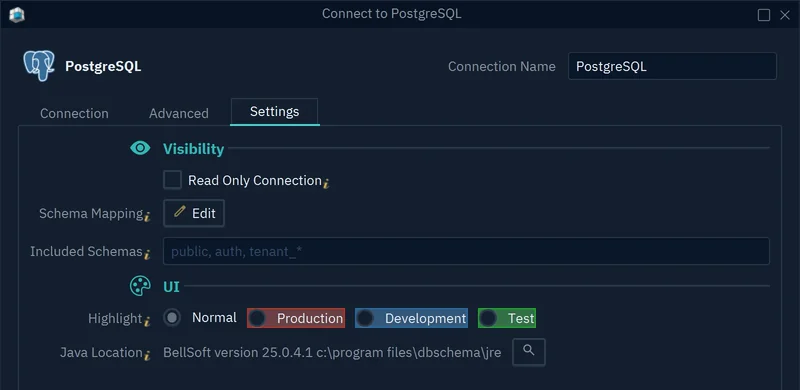
Tick Read Only Connection on a production database. DbSchema then refuses to change the schema through this connection, and asks the JDBC driver to open the connection read-only. Highlight colors the connection button as Production, Development or Test, so you see at a glance which database you're working on.
The Model group fits the model to this database. Schema Mapping shows a schema of the model under another name in this database, so one model fits several databases. Included Schemas lists the schemas that are ticked first when DbSchema imports from this connection, separated by commas and with * for any text, such as public, auth, tenant_*.
Manage your saved connections
Database → Manage Connections lists the saved connections of the open model's database type. The connection button in the toolbar has the same entry.
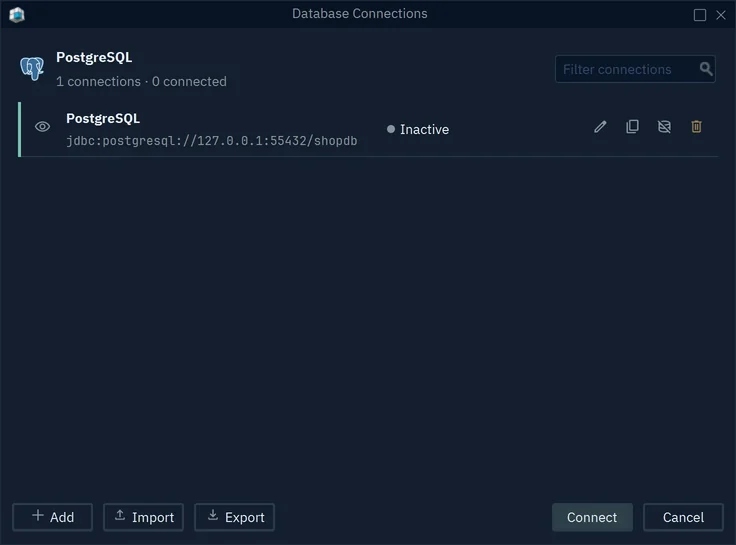
| Control | What it does |
|---|---|
| Eye button | Lists the connection in the connection menu, or hides it there |
| Pencil, copy, disconnect and bin buttons | Edit, clone, disconnect or delete the connection |
| Add | Creates a connection |
| Import, Export | Read connections from a file, or write them to one |
| JDBC Drivers | Opens the JDBC Drivers Manager |
| Connect | Opens the selected connection |
What leaves your computer when you connect?
Before you connect DbSchema to a database with real data, you want to know where that data goes.
- The JDBC driver runs inside DbSchema on your computer and talks to the database server itself. No DbSchema server sits in between.
- Connecting reads the schema, which means the tables, columns and keys. DbSchema reads table data only when you open a table or run a query.
- DbSchema saves the design as a
.dbsfile on your computer. - DbSchema saves a password only when you tick Remember, and saves it in a file on your computer.
We, Wise Coders, the company behind DbSchema, are ISO 27001 certified.
Common problems
Windows authentication to SQL Server fails
Choose Windows Authentication or Windows Authentication, Current User as the Method. Both work only when DbSchema runs on Windows.
Windows sign-in needs Microsoft's mssql-jdbc_auth DLL. DbSchema downloads it with the SQL Server driver, into .DbSchema\drivers\SqlServer\native-win in your home folder. If the error says "Native SSPI library not loaded", check that this folder holds the DLL.
On Linux and macOS, sign in with Kerberos instead. Press the pencil next to SSL & Parameters on the Network and Driver tab, then choose Authentication → Integrated Security Scheme → Java Kerberos.
SQL Server 2012 says "The driver could not establish a secure connection"
An old server, such as SQL Server 2012 without its updates, offers only TLS 1.0 or TLS 1.1. The Java bundled with DbSchema refuses both, so the encrypted handshake fails.
The best fix is the latest service pack and Microsoft's TLS 1.2 update on the server. If the server can't change, tick Edit → Settings → Network → SSL Certificates → Allow Legacy TLS Algorithms and restart DbSchema. The setting lowers the security of every connection DbSchema makes, so keep it for this case.
The SSH tunnel refuses my private key
"Cannot load the private key file" means the file isn't a private key. Often it is the public key, such as id_ed25519.pub: choose the file with the same name and no .pub.
"Incorrect passphrase for the private key file", or "Auth cancel", means the key has a passphrase that the configuration lacks or gets wrong. Type it in Passphrase in the SSH configuration.
Snowflake asks for a password, but I sign in with SSO
A password can't sign in to an account that uses single sign-on (Okta, Entra ID, Ping) or MFA. Edit the connection and choose Single Sign-On in the Browser (Okta, Entra ID, Ping) as the Method. DbSchema opens your browser for the sign-in.
I defined a new DBMS by mistake. How do I delete it?
DbSchema has no button for this. Close DbSchema, then delete the folder named after that DBMS in .DbSchema/drivers, in your home folder. Remove a driver explains the folders.