User Data Types
A user data type is a data type that you define once and use for many columns.
For example, a PostgreSQL domain email_address is a varchar(120) with a check that the value holds an @.
An enum type, such as order_status, allows only a fixed list of values.
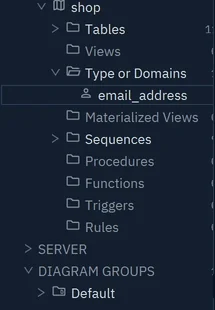
DbSchema lists the user data types of each schema in a folder of the tree. The folder takes the name that your database uses: for PostgreSQL, it is Type or Domains.
Create a user data type
- Choose Model → Create Table, View... → Create User Data Type.
- Type the Name, such as
email_address, and a Comment. - In Definition, write the statement that creates the type. Keep
${nameWithSchemaName}where the name goes: DbSchema fills in the schema and the name. - Press OK.
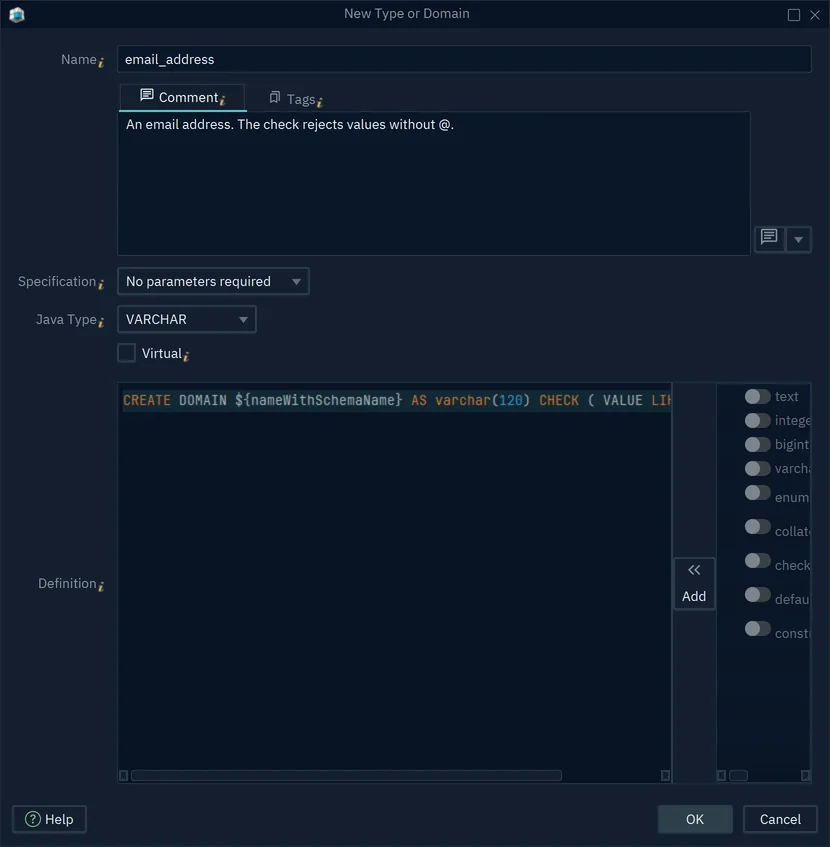
For PostgreSQL, the definition is a CREATE DOMAIN or a CREATE TYPE statement:
CREATE DOMAIN ${nameWithSchemaName} AS varchar(120) CHECK ( VALUE LIKE '%@%' )
CREATE TYPE ${nameWithSchemaName} AS ENUM ( 'new', 'paid', 'shipped' )
The other fields of the dialog:
- Specification: what a column of this type takes after the type name. No parameters required, Length or Precision - (x), Decimal - (x,y) or Enumeration - (a,b,c...).
- Java Type: the kind of value that the type holds, such as VARCHAR or INTEGER.
- Virtual: keep the type in the model only. DbSchema never creates a virtual type in the database. In the SQL scripts it writes, DbSchema uses the definition in place of the type name.
If you are connected, OK creates the type in the database at once. If you work offline, the type stays in the model until you synchronize.
Use the type for a column
- Double-click the column on the diagram.
- In the data type list, choose the type. It shows with its schema, such as
shop.email_address. - Press OK.
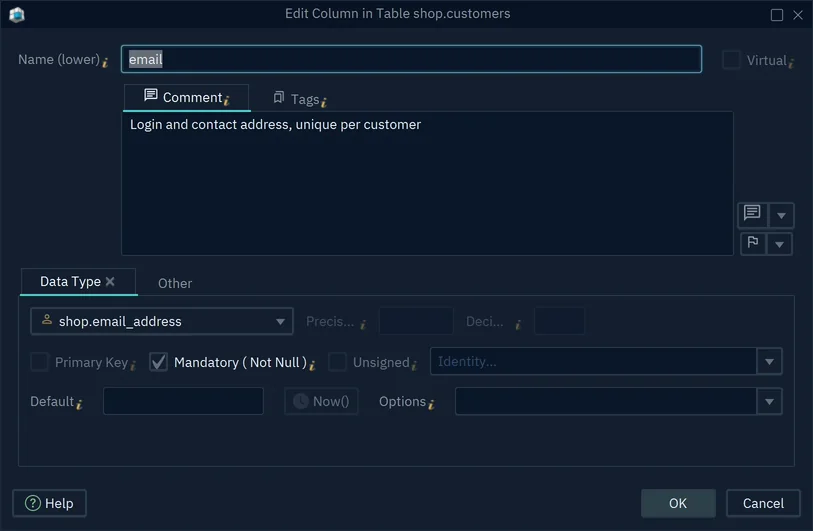
If you are connected, DbSchema changes the column in the database at once, with ALTER TABLE.
Rename a type
Rename a type from the tree, so the columns that use it follow the new name.
- Right-click the type in the tree and choose Rename.
- Type the new name and press OK.
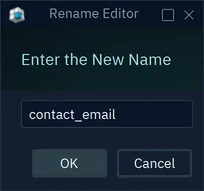
Rename changes only the model, also when you are connected. Every column that uses the type shows the new name at once.
To bring the new name to the database, choose Database → Create or Upgrade Model in the Database. This needs DbSchema Pro. For PostgreSQL, DbSchema creates the type under the new name and changes each column to it:
CREATE DOMAIN shop.contact_email AS varchar(120) CHECK ( VALUE LIKE '%@%' )
COMMENT ON DOMAIN shop.contact_email IS 'An email address. The check rejects values without @.'
ALTER TABLE shop.customers ALTER COLUMN email TYPE shop.contact_email USING email::shop.contact_email
The type under the old name stays in the database. When no column uses it, drop it in the SQL Editor, for example with DROP DOMAIN shop.email_address.
Common problems
I renamed a type, and now the columns point to nothing
Do not rename a type in its Edit dialog while you are connected and columns use it. DbSchema then creates the type under the new name and drops the old one. The database refuses to drop a type that columns use, so you get an error. The database then holds both types, and the columns keep the old one.
To recover, drop the type that DbSchema created under the new name, in the SQL Editor. Then rename the type from the tree, as Rename a type shows.