Flow Diagrams
A flow diagram shows the steps of a process next to the tables that each step uses.
For example, it can show that the procedure pay_order creates a row in payments and updates orders.
Use a flow diagram to document how your code changes the data. Before you change a table, the flow diagram also shows you which code uses that table.
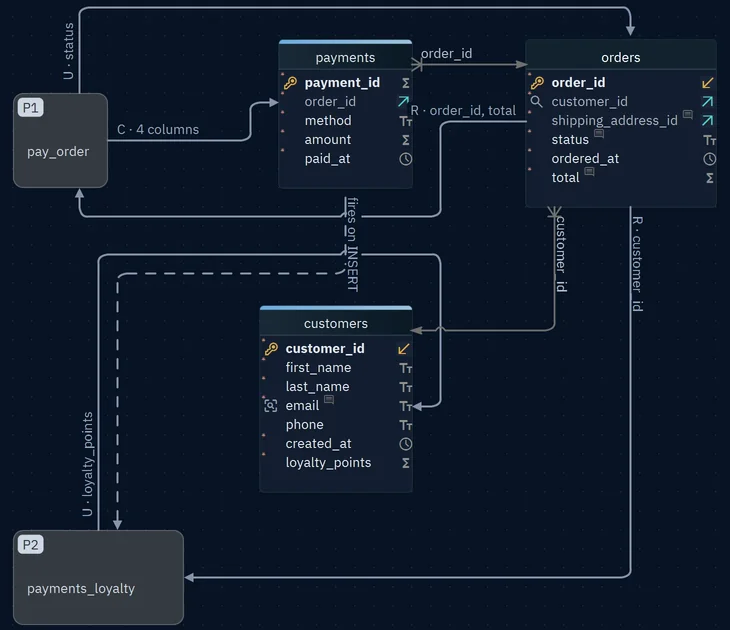
A flow diagram is a DbSchema diagram that holds tables, foreign keys and flow shapes together. It exists only in your design. The design, also called the model, is your DbSchema project: the tables, columns and diagrams that you see in DbSchema. Nothing on a flow diagram changes the database.
A procedure is a named piece of SQL code that the database stores and runs when you call it. A function is similar, and returns a value. A trigger is code that the database runs by itself when rows of a table change. Views, Procedures and Triggers shows how to create them in DbSchema.
Shapes and lines
The shapes of a flow:
| Shape | What it stands for |
|---|---|
| Process | A step that does something with data, such as a procedure. Each process gets an Id, such as P1. |
| External System | A system outside the database, such as a payment service. |
| Decision | A point where the flow can continue along different paths. |
| Start/End | Where the flow begins or ends. |
| Shape | A simple box with text, with no special role in the flow. |
A line from a process to a table says what the process does with the table's data. The letters on the line are the operations, called CRUD: C for Create (insert rows), R for Read, U for Update and D for Delete. A dashed line shows an event, such as a trigger that fires. This line is called a control line. It shows no operations. A line can also join two shapes, such as a process and the next step.
Draw a flow by hand
Drawing flow shapes and lines works in every edition.
- Click an empty place on the diagram, where the shape should go.
- Choose Diagram → Create Shape → Process. You also find Create Shape under the Table button of the toolbar, and when you right-click an empty place on the diagram.
- In the Shape Editor, type the Text, such as
Ship order. DbSchema fills in the Id, such as P1. You can change the Id, as long as no other shape of the diagram uses it. - Press OK.
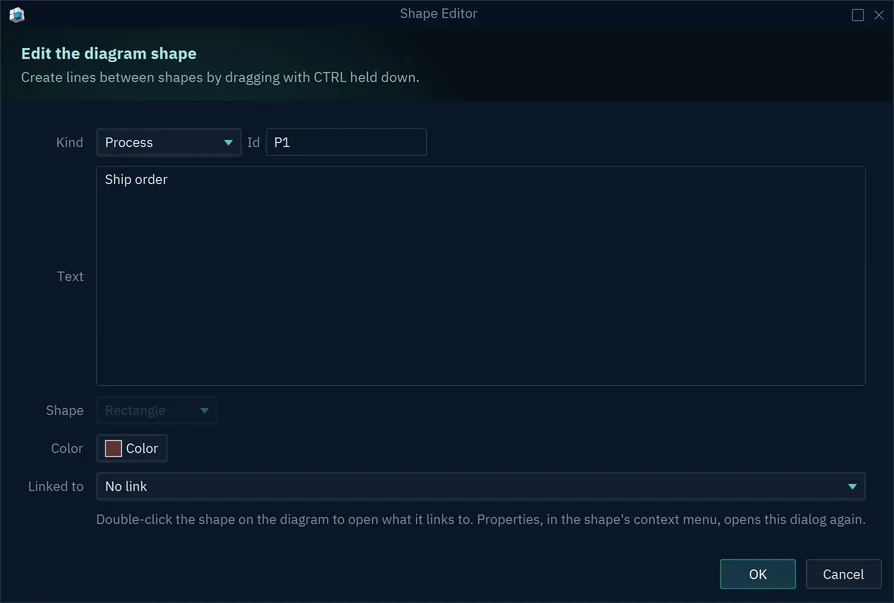
In Linked to, choose a procedure, function, trigger, SQL script or diagram of your design. Then double-click the shape to open the linked object.
To draw a line from the shape to a table, or to another shape:
- Hold Ctrl (Cmd on macOS) and drag from the shape to the table. You can also select the shape, then drag the small round button that shows next to it.
- Double-click the new line. The Line Editor opens.
- Under Direction, choose whether the shape writes to the table or reads from it.
- Tick every operation that applies, such as Create, and the Columns that the step uses. For an event instead of data, tick Control line.
- Press OK.
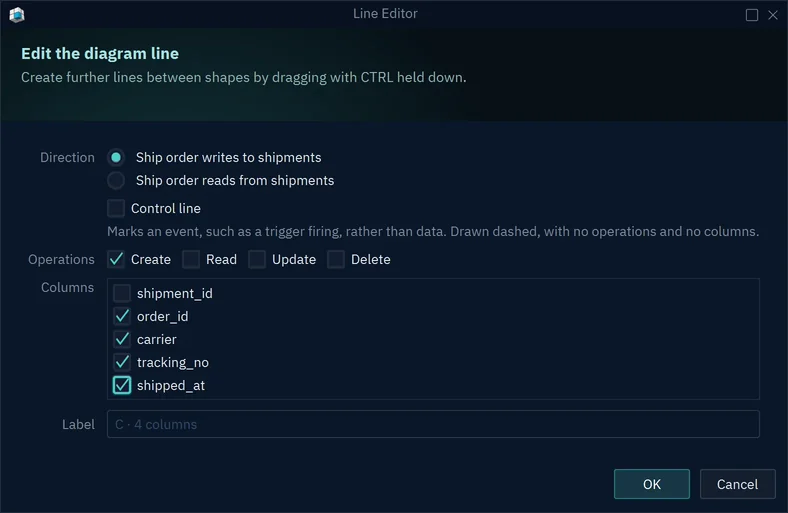
The line label shows the operations and columns, such as "C · 4 columns". Type your own text in Label to replace it.
To add the next step of the flow, click the round button next to a selected shape. Then choose the kind of the new shape, such as Start/End. DbSchema places the new shape next to the first one and joins the two with a line.
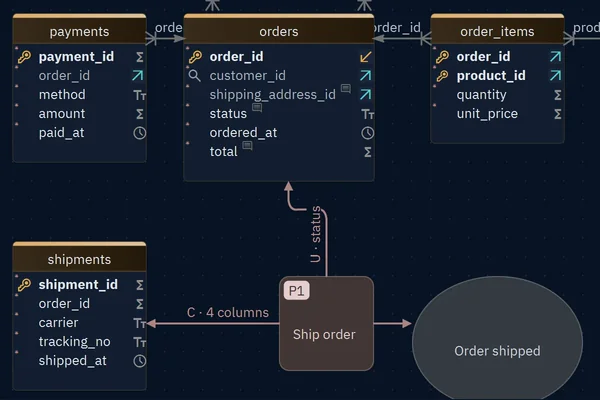
To change a shape later, double-click it. If the shape links to code, the double-click opens that code instead. Then use Properties in the shape's context menu.
Generate a flow from procedures and triggers
DbSchema can read the code of your procedures, functions and triggers, and draw which tables each one reads and writes. Generating a flow needs DbSchema Architect.
DbSchema reads the code from your design, not from the database. The code is in the design when you load the database into DbSchema, or when you create the procedure in DbSchema.
- Choose Diagram → Generate Flow Diagram. You can also right-click a procedure, function or trigger in the tree and choose Generate Flow Diagram. Then that object is ticked already.
- Under Code to read, tick the procedures, functions and triggers to draw. The list also holds the SQL scripts that are saved with the open diagram.
- Under Detail, choose Tables only, or Tables and columns to also list the columns on each line.
- Under Add to, choose where the flow goes. Keep A new diagram, named, and type a name, such as
Flow. To use the open diagram instead, choose This diagram. - Check the numbers under Found, then press Generate. Found shows how many objects you ticked and how many statements DbSchema read. It also shows how many lines and tables the flow adds.
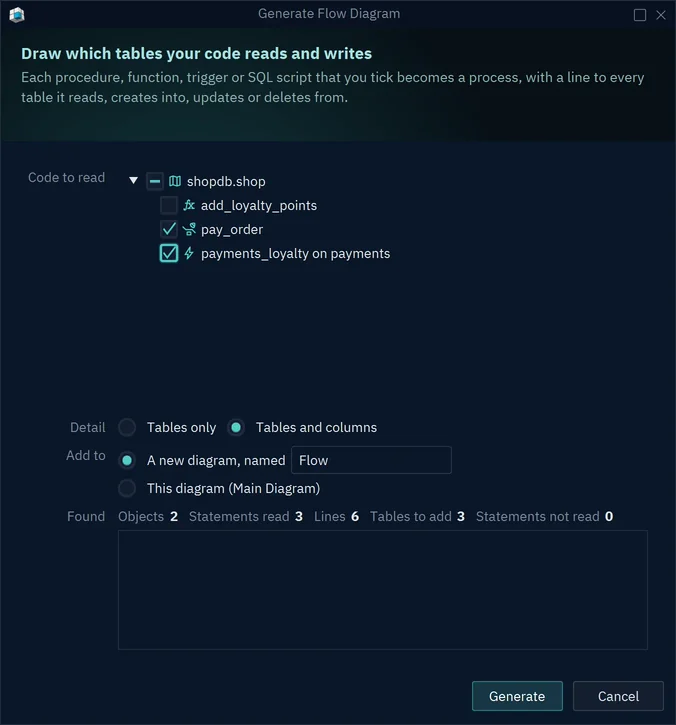
DbSchema creates a process for each ticked object, and links it to its code. It adds the tables that the code uses, and draws a line to each table. If the diagram already has a process for an object, DbSchema doesn't create a second one. Refresh Flow from SQL updates the existing one. A trigger also gets a dashed control line from its table, labeled with the event, such as "fires on INSERT". The first picture on this page shows the flow generated from these two objects. To move the boxes so that they don't overlap, use Diagram → Auto Arrange Tables.
In PostgreSQL, a trigger calls a function. DbSchema treats the code of that function as part of the trigger, and creates no separate process for the function.
Statements not read shows how many SQL statements DbSchema could not read. For example, DbSchema draws no line for SQL that the code builds while the code runs. The box under Found names each statement.
Update the flow after the code changes
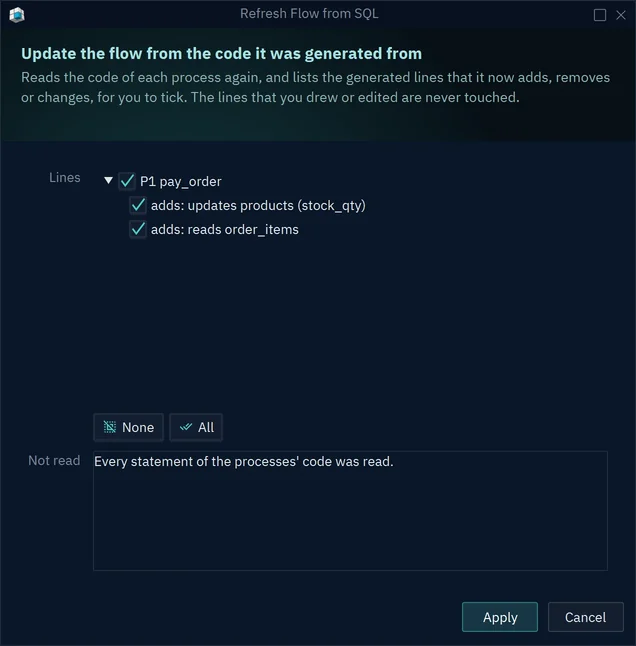
A generated flow shows the code as it was when you generated the flow. When the code changes, Refresh Flow from SQL reads the code of the diagram's processes again. It reads the code from your design. It changes only the lines that DbSchema generated. The lines that you drew or edited yourself stay as they are. It adds no process for a new procedure: use Generate Flow Diagram for that. Refreshing a flow needs DbSchema Architect.
- Open the flow diagram.
- Choose Diagram → Refresh Flow from SQL.
- For each process, the dialog lists the lines to add, remove or change. Untick the ones you don't want.
- Press Apply.
See the CRUD matrix in the documentation
The HTML5 and PDF documentation of a diagram with processes includes a CRUD matrix. The matrix has a row for each process and a column for each table. Each cell shows the operations that the process performs on the table: C, R, U or D. Generating documentation needs DbSchema Pro.
- Open the flow diagram.
- Choose File → Export As... → HTML5/PDF Documentation.
- Choose HTML5 or PDF, and press Generate.

In the HTML5 documentation, the matrix is under the picture of the diagram. The matrix includes only the lines that join a Process shape to a table and have at least one operation ticked. Schema Documentation explains the other options.
Common problems
Generate Flow Diagram asks me to upgrade
Generate Flow Diagram and Refresh Flow from SQL need DbSchema Architect. You can still draw the shapes and lines by hand in every edition.
My procedure is not in the Code to read list
The dialog lists the procedures, functions and triggers of the design. If the procedure exists only in the database, choose Database → Refresh Model from Database first, so DbSchema loads it into the design.
Refresh Flow from SQL says there is no code to read
No process of the diagram links to a procedure, function, trigger or SQL script. Link a process to its code with Linked to in the Shape Editor, or generate the flow with Generate Flow Diagram.
A process is missing from my CRUD matrix
The matrix counts only Process shapes. Of their lines, it counts only the lines to a table that have an operation ticked. Double-click the line and tick an operation in the Line Editor.