Quick Introduction
Start Your First Project
A 'Model' is a project in DbSchema. This can be started by:
- Connect to the Database (recommended) - will reverse engineer the schema from the database and display it as diagrams.
- Design from Scratch - start a logical or physical design
- Import from File - can load the schema from SQL files ( with CREATE TABLE statements ), CSV, XML, etc.

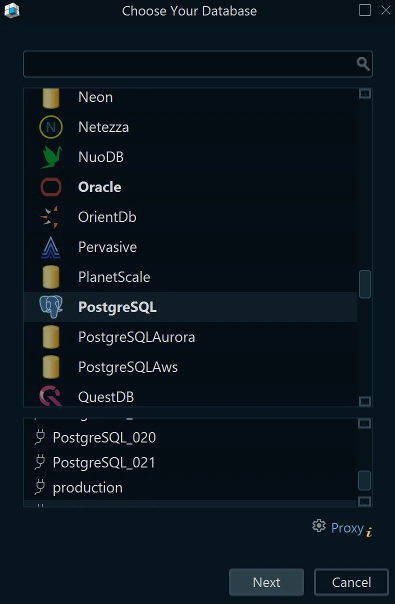
Connecting to the database will ask to choose your database.

In the Connection Dialog will ask for:
- An alias for your connection
- The JDBC Driver is downloaded automatically from DbSchema web repository. DbSchema supports 70+ databases, and including the drivers in the software will take much space.
- The Connection Mode. Choose between a predefined URL pattern or Edit Manually to enter the JDBC URL manually.
- The database user and password.

Next, the interface will show the database structure with diagrams:

Edit tables by double-clicking the table header. In the Table Dialog, you can add comments to tables.


Generate HTML5 documentation with diagram vector image. The image is compact and interactive - the table and column comments can be read as mouse-over tooltips.
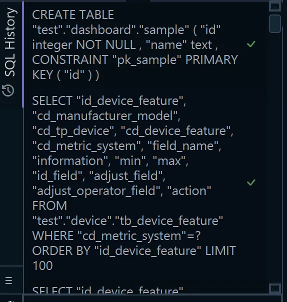
Creating new tables, will create them in the database and the design model which will be saved on disk as XML file. The executed statements are visible on the left, in the SQL History.
From the Connection Menu, you can connect to another database, or choose Disconnected. Working disconnected, will store the newly created table only to the design model which will be saved to file.


Restarting DbSchema you can reopen a saved design model from file. There is no need to be connected to the database.
Team Collaboration
DbSchema is saving the schema structure and the diagrams to the Design Model file, as XML format. The file can be open with any text editor.
Connecting to another database won't change the design model.

Press Refresh Model from Database to view the differences between the design model and the database. For each difference found you can:
- Modify the Design Model
- Commit the change into the database
- Generate SQL Script
DbSchema Tools
On the bottom, you can open different tools.
The Relational Data Explorer can visualize and edit data from multiple tables. Navigating data in one table will show the matching records in the children tables.

The Data Explorer is using foreign keys to cascade multiple tables. If your schema is missing foreign keys, you can create Virtual Foreign Keys by dragging a column over the referred column. The virtual foreign keys will be saved to the design model and won't be created into the database.

The Query Builder can help write SQL queries just using the mouse. Cascade between tables using foreign keys or virtual foreign keys. Right-click columns to set filters, grouping, etc.
Use the SQL Editor to edit and execute SQL queries. The editor features text auto-completion, explain plan, etc.
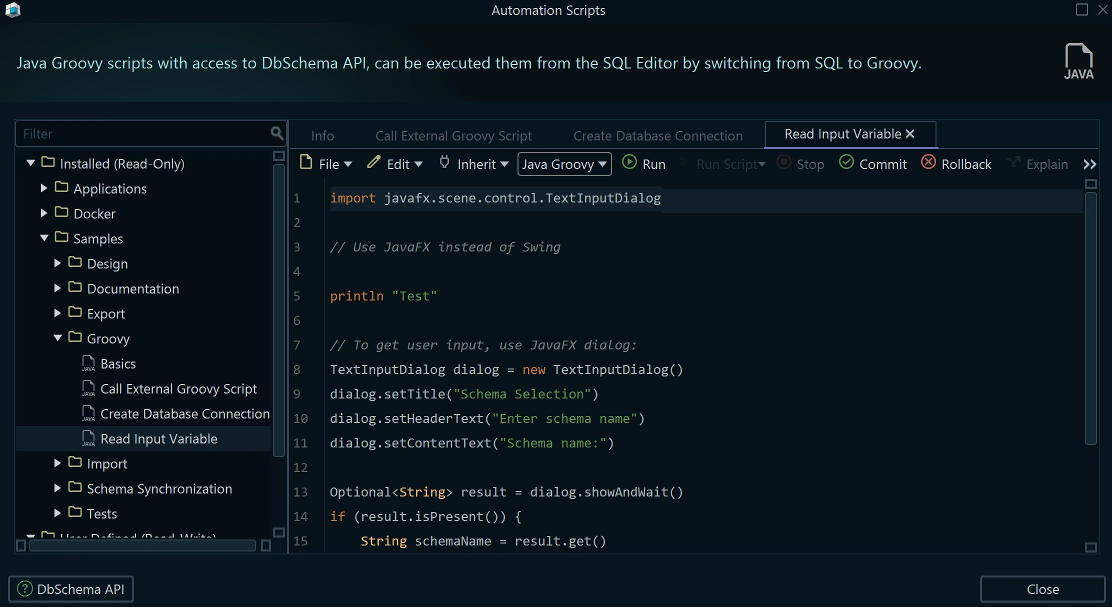
If you need to automate different tasks, use the Automation Scripts dialog from the Tools menu. This can run Java Groovy scripts with access to DbSchema API. Java Groovy is 100% compatible with Java.
The AI Assistant
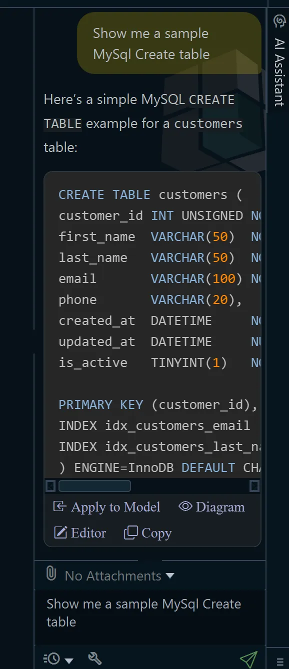
The AI assistant on the right can be used to write SQL queries, optimize queries, CREATE TABLE statements which can be merged into the design model, etc. The assistant is disabled by default. You can start a free trial by registering into DbSchema account, or use own API key.
The Licensing Model
DbSchema licenses can be:
- Developer Perpetual Licenses are valid forever with the purchased DbSchema version, include 1 year free upgrade to newly released versions. After 1 year, a renewal license is required to keep DbSchema up-to-date with the latest releases, and technical maintenance.
We continue improving DbSchema with new features, tools, bug fixes, security updates, support for new databases, etc.
-
Monthly Subscription licenses, for short-time projects
-
Floating Licenses for teams where the number of active users is limited by the license quantity.
Licenses can be managed from the (Customer Area)[https://dbschema.com/suport/customer] on website, or by license key.