SQL Editor
The SQL Editor lets you write and execute SQL directly against the connected database. Open it from the Editors menu or the toolbar. Editors are saved inside the model file and can be reopened at any time.
Writing and Executing SQL
The editor toolbar has two distinct run actions:
- Execute Query — runs the selected text, or the statement at the cursor (delimited by
;), and displays the result as a table - Run Script — executes the entire editor content and displays output as plain text; multiple result sets appear together in the same pane
The Run Script button is a dropdown that also offers Ignore Errors (continue past errors) and Auto-Commit (commit each statement automatically). When Ignore Errors is off, execution stops at the first error.
Auto-Complete
Press Ctrl+Space anywhere in the editor to open the auto-complete popup. It suggests table names, column names, keywords, and functions based on the connected schema.
Commit and Rollback
DML operations — INSERT, UPDATE, DELETE — and some DDL statements require an explicit COMMIT to become permanent. Use the Commit and Rollback buttons in the toolbar to finalize or cancel pending changes.
Editing Data in the Result Pane
For most databases, data returned in the result pane can be edited inline. Double-click any cell to enter edit mode, change the value, and commit when finished.
Save Results to File
Click the Save button in the result pane to export the full query result to a file. The query is re-executed and the complete result set is written to disk — useful when the result is too large to display on screen.
SQL History
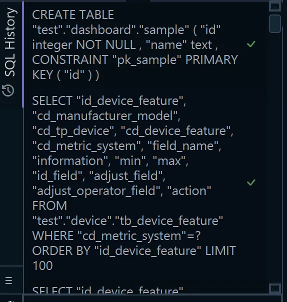
The SQL History pane records every statement executed in the current session. Click any entry to load it back into the editor.
Quick Editor

The Quick Editor is a lightweight inline editor accessible directly from the diagram. Use it for fast one-off queries without opening a full SQL Editor tab.
Groovy Scripts
Switch the editor mode to Groovy using the language dropdown in the toolbar. Groovy is a Java-compatible scripting language that gives you full access to the DbSchema API.
The following variables are available in every Groovy script:
sql— the active JDBC connection to the databasemodel— the DbSchema design model (schemas, tables, columns, etc.)out— aPrintStreamwhose output appears in the Script Result pane
Example — iterate over all rows in a table:
sql.eachRow("SELECT * FROM address") { r ->
    out.println r.address_id
}
Sample scripts are available in the Code Samples dialog from the SQL Editor Help menu. Full API details are in the DbSchema API Java Documentation.
JavaScript Scripts
Switch the editor mode to JavaScript to run JS against the database. The same three variables (sql, project, out) are exposed to the script engine.
Example — query two columns from a table:
var stmt = sql.prepareStatement("SELECT first_name, last_name FROM customer");
var rs = stmt.executeQuery();
while (rs.next()) {
    out.print(rs.getString("FIRST_NAME") + " " + rs.getString("LAST_NAME") + "\n");
}
out.print("Done");
Dropping and Saving Editors
To remove an editor, right-click it in the structure tree under Diagrams and choose Drop. When you close an editor, DbSchema asks whether to preserve it in the design model (so it can be reopened later) or drop it permanently.