MongoDB Create Database: mongosh, Atlas, Compass, Docker, and DbSchema
For the developer meeting MongoDB for the first time, with a server to install or a cluster already running; the shell commands and the DbSchema equivalents are both shown.
On this page
MongoDB has no CREATE DATABASE statement. In mongosh[1] you switch to the name you want and insert the first document, and MongoDB creates the database and the collection at that write[2]:
use flights
db.flightData.insertOne({ departureAirport: "LHR" })
The first line stores nothing, so show dbs will not list flights until the insert runs. Atlas, Compass, Docker and DbSchema reach the same result through a GUI or a container, and every path is covered below.
Lesson 2 of the DbSchema MongoDB course:
- Introduction to MongoDB
- Installation & Database Creation (You are here).
- CRUD operations in MongoDB
- Embedded Documents and Arrays
- Validation rules that enforce structure in MongoDB
- Visualize MongoDB Relationships (Embedded vs Referenced)
- What Is an Index in MongoDB?
- Aggregation Pipeline Explained
Create a MongoDB database in mongosh
mongosh is the shell that ships with MongoDB Server, and the two commands above are the whole of database creation. The sequence is the same on every operating system.
Install MongoDB Server
Skip this if a server is already running, or if you are heading for the Atlas or Docker route below. On Windows, run the Community Server installer and pick the option that runs MongoDB as a service, so the server starts with the machine.

On macOS, Homebrew carries MongoDB in a tap of its own, and the untagged formula installs the current production release:
brew tap mongodb/brew
brew install mongodb-community
brew services start mongodb-community
On Ubuntu, add MongoDB's package repository as the installation tutorial[3] describes, then install mongodb-org:
sudo apt install -y mongodb-org
sudo systemctl start mongod
Type mongosh when the install finishes. A shell prompt means the server is up.
Switch to a new database with use
Run show dbs first to list what the server already holds. On a fresh install that is admin, config and local, and nothing else. Switch to the database you want:
use flights
The prompt now reports flights as the current database and db resolves to it. Nothing has been written to the server yet.
What you can call a MongoDB database
The name has to satisfy the server's naming restrictions[5], and the forbidden characters differ between Windows and the other platforms:
| Restriction | MongoDB database names |
|---|---|
| Length | not empty, and less than 64 bytes |
| Forbidden on Unix and Linux | /\. "$ and the null character |
| Forbidden on Windows | /\. "$*<>:\|? and the null character |
| Case | salesData and SalesData cannot both exist |
Create the first collection and insert a document
db.flightData.insertOne() creates the flightData collection and the flights database in the same call, because MongoDB creates both on the first write[2]:
db.flightData.insertOne({
  "departureAirport": "LHR",
  "arrivalAirport": "TXL",
  "aircraft": "Airbus A320",
  "distance": 950,
  "intercontinental": false
})
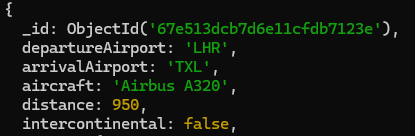
MongoDB answers with acknowledged: true and the ObjectId it assigned to the new document. Run show dbs again and flights is now in the list.
Verify the database in mongosh
Read the document back to confirm the write landed:
db.flightData.find().pretty()
{
  _id: ObjectId('67e513dcb7d6e11cfdb7123e'),
  departureAirport: 'LHR',
  arrivalAirport: 'TXL',
  aircraft: 'Airbus A320',
  distance: 950,
  intercontinental: false
}
The .pretty() method only formats the output; the query works without it, and recent mongosh versions already print documents formatted.
Why an empty MongoDB database does not persist
use sets the current database for the session and stores nothing on the server. MongoDB allocates the database and its first collection at the first write[2], which is why show dbs will not list flights until something is stored in it.
- Running use on a name that does not exist yet, then show dbs, shows nothing new. That is expected, not a failed command.
- db.createCollection("flightData") creates the database too, because a collection is something the server has to store.
- A misspelled name in use silently creates a second database the moment you insert, so check the prompt before the first write.
This is the point where MongoDB parts company with relational engines. PostgreSQL and SQL Server write a catalog entry the moment the CREATE DATABASE statement runs, and in SQLite creating the file is creating the database. In MongoDB the name is only a label until a document gives it something to hold.
Create a MongoDB database without a local server
Atlas runs the server for you, Compass talks to a server that already exists, and Docker gives you one that disappears when you are done with it. All three still create the database through its first collection, exactly as the shell does.
Create a database in MongoDB Atlas
MongoDB Atlas is the hosted option.
- Sign in to MongoDB Atlas and create or open a cluster.
- Add your database user and allow your IP address to connect.
- Open Browse Collections.
- Click Create Database.
- Enter the database name and the first collection name, then confirm.
Create a database in MongoDB Compass
Compass is MongoDB's own desktop GUI, and it creates a database in four clicks:
- Connect to your local or remote MongoDB instance.
- Click Create Database.
- Enter the database name and initial collection name.
- Confirm, then open the new database and browse the collection list.
Compass is also where you check a collection's validation rules.
Create a database with Docker
Docker suits local development and reproducible team setups, because nothing is installed on the host:
docker run --name mongodb-dev -p 27017:27017 -d mongo:8
docker exec -it mongodb-dev mongosh
From inside the container the shell behaves exactly as it does on a local install, and deleting the container deletes the database with it.
Create a MongoDB database visually in DbSchema
DbSchema connects to MongoDB through the JDBC driver it ships and draws each collection as a box of fields. Where a collection carries no schema validation rule[4], DbSchema introspects a configurable sample of documents per collection and infers field names, BSON types, nested objects and arrays, so what you see approximates what the sampled documents contain rather than a schema MongoDB enforces. Where a collection does carry a validation rule, DbSchema reads that rule as the authoritative structure instead.
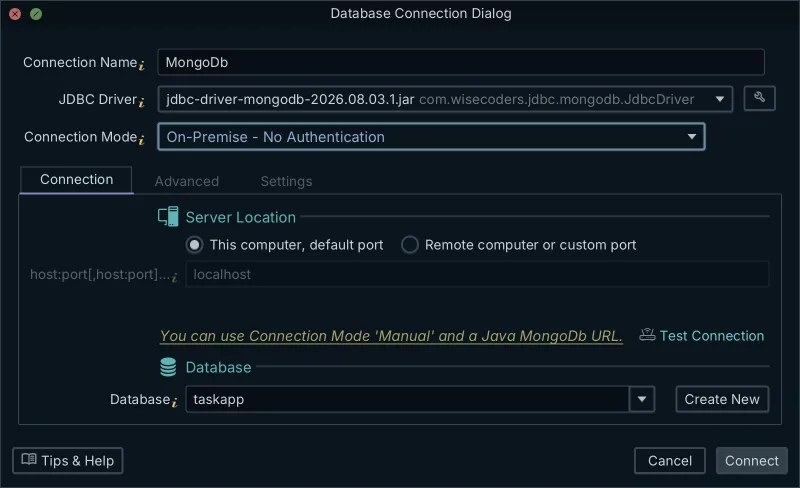
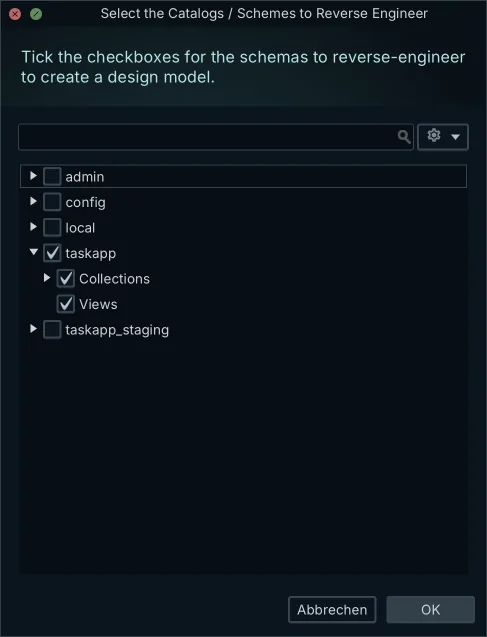
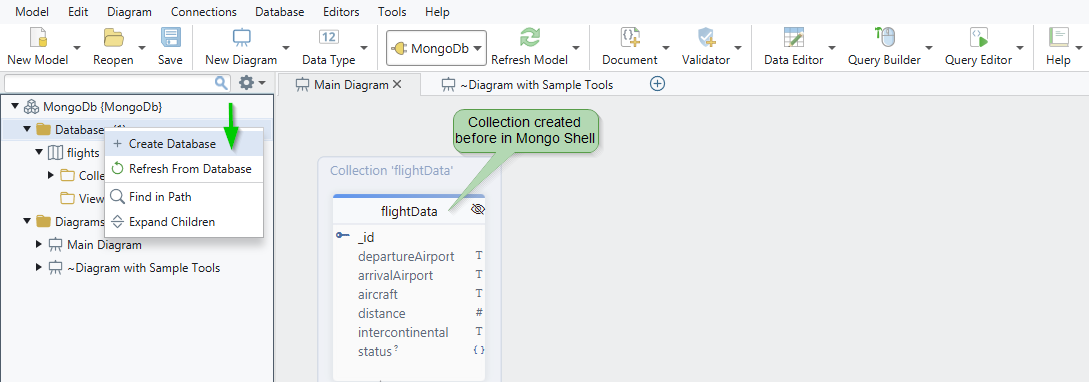
Right-click in the Project Structure panel, the same panel that lists what DbSchema reverse-engineered from the server, choose to create a database, and type flights2 as the name. DbSchema creates it on the MongoDB server, not only in the model.
Create a collection in DbSchema
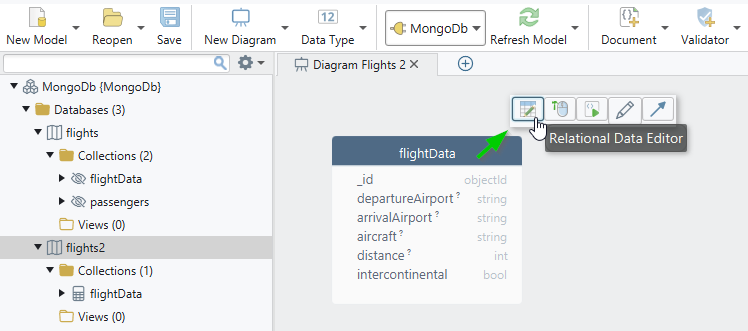
Select flights2 on the left so the new collection lands in that database, then create a collection from the diagram:
- Name it flightData, the same name used in mongosh above.
- Add an _id field, set its BSON type to ObjectId, and tick the box that marks the field as mandatory.
- Add the flight fields after it, one at a time.
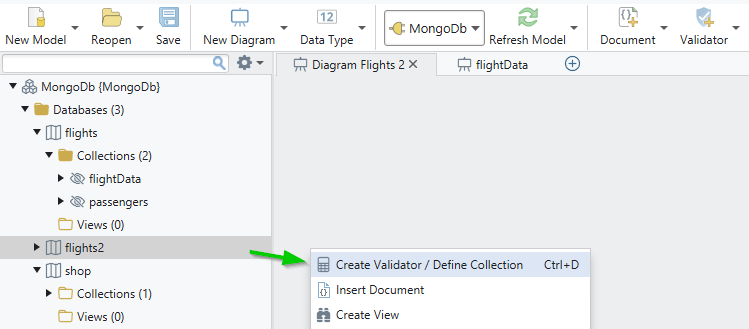
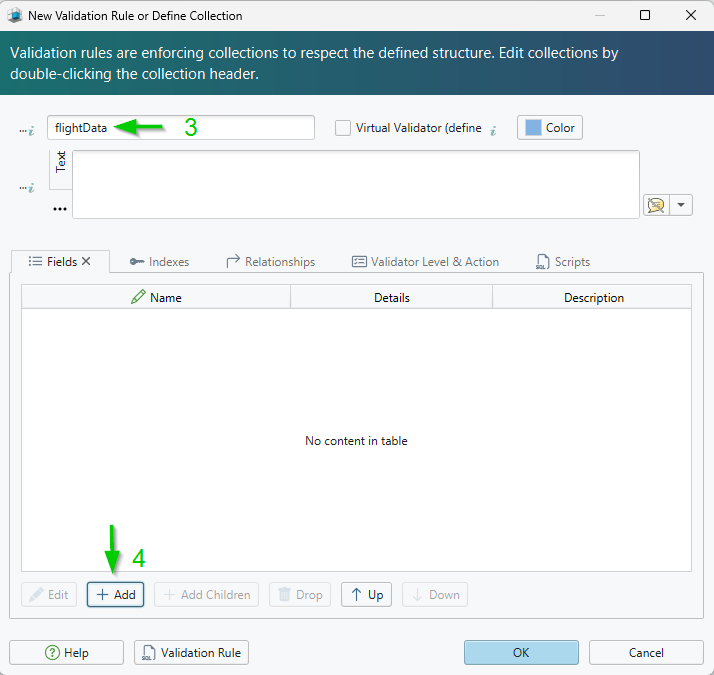
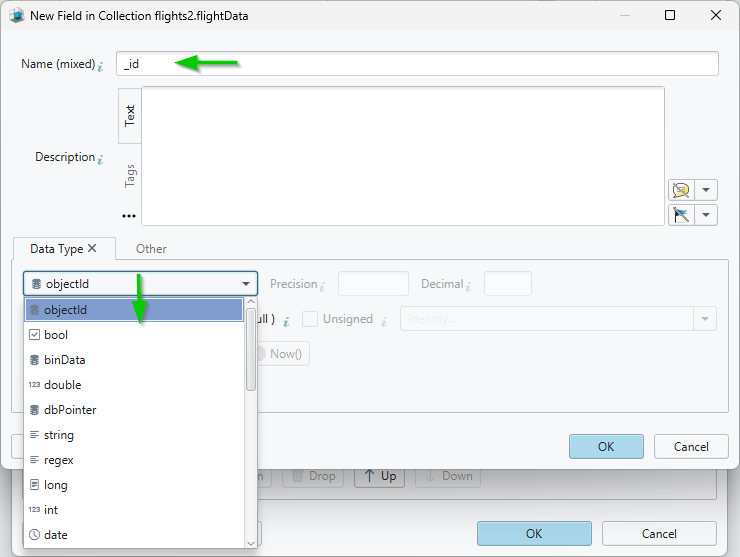
What DbSchema writes at this point is the collection's validation rule, and it writes it twice: to the MongoDB server, where it becomes the structure every insert has to satisfy, and to the design model file. The empty collection appears on the diagram at once, and the same diagram carries the relationships between collections that MongoDB neither declares nor enforces. Those relations are virtual: drag one field onto another and the definition goes to the model file alone.
Insert and read documents in DbSchema
Documents go in through the Relational Data Editor. Right-click the collection header on the diagram, choose Open in Relational Data Editor, and the Insert button in the pane footer opens an edit form shaped like the collection's fields, so a document is typed into named boxes rather than into JSON braces. Nothing reaches MongoDB until you click Commit.
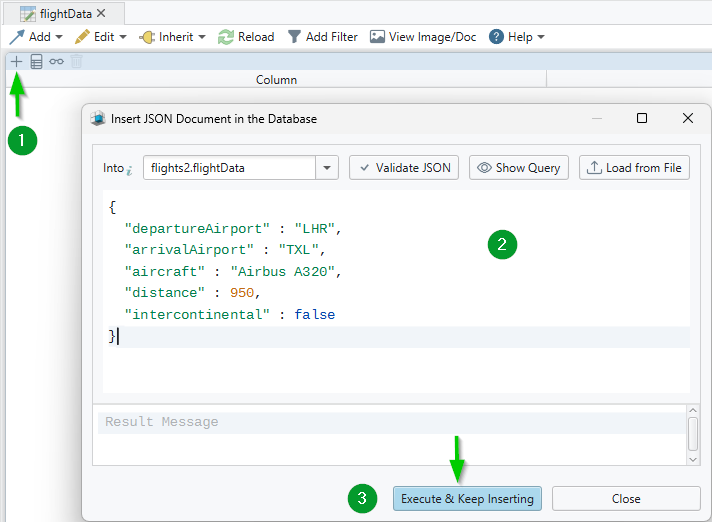
The same editor opens several collections side by side over those virtual relations, and selecting a document in the parent pane refilters each child pane to the documents whose field values match, cascading through as many levels as the relations go.
The Query Editor takes native MongoDB syntax, so the find from the mongosh section runs there unchanged:
db.flightData.find()
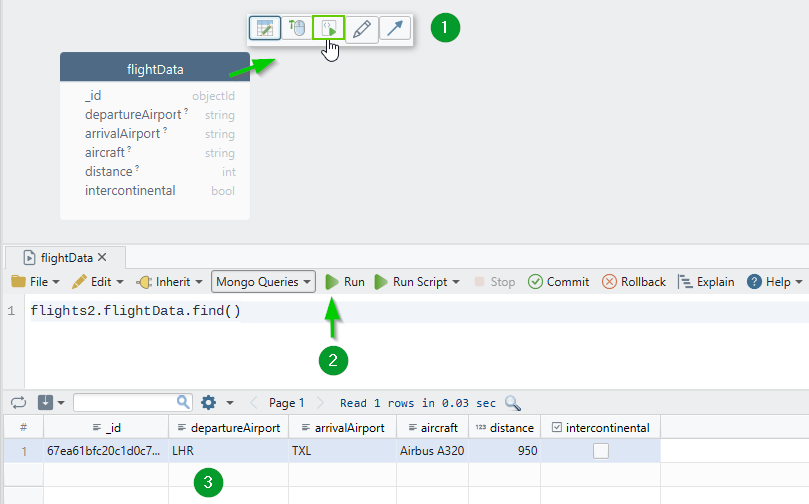
The database exists and holds its first document, which is where the CRUD operations lesson picks up, and the course goes on to joining collections with $lookup. Download DbSchema at https://dbschema.com/download.html to create your MongoDB databases, collections and fields from the diagram instead of the shell. Connecting, reverse-engineering, the interactive diagram and the Query Editor are in the free Community Edition; the Relational Data Editor used above to insert documents is Pro, on a 15-day free trial that asks for no credit card.
Sources
Create MongoDB databases and collections visually
DbSchema connects to MongoDB, samples your documents to draw each collection as a diagram, and lets you create databases, collections and fields without the shell. Connecting, reverse-engineering and interactive diagrams are in the free Community Edition.









