PostgreSQL CREATE DATABASE Guide with psql and DbSchema
For a PostgreSQL beginner who needs a first database of their own, from installing psql to the errors a first attempt runs into.
On this page
A PostgreSQL server that was just initialized holds three databases, and all three belong to the server rather than to you. Your tables need one of your own, which is a single statement at the postgres=# prompt:
CREATE DATABASE bookstore;
The role you run it as must be a superuser or hold the CREATEDB privilege, and the statement cannot be executed inside a transaction block. Every command below is written for PostgreSQL 18 and runs unchanged on 17.
Install PostgreSQL and the psql client
psql is the terminal client that ships with PostgreSQL. You need administrative rights on the computer to install it:
- Download the installer for Windows or macOS. For Linux, the download page gives the package commands for each distribution instead.
- On Windows, keep the Command Line Tools component selected, because that component installs psql and
createdb. - Open a terminal and ask psql which version it is.
psql --version
On an 18.0 installation the answer is:
psql (PostgreSQL) 18.0
A "command not found" here means the installation directory is missing from your PATH, not that the server failed to install. That is psql's own version; once you are connected, SHOW server_version; reports the server's.
The server listens on port 5432 by default, and that is the port psql uses when you give it none. If you changed the port in the installer, add -p with your port to every command below.
Create the database from psql
The Windows installer sets up a superuser role named postgres with the password you typed, so that role may create databases:
-
Open a terminal, such as PowerShell on Windows or Terminal on macOS and Linux.
-
Log in as
postgres.psql -U postgresOn Ubuntu, where local logins use peer authentication, run
sudo -u postgres psqlinstead, which asks for no password. -
Type the password at the
Password for user postgres:prompt. Nothing appears on screen while you type it. Once it is accepted, psql shows thepostgres=#prompt. -
Run the statement.
CREATE DATABASE bookstore;psql answers with the name of the command it ran, and nothing else:
CREATE DATABASE
From a shell script the same job is one command, because createdb is a wrapper around the statement. It prints nothing when it succeeds:
createdb -U postgres bookstore
List the databases to confirm it exists
The \l meta-command lists the databases on the server with "their names, owners, character set encodings, and access privileges". Its table is wide, so for the names alone, query the catalog:
SELECT datname FROM pg_database ORDER BY datname;
Right after step 4, the catalog holds four:
| datname |
|---|
| bookstore |
| postgres |
| template0 |
| template1 |
The three you did not create are the ones the server started with. template1 and template0 are the templates the next section explains, and postgres is meant as "a default database for users and applications to connect to". \l+ adds each database's size, default tablespace and description.
Creating a database does not connect you to it. \c does that, and psql confirms the switch:
\c bookstore
You are now connected to database "bookstore" as user "postgres".
The prompt changes to bookstore=#, and every statement from here lands in the new database. \q leaves psql.
What a new database starts with
CREATE DATABASE works by copying an existing database, template1 unless you name another one:
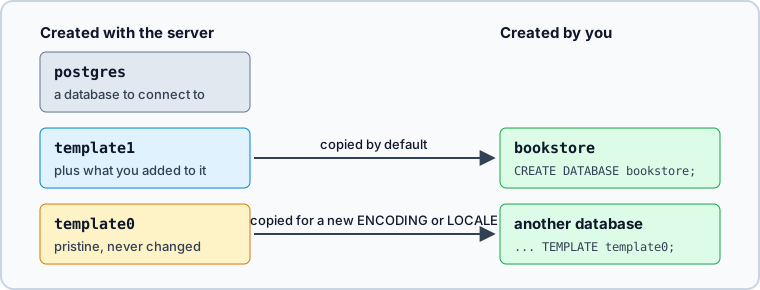
Anything you add to template1 is copied into every database created afterwards. An extension you install there once, for example, is present in each new database without being installed again. template0 holds only what PostgreSQL itself put there, and the manual says it "should never be changed after the database cluster has been initialized". That makes it the template for a database with other settings, as the next section shows.
You can also copy one of your own databases by naming it as the template:
CREATE DATABASE bookstore_copy TEMPLATE bookstore;
The copy fails while any other session is connected to bookstore, even an idle psql window:
ERROR:  source database "bookstore" is being accessed by other users
DETAIL:  There is 1 other session using the database.
Your own session doesn't count. Close the other sessions first, or copy from a database nobody uses.
Set the owner, encoding and connection limit
The bare statement takes every setting from its template. These are the options you are most likely to change:
| option | sets | when you leave it out |
|---|---|---|
OWNER | the role that owns the database | the role running the statement |
TEMPLATE | the database that is copied | template1 |
ENCODING | the character set | the template's |
LOCALE | the sort order and character classes | the template's |
TABLESPACE | where the files are stored | the template's |
CONNECTION LIMIT | how many sessions may connect at once | -1, no limit |
Give the application a role of its own to own its database, and create that role first:
CREATE ROLE clerk LOGIN PASSWORD 'change-me';
Then create the database with its options. LOCALE 'C' sorts text by byte value rather than by the rules of a language:
CREATE DATABASE shop
    OWNER clerk
    ENCODING 'UTF8'
    LOCALE 'C'
    TEMPLATE template0
    CONNECTION LIMIT 20;
The catalog shows whether each option took effect:
SELECT datname,
       pg_get_userbyid(datdba) AS owner,
       pg_encoding_to_char(encoding) AS encoding,
       datcollate,
       datconnlimit
FROM pg_database
WHERE datname = 'shop';
| datname | owner | encoding | datcollate | datconnlimit |
|---|---|---|---|---|
| shop | clerk | UTF8 | C | 20 |
Write TEMPLATE template0 whenever you set ENCODING or LOCALE. template1 might hold data that depends on its own encoding and locale, so PostgreSQL copies it only with the same settings. On a server whose default locale is en_US.utf8, the statement above without its TEMPLATE line fails:
ERROR:  new collation (C) is incompatible with the collation of the template database (en_US.utf8)
HINT:  Use the same collation as in the template database, or use template0 as template.
The connection limit is enforced only approximately, and not at all against superusers.
When CREATE DATABASE fails
PostgreSQL returns these messages for the mistakes a first attempt makes most often:
| message | cause | fix |
|---|---|---|
database "bookstore" already exists | the name is taken | pick another name, or check first |
permission denied to create database | the role is neither a superuser nor CREATEDB | a superuser runs ALTER ROLE clerk CREATEDB; |
CREATE DATABASE cannot run inside a transaction block | a BEGIN is still open | run the statement on its own |
source database "bookstore" is being accessed by other users | another session is on the template | close that session |
new collation (C) is incompatible with the collation of the template database | a new LOCALE on a copy of template1 | add TEMPLATE template0 |
syntax error at or near "NOT" | IF NOT EXISTS, which databases lack | the \gexec check below |
syntax error at or near "-" | a hyphen in an unquoted name | an underscore |
Create the database only if it is missing
CREATE TABLE accepts IF NOT EXISTS, but CREATE DATABASE has no such clause, and the parser stops at the word NOT:
ERROR:  syntax error at or near "NOT"
LINE 1: CREATE DATABASE IF NOT EXISTS bookstore;
                           ^
In psql, \gexec runs each value a query returns as a statement. A query that returns the statement only while the name is free does the job:
SELECT 'CREATE DATABASE bookstore'
WHERE NOT EXISTS (SELECT FROM pg_database WHERE datname = 'bookstore')\gexec
When bookstore exists, the query returns no row and nothing runs. When it is missing, psql runs the statement and prints CREATE DATABASE.
Why a name changes case or fails
An unquoted name is folded to lower case, and a quoted one is kept as written, so the first two statements below create two databases, which the query lists:
CREATE DATABASE MyShop;
CREATE DATABASE "MyShop";
SELECT datname FROM pg_database WHERE datname ILIKE 'myshop' ORDER BY datname;
| datname |
|---|
| MyShop |
| myshop |
The quoted one must be quoted in every later command, so keep names in lower case. An unquoted name starts with a letter or an underscore and goes on with letters, digits, underscores or dollar signs. A hyphen is read as a minus sign:
ERROR:  syntax error at or near "-"
LINE 1: CREATE DATABASE my-shop;
                          ^
A name longer than 63 bytes is truncated.
Create the database while you connect with DbSchema
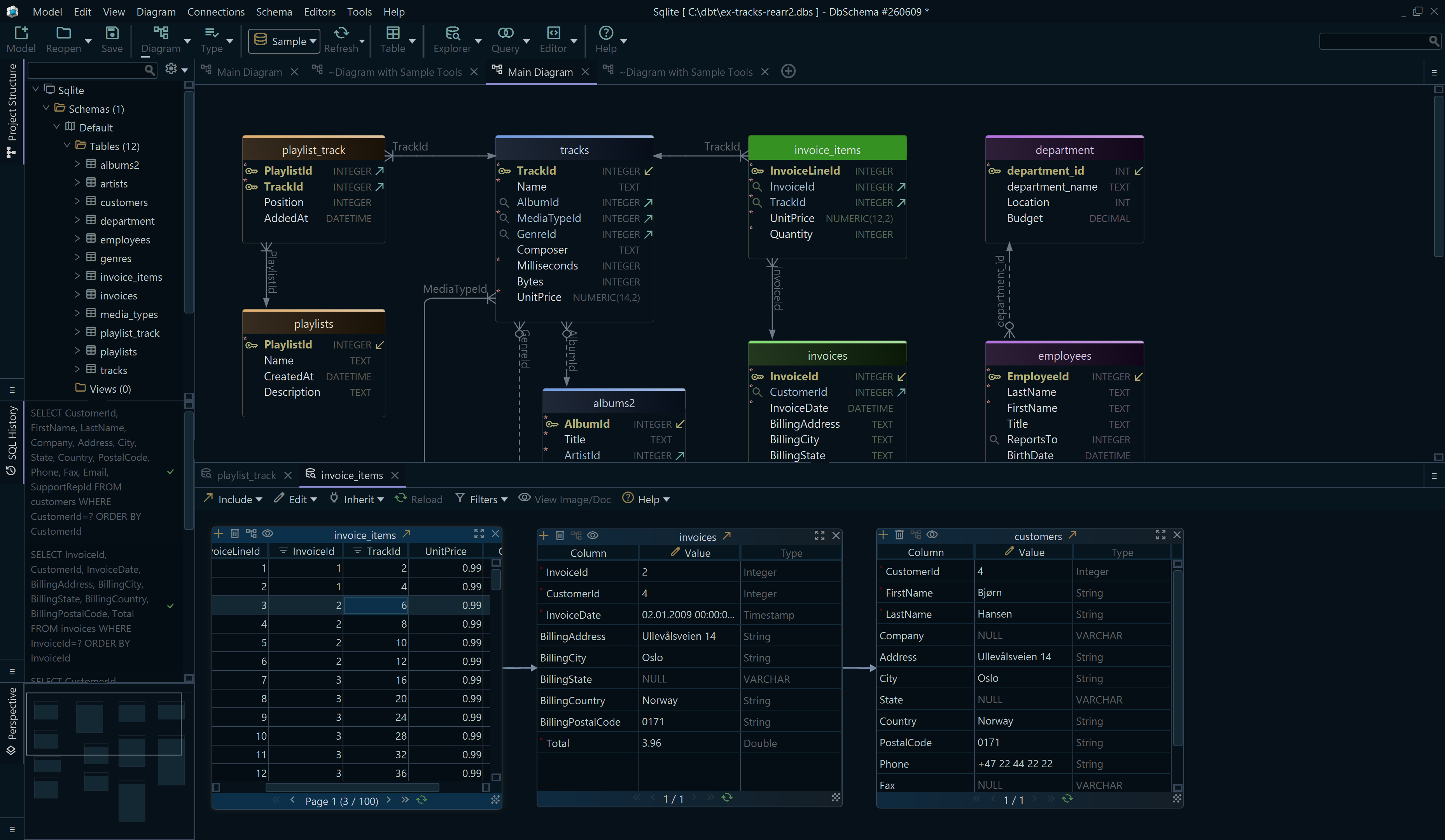
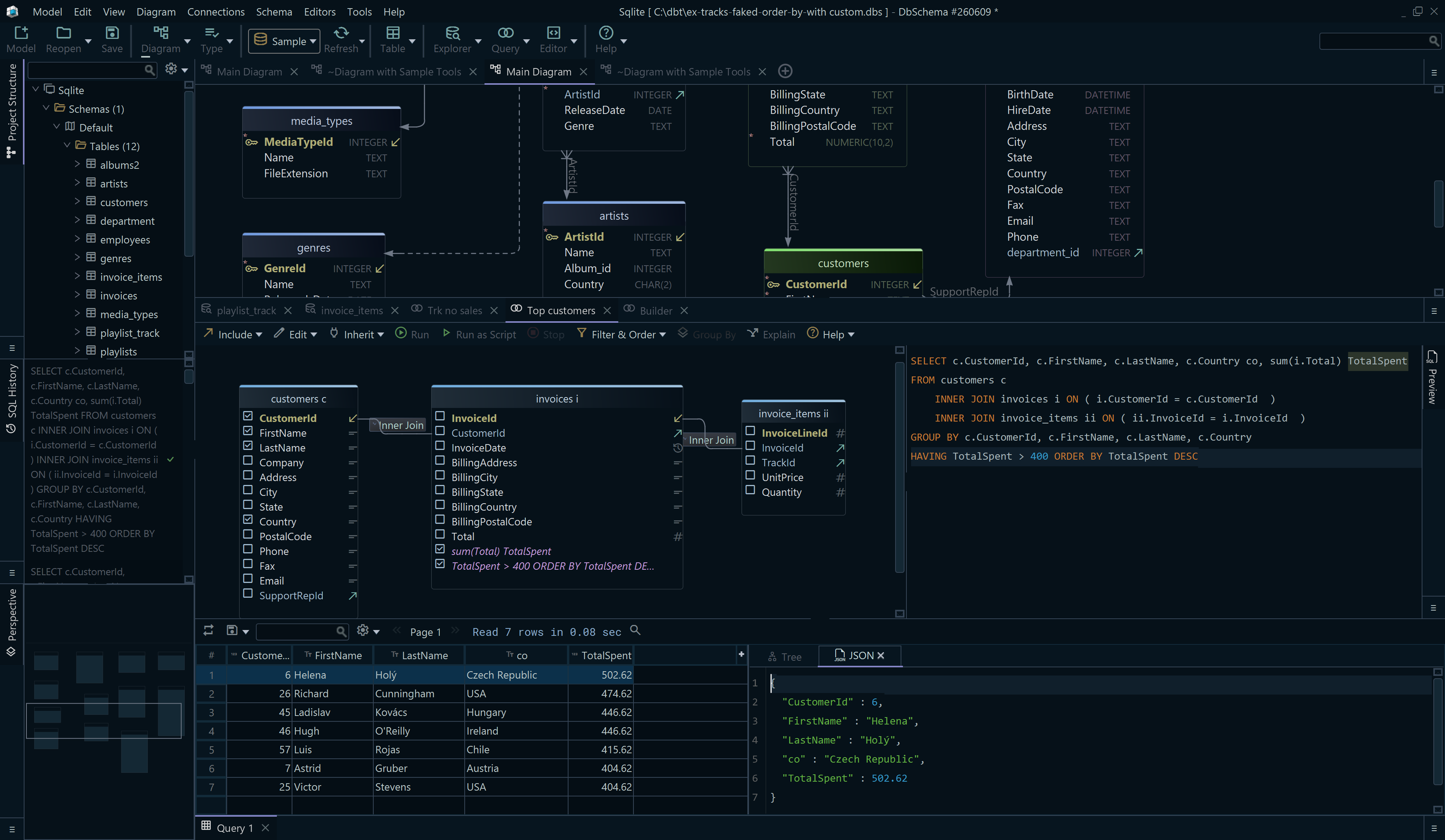

DbSchema is a PostgreSQL client and visual designer that creates the database from the same dialog you use to connect, so a new project starts without a terminal session:
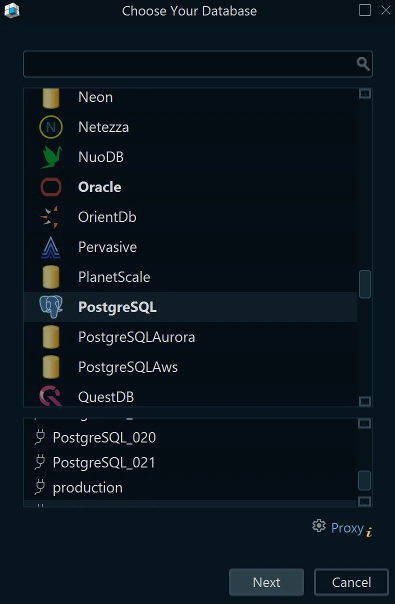
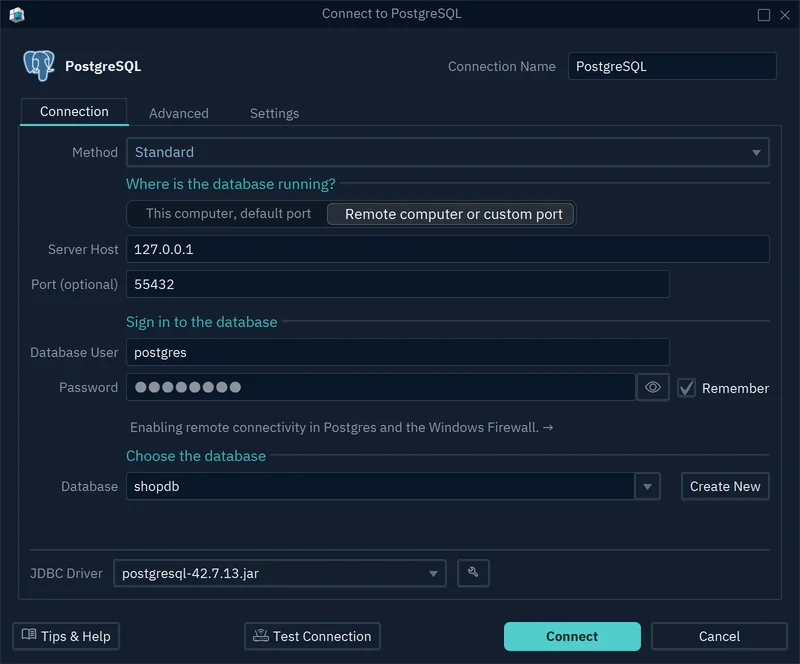
- Click Connect to Database and choose PostgreSQL in the Choose Your Database list. DbSchema downloads the PostgreSQL JDBC driver and opens the Connection Dialog.
- Under Where is the database running?, keep This computer, default port for a server on your own machine, or choose Remote computer or custom port and enter the host and the port.
- Fill in Database User and Password, for example
postgresand the password you gave the installer, and tick Remember to store the password. - Click Create New next to the Database field and name the database
bookstore. DbSchema sendsCREATE DATABASEto PostgreSQL, so the same privilege rule applies. - Select
bookstorein the Database list and click Connect.
DbSchema then reverse-engineers the database and draws it as a diagram. What reaches PostgreSQL from there depends on the action:
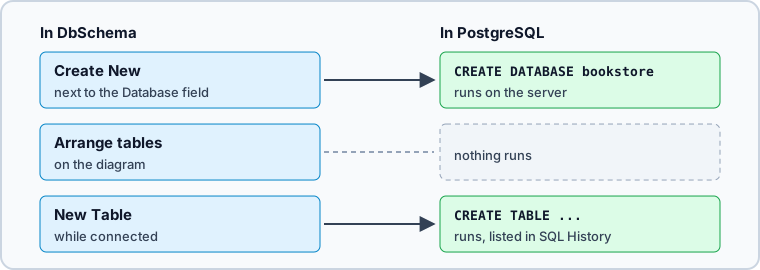
Arranging tables on the diagram changes nothing in PostgreSQL. Adding one does: right-click the canvas and choose New Table, and while the connection is open DbSchema executes the statement against the database and lists it in the SQL History pane.
Connecting, reverse-engineering, the diagram and creating tables are in the free Community Edition. Download DbSchema, connect to bookstore, and add its first table on the diagram; creating a table in PostgreSQL explains the statement that DbSchema runs for it.









