Free SQL Client: What DbSchema Community Edition Includes
For the person picking a free SQL client who wants to know exactly where the free edition stops.
On this page
You need a client that connects to the database, shows you what is in it and runs your SQL, and you would rather not find the paywall halfway through the afternoon. DbSchema Community Edition covers four jobs for nothing: connect to any supported database, reverse-engineer the schema, work in interactive ER diagrams, and write SQL in the editor. It is free permanently and needs no signup. Offline design, schema synchronization, documentation export and the visual query builder are Pro.
DbSchema Community Edition at a glance
Community Edition is not a time-limited trial and not a cut-down installer. The installation kit is the same for every edition, and the licence decides which menus open. Install it without a licence key and you are in Community. The 15-day Architect trial runs on the same binaries and can be extended by another 15 days, after which the application carries on as Community.
What that free edition gives you is a JDBC connection to any of 70+ SQL and NoSQL databases, the schema reverse-engineered into interactive ER diagrams you can rearrange and edit, the ability to create tables, columns and relations and push them to the connected database, and an SQL editor whose autocomplete knows your tables and columns. It is licensed for as many people as you like, with no account to create.
What is free and what needs Pro
Every row below is read off the edition table on the DbSchema purchase page, checked on 6 September 2026.
| Capability | Community (free) | Pro | Architect |
|---|---|---|---|
| Databases supported | All databases, 70+ SQL and NoSQL engines | Same | Same |
| Connect and reverse-engineer a live schema | Yes | Yes | Yes |
| Interactive ER diagrams, editable layout | Yes | Yes | Yes |
| Create tables, columns and relations from the diagram | Yes | Yes | Yes |
| SQL editor | Yes | Yes | Yes |
| AI assistant on a DbSchema subscription | Yes | Yes | Yes |
| Design offline and save the model to a file | No | Yes | Yes |
| Schema synchronization | No | Yes | Yes |
| Documentation export: HTML5, PDF and Markdown | No | Yes | Yes |
| Visual query builder | No | Yes | Yes |
| Relational data browse across foreign keys | No | Yes | Yes |
| Data generator and data importer | No | Yes | Yes |
| Database management applications | No | Yes | Yes |
| AI assistant with your own API key | No | Yes | Yes |
| Logical and conceptual design | No | No | Yes |
Two rows are easy to misread. Saving query results to a file belongs to the SQL editor and is in Community; it is not the same thing as Design offline / save to file, which means writing the .dbs design model to disk. And relational data browse means opening several tables side by side and walking their foreign keys, which is a different screen from the SQL editor's own result pane.
The line falls where the schema stops being something you read and starts being something you ship. Querying and exploring any database is free for as long as you want it. A diff against another database, an interactive HTML5 documentation file to hand to someone, or a model file you can version, puts you in Pro. The current price per edition is on the purchase page, which shows the figures for business, personal and educational use on separate tabs and in your own currency.
Download DbSchema and connect for the first time
The DbSchema download page carries the packages for every platform and asks for nothing in return. No registration is required, and there is no account to create before DbSchema will start.
- Download the installer for your platform: exe, zip, msi or an ARM-64 exe on Windows, dmg or tgz on macOS, sh, deb, rpm or gzip on Linux.
- Run it and start DbSchema. With no licence key entered, you are in Community Edition.
- Choose Connect to database, pick your engine from the driver list, then fill in host, port, database, user and password.
- Let DbSchema fetch the JDBC driver if it does not already hold it, and test the connection.
- Accept the reverse-engineering dialog. DbSchema reads the catalog and lays the tables out as an ER diagram.
- Open the SQL editor from the Editors menu or the toolbar. The connection you just made is already selected.
One thing to be clear about before you start. Community Edition works against the live database: you connect, you read the schema, you run SQL, and a table you create on the diagram is created on the server. The design model saved to a .dbs file, the one you keep in Git and edit with no database in reach, is Pro. Close DbSchema in Community and the next session connects and reads the schema again rather than loading it from a file.
Your first query, from CREATE TABLE to the result
Start with two tables, so there is a relationship to look at. Paste this into the SQL editor and run it against a scratch database.
CREATE TABLE customers (
  customer_id INT PRIMARY KEY,
  name        VARCHAR(120) NOT NULL,
  country     VARCHAR(2)
);

CREATE TABLE orders (
  order_id    INT PRIMARY KEY,
  customer_id INT REFERENCES customers(customer_id),
  order_date  DATE,
  total       DECIMAL(10,2)
);

INSERT INTO customers VALUES (1, 'Alba', 'RO'), (2, 'Vega', 'DE');
INSERT INTO orders VALUES
  (10, 1, DATE '2026-02-11', 40.00),
  (11, 1, DATE '2026-03-05', 12.50),
  (12, 2, DATE '2026-03-02', 99.90);
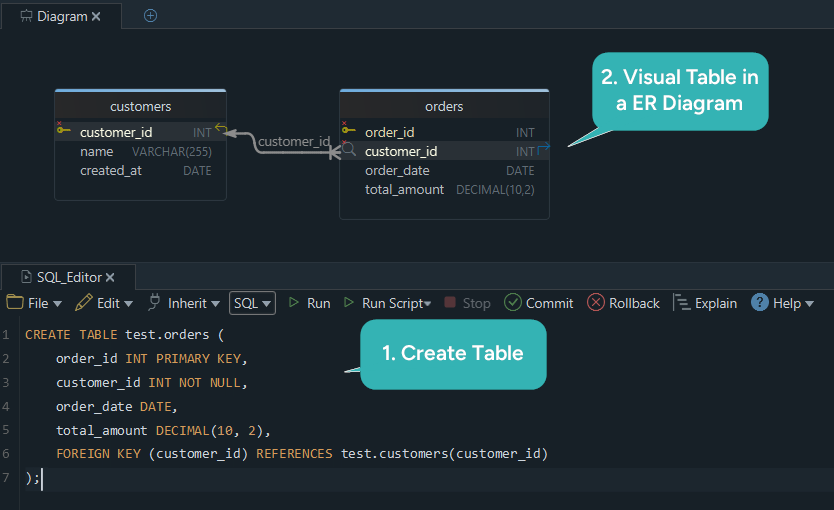
The foreign key on orders.customer_id is the part a plain text editor can do nothing with. When DbSchema reverse-engineers a database, every declared foreign key becomes a connector line between two tables on the diagram, so the relationship is something you look at rather than something you remember. That is what turns an existing production database into a readable ER diagram on the first connection.
Now query across both tables:
SELECT c.name,
       c.country,
       COUNT(o.order_id) AS orders,
       SUM(o.total)      AS revenue
FROM customers c
JOIN orders o ON o.customer_id = c.customer_id
WHERE o.order_date >= DATE '2026-01-01'
GROUP BY c.name, c.country
ORDER BY revenue DESC;
| name | country | orders | revenue |
|---|---|---|---|
| Vega | DE | 1 | 99.90 |
| Alba | RO | 2 | 52.50 |
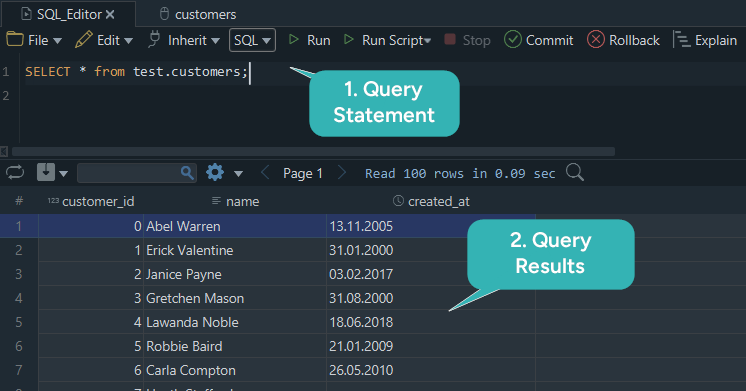
Press Execute Query in the editor toolbar, which runs the selected text or the statement at the cursor, and the rows land in the pane underneath. Two things are worth noticing while you type it. The join follows the same foreign key you can see on the diagram, and the filter is what keeps the scan off the whole table. Autocomplete offers the c. and o. column names because DbSchema has already read the catalog.
Get a statement wrong and execution stops at that statement, unless you switch on Ignore Errors from the Run Script dropdown, which carries on past it. Nothing in this example needs a licence key: every step above runs in the free Community Edition.
Writing SQL in the free editor
The SQL editor is one of the capabilities the edition table opens in Community, and it is more than a text box with a Run button. Three of its behaviours are what make Community Edition worth installing to read a database you did not build.
The diagram and the editor stay in step
Edit a table on the canvas while you are connected and the change goes into the design model and into the database at once. The diagram in front of you is therefore the schema as it is now, which on a large database is the fastest way to see which table connects to which, which foreign keys are declared, and how the whole thing is put together before you write a query against it.
Autocomplete and syntax highlighting
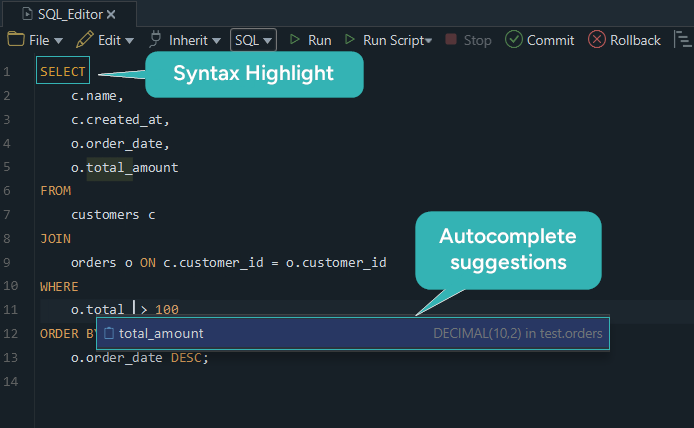
Autocomplete in the DbSchema SQL editor draws on the connected schema, not only on SQL keywords. Press Ctrl+Space and it suggests table names, column names, keywords and functions. Syntax highlighting and inline validation catch the typos before you run them.
Reading the SQL DbSchema ran for you
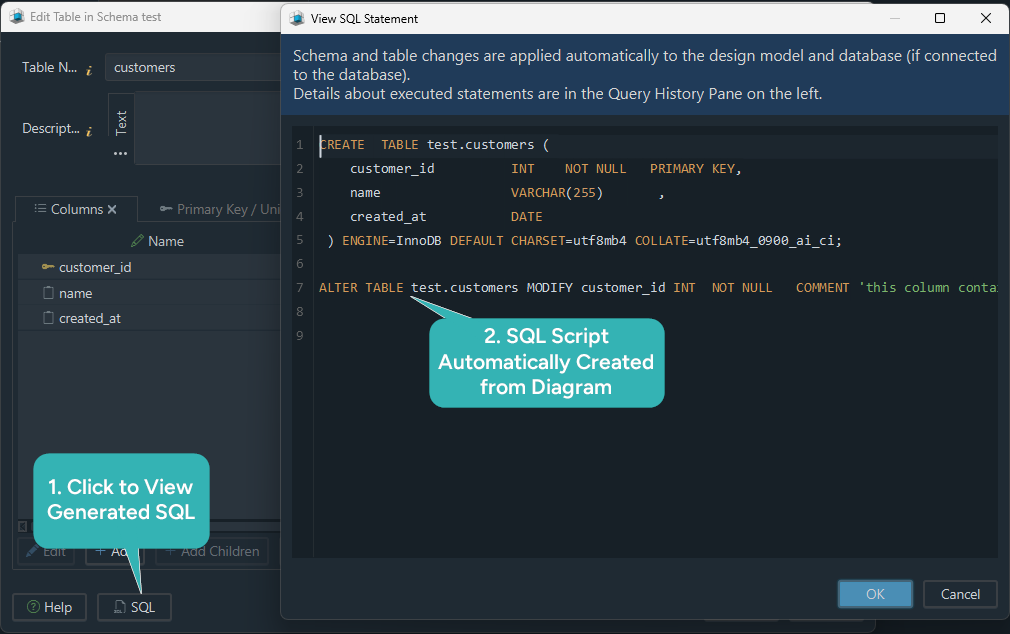
Design a table on the diagram and DbSchema writes the SQL that creates it. Every statement executed in the session is listed in the SQL History pane, and clicking an entry loads it back into the editor, so a table you built with the mouse becomes a statement you can read, change and re-run. It is a quick way to learn what a given piece of DDL produces, because you can build the shape first and read the statement afterwards.
Query results in the grid, in a file and from a script
Query results in DbSchema arrive in a grid rather than a text dump, and the grid does more than display. Three behaviours matter here, and one of them is regularly confused with a Pro feature.
Editing the rows in the result pane
Results appear as a spreadsheet-style table under the editor. For most databases the data returned in the result pane can be edited inline: double-click a cell, change the value, commit when you are finished. That is the SQL editor's own pane; the multi-table Relational Data Editor that walks foreign keys between panes is a separate Pro capability.
Save results to a file
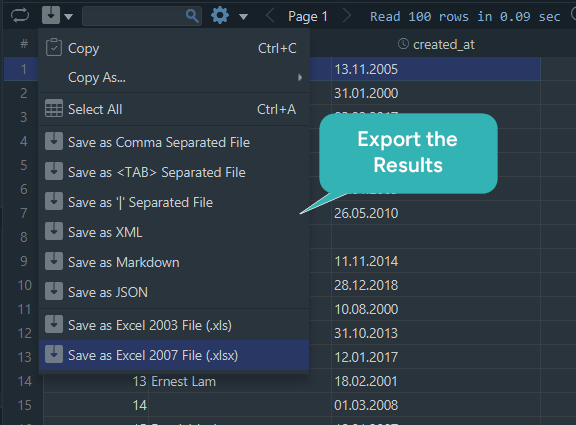
Click the Save button in the result pane and DbSchema re-runs the query, streaming the whole result straight to a file. A dataset too large to hold on screen still lands intact. Results export to CSV, Excel or JSON. Keep this apart from the design model: saving the .dbs model file is the Pro capability, and the two have nothing to do with each other.
Run Groovy and JavaScript in the SQL editor
Switch the editor mode from the language dropdown and the same pane runs Groovy or JavaScript against the connection. A Groovy script is handed the active JDBC connection as sql, the DbSchema design model as model, and an output stream as out whose output lands in the Script Result pane, so the script can read data, write it back or print a report. Sample scripts sit in the Code Samples dialog on the SQL Editor Help menu.
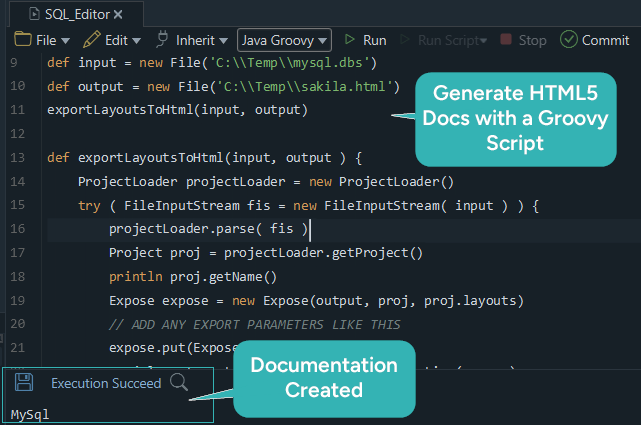
The script above is the boundary in one picture: writing and running it is part of the SQL editor, and the HTML5 documentation it produces is a Pro feature, which the trial in the same installer turns on. Packaging scripts into database management applications is its own row in the edition table and needs Pro too.
Download the free SQL client
Download DbSchema and connect it to your own database. The connection, the reverse-engineered diagram, the SQL editor, the result pane, the file exports and the Groovy scripting all run in the free Community Edition, permanently and without an account. Offline design, schema synchronization and HTML5 documentation are Pro, and the 15-day trial turns them on in the same installation. If the language itself is the problem, the SQL syntax guide covers every statement used above.
Run your first query in the free SQL client
DbSchema Community Edition connects over JDBC, reverse-engineers the schema into an interactive ER diagram and runs your SQL in an editor whose autocomplete knows your tables and columns. Free permanently, no signup and no account.









