MySQL ER Diagram, Reverse Engineer and Design Schemas Visually
For someone who has a MySQL database or a requirements list and needs a diagram of the tables and the relationships between them.
On this page
A MySQL database you did not design has sixty tables in it, and the names alone will not tell you which ones belong together. DbSchema reads the schema and draws the diagram for you:
- On the Welcome Screen, choose
Connect to Database. - Pick
MySqlinChoose Your Database, and let DbSchema download the MySQL JDBC driver for you. - Fill in the connection:
Connection Name,Server Hostand port,Database Userand password, and the database to open.Test Connectionchecks that the server answers before you commit to it. - Click
Connect. DbSchema reads the tables, columns, keys and indexes, then draws them on an interactive diagram, a box per table and a connector line per foreign key.
Those four steps run in the free Community Edition, and nothing is written to MySQL while they run. Saving the result to a model file, comparing that file against the database and exporting documentation are Pro features, which a new installation opens for 15 days without a credit card.
If you are still comparing tools, see Best MySQL Database Design Tools.
What a MySQL ER diagram shows
The canvas carries what SHOW CREATE TABLE gives you one table at a time, arranged so you can see all of it at once:
- one box per table, listing the column names
- a marker on the primary key columns and on the foreign key columns
- the data types beside the column names, once
Diagram → Show Column Typesis on - a connector line per foreign key, in
Defaultcrow-foot,BarkerorSimplenotation, switched from theDiagrammenu
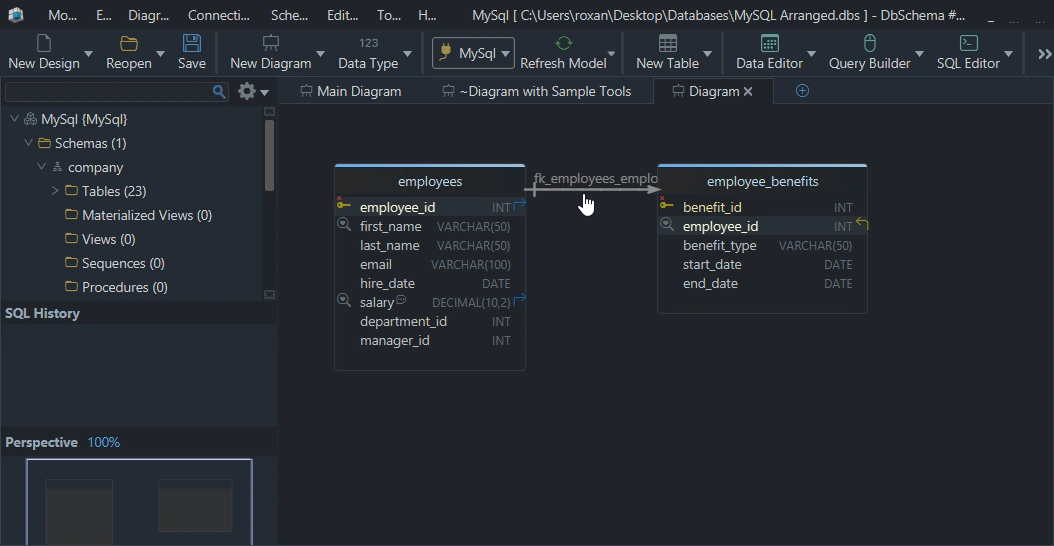
The lines are what the diagram is for. A missing foreign key is visible as a table sitting on its own, which is far harder to notice in a list of CREATE TABLE statements, and a table that everything points at is visible as the one with lines running to it from every direction.
A diagram where no table has a line points at the storage engine rather than at the schema. InnoDB and NDB are the MySQL storage engines that support foreign key constraints; for any other engine, CREATE TABLE parses the FOREIGN KEY clause and ignores it, so a MyISAM table stores no foreign key for DbSchema to read back. Drag from the referencing column onto the column it references and DbSchema offers a virtual foreign key instead: a line on the diagram that is saved in the model file rather than in MySQL, so the relationship the schema never declared is still visible.
If you want a broader conceptual explanation, also read What Is an Entity Relationship Diagram?.
MySQL version-specific modeling syntax
The diagram looks the same whichever MySQL version it came from, because tables, columns and foreign keys have not changed. What changes is how much of the business logic is in the schema at all, rather than in the application above it.
| MySQL feature | What it is on the diagram |
|---|---|
| Foreign key | the constraint the connector lines are drawn from |
AUTO_INCREMENT | the surrogate key a child table will reference |
| Generated column | a column whose value comes from other columns in the row |
JSON column | one column, whatever the shape of the document inside it |
CHECK constraint | a rule the schema carries, on 8.0.16 and later |
Check constraints are the one that bites. As of MySQL 8.0.16, CREATE TABLE creates and enforces table and column check constraints; before that release the clause was, in the manual's words, "parsed and ignored". A rule written as a CHECK on an older server was never stored, so it is absent from the schema and absent from the diagram, and the only record of the intention is in whatever script created the table.
Sample MySQL schema to diagram
CREATE TABLE customers (
    customer_id INT AUTO_INCREMENT PRIMARY KEY,
    email       VARCHAR(255) NOT NULL UNIQUE,
    full_name   VARCHAR(200) NOT NULL
);

CREATE TABLE orders (
    order_id      INT AUTO_INCREMENT PRIMARY KEY,
    customer_id   INT NOT NULL,
    order_status  VARCHAR(20) NOT NULL,
    created_at    TIMESTAMP DEFAULT CURRENT_TIMESTAMP,
    CONSTRAINT fk_orders_customer
        FOREIGN KEY (customer_id) REFERENCES customers(customer_id)
);

CREATE TABLE order_items (
    order_item_id INT AUTO_INCREMENT PRIMARY KEY,
    order_id      INT NOT NULL,
    product_name  VARCHAR(200) NOT NULL,
    quantity      INT NOT NULL,
    unit_price    DECIMAL(10,2) NOT NULL,
    CONSTRAINT fk_order_items_order
        FOREIGN KEY (order_id) REFERENCES orders(order_id)
);
Three tables and two foreign keys give DbSchema everything it needs to draw a chain: customers to orders to order_items, each line pointing from the child at the parent. The crow-foot end sits on the child side, so one customer with many orders and one order with many items is readable without opening a single table.
The diagram also shows what the schema does not say: nothing connects order_items to a product table, because product_name and unit_price are copied into the row rather than referenced. A diagram raises that decision for review where a list of DDL statements hides it.
If you are still designing the tables themselves, the related guide How to Design a Relational Database Schema is a good next read.
Reverse engineer an existing MySQL database
A database that already exists needs no drawing, because the four steps above read it. What they fill is the DbSchema design model, an XML .dbs file on your own disk, and every diagram is a view of that model. Moving a table, grouping tables and adding a diagram change the file and leave MySQL untouched.
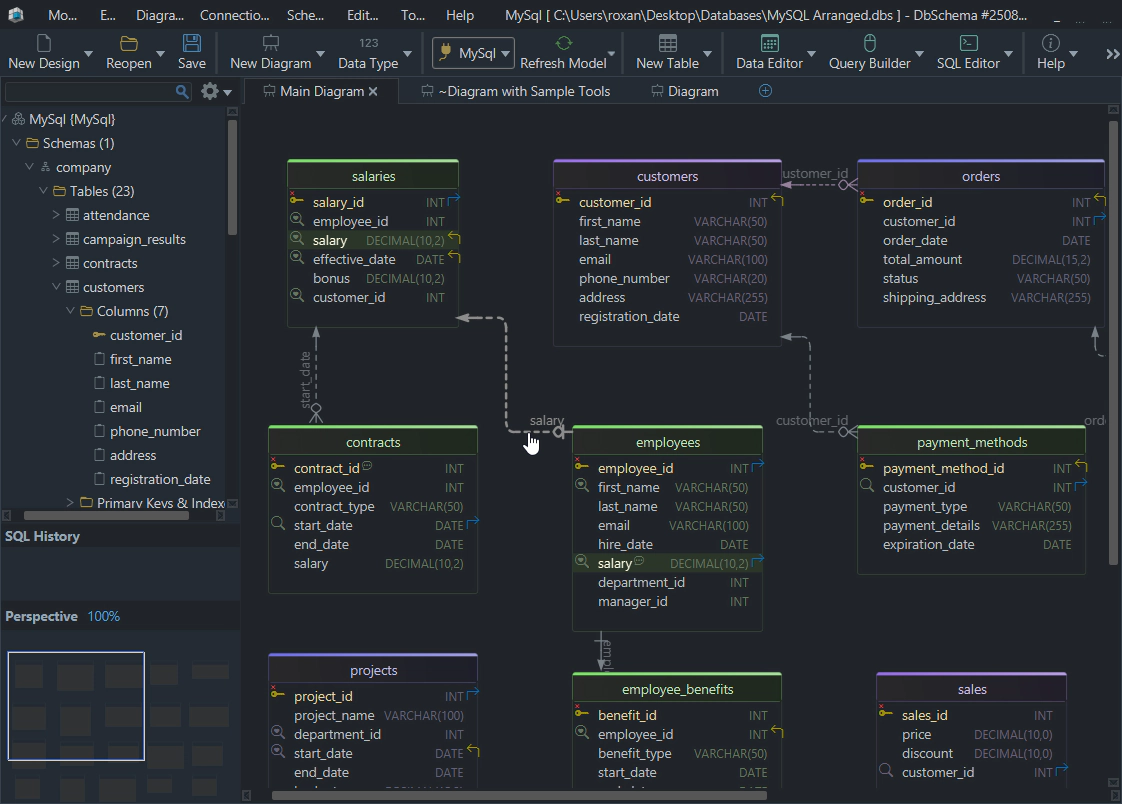
A large schema comes out overlapping. Two commands make a generated layout readable:
- Select all tables with Ctrl+A and run
Diagram → Auto Arrange, which lays them out with a graph algorithm. - Right-click the canvas and choose
New Groupto cluster the tables of one module into a named, colored group you can move as a unit.
One project holds many diagrams over the same schema, each with its own layout and its own choice of visible tables, so billing, authentication and reporting can each get a canvas that fits on a screen. Add one from the Diagram menu or the + tab above the canvas, and put the same table on as many of them as you need. Saving all of it to the .dbs file is a Pro feature.
Design a new MySQL schema visually
The opposite case is a requirements list and no database. DbSchema designs offline, with no connection at all:
- Right-click the empty canvas and choose
New Table. - Double-click the table header to open the Table Dialog, and add the columns, types, keys and indexes there.
- Drag a column from the child table onto the target column in the parent, and the foreign key line appears immediately.
- Run
Schema → Create or Upgrade Schema in Database. DbSchema generates the DDL for the schemas you select and shows it to you; the statements run against MySQL when you clickExecute, and not before.
in the Model
in the Database
Nothing you draw reaches a database before step 4, because until then there is no connection at all. Reviewing generated DDL before it runs is a different working day from finding out what a migration did afterwards.
Keep the model synced and documented
A diagram drawn once is out of date by the first migration. Keeping it current, sharing it and explaining it are all work against the model file rather than against MySQL.
Sync the model with the live database
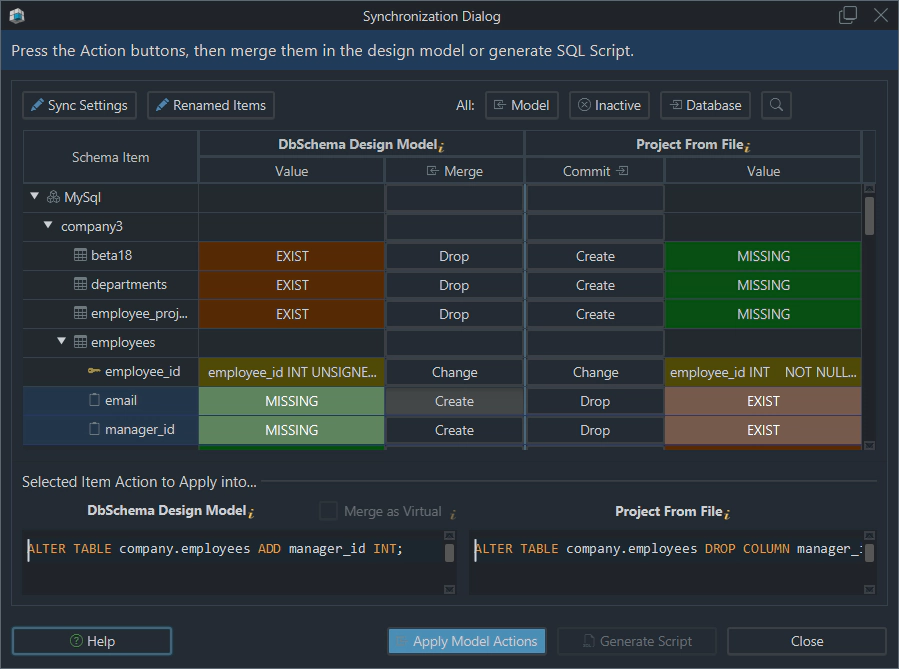
Schema synchronization compares the model against the connected MySQL schema and generates the SQL statements that bring one into line with the other. Open it from Schema → Synchronize Model with Database. The statements are editable in the dialog before you click Execute, so a change you did not intend is a line you delete rather than an incident. Schema → Compare Model with Database shows the same differences without generating anything, and both are Pro features.
Publish interactive documentation
Go to Diagram → Export HTML5 or PDF Documentation. The HTML5 output opens in any browser with no server behind it, and carries the diagram as a vector image, a searchable table list, and the full column details. Its dialog asks which diagrams go in, from the current one to every diagram tagged documentation, and which schema elements each page carries. PDF and Markdown come out of the same dialog, and all three are Pro features.
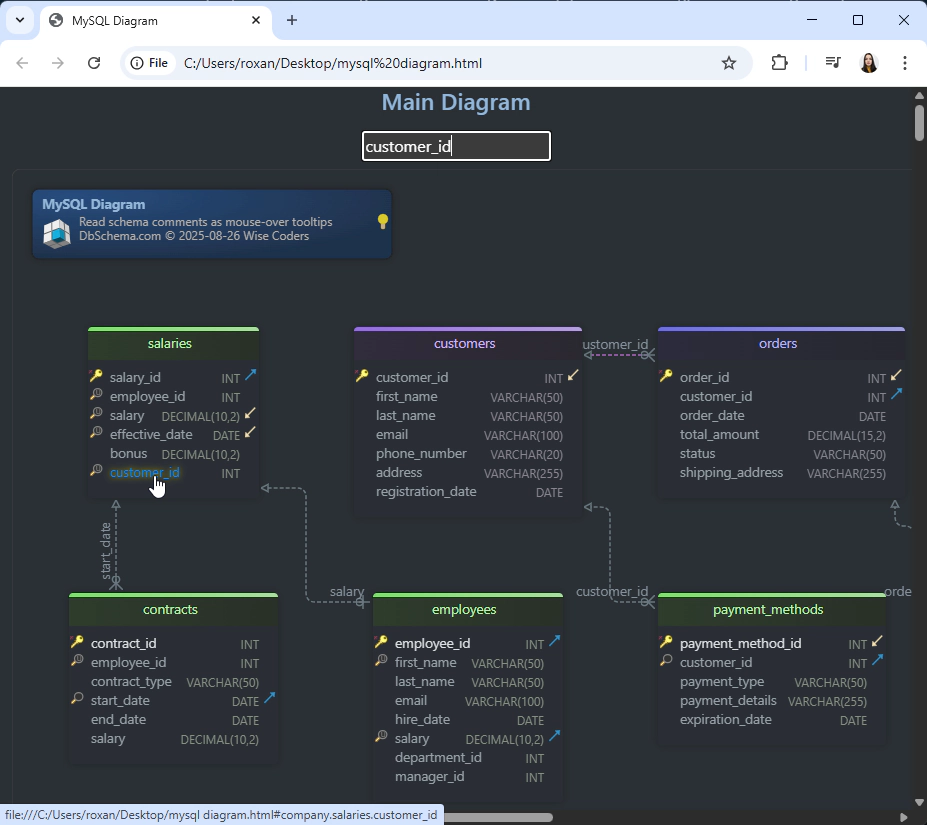
with any browser
in the diagram
complete details
relationships, metadata
Keep change history in Git
The .dbs file is plain XML, so Git treats a schema change like any other diff and a branch of the model is a branch of the design. DbSchema has a Git client of its own: open Model → Git — Collaborative Design to clone the repository and work with the buttons you already know, Stage, Commit, Push, Pull, Stash, Pop and Create Branch. Your usual Git tooling reads the same file, so nobody on the team is pushed into a dialog they did not ask for.
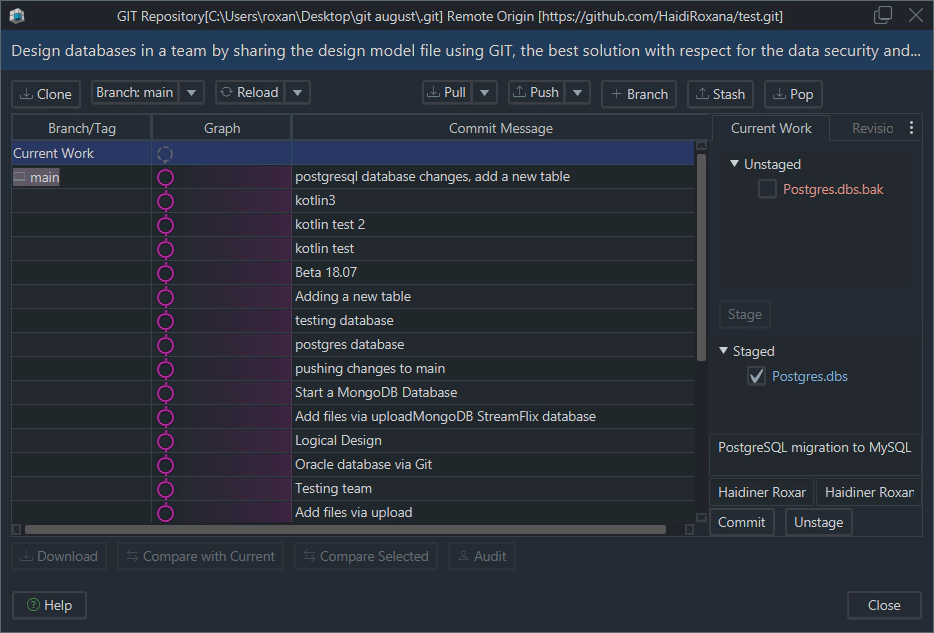
with the Git dialog in DbSchema
Add notes that explain the model
The Description field of a table or column holds the sentence the column name could not, and it reaches the generated documentation as a mouse-over tooltip. DbSchema also takes comment tags, key and value pairs attached to a table or column, for the metadata a description is the wrong shape for: an owner, a sensitivity level, a deprecation date. Free-standing notes and callouts go anywhere on the canvas from the Insert menu, and are saved in the project file with everything else.
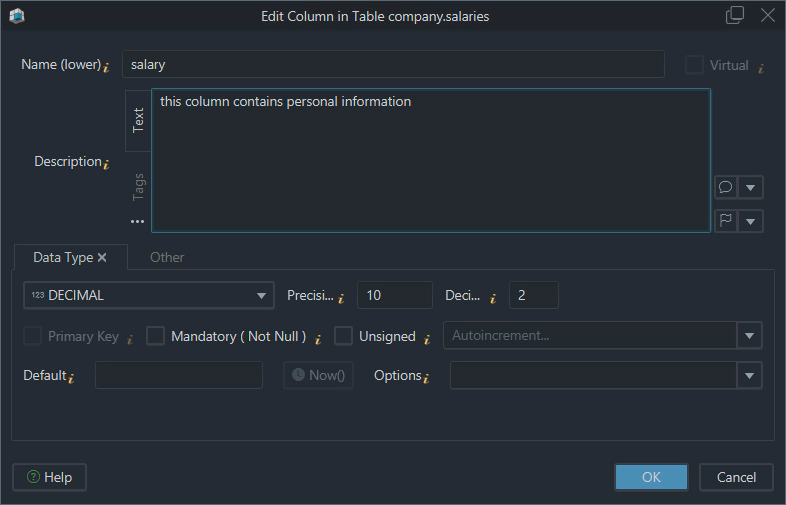
Download DbSchema at https://dbschema.com/download.html, point it at the MySQL database nobody has documented, and let it draw the diagram before you touch anything. Connecting, reverse-engineering, and the interactive diagrams are in the free Community Edition; saving the model to a .dbs file, schema synchronization, and the HTML5, PDF and Markdown documentation are in Pro. For connection details and the full feature list, see the DbSchema MySQL guide.









