Interactive Database Documentation with DbSchema
For anyone who has to hand the schema to people who will not open a database client to read it.
On this page
Someone outside the team asks which column holds the invoice total, and they are not going to install a database client to find out. DbSchema's database documentation tool turns the model into something you can send them: the HTML5 export is one file that opens in any browser, with the diagram inside it and every table and column described underneath.
Generate the documentation from the Diagram menu
Open Diagram → Export HTML5 or PDF Documentation and the dialog asks three things. The format, which is HTML5 for something interactive, PDF for something printable, or Markdown for a file that sits next to the code in a repository. The diagrams to include, either the current one, all the open ones, a selection, or every diagram you tagged documentation, where the tag value also sets the order they appear in. And the content, which is the list of schema elements that make it into the output: tables, columns, foreign keys, indexes, comments.
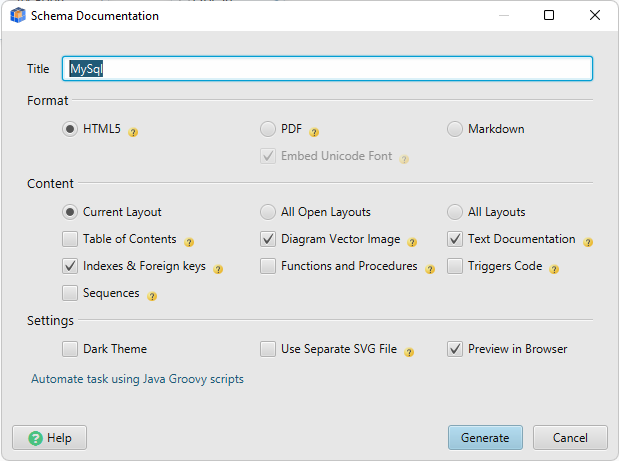
Split the schema into several diagrams before you export, one per area of the system, rather than putting two hundred tables on one canvas. The documentation follows that structure, and a reader who wants the billing tables gets the billing diagram.
For a PDF that carries Russian, Chinese or Japanese text, switch on Embed Unicode Font in the PDF options first, otherwise those characters have no glyphs to be drawn with.
Exporting changes nothing. DbSchema reads the model, writes the files you asked for, and sends no statement to the database.
What is inside the generated file
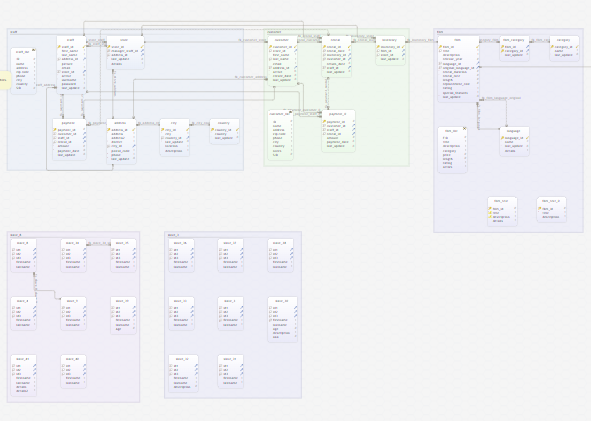
The diagram is embedded as a vector image, so the tables stay sharp however far you zoom in, and the whole thing is still one file you can attach to an email. There is no server to run and nothing to install at the other end.
Around the diagram sits the detail: a searchable list of the tables, and the full definition of each one. Click a table to jump to its definition. Hover a column and its description appears as a tooltip, along with its data type.
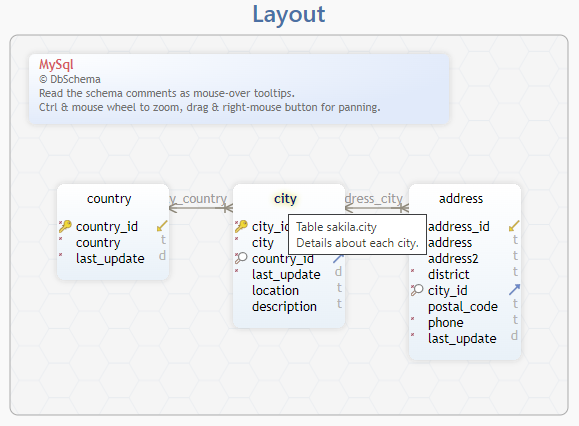
Those descriptions come from the model, so they are worth filling in before the export. Whatever you type in the Description field of a table or a column shows up in all three formats. DbSchema also carries comment tags, which are key-value pairs you can attach to any table or column: an owner, a sensitivity level, a deprecation note. They appear in the generated documentation too.
Explore large diagrams
A schema with two hundred tables does not fit on a screen at a readable size, which is why the diagram in the HTML5 output moves. Drag it with the mouse and the diagram pans under your cursor.
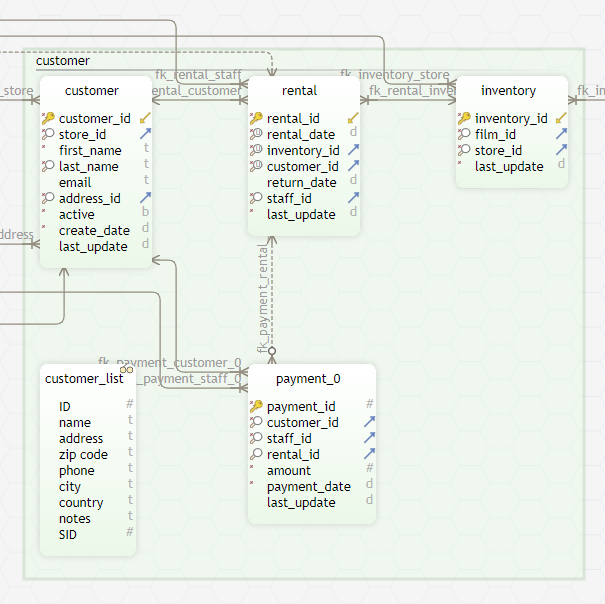
Hold Ctrl and turn the mouse wheel to zoom, centred on the pointer, so you can go from the whole schema to one column of one table without losing your place. Ctrl and 0 puts the zoom back where it started.
HTML5, PDF and Markdown documentation is a Pro feature, and the download at https://dbschema.com/download.html includes a 15-day Architect trial. Open a model, export the current diagram as HTML5, and read the result the way the person you are sending it to will.









