Create ER Diagrams for PostgreSQL with a Free Design Tool
For PostgreSQL users who want a diagram of a database they inherited, or of one they are about to design, and have not opened DbSchema before.
On this page
Ninety tables, foreign keys on most of them, no picture of how any of it fits together. DbSchema builds that picture in one pass:
- On the Welcome Screen, choose
Connect to Database. - Pick PostgreSQL in
Choose Your Database, and let DbSchema download the PostgreSQL JDBC driver for you. - Fill in the connection:
Connection Name,Server Hostand port,Database Userand password, and the database to open.Test Connectionchecks that the server answers before you commit to it. - Click
Connect. DbSchema reads the tables, columns, keys and indexes, then draws them on an interactive diagram with a connector line for each foreign key.
Those four steps run in the free Community Edition. Saving the diagram to a model file, comparing it against the database and exporting documentation are Pro features, which a new installation opens for 15 days without a credit card.
Designing a new schema runs the same way in reverse, tables first and DDL at the end.
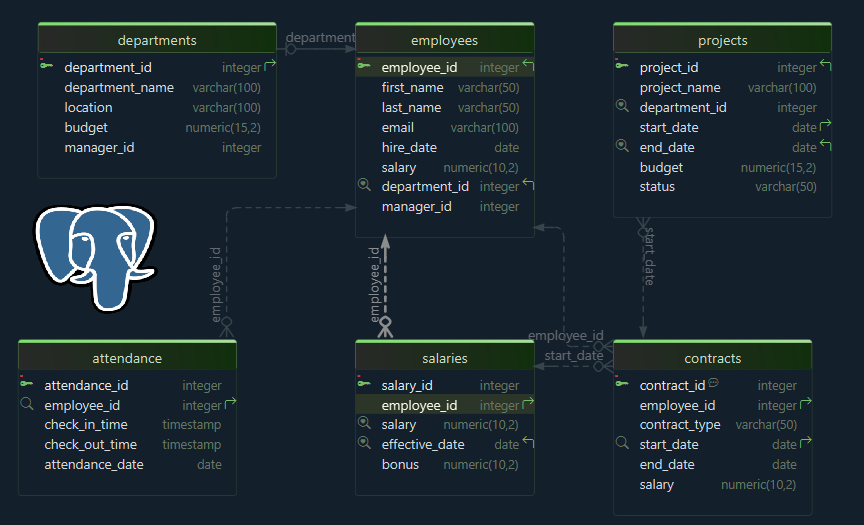
What an ER diagram of a PostgreSQL schema shows
Each box is a table and each line is a foreign key, so the diagram carries the same information as the DDL, arranged so you can see it. What it puts on the canvas:
- one box per table, listing the column names
- a marker on the primary key columns and on the foreign key columns
- the data types beside the column names, once
Diagram → Show Column Typesis enabled - a connector line per foreign key, drawn in crow's foot, Barker or plain notation
That layout answers questions the catalog answers slowly: which tables a delete reaches through its cascades, and which table has no relationship to anything at all, usually an import staging table nobody removed. A colleague who has never seen the database reads the same answer off the picture in a minute, which is why the diagram is worth generating even for a schema you know by heart.
Reverse-engineer an existing PostgreSQL database
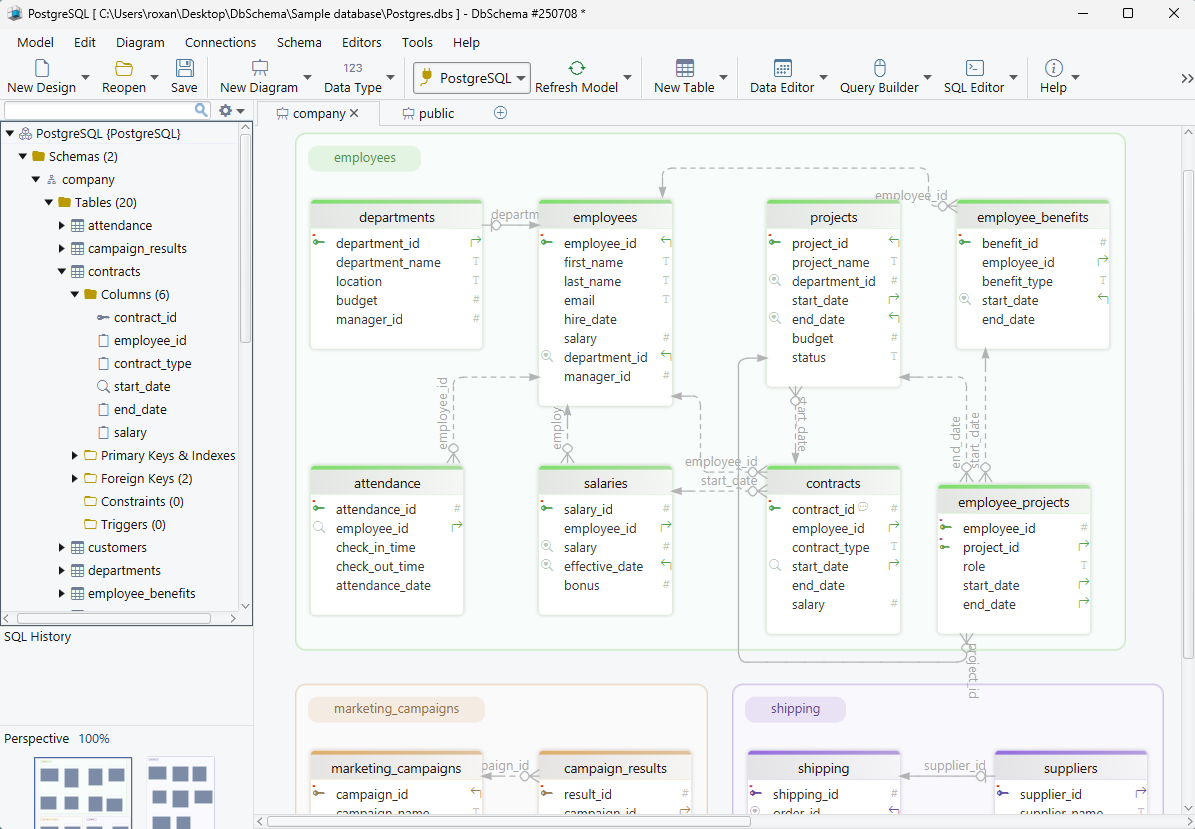
A database that already exists needs no drawing: the four steps above read it. What they fill is the DbSchema design model, a local .dbs file in XML, and the diagram is a view of that model. Moving a table, grouping tables or renaming a diagram changes the file on your disk and nothing in PostgreSQL.
When you want that guarantee in writing rather than in principle, tick Read Only Connection on the Settings tab of the connection. DbSchema then opens the connection in read-only mode, which is the setting to use against production.
Design a new schema without writing SQL first
The other direction starts with an empty canvas.
- Right-click the canvas and choose
New Table. - Double-click the table header to open the Table Dialog, where the Columns, Indexes, Foreign Keys, Constraints and Options tabs hold everything a
CREATE TABLEwould: types, precision,NOT NULL, defaults, the primary key, check constraints. - Drag from a column in the child table to the column it references in the parent, and DbSchema draws the relationship immediately.
- Run
Schema → Create or Upgrade Schema in Database, which generates the DDL, shows it to you, and executes it against the database when you clickExecute.
The two tables and the relationship below are what a few minutes of drawing produce, without the typing:
CREATE TABLE departments (
    department_id INT PRIMARY KEY,
    department_name VARCHAR(100) NOT NULL
);

CREATE TABLE employees (
    employee_id INT PRIMARY KEY,
    first_name VARCHAR(50) NOT NULL,
    department_id INT NOT NULL REFERENCES departments (department_id)
);
Nothing reaches PostgreSQL until step 4. Design a Relational Database Schema covers the modelling decisions that come before the drawing.
Split a large schema into several diagrams
One canvas for ninety tables is a wall map nobody reads. A DbSchema project holds many diagrams over the same schema, each with its own layout and its own selection of tables: one for orders, one for inventory, one for the reporting tables. Add a diagram from the Diagram menu or the + tab above the canvas.
Two commands make a generated layout readable:
Diagram → Auto Arrangelays the selected tables out by a graph algorithm instead of by hand.New Group, from the right-click menu of the canvas, clusters related tables into a named, colored group you can move as one.
Layouts, groups and diagram names all live in the .dbs file, so a colleague who opens it sees the schema arranged the way you left it.
Compare the diagram with the live database
A schema drifts away from its diagram on its own. Someone adds a column in staging, a migration runs in production, and the diagram you generated last month is a photograph of a database that has moved on. Schema synchronization compares the two and lets you decide direction per difference:
Schema → Refresh Schema from Databasepulls the current database state into the model.Schema → Compare Model with Databaseopens the Synchronization Dialog, which lists every added, removed and modified table, column, index and foreign key.- For each difference you choose to update the model, push the change to the database, or skip it.
- Instead of executing anything, you can have DbSchema generate an SQL migration script from the same list of differences.
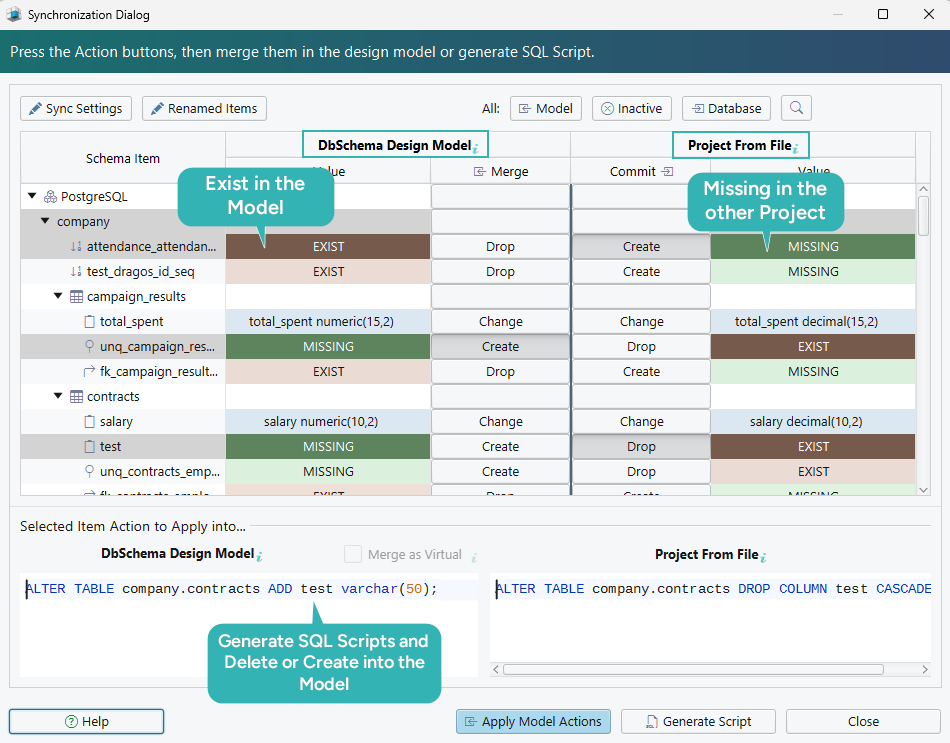
Nothing crosses between the model and the database until you pick an action and apply it. Schema synchronization is a Pro feature.
Keep the model file in Git
The .dbs file is XML, so it belongs in the repository next to the code that uses the schema. DbSchema has a Git client built in: open Model → Git — Collaborative Design, clone the repository into a local folder, and work with the buttons you already know, Stage, Commit, Push, Pull, Stash, Pop, and Create Branch for a branch per environment.

When a teammate pushes a schema change, Pull brings the new .dbs into your working copy and Compare with Current opens the Synchronization Dialog against it, so you read the change as a list of differences rather than as an XML diff. Pulling changes your model file; the database is untouched until you run the synchronization against it. The Git integration is a Pro feature.
Read a JSONB column on the diagram
A jsonb column is one word of DDL and says nothing about what the documents inside it look like. DbSchema reads the rows and shows the fields it finds under the column on the diagram, which is as close to a schema as a document column gets.
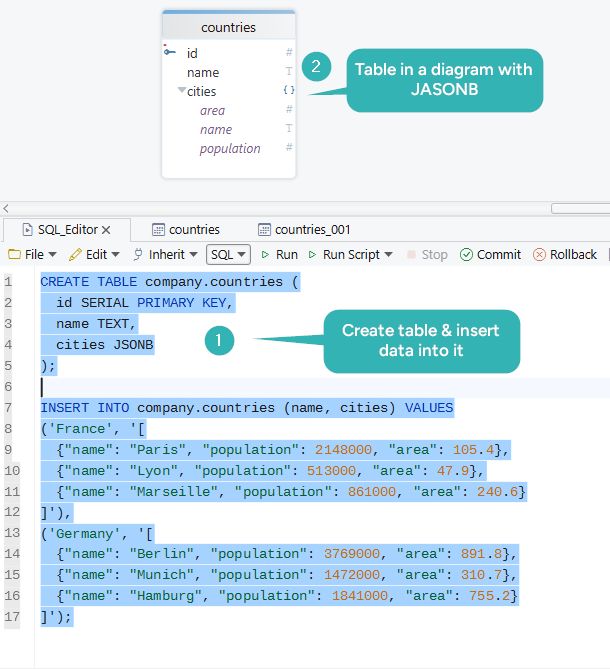
Those nested fields also appear in the Query Builder, a Pro feature, where ticking one adds it to the generated SELECT without writing the extraction by hand. PostgreSQL JSONB covers the operators behind that query.
Publish the schema as interactive HTML5 documentation
The people who most need to understand the schema are often the ones who cannot open a database client. Diagram → Export HTML5 or PDF Documentation gives them a file instead: pick HTML5, choose which diagrams and which elements to include, and DbSchema writes a page that opens in any browser with no server behind it.
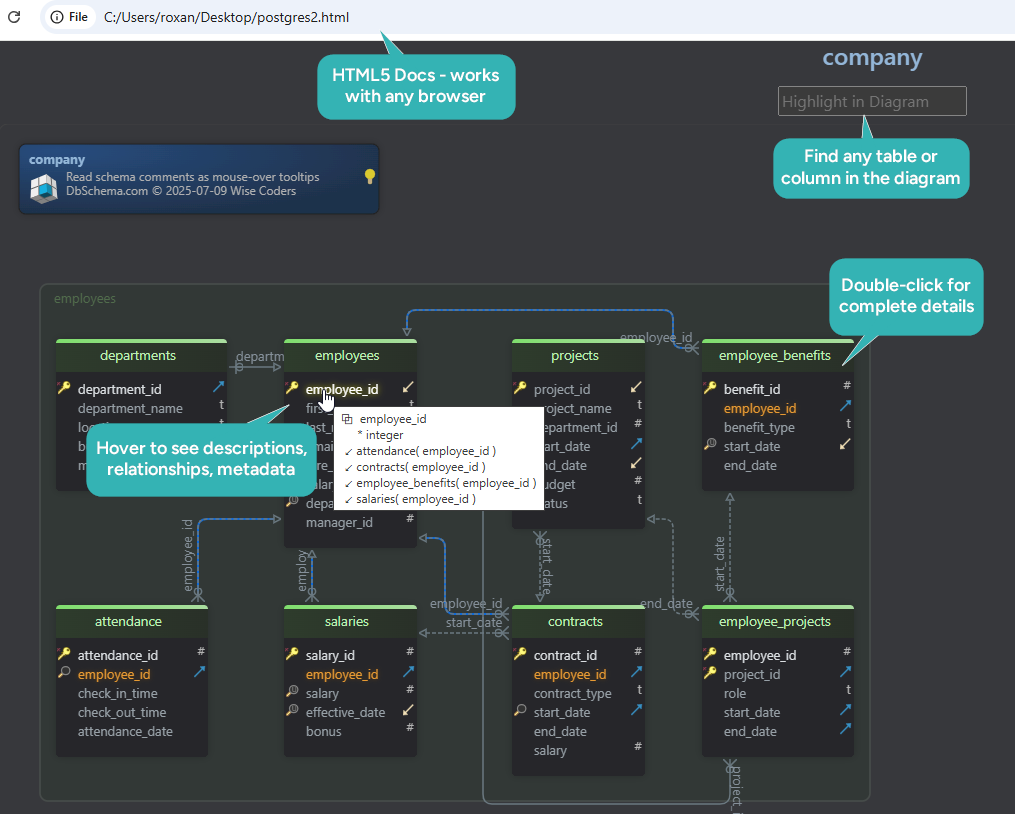
The HTML5 output carries the diagram as a vector image, a searchable list of tables, and the column details underneath. Hovering a column shows its description as a tooltip, and clicking a table jumps to its definition. The same dialog writes PDF for a review that has to be printed and Markdown for a repository wiki, and all three formats are Pro features.
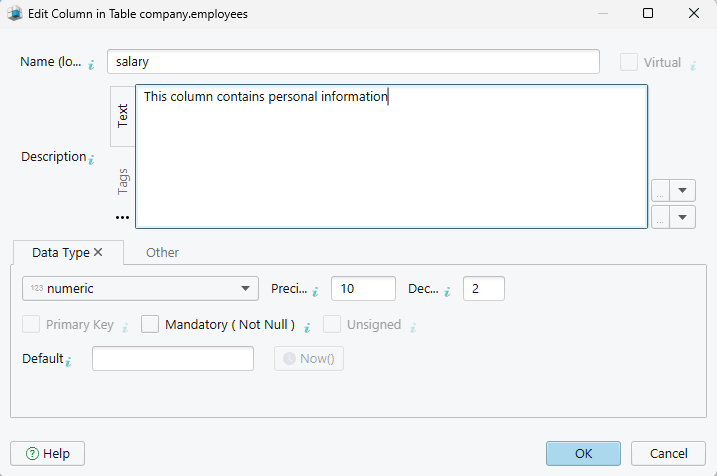
What fills those tooltips is the Description field of a table or a column, which DbSchema keeps in the model file. Beside free text, DbSchema supports comment tags, key-value pairs attached to a table or a column: an owner, a sensitivity level, a deprecation date. Tags reach the generated documentation and are readable from Automation Scripts, which is how they end up driving a deployment script.
The diagram on its own leaves through a different door. File → Export takes the canvas you are looking at and writes it out:
| Format | What you get |
|---|---|
| PNG, SVG | a static snapshot of the current diagram |
| printable, vector quality | |
| HTML5 | the interactive documentation above |
| Markdown | tables and columns as text, for a repository |
Document a PostgreSQL database goes through the documentation side in more detail.
Finding out whether the picture helps costs one connection. Download DbSchema at https://dbschema.com/download.html, point it at your PostgreSQL database, and read the diagram that comes back. Connecting, reverse-engineering, the diagrams and the SQL editor are in the free Community Edition; saving the model file, the synchronization, the Git integration and the generated documentation are the Pro features the trial opens. The same application covers MySQL, Oracle, SQL Server and the rest of the supported databases.









