How to Document a PostgreSQL Schema
For the person who owns a PostgreSQL schema other people have to read, and who wants a document that survives the next schema change.
On this page
A PostgreSQL database gives you table names and column types, and nothing about what any of it is for. To document the schema, write that purpose where PostgreSQL keeps it, then let DbSchema draw the diagram and export a document you can hand to someone:
- Write a description for each table and column, with
COMMENT ONor in DbSchema. - Connect DbSchema and reverse-engineer the schema into an ER diagram.
- Export the diagram and the descriptions as HTML5, PDF or Markdown.
- Keep the DbSchema design file in Git, and compare it with the database whenever the database changes.
Start with descriptions in the database
The examples on this page run on PostgreSQL 17.9. Two tables, a foreign key, a view and a trigger are enough to show every part of the documentation:
CREATE TABLE customer (
    customer_id integer GENERATED ALWAYS AS IDENTITY PRIMARY KEY,
    email       text NOT NULL UNIQUE,
    tax_code    text
);

CREATE TABLE orders (
    order_id    integer GENERATED ALWAYS AS IDENTITY PRIMARY KEY,
    customer_id integer NOT NULL REFERENCES customer,
    status      text NOT NULL DEFAULT 'new',
    updated_at  timestamptz NOT NULL DEFAULT now()
);

COMMENT ON TABLE customer IS 'One row per account that can place orders.';
COMMENT ON COLUMN customer.tax_code IS 'Personal data. Do not copy outside the EU.';
COMMENT ON COLUMN orders.status IS 'new, paid, shipped or cancelled.';

CREATE VIEW open_orders AS
SELECT o.order_id, c.email, o.status
FROM orders o JOIN customer c USING (customer_id)
WHERE o.status IN ('new', 'paid');

CREATE FUNCTION touch_updated_at() RETURNS trigger
LANGUAGE plpgsql AS $$
BEGIN
    NEW.updated_at := now();
    RETURN NEW;
END $$;

CREATE TRIGGER orders_touch BEFORE UPDATE ON orders
FOR EACH ROW EXECUTE FUNCTION touch_updated_at();
COMMENT ON stores each sentence in the database's catalog, so every program that reads the catalog finds it, DbSchema included. Read the column descriptions back with col_description:
SELECT table_name, column_name,
       col_description(format('%I.%I', table_schema, table_name)::regclass,
                       ordinal_position) AS description
FROM information_schema.columns
WHERE table_schema = 'public' AND table_name IN ('customer', 'orders')
ORDER BY table_name, ordinal_position;
Five of the seven columns have no description yet:
| table_name | column_name | description |
|---|---|---|
| customer | customer_id | |
| customer | ||
| customer | tax_code | Personal data. Do not copy outside the EU. |
| orders | order_id | |
| orders | customer_id | |
| orders | status | new, paid, shipped or cancelled. |
| orders | updated_at |
The psql side of this, with \d+ and the rules a comment follows, is covered in documenting a PostgreSQL database from psql.
Reverse-engineer the schema into a diagram
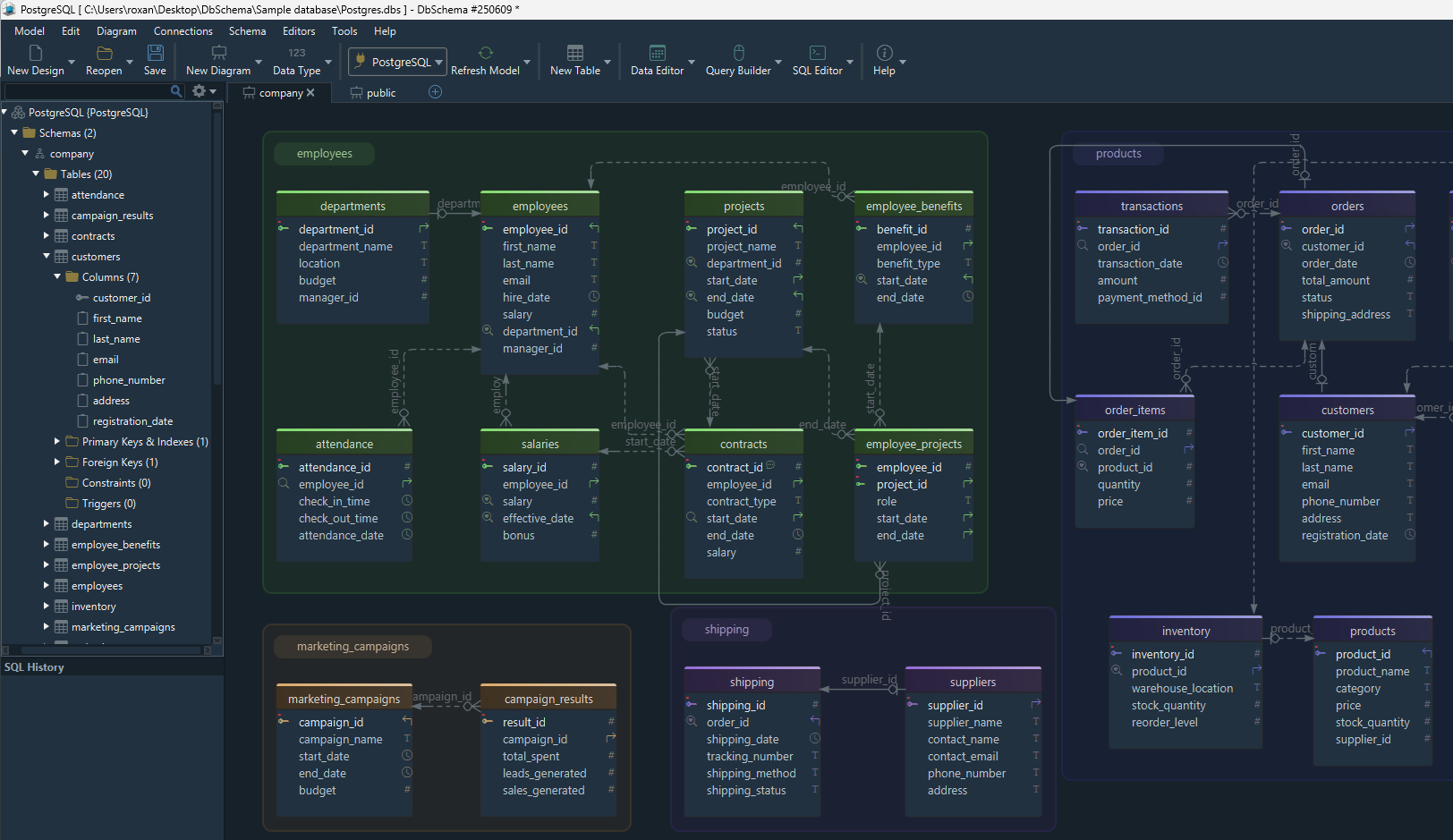
Connect DbSchema to the PostgreSQL database and it reverse-engineers the schema into an ER diagram: customer and orders as boxes with their columns, and a line for the foreign key between them. Reverse-engineering reads the catalog, descriptions included, and writes nothing to the database. What it builds is DbSchema's own design model, which you save as a .dbs file.
Then arrange the diagram for the people who will read it. Drag the tables in DbSchema where they belong, and right-click the canvas and choose New Group to put a module in a named box. When a large schema comes back with its tables overlapping, select them all and DbSchema lays them out with Diagram → Auto Arrange. A DbSchema project holds as many diagrams as you want, and a table can sit in several of them, so an orders diagram and a billing diagram each show what their reader needs.
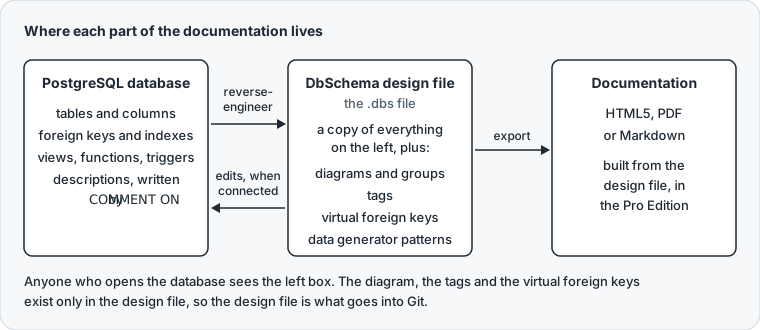
The diagram is the first part of the documentation that PostgreSQL cannot store. It is not the last:
Write descriptions and tags in DbSchema
Double-click a table or a column on the diagram and DbSchema opens its dialog, with a field for the description. Where the text goes depends on the connection. Connected, DbSchema runs the statement as soon as you press OK, so PostgreSQL holds the same text as the design file:
COMMENT ON COLUMN customer.email IS 'Login name. Unique across accounts.';
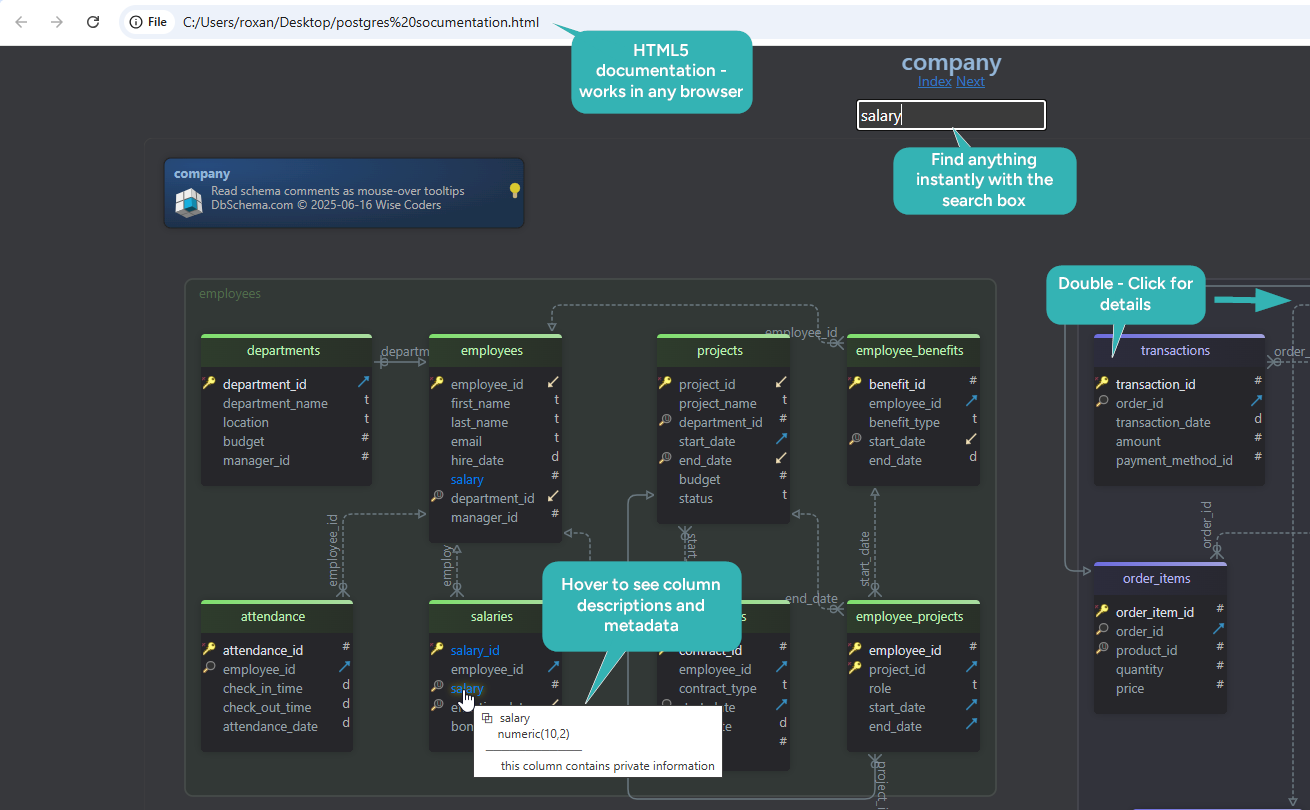
Disconnected, the text changes only the design file, and reaches PostgreSQL when you synchronize, as described further down. A foreign key takes a description the same way, which DbSchema writes with COMMENT ON CONSTRAINT. Every documentation format carries the descriptions, and the HTML5 output shows each one as a tooltip on the table or column name.
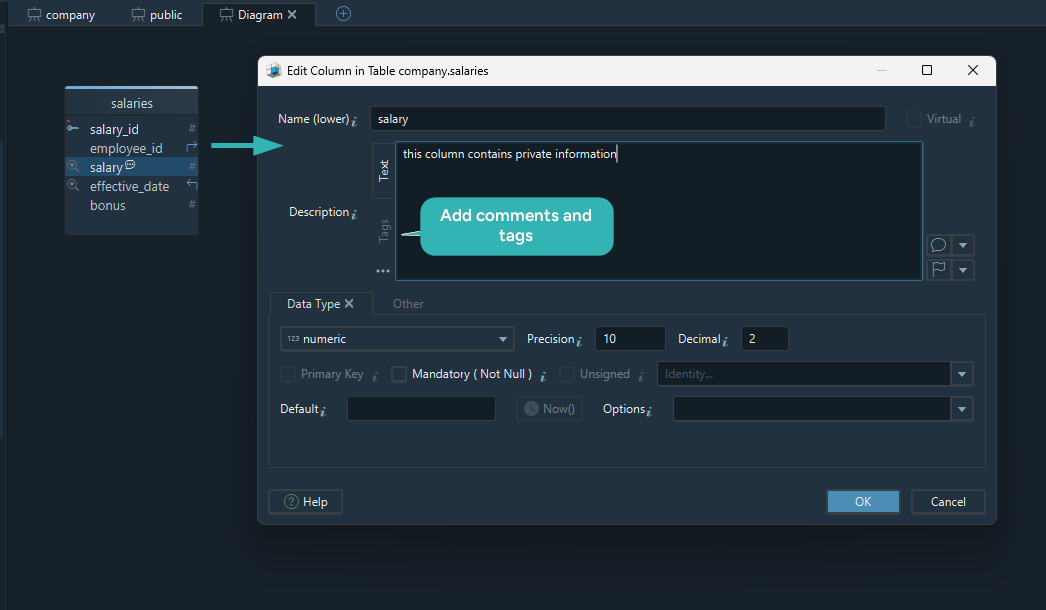
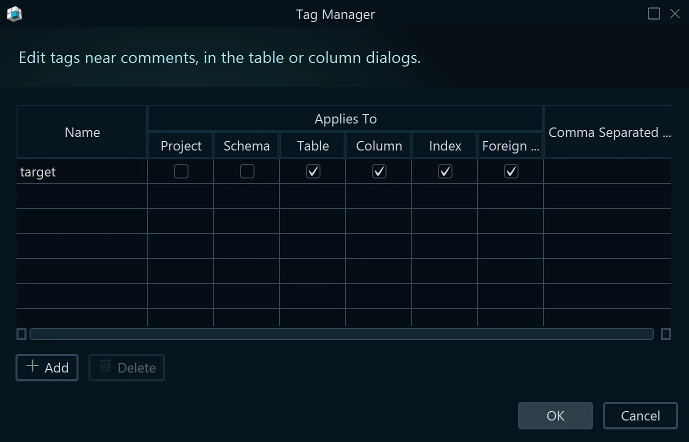
Beside the free text, DbSchema attaches tags: key-value pairs for what you would otherwise keep in a spreadsheet, such as the owner of a table, a sensitivity level or a deprecation date. Define a tag in DbSchema's Tag Manager, then fill it in next to the description. PostgreSQL has no place for a tag, so tags stay in the design file. They appear in the HTML5 and PDF documentation, and automation scripts can read them. Diagrams take tags too: the export can include every diagram tagged documentation, in the order that the tag's value sets.
Export HTML5, PDF or Markdown documentation
Open Diagram → Export HTML5 or PDF Documentation and DbSchema asks for three things: the format, the diagrams to include, and the content, which is the columns, indexes, foreign keys, views and code that go in.

The three formats suit different readers:
| HTML5 | Markdown | ||
|---|---|---|---|
| Opens in | any browser, with no server | any PDF reader | a repository or a wiki |
| Diagram | vector image, clickable | image | separate SVG file |
| Descriptions | text and tooltips | text | text table |
| Tags | yes | yes | no |
| Suits | everyday reading | a review that is printed or signed | docs kept next to the code |
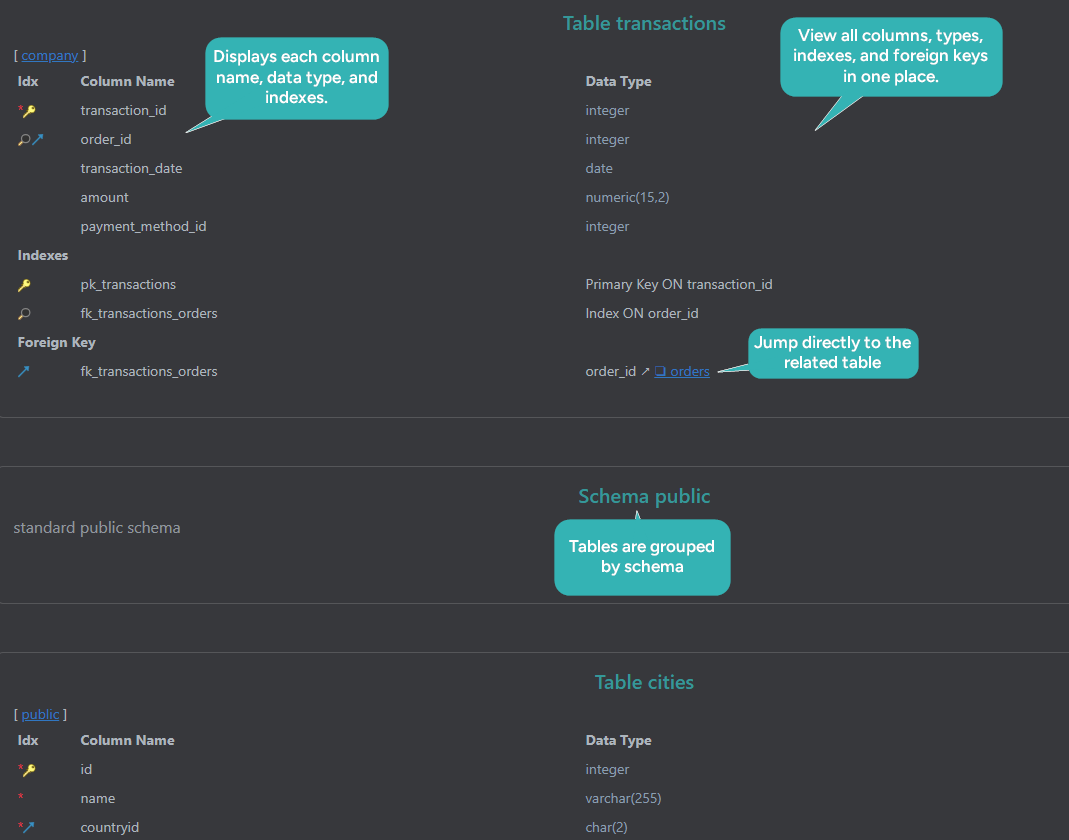
HTML5 is the one to start with. The file carries the diagram next to a searchable table list. Click a table to jump to its columns, indexes and foreign keys, and from a foreign key the related table is one click away, which a screenshot pasted into a wiki cannot do.
For a PDF with Russian, Chinese or Japanese text in it, tick Embed Unicode Font in the DbSchema dialog first. Documentation in all three formats is a Pro Edition feature.
Document the views, functions and triggers
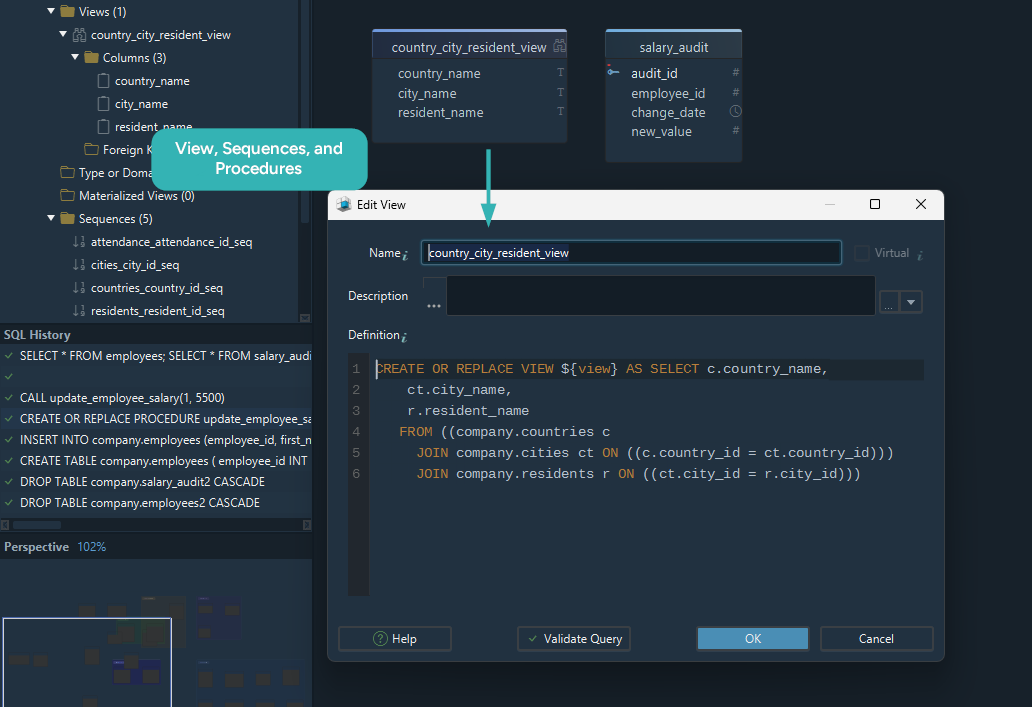
The logic in open_orders and orders_touch is the part of the schema that a newcomer cannot work out from the tables. DbSchema reverse-engineers views, functions, procedures and triggers along with the tables and lists them in the Project Structure panel. A view takes a description like a table, which DbSchema writes with COMMENT ON VIEW. In DbSchema's export dialog, tick View Query, Triggers, Functions and Procedures, and Procs/Triggers Text to put their definitions into the document.
A view has no foreign keys, so it sits on the diagram with no lines. Drag the email column of open_orders onto customer.email and DbSchema draws a virtual foreign key between them. It is stored in the design file and never in PostgreSQL, and it shows which table the view reads.
Keep the design file in Git
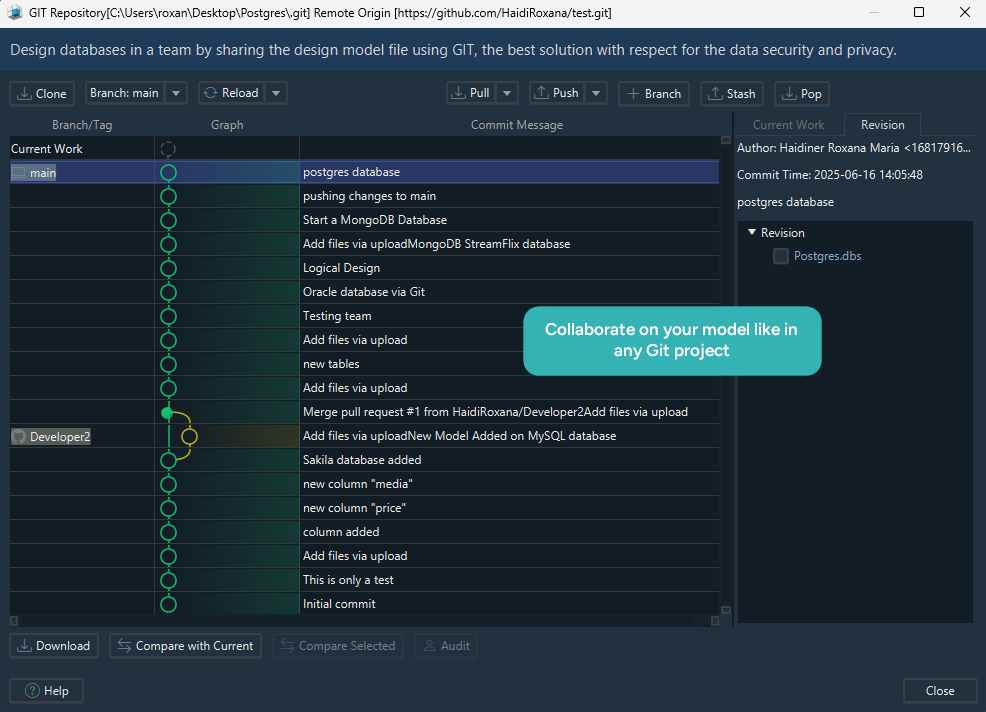
DbSchema keeps the whole design (tables, columns, foreign keys, diagrams, descriptions and tags) in one .dbs file in XML. Put that file in the repository next to the code, and the schema gets the history that PostgreSQL does not keep: who changed what, when, and on which branch.
DbSchema runs Git itself. In the Model menu, Git — Collaborative Design opens the Git dialog for clone, stage, commit, push and pull. After a pull, DbSchema's Compare with Current opens the Synchronization Dialog on the file that just arrived, so you see what changed in the design before you touch the database. One repository can hold several .dbs files, one per database or per component. The Git dialog is in the Pro Edition.
When someone changes the database directly
Changes do not always start in the design. A migration, or a colleague at a psql prompt, adds a column:
ALTER TABLE orders ADD COLUMN shipped_at timestamptz;
COMMENT ON COLUMN orders.shipped_at IS 'Set when the parcel leaves the warehouse.';
From then on, the exported documentation describes a database that no longer exists. Click Refresh, or choose Schema → Refresh Schema from Database, and DbSchema compares the design file with the database and says how many differences it found.
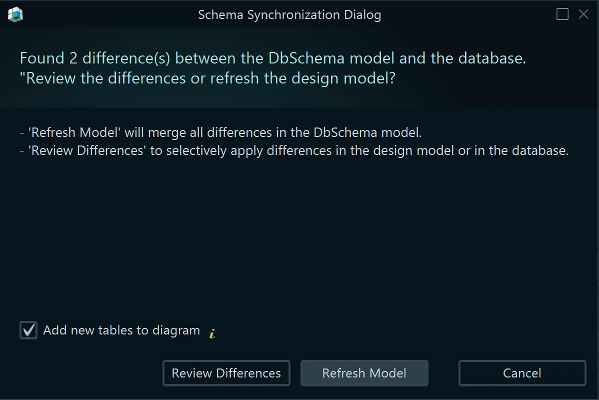
DbSchema's Review Differences lists them one per row: added, removed and changed tables, columns, indexes and foreign keys, and changed comments. For each row you choose the direction. Merge shipped_at into the design file when the database is right. Commit a change to the database when the design is right, and DbSchema shows the SQL before anything runs. Schema synchronization is in the Pro Edition.
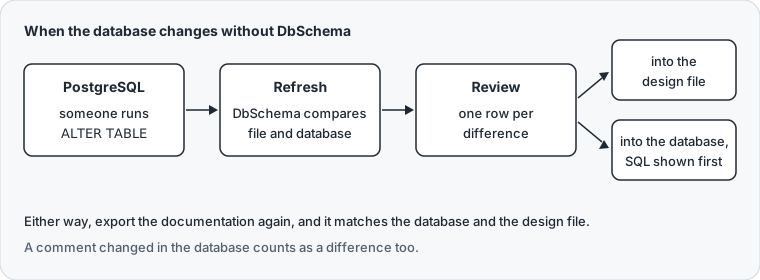
Because the design file is local, the design work needs no connection. Keep working offline in DbSchema, and let the comparison catch up when you reconnect.
Show sample rows and follow the data
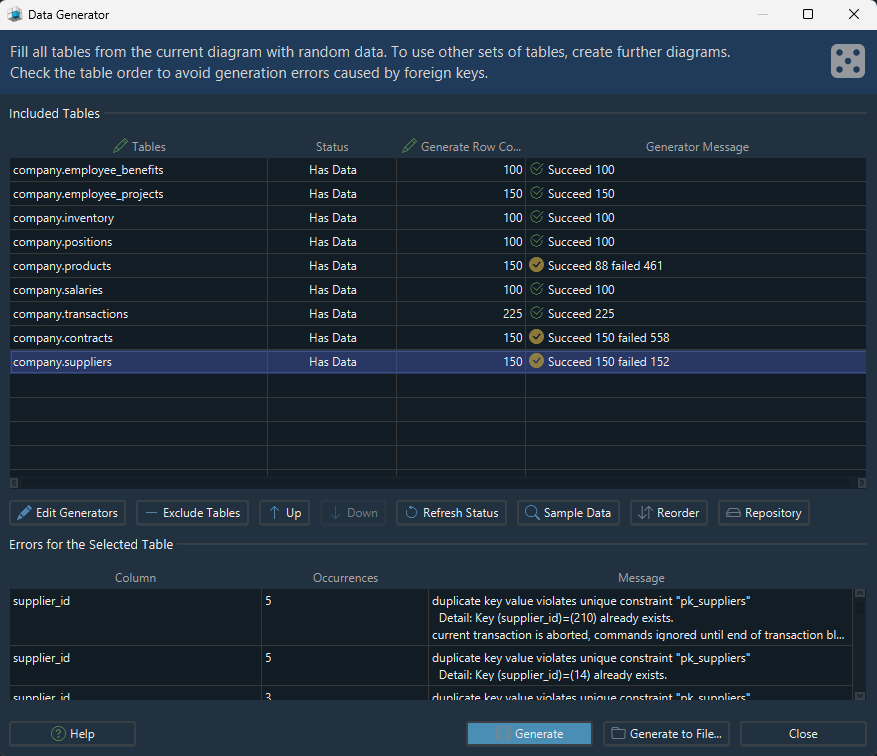
Three rows of realistic values say more about a column than its type does. Right-click a table header in DbSchema and choose Generate Random Data to open the Data Generator. DbSchema gives each column a pattern, from numbers and dates to reverse regular expressions and Groovy scripts. For orders.customer_id, the load_values_from_pk pattern picks customer_id values that exist, so generate customer first. DbSchema writes the rows into the database and the patterns into the design file, so the next run repeats them.
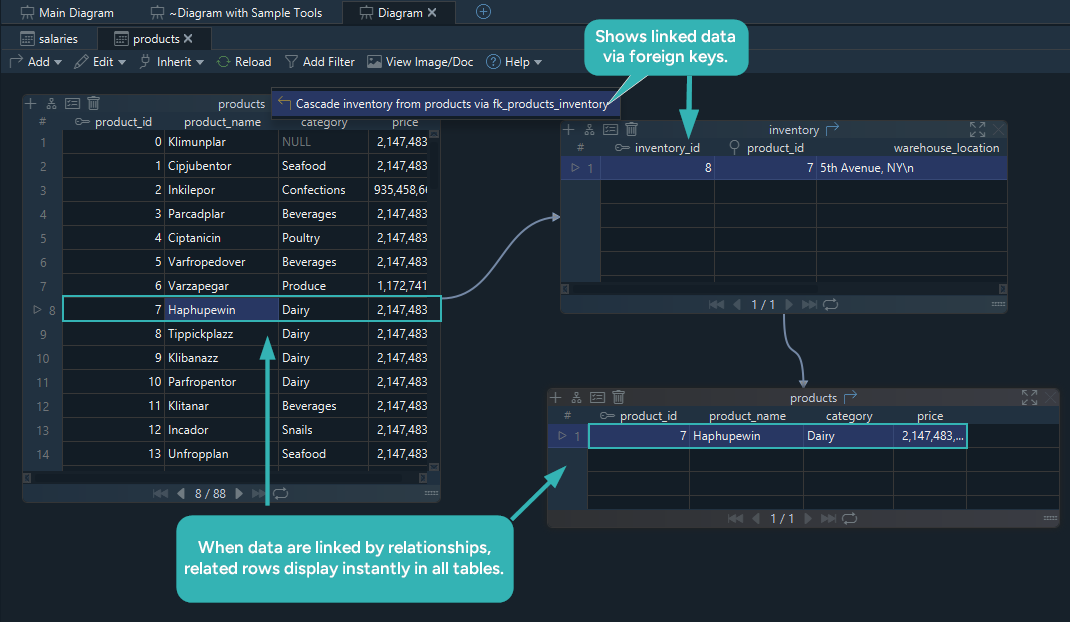
To see how the rows connect, hold Shift+Ctrl and click the customer header on the DbSchema diagram, or right-click it and choose Open in Relational Data Editor. Open orders from its foreign key, then select a customer, and DbSchema filters the orders pane to that customer's orders. The Relational Data Editor cascades through as many tables as you open, with no join to write, and it follows virtual foreign keys like real ones. The Data Generator and the Relational Data Editor are in the Pro Edition.
Download DbSchema at https://dbschema.com/download.html, connect it to your PostgreSQL database, and reverse-engineer the diagram in the free Community Edition. A new installation starts with a 15-day Architect trial, no credit card needed. The Pro Edition adds what you hand to other people: the saved design file and Git, the HTML5, PDF and Markdown documentation, schema synchronization, the Data Generator and the Relational Data Editor.









