Design Database Schemas Offline & Synchronize with DbSchema
For the developer who works out schema changes away from the database and applies them once the connection is back.
On this page
The database is behind a VPN you are not on, and the change you want to make is already clear in your head. DbSchema keeps its own design model, a local .dbs file in XML, so you can add the tables, columns and foreign keys with no connection at all and decide afterwards what reaches the server.
Where your changes go while you are disconnected
Choose Disconnected in the connection menu and DbSchema stops talking to the database. Every table you add, every column you rename and every relation you draw is written to the .dbs design model, and nowhere else. Connected, the opposite holds: each schema change is executed against the database as you make it, and the statements DbSchema ran appear in the SQL History pane.
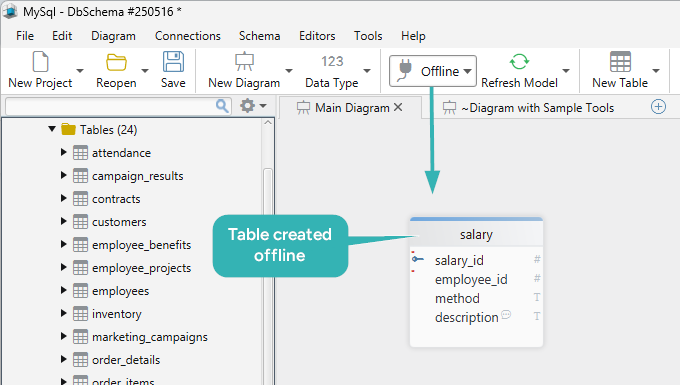
Offline work gives you the whole design surface. Right-click the canvas and choose New Table to add one, double-click a table header to open the Table Dialog and work on its columns, indexes and comments, and drag a column from the child table onto the matching column in the parent to draw a foreign key. Where the database declares no foreign key of its own, draw a virtual one the same way: it lives in the model file, and no SQL is ever generated for it.
Reconnecting and choosing what reaches the database
Reconnect, then click Refresh Model from Database. DbSchema compares the model you built offline against what the server holds now and opens the Synchronization Dialog with every difference listed: tables, columns, indexes and foreign keys that were added, removed or changed on either side.
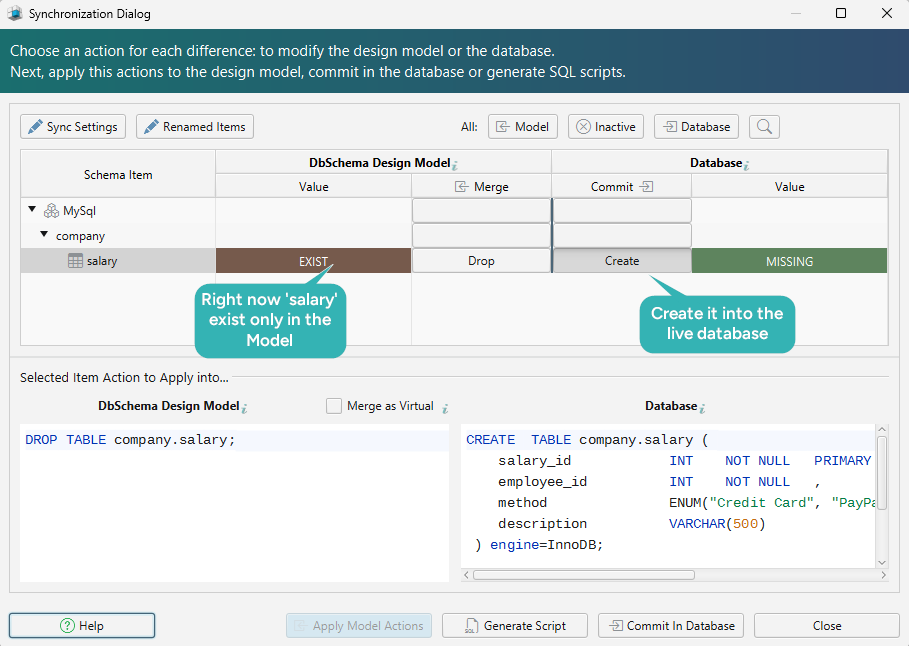
Each difference is decided on its own. You apply it to the database, take the database version into your model instead, or have DbSchema write the migration SQL and run it yourself later. Until you pick the first of those, nothing has left your machine: the schema you designed on the plane is still a change to one file on disk.
The same dialog compares two design models, not only a model and a server. Open a second .dbs file and DbSchema lists the differences between the two, which is how you read what changed between the version you saved last month and the one you are working on now.
Where offline design earns its place
The obvious case is no connection, and it is not the most common one. Access is the more usual reason. If you consult, the first design meeting tends to happen before anyone has issued you credentials, and a model on screen is a better conversation than a whiteboard photo. If your database sits behind a VPN or a jump host, opening a tunnel for every idea you want to try is friction you can skip.
Prototyping is the third case. Trying three shapes for the same set of tables costs nothing while the changes stay in the model file, and only the shape you settle on is worth a migration against staging.
Keeping the offline model in Git
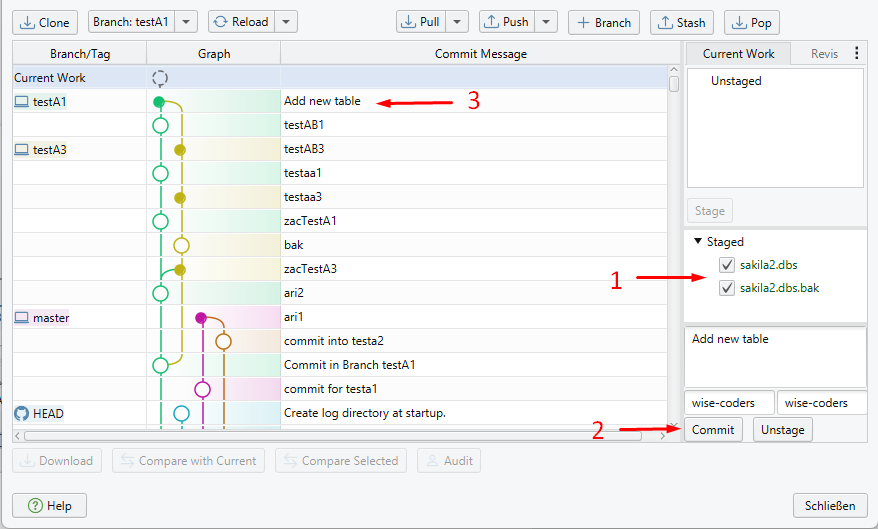
Because the .dbs file is XML, it commits, diffs and merges like the rest of your code. DbSchema has a Git client of its own: open Git — Collaborative Design from the Model menu, clone the repository, then stage, commit and push the model file without leaving the application. Pull the branch a colleague pushed and Compare with Current opens the Synchronization Dialog against the model in front of you, so you read their schema change as a list of differences rather than as raw XML.
Designing offline and saving the model to a .dbs file are Pro features. Download DbSchema at https://dbschema.com/download.html, where the 15-day Architect trial ships in the same installer, choose Disconnected, and build the change you have been carrying around before you go looking for the connection.









