SQL and Schema Tools for macOS: Choosing a SQL Client for Mac
Five SQL clients for Mac compared by engines, ER diagrams and Homebrew install, and how to install the free DbSchema Community Edition on macOS.
On this page
For developers on a Mac who query more than one database engine and share schema work with colleagues on Windows or Linux; Homebrew, JDBC drivers and ER diagrams are assumed knowledge.
The best SQL client for Mac when you work with more than one database engine and with colleagues on Windows or Linux is DbSchema. One installer covers macOS, Windows and Linux, every edition includes all databases, and the free Community Edition has interactive diagrams and the SQL editor. Sharing the model file (.dbs) with colleagues needs Pro, which the 15-day trial covers. This guide compares five SQL and schema tools that install on macOS and shows how to install DbSchema Community Edition on a Mac.
SQL clients for Mac that also show the schema
Five SQL clients for Mac install from Homebrew and cover querying, and four of them also draw the schema as a diagram. For a developer whose team runs several engines on several operating systems, DbSchema is the one to install: one kit covers macOS, Windows and Linux, every edition includes all databases, and the free Community Edition includes interactive diagrams and the SQL editor.
The other four are listed by what each one is and what it is built for, so you can match them against the engines your team actually runs.
- DbSchema 10.5.2: design, document and deploy databases, with a free Community Edition and paid Pro and Architect editions; installed with Homebrew[1] as brew install --cask dbschema.
- MySQL Workbench 8.0.47: a visual tool to design[2], develop and administer MySQL servers.
- Sequel Ace 6.0.2: MySQL/MariaDB database management[3], requiring macOS 13 or later.
- DBeaver Community 26.2.2: a universal database tool[4] and SQL client, free and open source.
- pgAdmin 4 9.18: an administration and development platform[5] for PostgreSQL, released under the PostgreSQL licence.
The version numbers are the ones the cask pages served on 11 October 2026. Installing any of the five takes a minute. What separates them is scope: which engines a tool covers, whether it draws the schema, and whether the design can be handed to colleagues on other operating systems.
What to check before installing a SQL client on a Mac
Four checks separate the SQL clients for Mac: what the package brings with it, Homebrew availability, the macOS version it needs, and engine scope.
The first check is the runtime. A self-contained package puts its runtime inside the application directory, so nothing has to be installed first; how DbSchema handles this is in the install section below. The second check is Homebrew, and all five pass it: each has a cask page with the install command and the current version. The third check is the macOS requirement. Sequel Ace's cask requires macOS 13 or later, and its own site[6] lists macOS 13.5 (Ventura) or later; the other four casks list only macOS as a requirement.
The fourth check is scope, and it decides the shortlist. MySQL Workbench works with MySQL, Sequel Ace with MySQL and MariaDB, and pgAdmin 4 with PostgreSQL and EDB Postgres Advanced Server. DbSchema and DBeaver Community cover many engines. A multi-engine tool replaces two installs, two connection setups and two sets of keyboard habits with one, and it keeps working when a second engine arrives.
How to install DbSchema on macOS
DbSchema installs on macOS in three ways, and all three land the same kit.
- DMG Installer: download it from the download page, mount it, and drag the application into the Applications folder.
- TGZ Installer: a compressed archive for scripted deployment, for when a script rather than a person sets up the machine.
- Homebrew: brew install --cask dbschema downloads the 10.5.2 cask[1] and runs the installer for you.
The same kit serves Community, Pro and Architect, so the licence decides the edition, not the download. The download page offers one installer for all editions with a 15-day Architect trial, after which the application keeps running as the free Community Edition. Architect is the edition that adds logical and conceptual design on top of Pro, and the trial covers saving the model as well. Java is not a prerequisite: each native package carries its own runtime, so there is nothing to install before the first start.
The installed footprint was checked on macOS 26 on Apple Silicon with version 10.5.2 on 11 October 2026. The install folder in /Applications is 614 MB and holds the app, a command-line client and an uninstaller, and the bundled runtime is Java 25.0.4.1, so no separate Java install is needed. The app's Info.plist sets macOS 10.15 as the minimum system version.
Windows and Linux use different packages from the same download page; the guide to installing on Windows, macOS and Linux covers them.
SQL clients for Mac compared: engines, ER diagrams, Homebrew
Engine coverage is the column that splits the shortlist. DbSchema connects to 100+ SQL and NoSQL databases and downloads the JDBC driver it needs automatically, and every licence includes all databases. Its free Community Edition includes MongoDB, while DBeaver's MongoDB driver[7] is available in its Lite, Enterprise and Ultimate editions only.
| Tool | Engines covered | ER diagram from a live database | macOS requirement (cask) | Homebrew install |
|---|---|---|---|---|
| DbSchema | 100+ SQL and NoSQL databases, MongoDB included in Community | Yes, reverse-engineered into interactive diagrams (free) | macOS | brew install --cask dbschema |
| MySQL Workbench | MySQL | Yes, EER diagrams | macOS | brew install --cask mysqlworkbench |
| Sequel Ace | MySQL and MariaDB | None documented | macOS 13 or later | brew install --cask sequel-ace |
| DBeaver Community | Many SQL engines; MongoDB driver in paid editions only | Yes, ER diagrams, read-only by default | macOS | brew install --cask dbeaver-community |
| pgAdmin 4 | PostgreSQL and EDB Postgres Advanced Server | Yes, the ERD Tool | macOS | brew install --cask pgadmin4 |
Read the table by the column that matters most to your team. On one engine every row covers it, and DbSchema keeps covering it when a second engine appears; on two or more engines, the single-engine rows drop out. If you are looking for a DBeaver alternative or a MySQL Workbench alternative on a Mac, the guides to DBeaver alternatives for visual database design and MySQL Workbench alternatives go deeper. For the PostgreSQL side, see pgAdmin ER diagrams compared.
The table says nothing about the query side. For how each tool's editor handles autocomplete, formatting and results, see SQL editors compared.
First launch and Documents access on macOS
macOS asks two one-time questions when you start using DbSchema. On the first launch, macOS may ask you to confirm opening an application downloaded from the internet; the application starts once you confirm, and the question is not asked again.
The second prompt comes with the first save into ~/Documents. On a Mac running macOS 15, macOS asks for access to the Documents folder the first time an application writes there; grant it so .dbs files can be read and written in that folder. Saving then proceeds without asking again.
The Documents prompt only concerns files. Connecting, reverse-engineering and the SQL editor do not touch ~/Documents, so they work whether or not that access has been granted yet.
How to connect and reverse-engineer your first database
DbSchema Community Edition works against a live database from the first minute. Choose to connect to a database and the required JDBC driver is downloaded automatically, so there is no driver to find before the first connection.
- Open the connection dialog and enter the host, database and credentials for one of your engines.
- Let the JDBC driver for that engine download.
- Reverse-engineer the schema: tables, columns and foreign keys are read from the live database and laid out as an interactive ER diagram.
- Open the SQL editor and run queries over the same connection.
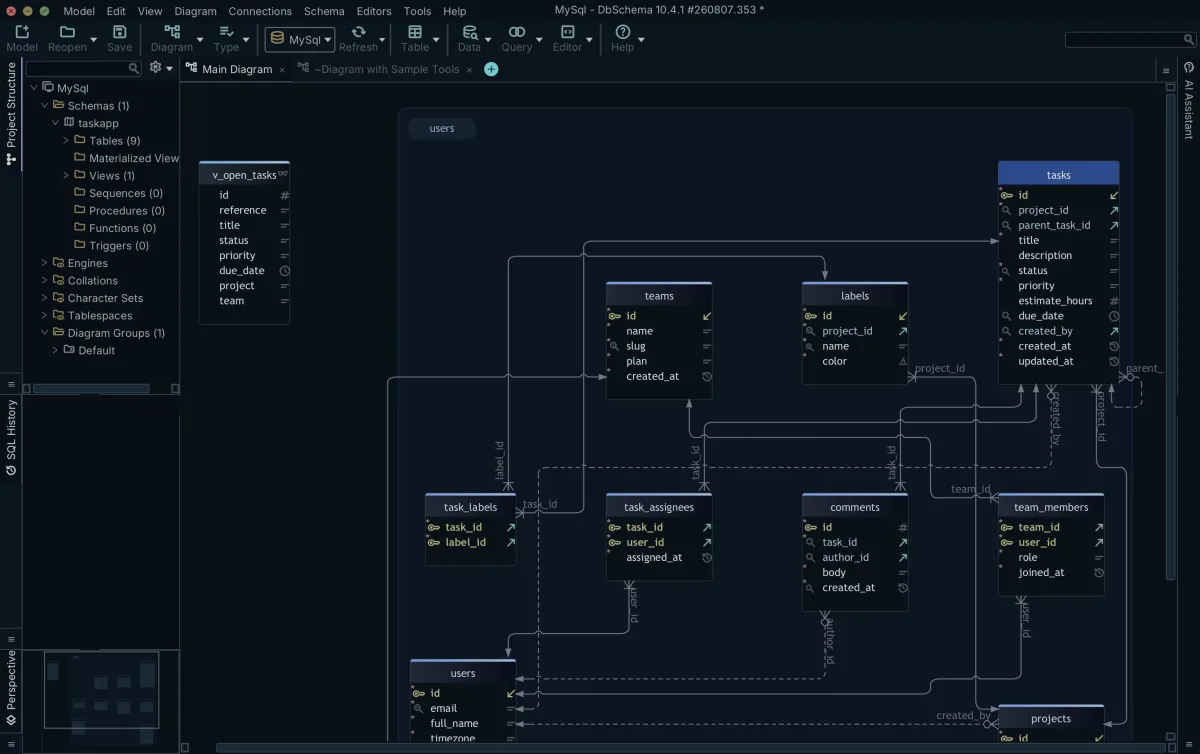
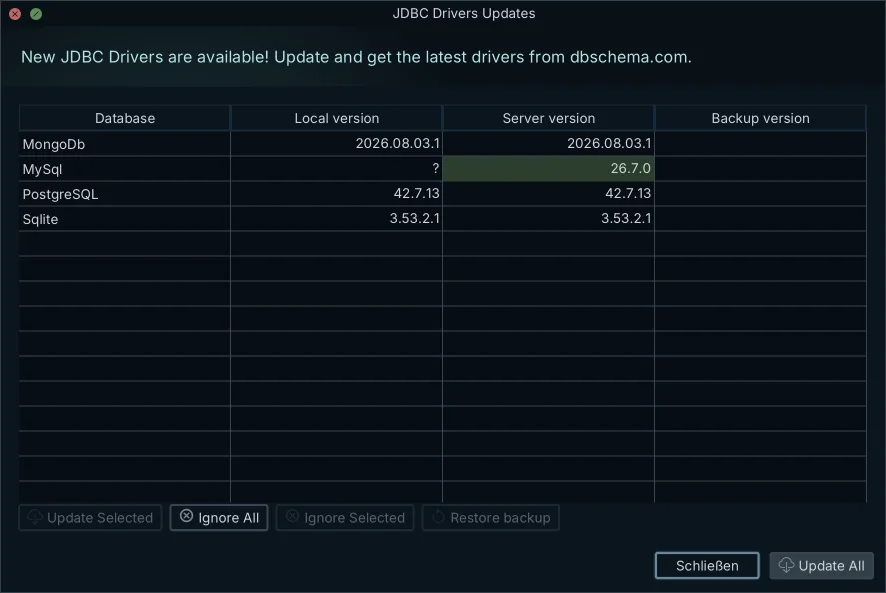
Each driver lands in its own folder. On the test Mac, the drivers folder in the home directory held one subfolder per engine connected so far, with postgresql-42.7.13.jar for PostgreSQL, mysql-connector-j-26.7.0.jar for MySQL, sqlite-jdbc-3.53.4.0.jar for SQLite and a MongoDB folder. To know what the diagram should show after reverse-engineering, count the objects first: on the PostgreSQL 16.14 demo schema used for this article, a count over information_schema.table_constraints with constraint_type = 'FOREIGN KEY' returned 23, next to 14 base tables and 2 views (run on 11 October 2026).
Connecting and reverse-engineering read the live database and change nothing in it. Editing a table in the diagram changes the design model, the copy of the schema that DbSchema keeps next to the database, not the database itself; the model is what you later compare against the live schema and deploy when the design is ready.
Saving that model to a file, and opening a saved file again, is Pro: the editions page says the Community edition cannot open saved project files. Everything that only reads the database stays free: connect, reverse-engineer, draw the diagram and run queries. The page on the free SQL client in Community Edition lists where the free boundary sits.
How to share a schema model with Windows and Linux colleagues
A schema model is shared across macOS, Windows and Linux as a .dbs file, which is plain indented XML. A file written on a Mac opens unchanged on Windows and Linux, with no conversion step and no per-platform variant of the format, and because it is XML it diffs line by line in Git. A schema change made on a Mac lands in a colleague's pull request as a readable diff, next to the application code it belongs to, so it is reviewed before it reaches production data. Saving the file and opening it again both need Pro, so each colleague who works on the model needs a Pro licence or the trial.
The file holds the whole design, tables, relations, diagrams and layouts alike, so a colleague who opens it in Pro sees the same diagrams rather than rebuilding them.
The format is easy to check yourself. A model saved from the MySQL demo database used for this article reports as XML 1.0 document text in the macOS file command, and its first lines read <?xml version="1.0" encoding="UTF-8" ?>, then <project name="MySql" database="MySql">, <schema name="taskapp"> and <table name="comments">, with one tab-indented <column> element per column (inspected on 11 October 2026).
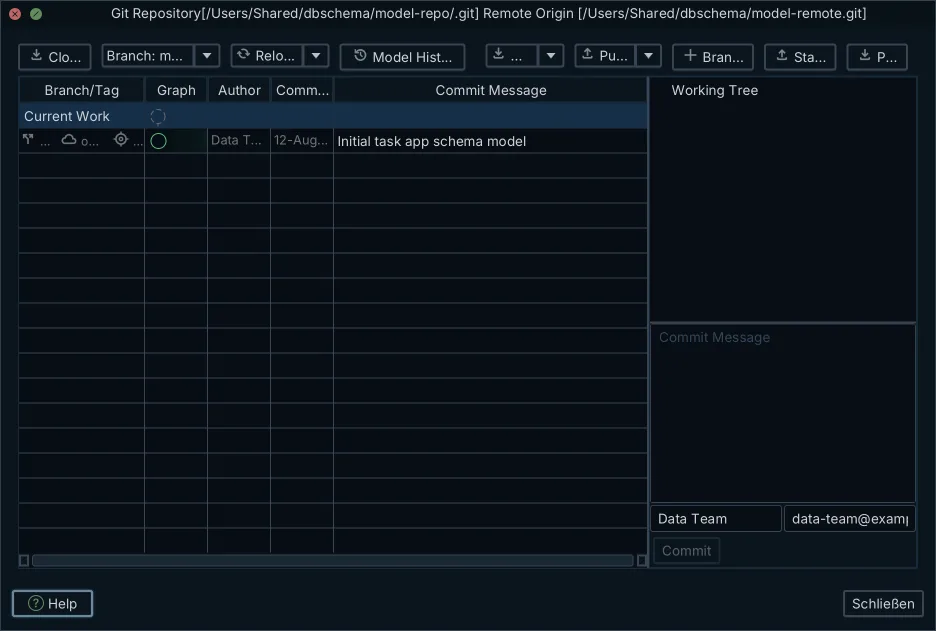
With Pro, the model becomes the artifact the whole team versions. Pro also has a Git client of its own, so the model is cloned, staged, committed and pushed without leaving the application.
Best SQL client for Mac in a multi-engine, mixed-OS team
For a developer on a Mac who works across several engines and with colleagues on Windows or Linux, DbSchema is the SQL client to install. One installation covers every engine, MongoDB included in the free edition, the JDBC drivers download on their own, and with Pro the design travels between operating systems as a .dbs file that diffs in Git. MySQL Workbench works with MySQL only, pgAdmin 4 with PostgreSQL and EDB Postgres Advanced Server, and DBeaver's MongoDB driver is not part of its free Community edition.
Download the macOS DMG from the DbSchema download page, or run brew install --cask dbschema, connect it to your database and reverse-engineer the schema into diagrams in the free Community Edition; saving the model for your Windows and Linux colleagues is in Pro.
Frequently asked questions
What is the best free SQL client for Mac?
For more than one database engine, DbSchema Community Edition: it is free on macOS and covers all databases, connecting and reverse-engineering, interactive diagrams and the SQL editor. Sequel Ace, by comparison, covers MySQL and MariaDB only and requires macOS 13.5 or later.
Can I install DbSchema with Homebrew?
Yes. brew install --cask dbschema downloads the 10.5.2 DMG and runs the DbSchema installer; the cask lists macOS as its only requirement. The DMG Installer and the TGZ archive on the download page install the same kit.
Does DbSchema need Java on macOS?
No. Java is not a prerequisite: the macOS package carries its own runtime inside the application, so nothing is installed separately. On the first launch macOS may ask you to confirm opening an application downloaded from the internet; confirm it once.
Sources
Install DbSchema on your Mac
One installation kit for macOS, Windows and Linux. Connect to your database, reverse-engineer it into interactive diagrams and run SQL in the free Community Edition; the download includes a 15-day Architect trial.









