A Database Viewer for Non-Developers: Browse Related Records Without SQL
How someone who does not write SQL follows a customer to their orders by clicking, and the three settings that keep that connection from changing a production database.
On this page
DbSchema lets someone who doesn't write SQL follow a customer to their orders by clicking. Its Data Explorer uses the foreign keys to open related rows side by side. A support agent or a product manager gets the answer without a join. To make it safe on production, connect that person with a database user that can only read.
Short answer
DbSchema reads the foreign keys of your database, so clicking a customer reloads the next table with that customer's orders. Following foreign keys in the Data Explorer needs DbSchema Pro. Pair it with a SELECT-only database user, and the viewer can look at everything and change nothing.
- The Data Explorer opens the rows of related tables side by side, linked by their foreign keys.
- A filter box narrows each table, so nobody writes a full query.
- A database user with SELECT only is the setting that stops every change, whatever tool connects.
Clicking along a foreign key replaces the join
Without a viewer, a colleague who wants the orders of one customer asks a developer for a query like this one:
SELECT o.id, o.status, o.total
FROM orders o
JOIN customers c ON c.id = o.customer_id
WHERE c.name = 'Ada Shop'
ORDER BY o.id;
Result · PostgreSQL 17.6
| id | status | total |
|---|---|---|
| 101 | SHIPPED | 120.00 |
| 102 | CANCELLED | 35.50 |
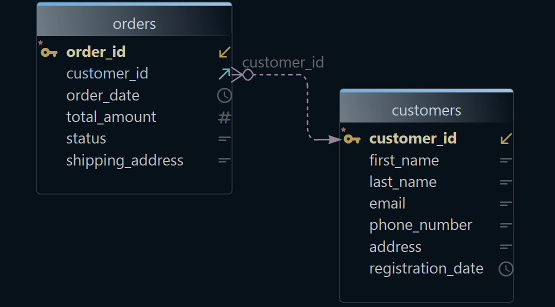
The join condition, orders.customer_id pointing to customers.id, is already in the database as a foreign key. The Data Explorer uses it, so the same rows come from a click. You pick the customer, and DbSchema lists the tables linked to it.
-
Open the explorer on a table
Right-click a table on the diagram, such as
customers, and choose Data Explorer. It opens under the diagram; double-click its tab to give it the whole area. -
Pick a row and follow a foreign key Pro
Click a row, then the arrow button next to the table name. Choose a linked table, such as Cascade orders via orders_customer_id_fkey.
-
Keep clicking
Click another customer, and the orders table reloads with that customer's orders. From the orders table, follow the next foreign key in the same way.
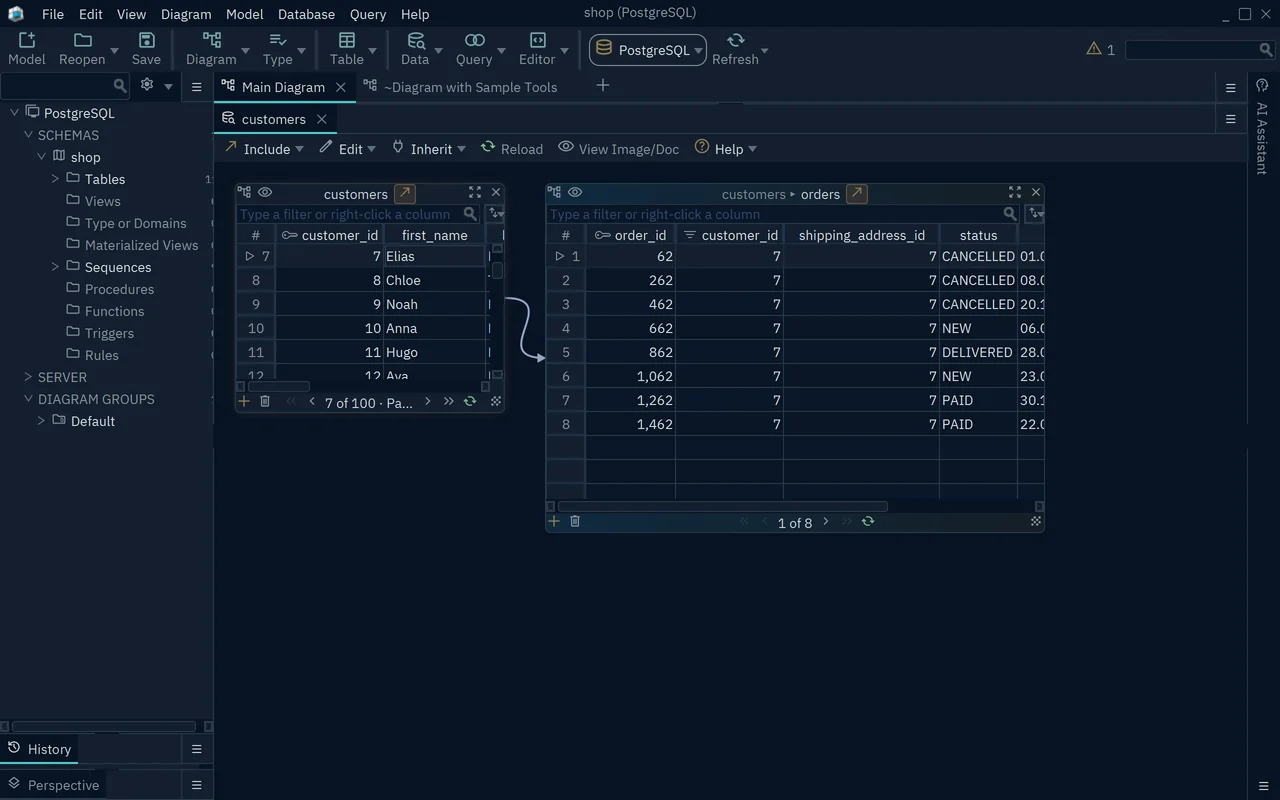
If your database has no declared foreign keys, the explorer can follow virtual foreign keys. They exist only in the DbSchema model and change nothing in the database. Exploring master-detail data across foreign keys goes deeper into chains of three or more tables.
Narrow the rows with a filter box
Each table in the explorer has a filter box above its rows. A short condition such as status = 'CANCELLED' keeps only the rows that match. The filter adds to the foreign key link, so the orders table shows the cancelled orders of the selected customer only. That is the one piece of SQL the viewer types, and it reads like the question they are asking.
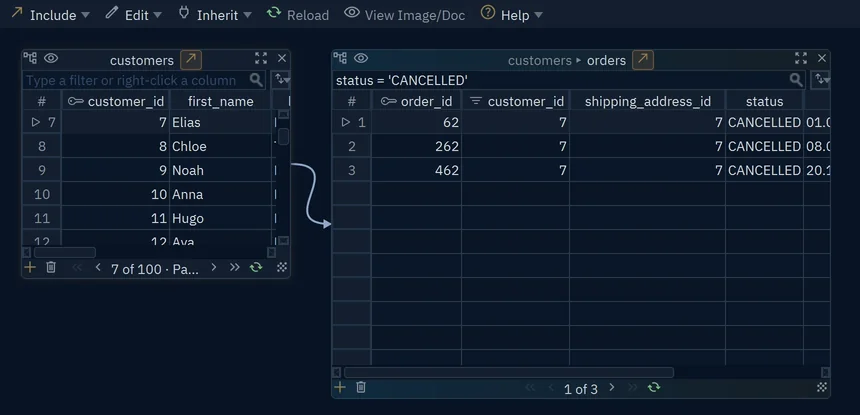
Sometimes the question needs columns from several tables in one list. Then the visual query builder writes the SELECT while you click tables and joins, also in Pro. A visual query builder for PostgreSQL shows it step by step, and visual query builders compared covers the other tools.
Make the connection read-only where it counts
The Data Explorer can also edit, add and delete rows, and those changes run in the database at once. For a colleague who should only look, three settings stand between them and the data, and each one stops something different.
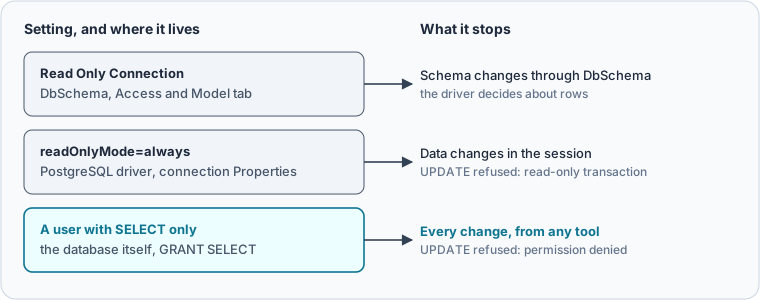
In DbSchema, the Access and Model tab of the connection dialog has Read Only Connection. Tick it, and DbSchema refuses to change the schema through this connection and asks the JDBC driver to open the connection read-only. Highlight marks it as Production, so the connection button shows which database the viewer is on.
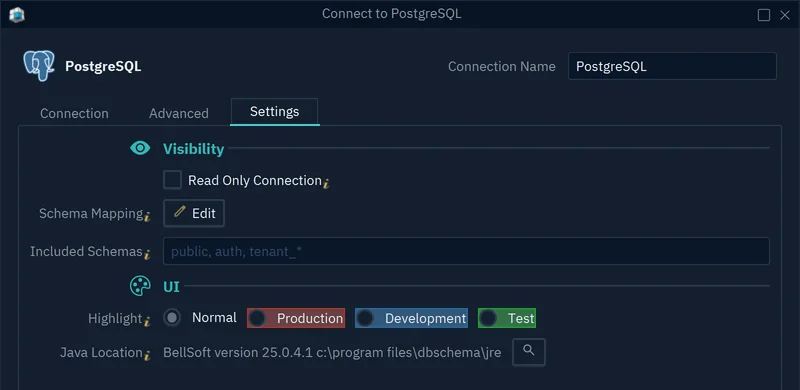
- 1Refuses schema changes
- 2Colors the connection button
What the driver does with that read-only request depends on the driver. We tested the PostgreSQL driver that DbSchema downloads, postgresql-42.7.13, on its own: with read-only set and autocommit on, an UPDATE still ran. The driver documentation explains why: by default, readOnlyMode is transaction, which makes only explicit transactions read-only. With readOnlyMode=always, the same UPDATE failed:
ERROR: cannot execute UPDATE in a read-only transaction
To use it in DbSchema, type readOnlyMode=always into Properties on the Network and Driver tab of the connection dialog. That still depends on a setting someone could untick. The guarantee belongs in the database: a user that has been granted SELECT and nothing else.
CREATE ROLE reader LOGIN PASSWORD 'change-me';
GRANT SELECT ON customers, orders TO reader;
Connected as reader, the viewer sees every row, and an UPDATE on orders fails with the PostgreSQL error below, whatever tool sends it. The GRANT documentation lists the other privileges you leave out.
ERROR: permission denied for table orders
Give schema readers documentation instead of a seat
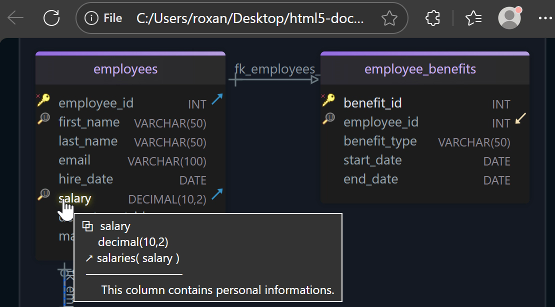
Some colleagues need to know what the tables mean rather than look at rows. DbSchema exports the schema as HTML5 documentation with the diagram and a description of every table and column. It opens in a browser with no install and no license. Generating it reads the model and changes nothing, and it needs DbSchema Pro. Navicat alternatives for editing relational data covers the colleagues who do need to edit rows.
Download DbSchema, connect it to your database with a SELECT-only user, and open the Data Explorer on the table your colleagues ask about most. Following foreign keys in the Data Explorer, the query builder and HTML5 documentation need DbSchema Pro. Connecting, diagrams and the SQL editor are in the free Community Edition.
Sources
Give your colleagues the data without a join
Every DbSchema download starts with a 15-day trial of all features. Following foreign keys in the Data Explorer, the query builder and HTML5 documentation are in DbSchema Pro.