How to Create ER Diagrams for SQLite with a Free Tool
For someone holding a SQLite file who wants to see its tables and relationships, and to keep that picture useful afterwards.
On this page
A SQLite file arrives with thirty tables in it, and .schema prints them one after another in the order they were created, with the foreign keys buried inside the CREATE TABLE text. DbSchema reads the same file and draws it: every table a box, every foreign key a line between two columns, on a canvas you can rearrange.
- Open DbSchema and choose Connect to a Database on the Welcome Screen.
- Pick SQLite from the list of database types, which opens the Connection Dialog set up for SQLite.
- Give DbSchema the path to your
.dbfile, click Test Connection to check that the file opens, then Connect. - DbSchema reverse-engineers the tables, columns, indexes and foreign keys, and draws them.
- Select everything with Ctrl+A and run Auto Arrange from the Diagram menu, which lays the boxes out with a graph algorithm.
Connecting, reverse-engineering and the diagram are in the free Community Edition.
What DbSchema reads out of the SQLite file
Picking SQLite is all the driver setup there is, because DbSchema downloads the right JDBC driver from its own repository, as the Driver Manager page describes. The read builds DbSchema's own design model, an XML .dbs file independent of the database, and nothing is written back to the SQLite file.
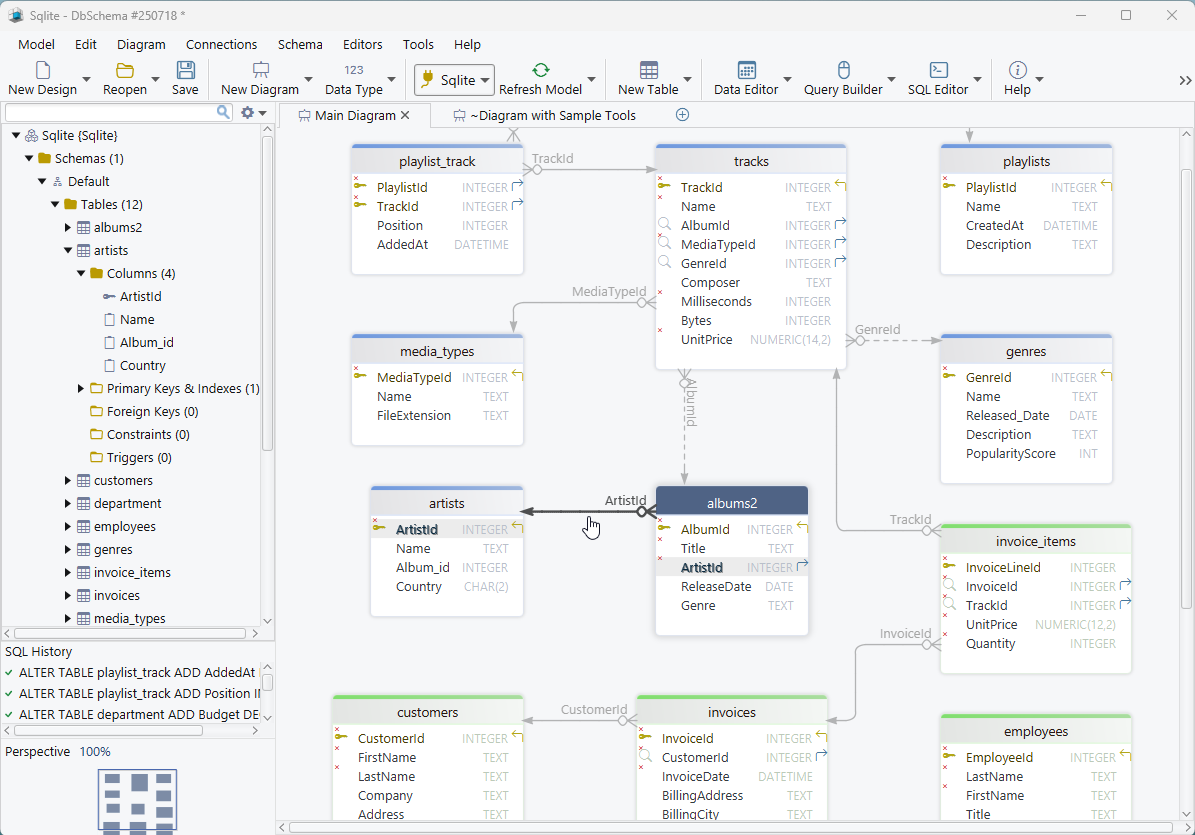
The lines on the diagram come from the REFERENCES clauses in the schema, and SQLite records those clauses whether or not it acts on them: PRAGMA foreign_keys is off by default and has to be set for each connection, as the SQLite foreign key documentation states. A pair of tables that should be joined by a line and is not tells you the clause was never written, which a run of CREATE TABLE statements hides.
Show Column Types, from the Diagram menu, puts the data type next to each column name. It is worth turning on for a SQLite schema, where the declared types are the only record of what the columns were meant to hold.
Connecting DbSchema to SQLite for the first time is covered step by step on the SQLite page.
Design a new SQLite schema from scratch
Design from Scratch on the Welcome Screen opens a project with no connection behind it, and that page marks it as a Pro feature, which the trial in every new installation covers.
Right-click the canvas and choose New Table, then double-click the table header to open the Table Dialog, where you fill in the columns, their types, the primary key and any indexes. To relate two tables, drag a column in the child table onto the column it references in the parent, and DbSchema draws the foreign key line on the diagram.
Everything you have built so far lives in the .dbs model file and in no database at all. Schema → Create or Upgrade Schema in Database is the step that changes that: DbSchema connects, generates the DDL for what the model holds, shows it to you, and executes it when you click Execute.
For a longer walkthrough, read how to design a schema visually.
Hand the diagram to somebody else
Diagram → Export HTML5 or PDF Documentation opens the documentation dialog, and DbSchema writes the schema out as HTML5, PDF or Markdown. The HTML5 output opens in any browser with no server behind it, carries the diagram as a vector image, and gives you a searchable table list with the full column details behind each table.
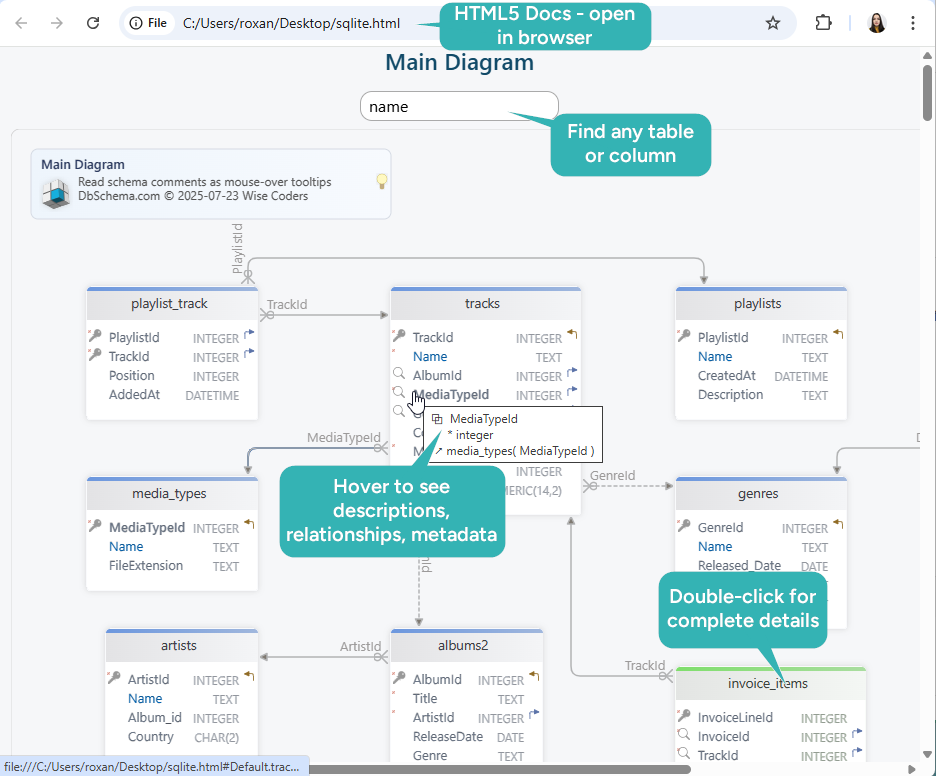
Anything you type into the Description field of a table or column travels with it, into every documentation format and, in the HTML5 output, into a mouse-over tooltip on the table or column name. Generating documentation is a Pro feature.
Why use DbSchema for SQLite
SQLite has no server and no graphical browser of its own, so whatever you open the file with is the only view you get. Reading table definitions is a poor way to learn a database you did not write, and it gets worse as the schema grows. What DbSchema adds, and which edition covers it:
| What you get | Edition |
|---|---|
Reverse-engineer a .db file into a diagram | Community |
| Interactive diagrams, offline, no server needed | Community |
| SQL Editor against the connected file | Community |
Design a schema from scratch and save it as .dbs | Pro |
| HTML5, PDF and Markdown documentation | Pro |
| Schema synchronization with the live file | Pro |
| Visual Query Builder | Pro |
| The other databases DbSchema supports, same interface | Community |
Download DbSchema at https://dbschema.com/download.html, connect to your SQLite file, and run Auto Arrange on what comes back. Connecting, reverse engineering and the diagram are in the free Community Edition, and saving the model to a file, documentation and synchronization are in Pro, with a 15-day trial in every new installation.









