Design and Manage SQLite Databases with a Modeling Tool
For the developer who has a SQLite file on disk, no schema documentation, and wants the tables, keys and constraints as a diagram they can edit.
On this page
An application hands you one SQLite file and nothing else. There is no server to log into and no catalog browser in a tab, so finding out which tables are inside means typing queries. DbSchema opens that file and reverse-engineers it into an ER diagram you can edit, in the free Community Edition.
Is SQLite a relational database, and what is a .sqlite file?
SQLite is relational: data sits in tables with columns, primary keys and foreign keys, and you query it with SQL. What sets it apart is where the database lives. A complete database, with its tables, indices, triggers and views, is one cross-platform disk file, and SQLite reads and writes that file directly instead of going through a server process[1].
The extension is a convention. The same file is commonly named .sqlite, .db or .sqlite3, and SQLite requires none of them. Other files can appear beside it, named after the database file, depending on the journal mode[2]:
| file | when it is there |
|---|---|
| app.db | always, as the database itself |
| app.db-journal | during a transaction, in the default rollback journal mode |
| app.db-wal and app.db-shm | while any connection has the file open in WAL mode |
The schema travels inside the file too. SQLite keeps the statement that created each table, index, view and trigger in a table of its own, sqlite_schema[3]. The examples in this article use a two-table database and ran on SQLite 3.50.4:
CREATE TABLE customers (
  id   INTEGER PRIMARY KEY,
  name TEXT NOT NULL
);

CREATE TABLE orders (
  id          INTEGER PRIMARY KEY,
  customer_id INTEGER NOT NULL REFERENCES customers (id),
  status      TEXT NOT NULL CHECK (status IN ('open', 'paid', 'shipped')),
  total       INTEGER
);

INSERT INTO customers VALUES (1, 'Ada'), (2, 'Grace');
INSERT INTO orders VALUES (10, 1, 'open', 250), (11, 1, 'paid', 90), (12, 2, 'shipped', 40);

SELECT type, name FROM sqlite_schema;
The file lists its two tables:
| type | name |
|---|---|
| table | customers |
| table | orders |
Connecting DbSchema to a SQLite file
SQLite has no server, so the connection asks for no host, port or password, only the file.
- Open DbSchema and choose Connect to Database.
- Pick SQLite from the database list. DbSchema downloads the JDBC driver for you.
- Browse to the database file, whatever its extension.
- Click Connect, then tick the object types to reverse-engineer.

The last step looks different from a client-server database. A SQLite file has no schemas to choose between, so the dialog shows one entry with a checkbox per object type under it. Untick triggers and they stay out of the model. Reverse-engineering writes what it finds into a design model held in DbSchema and only reads the SQLite file. Connecting and reverse-engineering are in the free Community Edition.

What the diagram shows about a SQLite file


Each table arrives on the diagram with its columns, data types, primary key and constraints, and every foreign key becomes a line between two tables. That is the picture the file never gave you: which table is the parent, which column carries the reference, and which tables nothing points at.

The diagram is also the editor. Double-click a table to change a column, drag one column onto another to draw a foreign key, and split a large schema into several diagrams, so billing sits on one tab and reference data on another.
Where an edit lands depends on whether DbSchema is connected. Connected, a schema edit runs against the SQLite file straight away and shows in the SQL History pane. Offline, the same edit changes only the model, and you apply the accumulated differences later. The diagram and schema editing are in the Community Edition. Saving the model to a file, which offline design and the Git workflow need, is a Pro Edition feature.

Foreign keys are off until a connection turns them on
The diagram draws a line for every REFERENCES clause in the schema. SQLite checks those references only on a connection that asked it to: foreign key constraints are disabled by default and have to be enabled separately for each database connection[4]. A new connection reports the setting as off:
PRAGMA foreign_keys;
| foreign_keys |
|---|
| 0 |
With enforcement off, an order for a customer who does not exist goes in without complaint, and only PRAGMA foreign_key_check finds it afterwards[5]:
INSERT INTO orders VALUES (13, 99, 'open', 120);
PRAGMA foreign_key_check;
Order 13 points at a customer that is not there:
| table | rowid | parent | fkid |
|---|---|---|---|
| orders | 13 | customers | 0 |
Delete the row, turn enforcement on, and the same insert fails with FOREIGN KEY constraint failed:
DELETE FROM orders WHERE id = 13;
PRAGMA foreign_keys = ON;
INSERT INTO orders VALUES (13, 99, 'open', 120);
The setting belongs to the connection, not to the file. Every program that writes to the file has to run PRAGMA foreign_keys = ON itself, and inside a multi-statement transaction the pragma has no effect and raises no error. So a file can hold orphan rows while its diagram shows every relationship. Run the check before you trust the lines.

Column types and CHECK constraints in a SQLite model
In SQLite, the datatype belongs to the value, not to the column that holds it[6]. A declared column type sets an affinity, a recommended type rather than a required one, and SQLite picks the affinity from words in the type name:
| declared type | affinity |
|---|---|
| INT, INTEGER, BIGINT | INTEGER |
| VARCHAR(255), NVARCHAR(100), TEXT | TEXT |
| BLOB, or no type | BLOB |
| REAL, DOUBLE, FLOAT | REAL |
| DECIMAL(10,5), BOOLEAN, DATE, DATETIME | NUMERIC |
The 255 in VARCHAR(255) limits nothing, and a value that cannot be converted is stored as it came:
INSERT INTO orders VALUES (14, 2, 'open', 'twelve');
SELECT id, total, typeof(total) FROM orders WHERE id = 14;
The INTEGER column holds text:
| id | total | typeof(total) |
|---|---|---|
| 14 | twelve | text |
Since version 3.37.0 a table declared STRICT enforces its types instead[7]. Its columns take only INT, INTEGER, REAL, TEXT, BLOB or ANY, and a value that cannot be converted without loss is rejected:
CREATE TABLE payments (id INTEGER PRIMARY KEY, amount INTEGER) STRICT;
INSERT INTO payments VALUES (1, 'twelve');
The insert fails with cannot store TEXT value in INTEGER column payments.amount.
SQLite has no ENUM type either, so an enumerated column becomes a CHECK constraint, like the one on orders.status. A status outside the list fails with CHECK constraint failed: status IN ('open', 'paid', 'shipped'):
INSERT INTO orders VALUES (15, 2, 'lost', 60);
DbSchema reads those unnamed CHECK constraints into the model. Double-click the table to open the Table Dialog, and it lists each check constraint with its condition, so a rule SQLite never labelled is readable in the model and in the exported documentation.

Documenting the schema and versioning the model
Once the schema lives in a model, you can hand it to someone who has no copy of the file, and you can put it under version control.
DbSchema exports the model as HTML5, PDF or Markdown documentation. The HTML5 output opens in any browser with no server behind it: a vector diagram, a searchable table list and the full column details. A description typed against a table or column shows as a mouse-over tooltip, and comment tags, such as an owner or a sensitivity level, appear in the documentation too. The database documentation guide covers the wider subject.
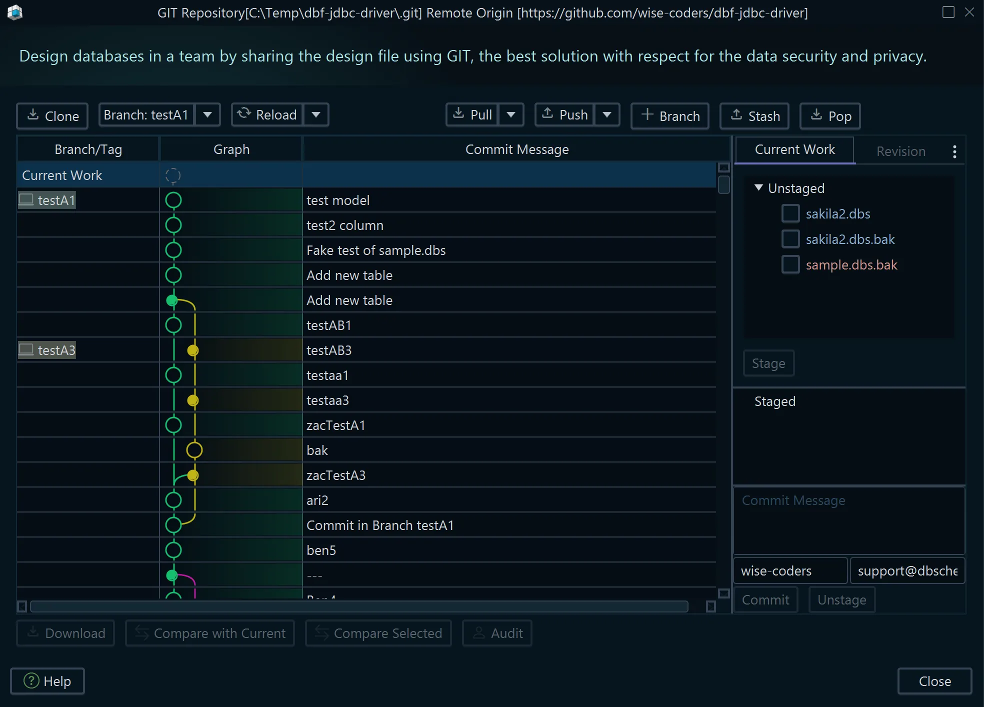
The model is a .dbs file in XML, so it diffs and merges the way source code does. Open the Git dialog from the Model menu and clone a repository into an empty folder; Stage, Commit and Push then publish your changes, and a colleague pulls the file and opens the same diagram. Branch a redesign and drop the branch if it goes nowhere, or revert to an earlier version of the schema. All of that happens on the model file, and the SQLite database changes only when you synchronize. The round-up of database design tools with Git integration compares how other clients version a schema. The documentation export, the saved model file and the Git workflow that versions it are Pro Edition features.
Query building and SQL editing
A join can be dragged together or typed out. Click a table header in the diagram to open a Query Builder with that table loaded, and tick the columns you want. Clicking the arrow beside a foreign key column adds the related table and the join with it, and clicking the join label switches between INNER JOIN, LEFT JOIN and EXISTS. The SQL updates at the bottom of the builder as you click. The builder is saved in the model file, so a query you built once reopens from the Editors menu.
The SQL Editor is the other route. Press Ctrl+Space to complete table and column names, run the statement and read the rows in the result pane, or save the whole result to a file. The SQL Editor is in the free Community Edition; the Query Builder is a Pro Edition feature.
Where the model and the SQLite file drift apart

A model edited offline and a file that an application has changed since are two versions of one schema. Schema synchronization compares them and lists what differs, object by object, and for each difference you choose to update the model, change the file, or skip it. The Synchronization Dialog turns those choices into SQL, which you can save as a script or edit before it runs, and nothing reaches the SQLite file until you apply it. Save the model first: if a run goes wrong, the saved file is what you restore from. Schema synchronization is a Pro Edition feature. Before any program writes schema changes to a production file, work through the security questions to ask about a schema sync tool.
Browsing related rows and generating test data
The Relational Data Editor opens tables side by side over their foreign keys. Right-click a table header in the diagram and choose Open in Relational Data Editor, then click the foreign key button on the table header panel to add the child table as a second pane. Select a parent row and the child pane shows only its rows, as deep as the relationships go, without a query written by hand. Rows are editable in the grid and reach the file on Commit, and a click on a column header filters by that column.

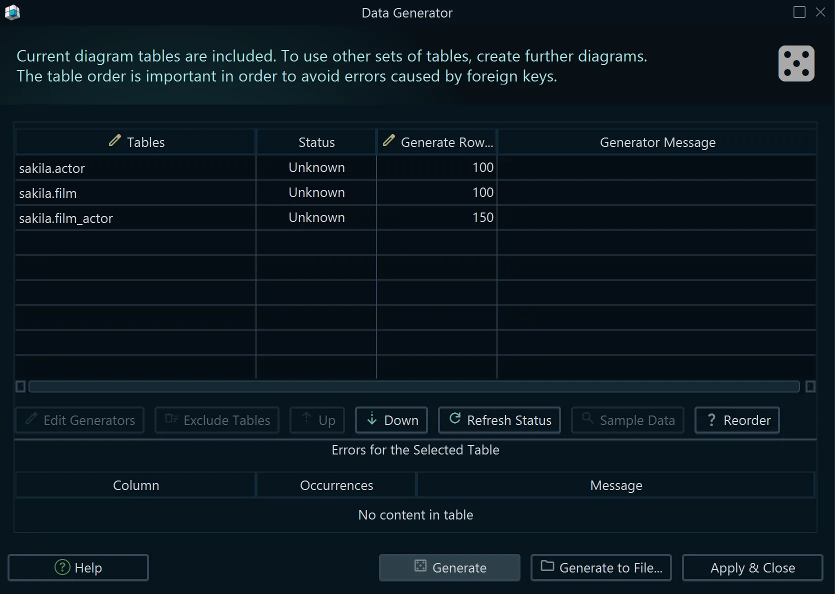
An empty schema is hard to judge, so fill it. Open the Data Generator, set a row count per table, and give each column a pattern: a name from the pattern repository, a date range, a reverse regular expression, or a Groovy script for the awkward ones. A foreign key column takes the load_values_from_pk pattern, which draws its values from the primary keys already in the parent table, so the generated rows are valid even where no connection enforces the foreign keys. Order the tables so parents fill first. When DbSchema asks whether to drop existing data first, answer no on a file you care about. The Relational Data Editor and the Data Generator both write to the SQLite file, not to the model, and both are Pro Edition features.
Download DbSchema, point it at your own SQLite file and read the diagram it draws. Connecting, reverse-engineering, the interactive diagram, schema editing and the SQL Editor are in the free Community Edition. The saved model file, the documentation export, the Query Builder, schema synchronization, the Relational Data Editor and the Data Generator are in the Pro Edition, which you can try for 15 days without a credit card. The same walkthrough exists for MySQL and Apache Derby.
Sources
Open your SQLite file as a diagram
DbSchema connects to a SQLite file, reverse-engineers it into an ER diagram and lets you edit the schema, all in the free Community Edition. HTML5 documentation, the Query Builder, schema synchronization, relational data browse and the data generator are in the Pro Edition.









