Free Database Diagram Tool for Easy Design and Management
For the developer or analyst who has to read, change or hand over a schema that has outgrown anyone's memory.
On this page
The join you have to write next touches three tables you have never opened, and the person who designed them has left. Connect DbSchema to that database and the free Community Edition reverse-engineers the schema into an interactive diagram: every table with its columns, and a line for every foreign key between them. You see how the tables join before you write any SQL, and the same diagram is where you edit a table and, in Pro, export documentation for the next person who asks.
What a database diagram shows, and who needs one
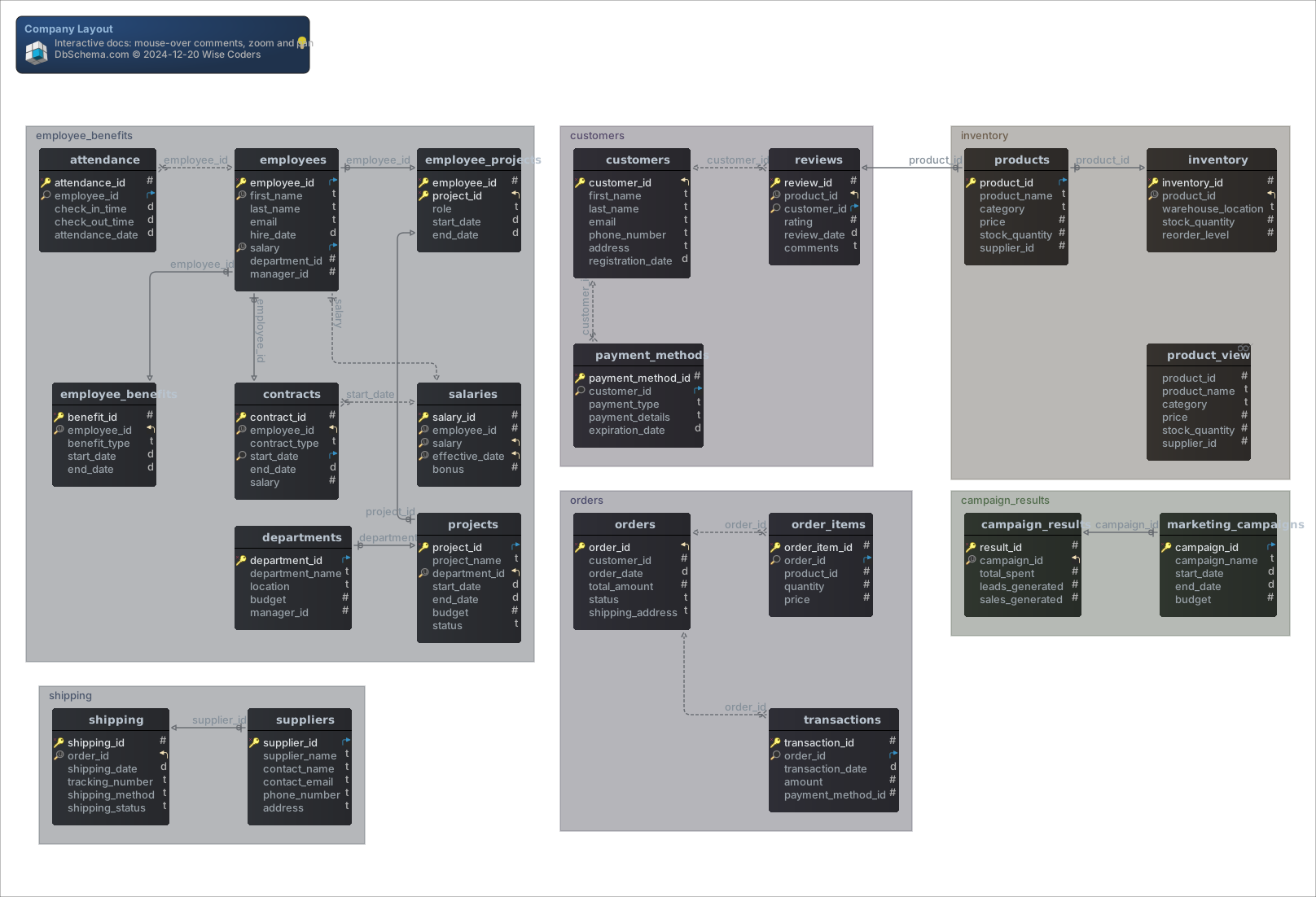

A database diagram draws each table as a box listing its columns, and each foreign key as a line from the referencing column to the key it points at. You need one when the schema is bigger than anyone's memory of it: to write a correct join across tables you did not create, to see what a column change would break before you ship it, or to give a new colleague something readable on their first day. A diagram also shows problems that a list of tables hides, such as a table that no line reaches. If you are designing a structure from scratch, follow the step-by-step guide to designing a relational schema instead.
The lines say more than which tables are related. Here are three tables to show how:
CREATE TABLE customers (
    customer_id INT PRIMARY KEY,
    name        VARCHAR(50) NOT NULL
);

CREATE TABLE coupons (
    coupon_id INT PRIMARY KEY,
    code      VARCHAR(20) NOT NULL
);

CREATE TABLE orders (
    order_id    INT PRIMARY KEY,
    customer_id INT NOT NULL REFERENCES customers (customer_id),
    coupon_id   INT REFERENCES coupons (coupon_id)
);
Neither foreign key column in orders is UNIQUE, so both lines end in a crow's foot at orders: one customer has many orders, and one coupon can be used on many orders. The line to customers is solid because customer_id is NOT NULL, so every order has a customer. The line to coupons is dashed because coupon_id can be empty.
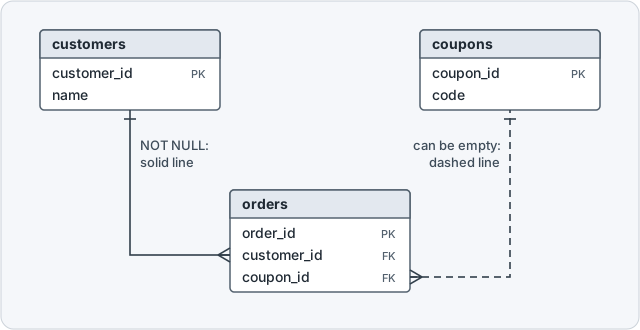
DbSchema picks the line from two constraints on the referencing column, as its foreign key documentation sets out:
| NOT NULL | UNIQUE | Relationship | Line on the diagram |
|---|---|---|---|
| No | No | one to many, optional | dashed, crow's foot |
| Yes | No | one to many, mandatory | solid, crow's foot |
| No | Yes | one to zero or one | dashed |
| Yes | Yes | one to one | solid |
Why a join comes back short, and how the diagram warns you
A dashed line is the first thing to look at when a query returns fewer rows than you expected. Add two customers, one coupon and two orders, one of them placed without a coupon, then join all three tables:
INSERT INTO customers VALUES (1, 'Ana'), (2, 'Ben');
INSERT INTO coupons VALUES (10, 'SPRING');
INSERT INTO orders VALUES (100, 1, 10), (101, 2, NULL);

SELECT o.order_id, c.name, p.code
FROM orders o
JOIN customers c ON c.customer_id = o.customer_id
JOIN coupons p ON p.coupon_id = o.coupon_id;
Order 101 is missing, because an inner join keeps only the orders whose coupon_id matches a coupon, and NULL matches nothing:
| order_id | name | code |
|---|---|---|
| 100 | Ana | SPRING |
The dashed line to coupons told you this before you ran anything. Join along a dashed line with LEFT JOIN and every order comes back:
SELECT o.order_id, c.name, p.code
FROM orders o
JOIN customers c ON c.customer_id = o.customer_id
LEFT JOIN coupons p ON p.coupon_id = o.coupon_id;
Order 101 now has a NULL code:
| order_id | name | code |
|---|---|---|
| 100 | Ana | SPRING |
| 101 | Ben | NULL |
The solid line to customers is safe to inner join, since the NOT NULL foreign key gives every order a customer. Both queries were run on PostgreSQL 17.9.
What to check before you pick a database diagram tool
Start with where the diagram gets its tables. On some diagram tools you draw each box by hand, and on others you type the table definitions as code. Either way the diagram shows what someone last typed, and every migration that nobody copies back makes it less true. A diagram tool that connects to the database reads the tables, columns and foreign keys from the database itself, so the diagram matches the schema you actually run.
Then check the engines. If your databases run on more than one engine, the diagram tool has to read every one of them. DbSchema connects over JDBC to any of 70+ SQL and NoSQL databases and downloads the JDBC driver itself.
Where a diagram tool runs decides where your schema goes. A desktop application reads the database from inside your own network. DbSchema is a desktop application for Windows, macOS and Linux, so the database never leaves its network and no cloud account sits in the path.
The last two questions come up once the schema grows. A schema of thousands of tables drawn on one canvas is a picture nobody can read, so a diagram tool has to split it into smaller diagrams. And a schema change needs a review, which is easiest when the design is a file you keep in Git next to the code, where the people who work on the schema review it in a pull request like any other change.
How DbSchema turns a database into a diagram
Reverse-engineering an existing database takes three steps:
- Start DbSchema and choose Connect to Database on the start screen.
- Pick your database type from the list, then enter the host, the user and the password in the Connection Dialog. DbSchema downloads the JDBC driver for that database.
- Once the connection opens, DbSchema reads the schema and draws its tables as diagrams, with a line for every foreign key.


The diagram is editable from there. Right-click the canvas and choose New Table, double-click a table header to open the Table Dialog for its columns, indexes and comments, or drag a column onto a column of another table to draw a foreign key. While DbSchema is connected, a new table is created in the database and in the design model at the same time, and the statements it ran appear in the SQL History pane, as the tutorial shows.

Where a legacy database declares no foreign keys, its diagram has no lines to show. Draw them anyway: a virtual foreign key is saved in the DbSchema model file and never sent to the database, and DbSchema follows it like a real one in the Query Builder and the Relational Data Editor.
For a database that does not exist yet, choose Design from Scratch instead. DbSchema keeps the design in its model file with no connection open, and you deploy it to a database when one exists. Because the design is a file, you can commit it to Git and review a schema change the way you review code. The model file, designing offline and the Git workflow built on them are Pro features.
What the free Community Edition covers, and where Pro starts
The Community Edition is free with no time limit, and it is not a trial. The rows marked yes for Community below are enough to connect, reverse-engineer and read any schema as a diagram. The table follows the edition comparison on the purchase page:
| Feature | Community | Pro | Architect |
|---|---|---|---|
| All databases, connect and reverse-engineer | yes | yes | yes |
| Interactive diagrams | yes | yes | yes |
| Create and edit tables and columns | yes | yes | yes |
| SQL editor | yes | yes | yes |
| Save the model to a file, design offline | no | yes | yes |
| HTML5, PDF and Markdown documentation | no | yes | yes |
| Visual query builder | no | yes | yes |
| Relational data browse | no | yes | yes |
| Schema synchronization | no | yes | yes |
| Data generator and data importer | no | yes | yes |
| Logical and conceptual design | no | no | yes |
The Architect trial runs for 15 days and asks for no credit card. It comes in the same installer as Community, and you can extend it by another 15 days.

Queries, data and documentation from the same diagram
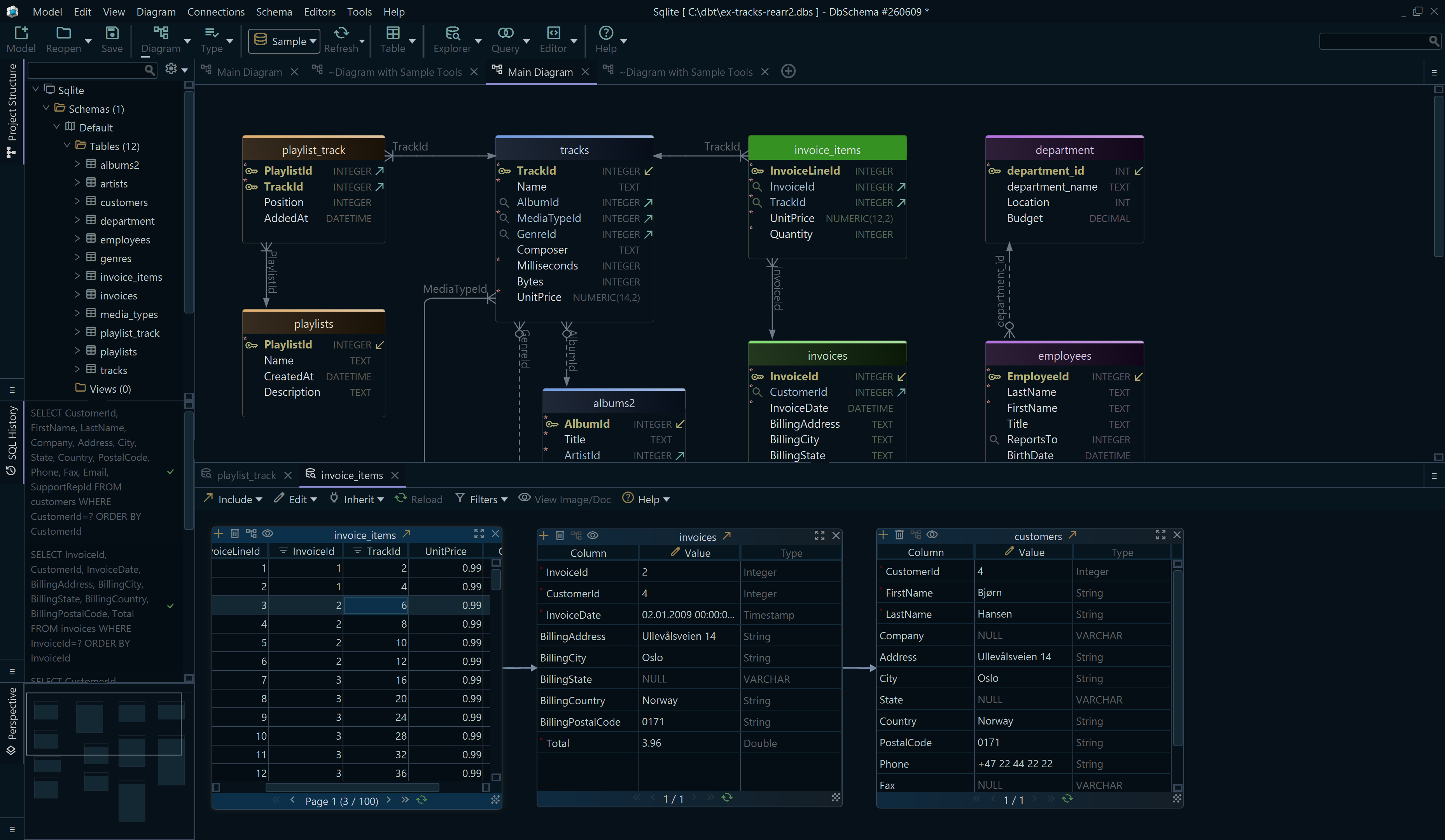
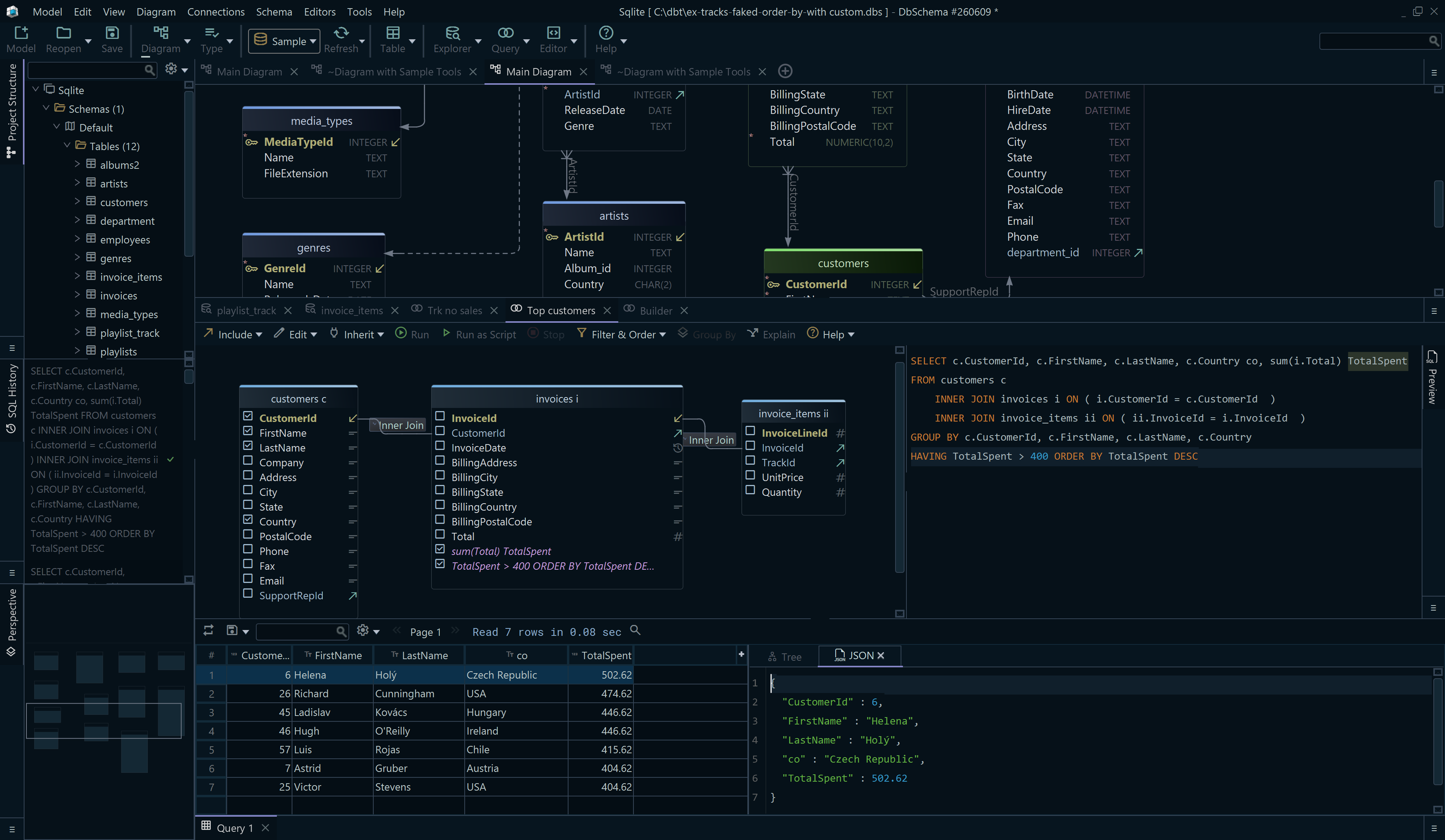
Click a table header and the Query Builder opens with that table loaded. Click the arrow next to a foreign key column to add the table it points at, tick the columns you want, and click the join type on the line to switch between INNER JOIN, LEFT JOIN and EXISTS, which is the coupons fix from above done with the mouse. DbSchema writes the SQL as you go and shows it at the bottom of the builder.
For SQL you write yourself, the SQL Editor completes table and column names when you press Ctrl+Space. Hold Shift and Ctrl and click a table header, and the Relational Data Editor opens on that table: select a row, and each child table shows only the rows that belong to it. The SQL Editor is in Community; the Query Builder and the Relational Data Editor are Pro.
Documentation comes out of the same diagram. Choose Diagram → Export HTML5 or PDF Documentation, and DbSchema writes an HTML5 page with the diagram as a vector image, a searchable table list and every column's details. It opens in any browser with nothing installed, so it is the file you send to an auditor or a new analyst instead of a screenshot. PDF and Markdown come from the same dialog, and all three formats are Pro.
To try the output yourself, open the sample below.
How DbSchema keeps thousands of tables readable
One diagram of a whole enterprise database is unreadable, so DbSchema does not draw one. A project holds as many diagrams as you need over the same schema, each with its own layout and its own set of tables, which is how thousands of tables stay readable. An e-commerce database gets separate diagrams for customers, inventory and orders; a banking database gets accounts, transactions and audit logs. The same table can sit in several diagrams, and since they share one schema definition, a change to the table shows in all of them.
Inside one diagram, drag related tables into a named, colored group and move them as one. After reverse-engineering a large schema, the tables often overlap: select them all and choose Diagram → Auto Arrange, and DbSchema lays them out for you. Every one of these features is described on the diagram documentation page.

Download DbSchema and connect it to the database you need to understand: the free Community Edition reverse-engineers it into an interactive diagram where you read the lines, edit tables and run SQL. The Architect trial adds the model file and its Git workflow, the Query Builder, the Relational Data Editor and the HTML5, PDF and Markdown documentation. If you are designing a new structure rather than reading one, start from the relational schema design guide.
Frequently asked questions
Is there a genuinely free database diagram tool?
The DbSchema Community Edition is free with no time limit, and the editions table above shows what it covers and what the Architect trial adds.
Can a database diagram tool create the database as well as draw it?
DbSchema deploys the design model to the target database, and compares an existing database against the model in the Synchronization Dialog, where each difference is applied to the database, taken into the model, or written out as an SQL script. Schema synchronization is Pro.
How do I document a database for people who do not write SQL?
Write the explanation into the Description field of each table and column first. DbSchema carries those descriptions into the HTML5 export as mouse-over tooltips on the table and column names, which makes the export readable to someone who cannot read the DDL. Exporting the documentation is a Pro feature.
See your own database as a diagram
DbSchema connects to any of 70+ SQL and NoSQL engines, reverse-engineers the schema into an interactive diagram, and keeps large schemas readable one subsystem at a time.









