DBeaver ER Diagram Not Showing Relationships? Three Causes and the Fix
How DBeaver builds its ER diagram, the three reasons a relationship line never appears, and what to do when the diagram has to be the design.
On this page
You opened the ER diagram in DBeaver and two tables you know are related sit side by side with no line between them. DBeaver draws its diagram by reading the database catalog, so it can draw only the foreign keys the database declares. When a relation was never declared, DbSchema draws it anyway as a virtual foreign key that lives in the DbSchema model and never touches the database.
Short answer
DBeaver's ER diagram shows only foreign keys that the database catalog reports. A missing line means the key was never declared, the engine discarded it, or the driver did not report it. Check the table's DDL for a REFERENCES clause to tell which.
- MyISAM tables silently drop FOREIGN KEY clauses, so there is nothing for any diagram to draw.
- Snowflake treats foreign keys as optional and unenforced, so warehouse schemas often declare none.
- A driver can fail to report keys that the database does declare: update it.
DBeaver's ER diagram draws only what the database catalog reports
DBeaver is an open-source universal database tool that connects to anything with a JDBC driver, and its ER diagram comes with that connection at no extra install, next to a full data editor and SQL editor. It builds the diagram from the database catalog: the tables, their columns and the constraints declared on them, with a box per table and a line per foreign key. A foreign key, in PostgreSQL's definition, is a constraint that the values in a column must match values in a row of another table, and it exists in the catalog only when someone declared it.
DBeaver's own ER diagram documentation, read on 3 November 2026, states that diagrams are read-only by default. The diagram is a picture of the catalog, not of the design: where the two agree, the picture is accurate, and where a relation was never declared, it has no line to draw.
Four steps open and export DBeaver's ER diagram
- In the Database Navigator, double-click the schema you want, or a single table inside it, and switch to the Diagram tab of the editor that opens.
- DBeaver lays out the tables it finds and draws a line for every foreign key the catalog reports.
- Open the diagram settings and pick Crow's Foot, IDEF1X, Bachman or another notation.
- Use Save diagram in external format to write the diagram out as SVG, PNG, GIF, BMP or GraphML.
The edition decides part of that list. According to DBeaver's documentation, Edit mode, which lets you create and modify database objects from the diagram, is in DBeaver Enterprise and Ultimate only, and SVG export is in the PRO editions. The other image formats and GraphML have no edition note.
A foreign key the catalog never stored cannot be drawn
A diagram that reads the catalog can draw only the foreign keys the catalog holds. Redrawing the diagram, refreshing the connection or switching the notation cannot bring a line back if the database never stored the key. MySQL shows how quietly that happens. The same two tables, once in InnoDB and once in MyISAM, each with a FOREIGN KEY clause:
CREATE TABLE customers_i (id INT PRIMARY KEY) ENGINE=InnoDB;
CREATE TABLE orders_i (id INT PRIMARY KEY, customer_id INT,
  FOREIGN KEY (customer_id) REFERENCES customers_i (id)) ENGINE=InnoDB;

CREATE TABLE customers_m (id INT PRIMARY KEY) ENGINE=MyISAM;
CREATE TABLE orders_m (id INT PRIMARY KEY, customer_id INT,
  FOREIGN KEY (customer_id) REFERENCES customers_m (id)) ENGINE=MyISAM;
Both statements succeed without a warning. The catalog, which is what DBeaver reads, holds only one of the two keys:
SELECT table_name, constraint_name, referenced_table_name
FROM information_schema.referential_constraints
WHERE constraint_schema = 'shop';
Result · MySQL 8.4.11
| table_name | constraint_name | referenced_table_name |
|---|---|---|
| orders_i | orders_i_ibfk_1 | customers_i |
The MyISAM key is gone, and so is the rule it stood for: INSERT INTO orders_m VALUES (1, 999) is accepted although no customer 999 exists. Any diagram built from this catalog draws a line between the InnoDB tables and none between the MyISAM ones.
MyISAM, Snowflake and a faulty driver hide the foreign keys
- MyISAM tables: as the run above shows, MySQL parses the FOREIGN KEY clause and stores nothing. MariaDB's documentation states the same: foreign keys work only in storage engines that implement them, such as InnoDB.
- Snowflake standard tables accept FOREIGN KEY constraints as optional and not enforced, so many warehouse schemas declare none (Snowflake constraints overview). The relations live in the load scripts, not in the catalog.
- A driver can fail to report keys the database does declare. The DuckDB issue tracker records a case from October 2023 in which DBeaver 23.2.3 did not draw DuckDB foreign keys; it was closed by a later fix, so treat it as dated (DuckDB issue 9468).
The three look identical on the canvas, and telling them apart takes a minute. Read the DDL of one child table and look for a REFERENCES clause. If the clause is there and the line is missing, update the driver. If it is not there, no diagram tool can draw the relation from the catalog, and the relation has to be recorded somewhere other than the database.
In DbSchema the diagram is the design, not a picture of it
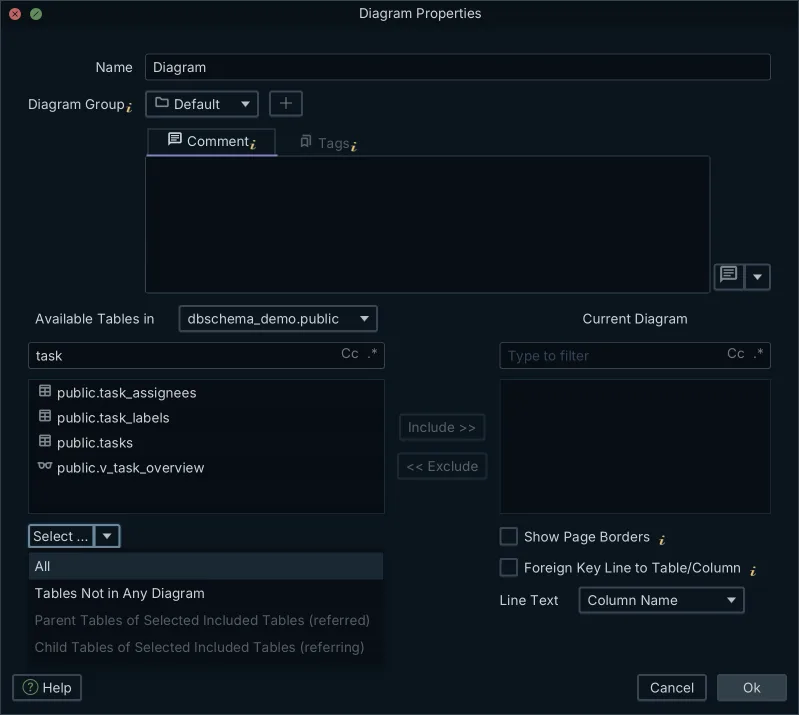
DbSchema Community Edition connects to the same database over JDBC and reverse-engineers it into an interactive ER diagram, free, for every supported database. The diagram is where the work happens: right-click the empty canvas and choose New Table, double-click a table header to edit its columns, indexes and foreign keys, and drag from a column to the column it references to draw the relationship. The database diagram tool article walks through this in detail.
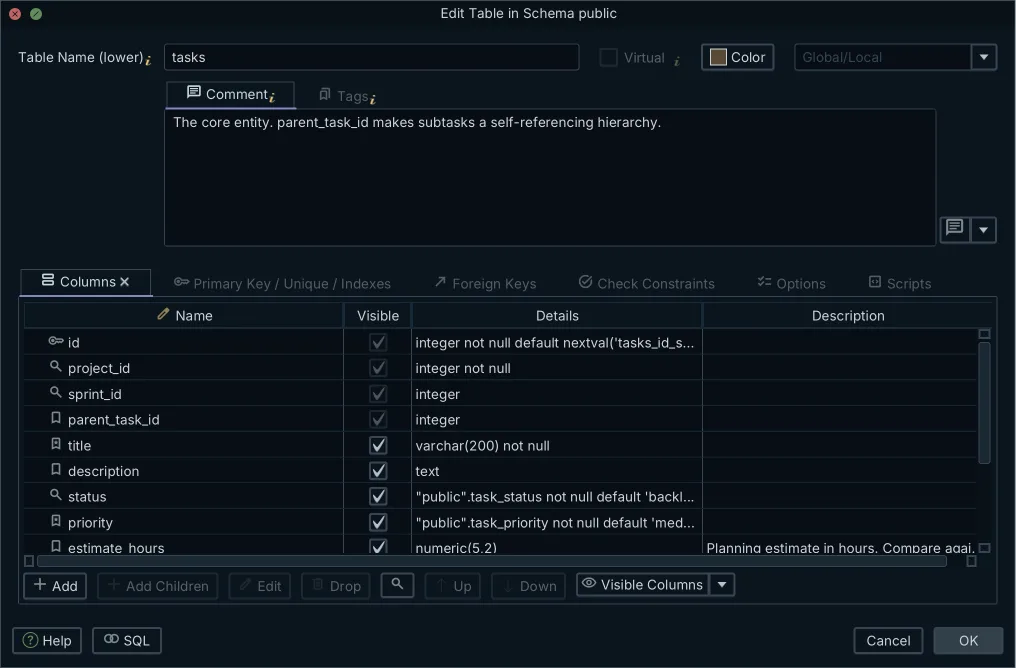
For the missing lines from the section above, DbSchema adds a virtual foreign key: drag the child column onto the parent column and tick Virtual, or let Model → Find Virtual Foreign Keys suggest them between columns with matching names. A virtual foreign key exists only in the DbSchema model, never as a constraint in the database, and DbSchema draws it in its own color. Keeping it means saving the model file, and the Query Builder and Relational Data Explorer that follow it like a real key are DbSchema Pro.
In DbSchema Pro, one project holds several diagrams, each with its own layout, and the same table can appear in more than one, so a large schema gets a view per subsystem over one shared definition. Pro saves the tables, positions, groups, notes and virtual foreign keys in a single model file that reopens without a live connection.
One user's account gives a sense of what that is worth. Bernie Pruss, a data architect of roughly 30 years, wrote on LinkedIn in August 2026 that DbSchema gave him a visual model of his database, and that looking at a table's data and profile from the diagram showed him relationships that needed work. That is one person's experience, not a review.
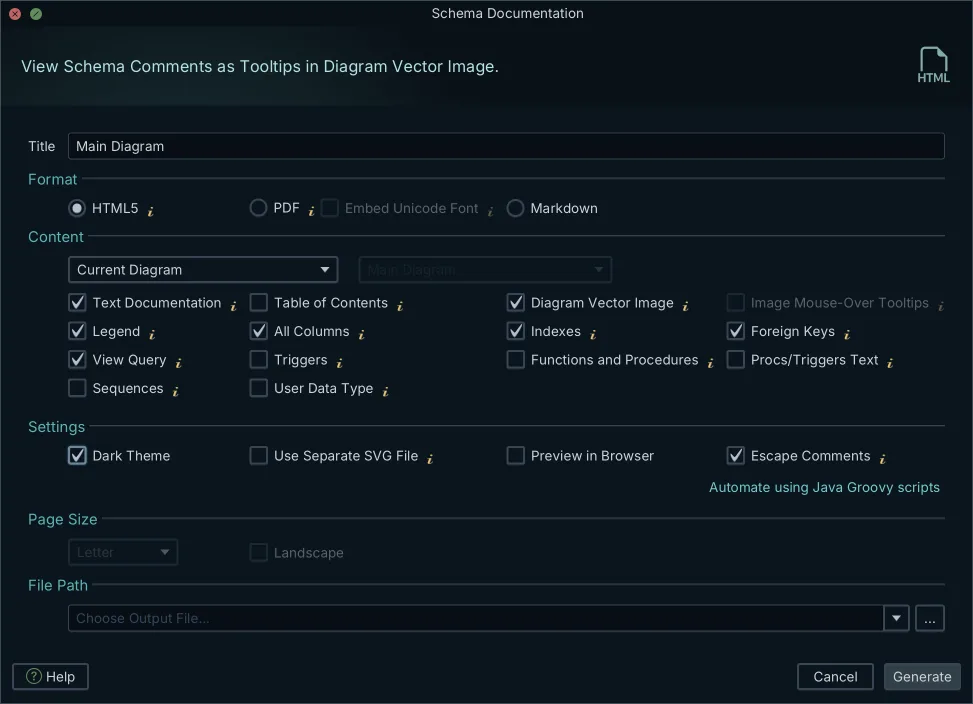
DbSchema adds HTML5 documentation to the diagram export
Crow's foot puts branching symbols on the line ends, read as zero, one or many. Barker notation, used in Oracle Designer, puts the optionality marker on the relationship's own side and the crow's foot on the far side. IDEF1X grew out of a US Air Force program and puts keys and identifying relationships at the center (Entity relationship model, IDEF1X). The ER diagram symbols and notation guide covers all three.
DbSchema's default is Information Engineering with arrows, and View → Foreign Keys → Foreign Key Notation switches it to Information Engineering, Barker or Idef1x. The values below come from each vendor's documentation, read on 3 November 2026. Only DbSchema turns the same model into HTML5, PDF and Markdown documentation:
| Output | DbSchema | DBeaver |
|---|---|---|
| Diagram as image | PNG, GIF, JPG, SVG | PNG, GIF, BMP; SVG in PRO editions |
| Edit the schema from the diagram | Community | Enterprise and Ultimate |
| Interactive HTML5, PDF and Markdown documentation | Pro | not offered |
Switch to DbSchema when the diagram has to become the design
To look at a schema that declares its foreign keys, DBeaver's read-only diagram shows it next to the SQL editor you already use. DbSchema Community Edition reads the same catalog for free and keeps the diagram editable, with connect and reverse-engineer for all 100+ supported databases, interactive diagrams, creating tables and columns, and the SQL editor. Switch to DbSchema when the diagram has to show relations the database never declared: virtual foreign keys draw them, and DbSchema Pro keeps them in the saved model. Pro also covers the two cases after that: saving the design to a file you review in Git, and comparing the model with the database to generate the migration script.
The full product comparison, including licence costs, is in DbSchema and DBeaver compared edition by edition. To see the missing lines on your own schema, download DbSchema, open the same database in the free Community Edition to reverse-engineer it into an editable diagram, then draw the relations the catalog never held as virtual foreign keys; saving them in the model, the Query Builder and HTML5 documentation are in DbSchema Pro.
Frequently asked questions
How do I create an ER diagram in DBeaver?
Double-click a schema or a table in the Database Navigator and switch to the Diagram tab; DBeaver reads the catalog and draws the tables, columns and declared foreign keys. The diagram is read-only by default.
Why is my DBeaver ER diagram not showing relationships?
The catalog holds no foreign key for that pair of tables. The key was never declared, the engine discarded it (MyISAM accepts the clause and stores nothing), or the driver did not report it. A REFERENCES clause in the table's DDL means the driver is the cause.
How do I export an ER diagram from DBeaver?
Use Save diagram in external format, which exports SVG, PNG, GIF, BMP or GraphML. SVG export is in the PRO editions.
Can I create foreign keys in a diagram without creating them in the database?
In DbSchema, drag the child column onto the parent column and tick Virtual, or let Model → Find Virtual Foreign Keys suggest one. It draws the missing line and is stored only in the DbSchema model, never in the database; saving the model and the Query Builder and Relational Data Explorer that follow it are DbSchema Pro.
Sources
Database documentation
DbSchema and background
Draw the relations your database never declared
DbSchema reverse-engineers the same database into an editable diagram and draws the missing lines as virtual foreign keys. Connecting and reverse-engineering are free in the Community Edition.









