Which Database Visualization Tool Should You Buy to See Your Database Structure?
How to pick a tool that shows the real structure of an existing database, from reading the catalog to sharing the diagram with people who don't run the tool.
On this page
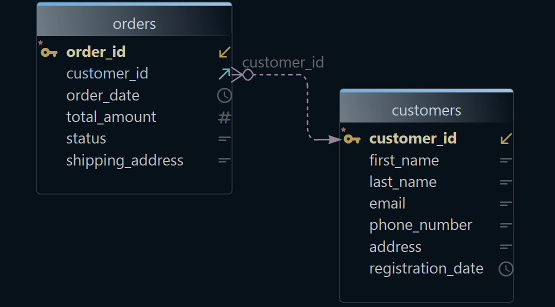
DbSchema shows you the structure of a database you already have, without typing a single table in by hand. It reads the tables, columns and foreign keys from the database itself and draws them as an ER diagram you can rearrange, extend and share. Buy that kind of database visualization tool when you need to know what is in a database. It should connect and reverse-engineer the schema and let you add the links the database never declared. It should also turn the result into documentation for people who don't run it.
Short answer
DbSchema connects to more than 100 databases and draws their structure as diagrams. The free Community Edition already connects, reverse-engineers and shows interactive diagrams. DbSchema Pro, at 294 USD once per user, saves the model with its virtual foreign keys and writes HTML5 documentation.
- Buy a tool that reads the structure from the database, not one you draw by hand.
- Check that it lets you add the relationships the database never declared.
- Make sure people without the tool can read the result.
Decide which kind of visualization you need
Three kinds of software call themselves database visualization tools, and they answer different questions. Business intelligence tools chart the data: sales per month, users per country. Diagram editors draw the tables you type or paste in. Database design tools such as DbSchema read the tables from the database and draw what is really there.
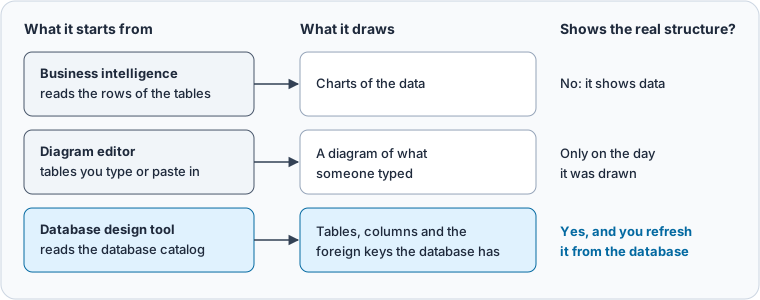
If you want to see the structure of a database that already runs, only the third kind gives you a diagram you can trust. A drawing is right on the day someone draws it, and it drifts with every migration nobody copies across. A diagram read from the database starts out correct, and you refresh it instead of redrawing it. Desktop or browser covers the second question that splits these tools: where your schema is stored.
Read the structure from the database, not from a drawing
Every relational database keeps an inventory of its own tables, columns and constraints, called the system catalog. In PostgreSQL, the pg_constraint catalog stores the primary keys, unique keys and foreign keys of each table. A tool that reads it gets the relationships exactly as the database enforces them. This query lists the foreign keys of the tasks table in our demo schema:
SELECT conrelid::regclass AS child_table,
       confrelid::regclass AS parent_table,
       conname AS foreign_key
FROM pg_constraint
WHERE contype = 'f'
  AND conrelid = 'tasks'::regclass
ORDER BY conname;
Result · PostgreSQL 16.14
| child_table | parent_table | foreign_key |
|---|---|---|
| tasks | users | tasks_created_by_fkey |
| tasks | tasks | tasks_parent_task_id_fkey |
| tasks | projects | tasks_project_id_fkey |
| tasks | sprints | tasks_sprint_id_fkey |
The second row is a self-reference: tasks points to itself, because a task can have a parent task. DbSchema reads the same catalog when it reverse-engineers the database. It draws each foreign key as a line, including the loop from tasks back to tasks. Connecting and reverse-engineering only read from the database and change nothing in it.
Creating an ER diagram from an existing database walks through the reverse-engineering steps and how to check the diagram against real rows.
Add the relationships the database never declared
The catalog only knows the foreign keys someone declared. Many databases link tables in the data without a constraint, and a tool that only reads the catalog draws no line for them. This query asks the information schema for the key columns of the activity_log table, and the foreign key behind each one:
SELECT c.column_name,
       k.constraint_name AS foreign_key
FROM information_schema.columns c
LEFT JOIN information_schema.key_column_usage k
  ON k.table_name = c.table_name
 AND k.column_name = c.column_name
 AND k.constraint_name LIKE '%fkey'
WHERE c.table_name = 'activity_log'
  AND c.column_name LIKE '%id'
ORDER BY c.ordinal_position;
Result · PostgreSQL 16.14
| column_name | foreign_key |
|---|---|
| id | |
| team_id | activity_log_team_id_fkey |
| actor_id | activity_log_actor_id_fkey |
| entity_id |
entity_id has no foreign key. Yet in 8 of the 10 rows of activity_log, entity_type is task, so entity_id holds the id of a task. A diagram read from the catalog shows activity_log with no line to tasks, and it looks complete.
In DbSchema you add that link as a virtual foreign key: drag entity_id onto tasks.id and tick Virtual. DbSchema draws it in another color and never creates it in the database. Model → Find Virtual Foreign Keys suggests candidates between columns with matching names. Keeping a virtual foreign key means saving the model file, which needs DbSchema Pro.
Split a large schema into diagrams you can read
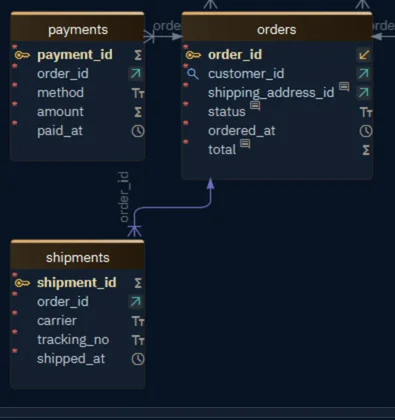
When every table of a schema sits on one diagram, the tables you're working on get lost among the rest. In DbSchema one model holds as many diagrams as you need, each with the tables of one part of the application. After you load a large schema, Diagram → Auto Arrange Tables lays out the tables by their foreign keys. A group draws a colored box around tables that belong together.
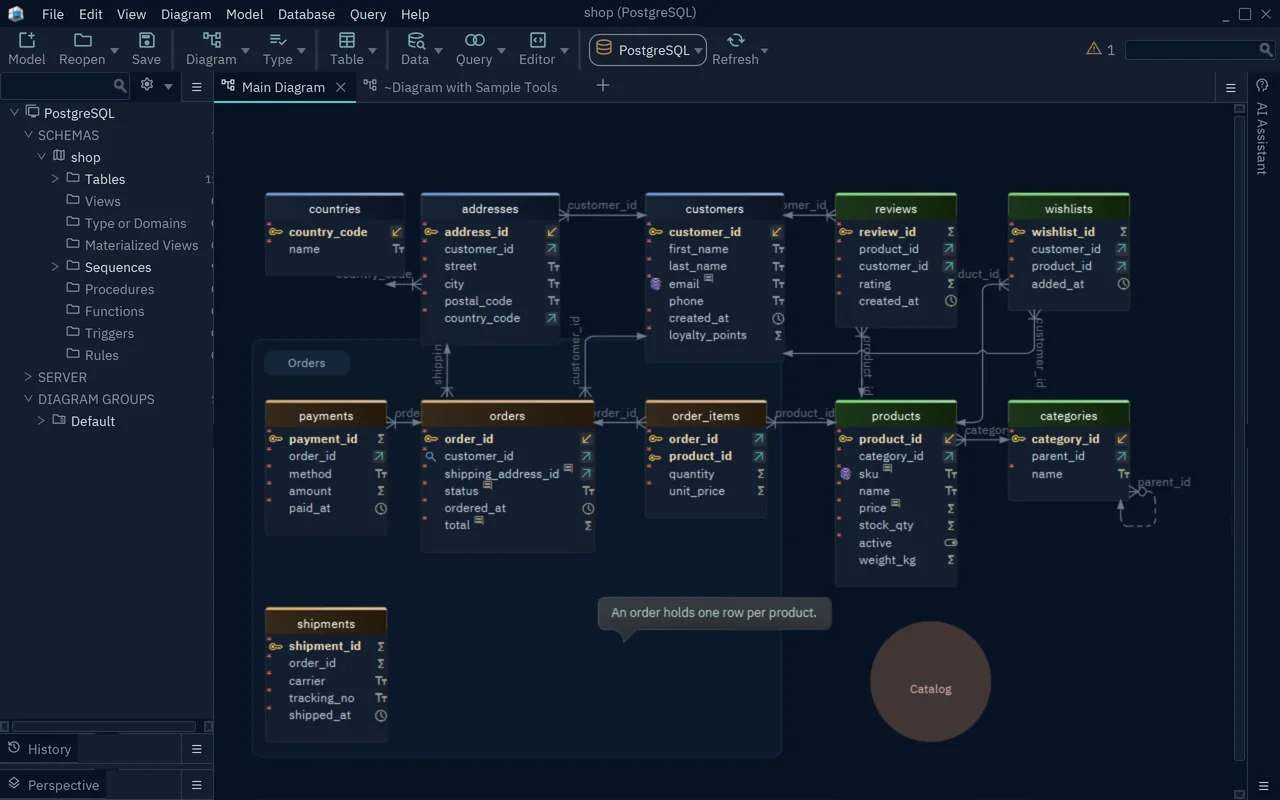
- 1A group of the order tables
- 2A callout on the diagram
Everything you do on a diagram changes only the model. Moving a table, grouping tables or adding a callout never changes the database.
Give the structure to people who don't run the tool
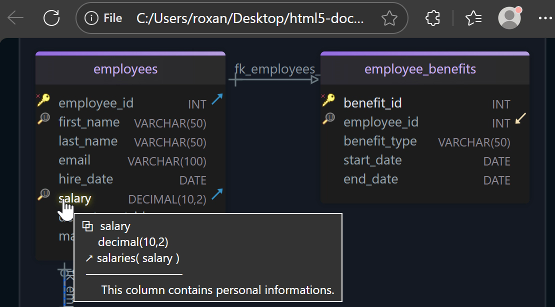
The people who need to read a schema, such as a reviewer, a new developer or an auditor, often don't run DbSchema. DbSchema writes HTML5 documentation for them: one file with the diagram as a vector image and a description of every table, column, index and foreign key. Comments show as tooltips when someone points at a table.
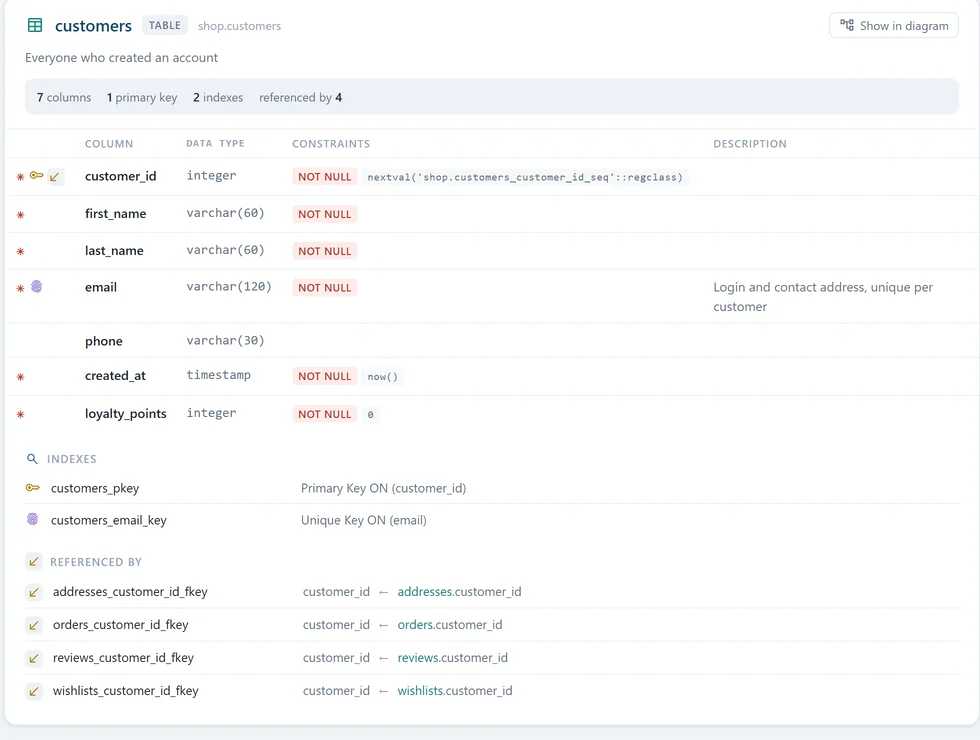
DbSchema Pro documents any diagram. The Community Edition documents a diagram of up to 12 tables, with "DbSchema Trial" across the image. The best database documentation tools compares the formats in more detail.
Check where the schema goes and how you pay
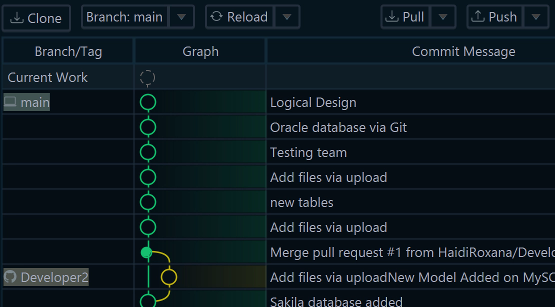
DbSchema runs as a desktop application on Windows, macOS and Linux. It connects to the database directly, with no cloud account and nothing uploaded. The model is a file on your own machine or Git server.
The price is listed on the purchase page. Every edition connects to every database DbSchema supports. DbSchema Pro costs 294 USD once per user, or 29.40 USD a month. The perpetual licence includes a year of updates, and further years are optional at 75 USD. What paid database visualization tools cost for PostgreSQL, MySQL and SQL Server puts these numbers next to the alternatives over three years.
Download DbSchema, connect to your database and let it draw the diagram. Connecting, reverse-engineering and interactive diagrams are free in the Community Edition. Saving the model, keeping virtual foreign keys and HTML5 documentation need DbSchema Pro.
Sources
See the structure of your database in one diagram
Connecting, reverse-engineering and interactive diagrams are free in the DbSchema Community Edition. Saving the model, virtual foreign keys and HTML5 documentation are in DbSchema Pro.