How to Handle Large PostgreSQL Schemas with a GUI Tool
For the developer or DBA who reverse-engineered a PostgreSQL database of several hundred tables and got one diagram nobody can read.
On this page
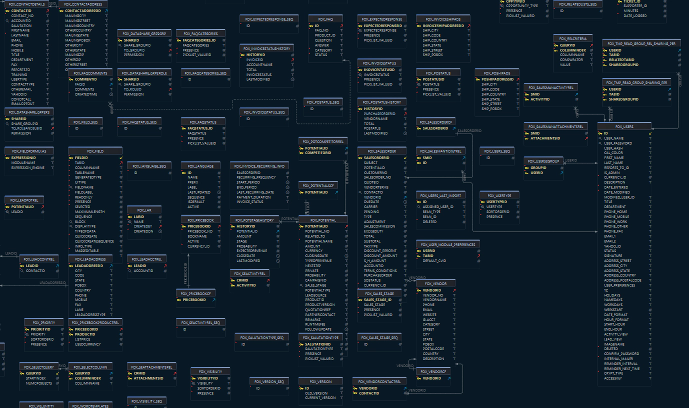
Handle Massive Databases
Design even with 10,000+ tables.A schema of a few dozen tables fits on one screen and in your head. Past a few hundred, finding the table you need takes longer than the change you came to make. Nobody is certain whether staging still matches production, and the diagram is a wall of boxes. DbSchema is built for databases of that size, with over 10,000 tables, and the way it gets there is by never asking you to look at all of them at once. The design work below is kept in the .dbs design model file, which you reopen and share like any other file in the repository. Where a step changes PostgreSQL instead, the section says so.
The examples use two tables in a company schema:
CREATE SCHEMA company;

CREATE TABLE company.orders (
  order_id    bigint PRIMARY KEY,
  customer_id bigint NOT NULL,
  placed_at   timestamptz NOT NULL
);

CREATE TABLE company.transactions (
  transaction_id bigint NOT NULL,
  order_id       bigint NOT NULL,
  booked_at      date NOT NULL
) PARTITION BY RANGE (booked_at);
Split the schema into diagrams you can read
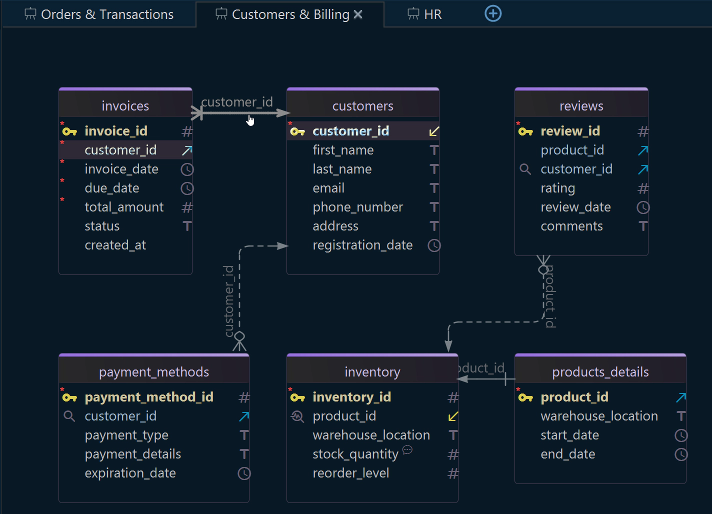
A DbSchema project holds as many diagrams as you want, and the same table can appear in several of them. Add one from the Diagram menu or with the + tab above the canvas, then drag the tables it should show from the Project Structure panel on the left. A diagram per subsystem, one for orders, one for inventory, one for the reporting tables, is what turns a schema of hundreds of tables back into something a colleague can be walked through.
Two more things keep a busy diagram readable. Right-click the canvas in DbSchema and choose New Group to cluster related tables into a named, colored group that moves as a unit. Select every table with Ctrl+A and choose Diagram → Auto Arrange, and DbSchema lays the tables out with a graph algorithm instead of leaving them stacked where reverse engineering dropped them. Free-floating notes go on from the Insert menu, so a decision that took an hour to reach is written where the next person will look.
None of this touches PostgreSQL. Diagrams, table positions, groups, notes and virtual foreign keys are saved in the .dbs model file.
Make the change, then read the SQL before it runs
Double-click a table header in the DbSchema diagram to open the Table Dialog and add a column, change a data type or define an index. Where that change lands depends on the mode. Connected, DbSchema executes it against the database straight away and lists the statement in the SQL History pane. Disconnected, it is saved to the .dbs file alone and nothing is sent anywhere, which is the mode to design in when the change still needs review.
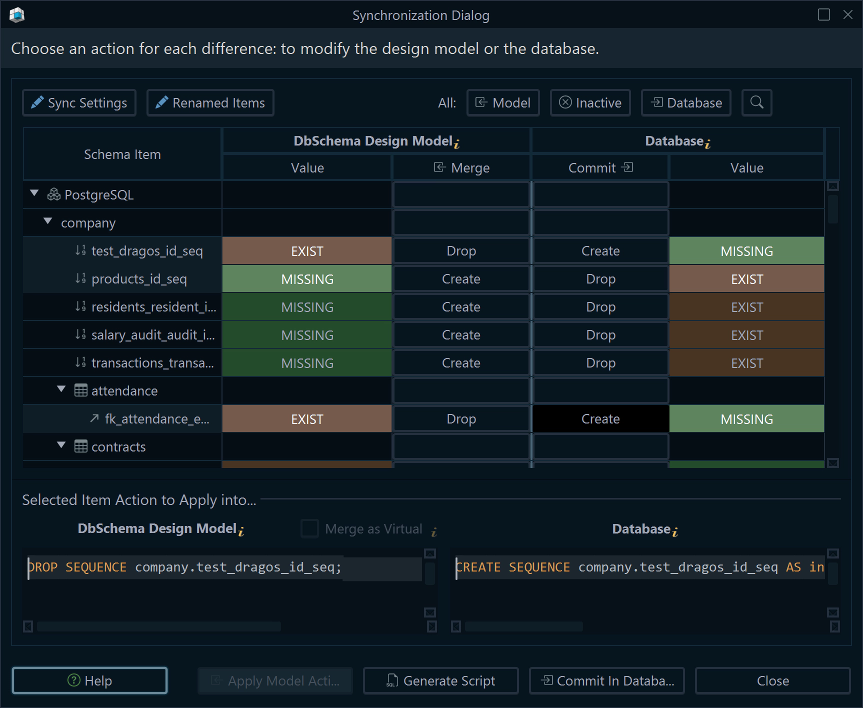
The two are reconciled from the Schema menu. Schema → Compare Model with Database lists every object that differs, table by table and column by column, and for each difference you choose to update the model, push the change to the database, or skip it. Schema → Synchronize Model with Database generates the migration SQL for what you chose, and adding a discount column to company.orders in the diagram comes out as one statement:
ALTER TABLE company.orders ADD COLUMN discount numeric(5,2);
You can edit the generated statements in the dialog before clicking Execute, which is the moment the database changes. On a schema with hundreds of tables, that review list is the difference between deploying a change and deploying a change plus three you had forgotten about.
Keeping dev, stage and prod in step
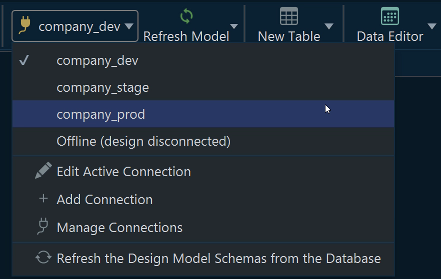
One model file serves every environment, because the connection is separate from it. Create a connection per environment, name each one after the database it opens, and switch the active database from the Connections menu.
company_dev
company_stage
company_prod
Two settings on the connection make the difference on a large installation. Highlight colors a connection in DbSchema as Normal, Production, Development or Test, so the window itself tells you where you are before you click Execute. Read Only Connection, on the Settings tab, opens the connection in read-only mode, and the database then refuses every change made through it, which is what you want on the production entry.
Where the environments disagree on schema names, Schema Mapping shows a schema from the model under a different name for that one connection, so a single model still compares cleanly against a database that calls the schema something else.
Documentation the rest of the team can read
Open Diagram → Export HTML5 or PDF Documentation in DbSchema and the model becomes a single interactive HTML5 file: a searchable list of the tables, the columns, indexes and foreign keys you asked for, and the diagram as a vector image that stays sharp at any zoom. Hovering a column shows the description stored on it, and clicking a table jumps to its full entry.
The dialog exports the current diagram, all open diagrams, or the ones you select, which matters here more than on a small schema. The reporting team gets the page for the reporting diagrams and nothing else. The same dialog writes PDF for a review that has to be printed, and Markdown for a page in the repository wiki. The file opens in any browser with no DbSchema license needed to read it, so it goes on an internal web server and everyone else follows a link.
Query and browse the data over the foreign keys
A large schema is also a large surface to query, and the joins are the part nobody remembers. Click a table header on the DbSchema diagram to open the Query Builder loaded with that table, then follow the arrow icon beside a column to add the table its foreign key points at. Tick the columns you want, click the join label on the connecting line to switch between INNER JOIN, LEFT JOIN and EXISTS, and the generated SQL updates under the canvas as you go.
For reading rows rather than writing SQL, right-click a table header and choose Open in Relational Data Editor. The Relational Data Editor opens the table in the panel at the bottom, and clicking the foreign key button on its header adds the child table as a second pane, filtered to the row you selected in the parent. Descending into a grandchild table works the same way, as many levels deep as needed. On a schema this size, following one record down that chain is faster than writing each join by hand.
Before a change goes near an environment anyone else uses, the Data Generator fills the affected tables with test rows, in an order that respects the foreign keys.
Automation scripts in Groovy
The jobs that come back every month are the ones to hand to a script. DbSchema runs Groovy automation scripts from Tools → Automation Scripts, with the connected database available as sql, the DbSchema project as project and the result pane as out. Anything that works in Java works there.
Creating next month's partition of company.transactions is the standard example. PostgreSQL 18 reads a range partition's bounds as inclusive at the lower end and exclusive at the upper end, so the partition runs from the first of the month to the first of the next:
def start = java.time.LocalDate.now().plusMonths(1).withDayOfMonth(1)
def end = start.plusMonths(1)
def name = "transactions_" + start.getYear() + "_" + String.format("%02d", start.getMonthValue())

sql.execute("CREATE TABLE company." + name +
            " PARTITION OF company.transactions" +
            " FOR VALUES FROM ('" + start + "') TO ('" + end + "')")
out.println("Created company." + name)
Run on 5 September 2026, it prints:
Created company.transactions_2026_10
The script runs against the connected database, so this one changes PostgreSQL rather than the model file. The same mechanism exports a schema snapshot, checks for tables without an index on a foreign key, or regenerates the documentation on a build, and a script can also be run without the interface with DbSchema.exe -x script.groovy.
A schema this size is worth keeping in one file that people can read. Download DbSchema at https://dbschema.com/download.html, reverse-engineer the database, and start by dragging one subsystem onto its own diagram. Connecting, reverse-engineering and diagrams are in the free Community Edition; saving the model to a .dbs file, schema comparison and synchronization, HTML5, PDF and Markdown documentation, the Query Builder, the Relational Data Editor and the Data Generator are in the Pro edition, whose trial runs 15 days.









