DBeaver Alternative for Database Design: DbSchema, Edition by Edition and Price by Price
For DBeaver users who now have to design a schema, get it reviewed and document it before it reaches a server.
On this page
You query and browse your databases in DBeaver, and the next job is a table that no database has yet. It has to be drawn, reviewed and agreed before it reaches a server. For that work, the DBeaver alternative is DbSchema. DbSchema keeps the design in a model file that your team reviews in Git, compares the file with the live database, and exports documentation that opens in a browser.
Both tools have a free edition. DbSchema's Community Edition connects to every database that DbSchema supports, reverse-engineers it into an editable diagram, and includes the SQL editor. The offline model file, Git, schema synchronization and documentation of any size need DbSchema Pro. DBeaver Community is free and open source, and DBeaver puts diagram editing, schema compare and Git sync in its paid Enterprise, Ultimate and Team editions. Every DBeaver fact below comes from dbeaver.com, checked on 12 November 2026.
Free Community Edition plus a 15-day Architect trial. No signup. Windows, macOS and Linux.
DBeaver edits diagrams only in paid editions, straight into the database
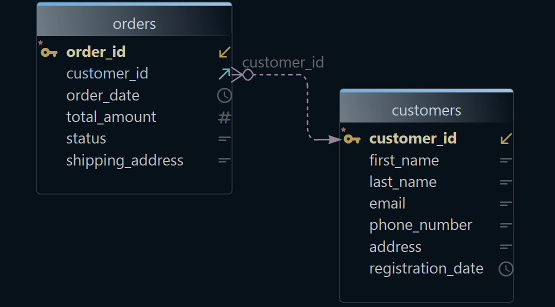
DBeaver's ER diagram documentation says that "diagrams are read-only by default". DBeaver draws a line for each foreign key that the database reports. It also draws one for each virtual key, a relation that exists only in DBeaver. A custom diagram can hold only objects that already exist in the database. If your DBeaver diagram shows two related tables with no line between them, the three usual causes and their fixes are a separate question.
Edit mode turns the diagram into a schema editor. To add a table, you right-click an empty area of the canvas and choose Create New Table. When you click Save, DBeaver shows the generated SQL script and applies it to the database. The Edit mode page names Enterprise and Ultimate, and DBeaver's editions page adds Team.
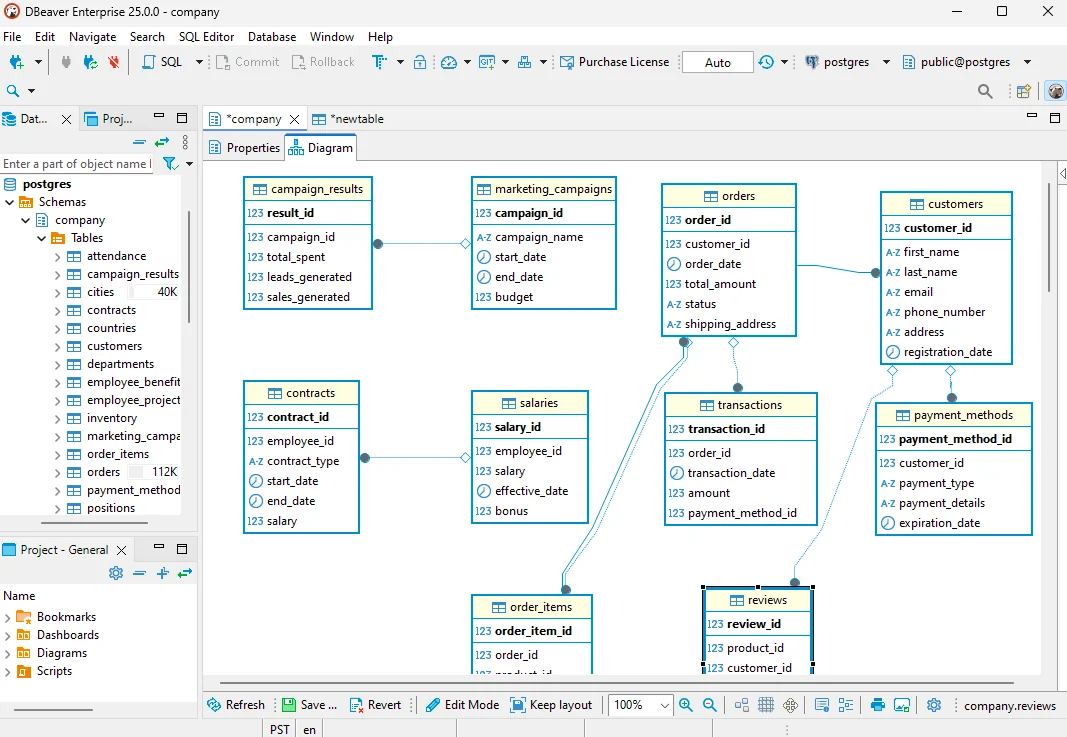
Edit mode suits a change to a server that you own. A design that has to be reviewed first needs a place to live until the review ends. In Edit mode, saving the diagram changes the database, so no design file waits in a pull request.
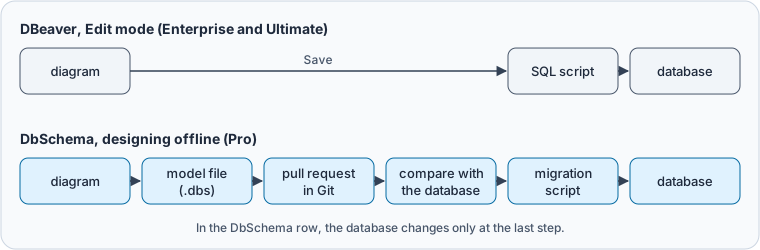
Each design capability sits in a different edition of each tool
Each cell names the edition that a capability needs, because the edition decides the bill. The DBeaver values come from its editions page and the documentation pages linked in this article:
| Capability | DbSchema | DBeaver |
|---|---|---|
| Diagram of an existing database | Community, editable | Read-only by default |
| Edit tables on the diagram | Community, into the database at once | Edit mode, Enterprise, Ultimate and Team, into the database on Save |
| Keep the design in a file before it runs | The model file, Pro | Save in Edit mode runs the script |
| Relations the database doesn't declare | Virtual foreign keys, kept in the model file, Pro | Virtual keys, stored in DBeaver |
| Schema comparison | Model with database, or model with model file, Pro | Two schemas or databases, Enterprise, Ultimate and Team |
| Version control | The model file through File → Git Collaboration, Pro | Project sync to Git, Enterprise, Ultimate and Team; an extension for Community |
| Documentation and export | HTML5, PDF and Markdown, Pro; up to 12 tables in Community | Diagram as PNG, GIF, BMP or GraphML; SVG in paid editions |
| Test data | Data Generator, Pro | Mock data generation, Enterprise, Ultimate and Team |
| MongoDB | Community | Lite, Enterprise and Ultimate |
| Visual query builder | Pro | Lite, Enterprise and Ultimate |
| SQL editor | Community | Community |
| License | Perpetual with a year of updates, or monthly | Yearly or monthly subscription |
The two schema comparisons answer different questions. DBeaver's schema compare reads the structure of two schemas or databases. It produces the DDL that makes the target match the source, and warns that the migration "can't be undone automatically". DbSchema compares the agreed design with the running database. It shows how far production has drifted from the model.
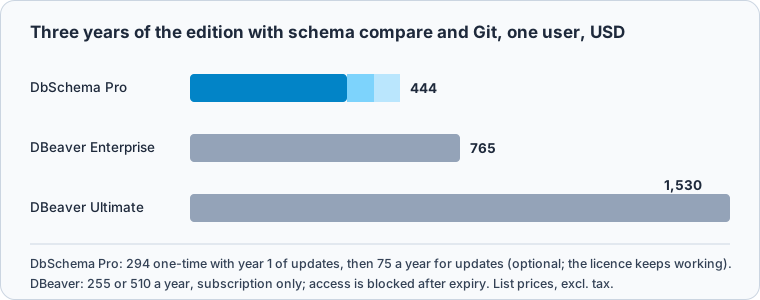
Over three years DbSchema Pro costs 321 USD less than DBeaver Enterprise
Schema compare and Git sync start at DBeaver Enterprise, at 255 USD a year or 26 USD a month. Ultimate costs 510 USD a year, and its product page also sells it at 51 USD a month. DBeaver's license documentation marks perpetual licenses as discontinued after version 23.3. A DBeaver subscription blocks access after it expires.
DbSchema Pro costs 294 USD once, with the first year of updates included. After that, updates cost 75 USD a year, and the license keeps working if you stop. Over three years, one user pays 444 USD for DbSchema Pro with two update years, and 765 USD for DBeaver Enterprise. DbSchema Pro is also sold at 29.40 USD a month, with every update included while the subscription runs. All DbSchema prices are on the purchase page.
DbSchema keeps the design in a file your team reviews first
In DbSchema, right-click the diagram and choose Create Table. To draw a foreign key, drag the child column onto the parent column. While DbSchema is connected, every change that you confirm with OK runs in the database at once, as in DBeaver's Edit mode. The difference is offline work. Choose Database → Offline (connect later), and your changes stay in the model, so you can design a schema that no server has yet. Saving the model with File → Save Model to File needs DbSchema Pro.
For a relationship that the database never declared, tick Virtual in the foreign key dialog. DbSchema draws the line and never creates the key in the database. Model → Find Virtual Foreign Keys suggests such keys between columns with matching names.
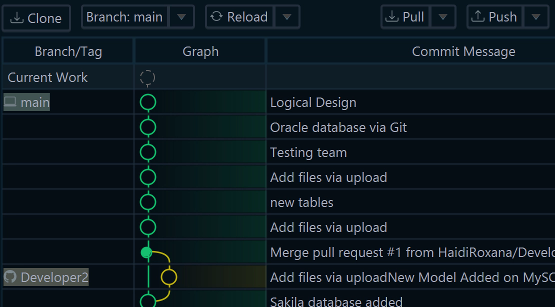
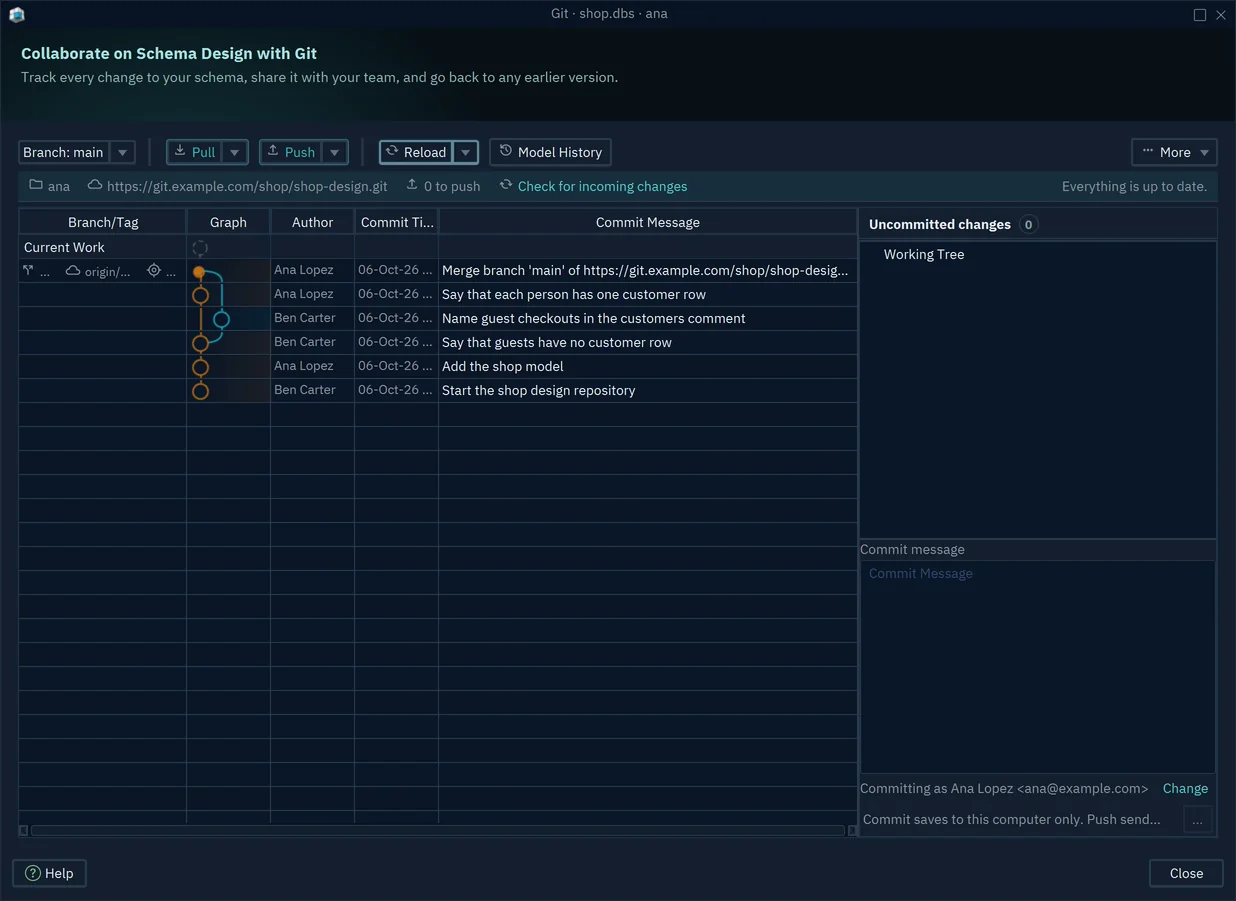
The model is one .dbs file that holds the tables, the foreign keys, virtual ones included, and the diagrams. File → Git Collaboration opens DbSchema's Git dialog, which clones a repository, commits the file, pushes and pulls. A colleague then reviews a schema change in a pull request, like code. Committing changes the repository, not the database.
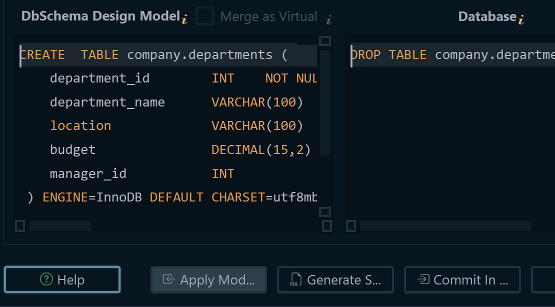
When the design is agreed, schema synchronization compares the model with the database. The Synchronize Model and Database dialog lists every difference, one per row. For each row you choose which side wins. Then press Apply to the model, Commit in the database, or Generate SQL script to review the statements first.
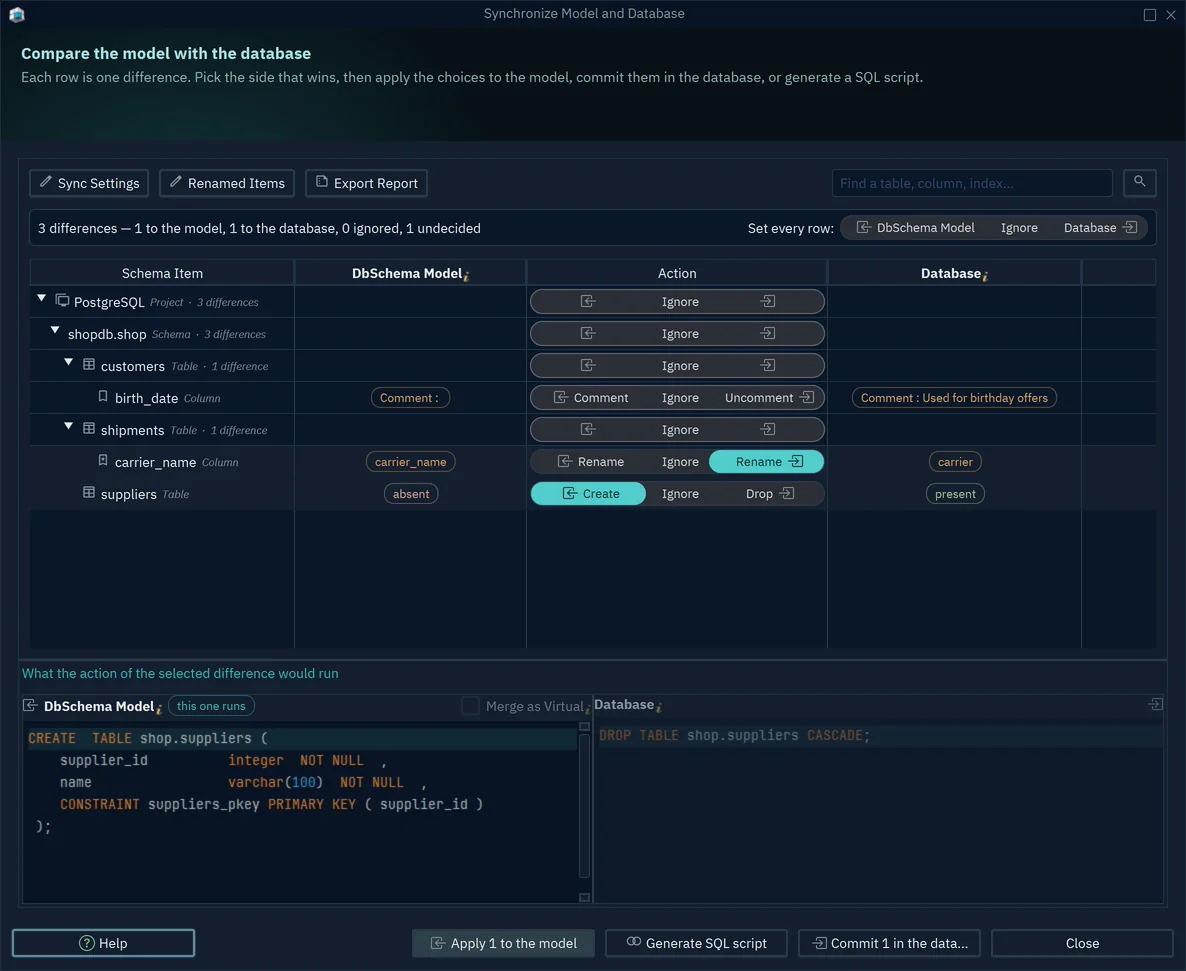
- 1Create birth_date in the database
- 2The statement that would run
- 3Generate SQL script for review
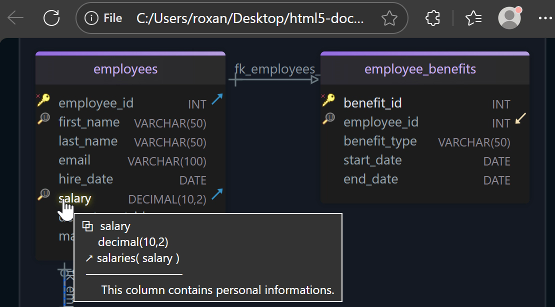
To share the design with people who don't run DbSchema, choose File → Export As... → HTML5/PDF Documentation. The HTML5 documentation is one file that opens in any browser. It carries the diagram as a vector image, with table and column comments as mouse-over tooltips. DbSchema Pro documents any diagram. The Community Edition documents a diagram of up to 12 tables, with "DbSchema Trial" across the diagram image.
The Data Explorer, in DbSchema Pro, follows the foreign keys, virtual ones included. Select a customer, and the pane beside it shows only that customer's orders. The Data Generator, also in Pro, fills the tables with test rows.
Other DBeaver alternatives draw the keys that already exist
Most DBeaver alternatives are SQL clients. For design work, what separates them is the diagram. In some, the diagram is a picture of the keys that the database already has. In others, the diagram is a model that you change before the database has it. The job in this article needs a model that lives apart from the database, and DbSchema and Navicat Premium both keep one. The vendor pages below were checked on 12 November 2026.
DataGrip's diagram documentation generates a diagram from existing database objects, with relations from their primary and foreign keys. You add a table by dragging it from the Database Explorer. DataGrip exports a diagram as PNG, GraphML, draw.io, Mermaid or PlantUML.
DbVisualizer's references graph "automatically renders all primary/foreign key mappings", in both the Free and Pro editions. It exports the graph as PNG, SVG, PDF and other image formats.
Navicat Premium connects to MySQL, PostgreSQL, SQL Server, Oracle, SQLite, MariaDB, MongoDB, Redis and Snowflake. Its feature matrix lists conceptual, logical and physical models, and synchronizing a model to the database, both in the Enterprise edition.
For the wider field, see DBeaver alternatives for visual database design and Best ER Diagram Tools.
Switching takes three steps against the same database
Both tools connect over JDBC, so you can keep DBeaver open on the same database while you design in DbSchema. DBeaver's editions page puts a task scheduler and table data comparison in Enterprise and Ultimate, for databases that already run. DbSchema covers the step before: what the schema should be, and who agreed to it.
-
Connect to the same database Community
In DbSchema, choose Connect to Database, pick the engine, and enter the host, user and password that you use in DBeaver. DbSchema downloads the JDBC driver on the first connection.
-
Reverse-engineer the schema Community
In the Reverse Engineer the Database dialog, tick the schemas to import and press Load. DbSchema draws their tables and foreign keys on an editable diagram.
-
Save the model and commit it Pro
Save with File → Save Model to File, then commit the
.dbsfile from File → Git Collaboration.
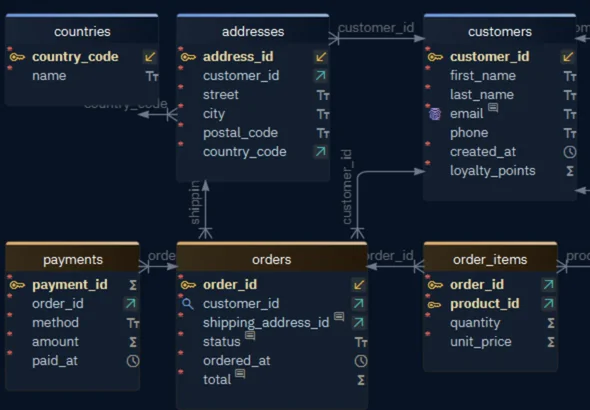
To try the workflow on your own schema, download DbSchema and connect it to a database that you already open in DBeaver. Connecting, reverse-engineering, the editable diagram and the SQL editor are in the free Community Edition. The offline model file, Git, schema synchronization, documentation of any size, the Data Explorer and the Data Generator are in DbSchema Pro. A new installation starts with a 15-day trial of the Architect edition, which has every feature.
Sources
- DBeaver Community
- DBeaver: ER diagrams
- DBeaver: Virtual keys
- DBeaver: Custom diagrams
- DBeaver: Edit mode
- DBeaver: Editions
- DBeaver: Schema compare
- DBeaver: Ultimate
- DBeaver: Differences between license types
- DataGrip: Diagrams
- DbVisualizer: References graph
- Navicat Premium
- Navicat Premium: Feature matrix
- DbSchema: Purchase
- DbSchema documentation: Schema synchronization
- DbSchema documentation: Git Collaboration
- DbSchema documentation: Schema documentation
Switch to a design-first workflow
DbSchema covers ER diagrams, documentation, Git-friendly model files and schema sync. Start on the free Community Edition and upgrade when your team is ready.