SQL UPDATE Statement: Syntax, Examples, and Safe Patterns (2026)
For someone writing their first UPDATE statements; every statement below is shown with the rows it leaves behind.
On this page
One column in one row holds the wrong value. Re-inserting the row would leave you with two of them, so the statement for the job is UPDATE, which changes rows that are already there:
UPDATE table_name
SET column1 = value1, column2 = value2
WHERE condition;
Leave the WHERE condition out and every row in the table gets the new values.
SQL UPDATE statement syntax
The statement has three parts, in that order:
UPDATEtakes the name of the table whose rows change.SETtakes one or more assignments, separated by commas, each naming a column and the value it takes.WHEREtakes a condition, and the rows for which it is true are the rows that change.
The condition is the only optional part, and the MySQL manual states what its absence costs you: with no WHERE clause, all rows are updated[1].
The examples that follow run against one table of three students:
CREATE TABLE Students (
    StudentID INT PRIMARY KEY,
    Name      VARCHAR(50),
    Age       INT
);

INSERT INTO Students VALUES
    (1, 'John',  20),
    (2, 'Alice', 22),
    (3, 'Bob',   21);
SELECT * FROM Students;
| StudentID | Name | Age |
|---|---|---|
| 1 | John | 20 |
| 2 | Alice | 22 |
| 3 | Bob | 21 |
UPDATE with a WHERE clause
Alice has a birthday, so her age becomes 23 and nobody else's changes. The WHERE clause picks her row out by name:
UPDATE Students
SET Age = 23
WHERE Name = 'Alice';
SELECT * FROM Students;
| StudentID | Name | Age |
|---|---|---|
| 1 | John | 20 |
| 2 | Alice | 23 |
| 3 | Bob | 21 |
Two rows failed the condition, so the database left them as they were. A condition on Name works here because no two students share a name, and a condition on the primary key, WHERE StudentID = 2, would be the safer habit: names repeat, primary keys do not.
The rest of the examples start from the three rows as they were inserted above.

What happens when you leave the WHERE clause out
Drop the last line and the same statement stops being about Alice:
UPDATE Students
SET Age = 23;
SELECT * FROM Students;
| StudentID | Name | Age |
|---|---|---|
| 1 | John | 23 |
| 2 | Alice | 23 |
| 3 | Bob | 23 |
Three rows changed and the database reported success. A missing WHERE clause is valid SQL, not a mistake the database can catch for you. Two habits keep that from turning into an accident:
- Run the condition as a
SELECTfirst, so you see the rows before you change them. - Run the
UPDATEinside a transaction, where the rows go back to their old values if the count of changed rows is not the count you expected.
Updating every row on purpose
Some updates are meant to hit the whole table. A price increase across a catalog is one, and it also shows a value that comes from the column itself rather than from a literal:
CREATE TABLE Products (
    ProductID CHAR(2) PRIMARY KEY,
    Price     DECIMAL(10,2)
);

INSERT INTO Products VALUES
    ('P1', 10.00),
    ('P2', 20.00),
    ('P3', 30.00);
UPDATE Products
SET Price = Price * 1.10;
SELECT * FROM Products;
| ProductID | Price |
|---|---|
| P1 | 11.00 |
| P2 | 22.00 |
| P3 | 33.00 |
Price * 1.10 is read from the row before the assignment happens, so each product keeps its own price and gains ten percent of it.
Practice this: Lesson 13 of the SQL tutorial runs INSERT, UPDATE and DELETE on a shop database in your browser, with checked exercises.
Update single or multiple columns
One SET clause can carry as many assignments as the row has columns. Alice changes her name and her age in the same statement:
UPDATE Students
SET Name = 'Alicia', Age = 24
WHERE StudentID = 2;
SELECT * FROM Students;
| StudentID | Name | Age |
|---|---|---|
| 1 | John | 20 |
| 2 | Alicia | 24 |
| 3 | Bob | 21 |
Both assignments apply to the same row, and the WHERE clause is written once for all of them. Writing two separate statements for the two columns would give the same result at twice the cost, and it would leave the row half-changed between them.
UPDATE with date and time functions
A value in SET can also come from a function. The next three sections work on orders, the customers who placed them, and the products in them:
CREATE TABLE Customers (
    CustomerID   CHAR(2) PRIMARY KEY,
    CustomerName VARCHAR(50)
);

CREATE TABLE Orders (
    OrderID      INT PRIMARY KEY,
    CustomerID   CHAR(2),
    CustomerName VARCHAR(50),
    OrderDate    DATE
);

CREATE TABLE OrderDetails (
    OrderID   INT,
    ProductID CHAR(2),
    Quantity  INT
);

INSERT INTO Customers VALUES
    ('C1', 'John'),
    ('C2', 'Alice'),
    ('C3', 'Bob');

INSERT INTO Orders VALUES
    (1, 'C1', NULL, '2025-01-01'),
    (2, 'C2', NULL, '2025-02-01'),
    (3, 'C3', NULL, '2025-03-01');

INSERT INTO OrderDetails VALUES
    (1, 'P1', 10),
    (2, 'P2', 20),
    (3, 'P3', 30);
Order 1 is being redated to the day it ships, which is the day the statement runs:
UPDATE Orders
SET OrderDate = CURRENT_DATE
WHERE OrderID = 1;
SELECT OrderID, OrderDate FROM Orders ORDER BY OrderID;
Run on 5 September 2026, the first row picks up that date:
| OrderID | OrderDate |
|---|---|
| 1 | 2026-09-05 |
| 2 | 2025-02-01 |
| 3 | 2025-03-01 |
CURRENT_DATE is evaluated once, when the statement runs, so every row it touches gets the same date.
MySQL 8.4 and PostgreSQL 17 both spell it that way. SQL Server added CURRENT_DATE in SQL Server 2025 (17.x), and Microsoft documents CAST(GETDATE() AS DATE) as its equivalent[2] for the versions before it.
UPDATE with subqueries and JOIN
The rows you want to change are sometimes identified by a table other than the one you are changing. A subquery in the WHERE clause bridges the two: it returns a list of values, and IN matches the rows against that list. Here the quantity is set to 50 on every detail row belonging to customer C1, whose orders live in another table:
UPDATE OrderDetails
SET Quantity = 50
WHERE OrderID IN (
    SELECT OrderID
    FROM Orders
    WHERE CustomerID = 'C1'
);
SELECT * FROM OrderDetails ORDER BY OrderID;
| OrderID | ProductID | Quantity |
|---|---|---|
| 1 | P1 | 50 |
| 2 | P2 | 20 |
| 3 | P3 | 30 |
The subquery returned a single order id, 1, because C1 placed one order. Detail rows 2 and 3 belong to other customers, so they kept their quantities. The subquery runs first and is a plain SELECT, which means you can run it on its own to see the list of ids before you let the UPDATE use it.
Update a table with data from another table
Copying a value across tables needs a subquery that returns one value per row rather than a list. The orders carry an empty CustomerName column, and the name for each one sits in Customers under the matching CustomerID:
UPDATE Orders
SET CustomerName = (
    SELECT c.CustomerName
    FROM Customers c
    WHERE c.CustomerID = Orders.CustomerID
);
SELECT * FROM Orders ORDER BY OrderID;
| OrderID | CustomerID | CustomerName | OrderDate |
|---|---|---|---|
| 1 | C1 | John | 2026-09-05 |
| 2 | C2 | Alice | 2025-02-01 |
| 3 | C3 | Bob | 2025-03-01 |
The subquery is evaluated once per row of Orders and sees that row's CustomerID, which is what makes each order get its own name. This form runs on every engine in this article.
Three engines also let you write the join in the UPDATE itself, and each spells it differently. PostgreSQL 17 puts the second table in a FROM clause and joins in WHERE[3]:
UPDATE Orders
SET CustomerName = Customers.CustomerName
FROM Customers
WHERE Orders.CustomerID = Customers.CustomerID;
SQL Server repeats the target table in FROM and joins it there[4]:
UPDATE Orders
SET Orders.CustomerName = Customers.CustomerName
FROM Orders
JOIN Customers ON Orders.CustomerID = Customers.CustomerID;
MySQL 8.4 joins the tables between UPDATE and SET[1], and that multiple-table form accepts neither ORDER BY nor LIMIT:
UPDATE Orders
JOIN Customers ON Orders.CustomerID = Customers.CustomerID
SET Orders.CustomerName = Customers.CustomerName;
All three produce the table above. The subquery version is the one to reach for when the same statement has to run on more than one engine.
Try UPDATE queries safely in DbSchema
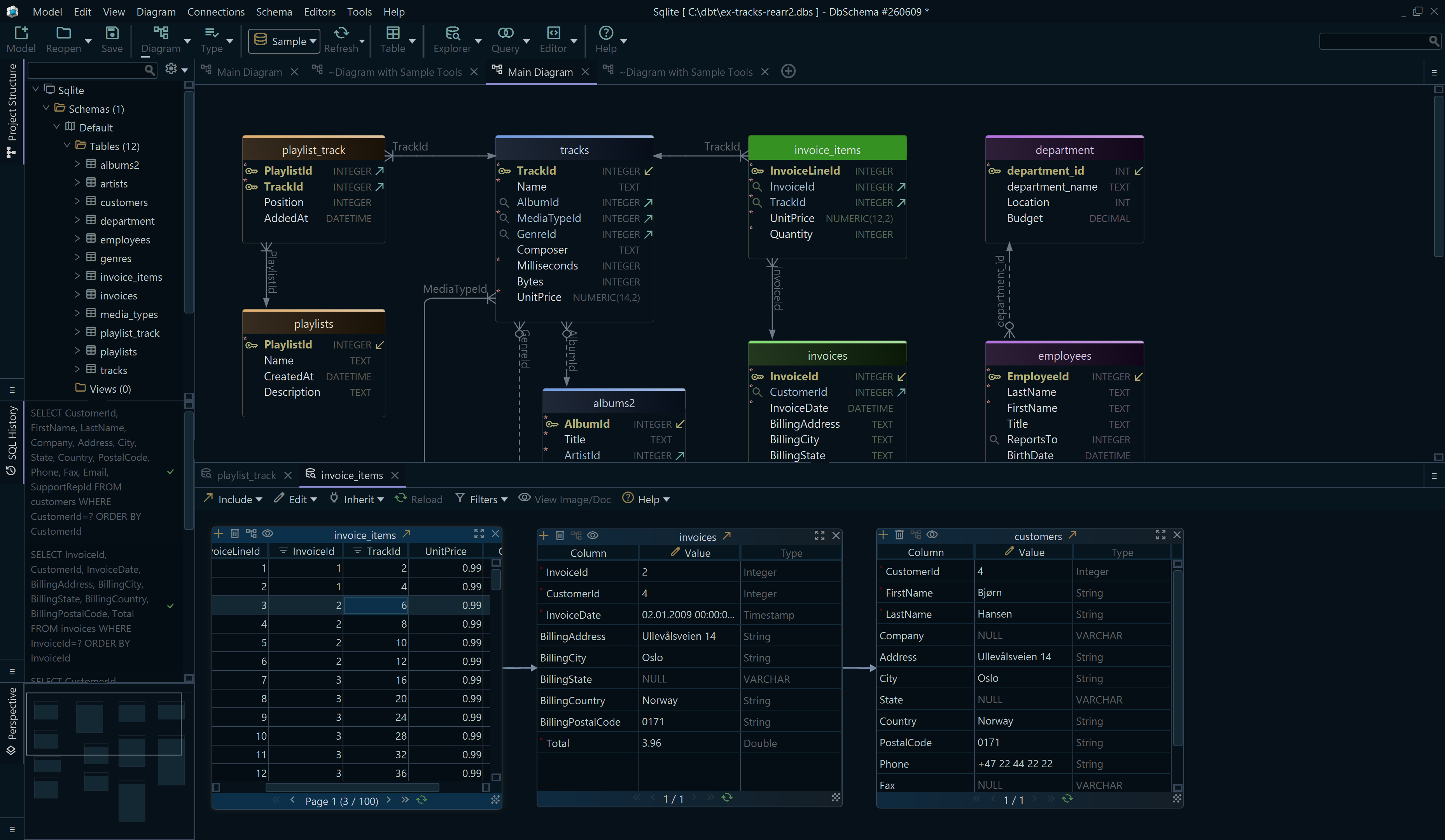
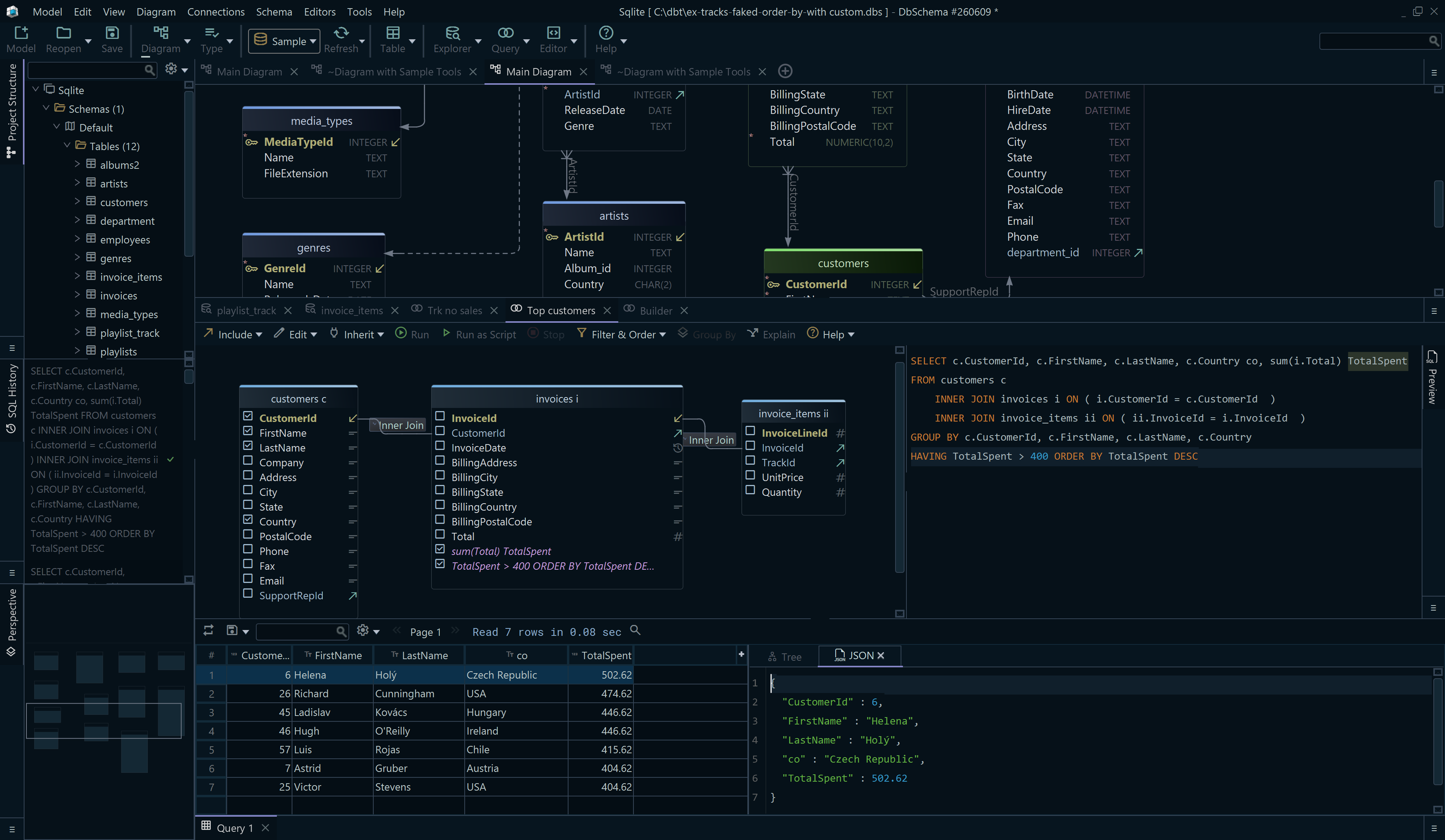
DbSchema shows the rows an UPDATE will touch before it touches them, and holds the change until you commit it.
- Download DbSchema and connect through the PostgreSQL JDBC driver, MySQL JDBC driver, or SQL Server JDBC driver. DbSchema reverse-engineers the schema into a diagram, and both the connection and the diagram are in the free Community Edition.
- Open the SQL Editor and run a
SELECTcarrying theWHEREcondition you plan to give theUPDATE. Execute Query returns the rows as a table, so you count them before anything changes. - Run the
UPDATEin the same editor. It goes to the live database, not to the diagram, and DbSchema keeps it pending until you press Commit; Rollback puts the rows back. - For an update that depends on a parent table, open the Relational Data Editor and click through the foreign key from the parent row to its children, to see which rows the change reaches. The Relational Data Editor is in the Pro edition.
The SQL Editor itself is stored in the model file, so the statements you write stay with the design and reopen with it, while every statement you execute runs against the connected database.

Download DbSchema at https://dbschema.com/download.html, connect to a database of your own, and write the statements from this article against a real table: the SELECT first, then the UPDATE, then Commit. The connection, the diagram and the SQL Editor are in the free Community Edition, and the Relational Data Editor from step 4 is in Pro. The DELETE statement takes the same WHERE clause and removes the rows instead of changing them.
Frequently asked questions
Can I update multiple columns in a single UPDATE statement?
One SET clause takes as many assignments as the row has columns, separated by commas, as in SET Name = 'Alicia', Age = 24. A single WHERE clause then applies to all of them, and the row is changed once.
Can I update multiple tables in a single UPDATE statement?
MySQL 8.4 accepts several tables between UPDATE and SET and changes columns in more than one of them[1]. PostgreSQL 17 and SQL Server change one target table per statement, and read the others through FROM.
Sources
Run your next UPDATE with the schema in front of you
DbSchema reverse-engineers your database into an interactive diagram and runs SQL in an editor with explicit Commit and Rollback buttons. All three are in the free Community Edition.









