SQL Server Database Diagrams: Design and Review Changes With DbSchema
How DbSchema draws a SQL Server database as a diagram, keeps large schemas readable and turns each design change into a script you read before it runs.
On this page
Words in this article
Words in this article
- ER diagram
- The picture of a database: tables as boxes, their links as lines.
- Foreign key
- A column that points to a row in another table.
- Reverse-engineer
- Read the tables, columns and keys from a live database.
- Design model
- DbSchema's own copy of the schema, saved in a .dbs file.
- Schema synchronization
- DbSchema's compare of the model with the database, which writes the SQL script for each difference.
- Logical model
- A design in entities and relations, before any database is chosen.
- Cardinality
- How many rows on one side of a relation match a row on the other.
- Stored procedure
- A saved block of SQL that runs on the server.
The short answer
You need a SQL Server ER diagram that shows which tables exist and how they link. Maybe you inherited a database nobody documented. Maybe you are on a Mac, or the database has hundreds of tables, and saving a diagram must not change the live tables behind your colleagues' backs. DbSchema draws the database as a diagram, keeps the design in its own file, and sends changes to SQL Server only as a script you have read.
See the database, on any laptop
DbSchema draws your SQL Server tables as an ER diagram, on Windows, macOS and Linux.
No change lands unread
DbSchema Pro keeps the design in a file and turns each change into a SQL script you read first.
Plan tables that don't exist yet
DbSchema Architect adds a logical model before any table is created.
What DbSchema adds to SQL Server diagrams
Why DbSchema
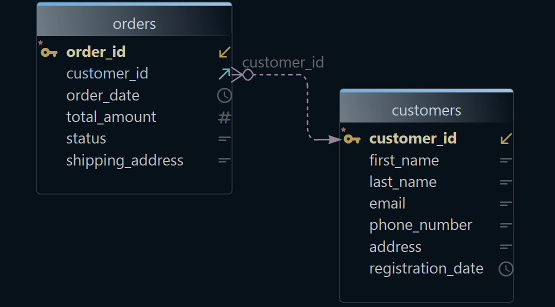
An ER diagram, short for entity-relationship diagram, is the picture of a schema: the tables of a database, their columns and the links between them. A foreign key is such a link, a column that points to a row in another table. Every DbSchema download starts with a 15-day trial of all features, Architect included, with no registration. After the trial, the Community Edition stays free for any use.
The diagram on any laptop
DbSchema runs on Windows, macOS and Linux, so a colleague on a Mac sees the same diagram.
Hundreds of tables, readable
One diagram per part of the application, groups and Auto Arrange Tables keep a large schema clear.
A change you read before it runs
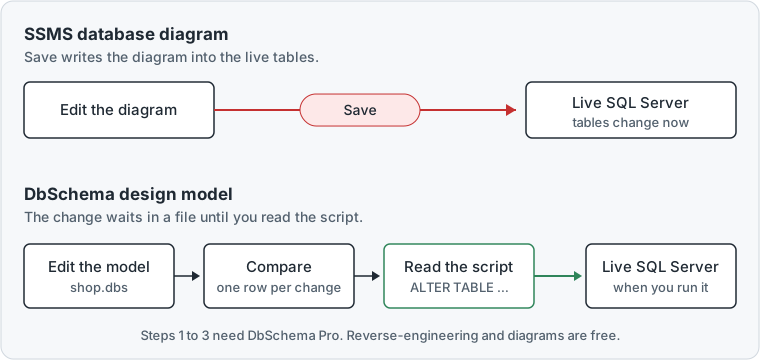
In DbSchema Pro you edit the model offline. Schema synchronization lists each difference and writes the SQL script.
The design in one file
DbSchema Pro saves the model and all its diagrams in one
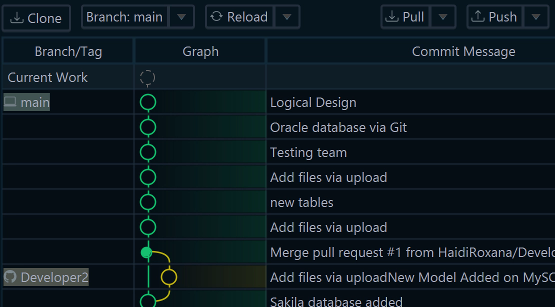
.dbsfile. You can keep it in Git, which stores every version of a file.A diagram anyone can open
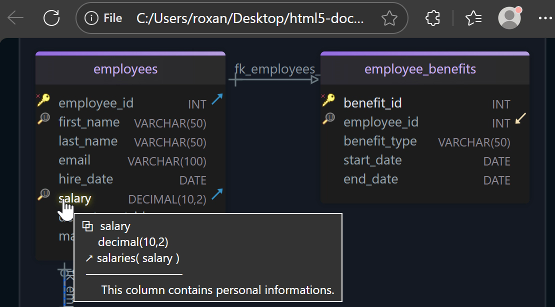
DbSchema Pro exports HTML5 documentation with the diagram, a web page that opens in any browser, with no database login.
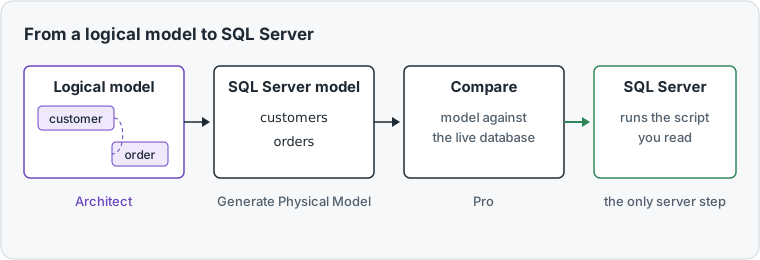
Then, in DbSchema Architect:Logical modelSQL Server tablesCompareReviewed script
Key takeaways
- Reverse-engineering only reads SQL Server. Nothing changes until you run a script you generated.
- A table can sit on several diagrams, so each team sees its own part of a large schema.
- A colleague's newer change shows up as its own difference row instead of being overwritten.
- Architect's flow diagrams show which procedures and triggers use a table before you change it.
What users say
From an IT audit and database governance standpoint, DbSchema's interactive diagramming and Schema Comparison tool are outstanding.
As a Data Analyst, what I value most about DbSchema is its offline-first, interactive ER diagram designer and its schema synchronization tools.
Many teams draw their first SQL Server diagram in SQL Server Management Studio (SSMS), Microsoft's Windows tool. Microsoft notes that an SSMS diagram is stored in the database, and saving it applies your edits to the live tables at once. On a shared database, Microsoft says this can overwrite a colleague's newer change.
Reverse-engineer a SQL Server ERD in DbSchema
Reverse-engineering means reading the tables, columns and keys from a live database. It is the quickest way into a database you inherited, because nobody has to explain it first. In DbSchema, connecting and importing only read from the database and change nothing in it[3].
-
Start a new model Community
Choose File → New Model, and keep Connect to Database selected. Click SQL Server, or Azure SQL for Microsoft's cloud database.
-
Connect Community
Choose New Connection. Choose the Method Standard, then fill in the server host, the port, the database user and the password, and press Connect. On Windows, the Method Windows Authentication signs you in with your Windows account. From macOS or Linux, the Kerberos guide shows the same sign-in. The SQL Server client for Mac and Linux covers the other settings. DbSchema downloads the JDBC driver, the small Java library it talks to SQL Server through.
-
Import the schemas Community
In Reverse Engineer the Database, tick the schemas you want and press Import. DbSchema draws the tables and their foreign keys.
-
Save the model Pro
Choose File → Save Model to File. The
.dbsfile now holds the tables, keys and every diagram.
Diagram a SQL Server database with hundreds of tables
A large SQL Server database rarely fits one readable picture. DbSchema keeps all tables in one model and lets you draw as many diagrams of it as you need[4]. Moving or grouping tables changes only the model, never the database.
- One diagram per part of the application. Choose Diagram → New Diagram, type a Name, pick tables and press Include >>. The Select ... menu picks, for example, Tables Not in Any Diagram, so no table is forgotten.
- Grow a diagram from one table. Each foreign key column has an arrow icon. Click it and choose Add All to bring in the linked tables.
- Group related tables. Select them and choose Diagram → Create Group of Tables. A group is a coloured box with its name in the corner.
- Tidy the layout. Diagram → Auto Arrange Tables places the tables by their foreign keys. Duplicate the diagram first if you want to keep your own layout.
A table can sit on several diagrams, such as orders and billing. Each team sees its own part, and the model still holds the whole database.
01 BillingA second diagram of the same model, made with Diagram → New Diagram: orders, invoices and payments only.
02 OfflineNo connection is open. Moving and grouping tables changes only the model, never the database.
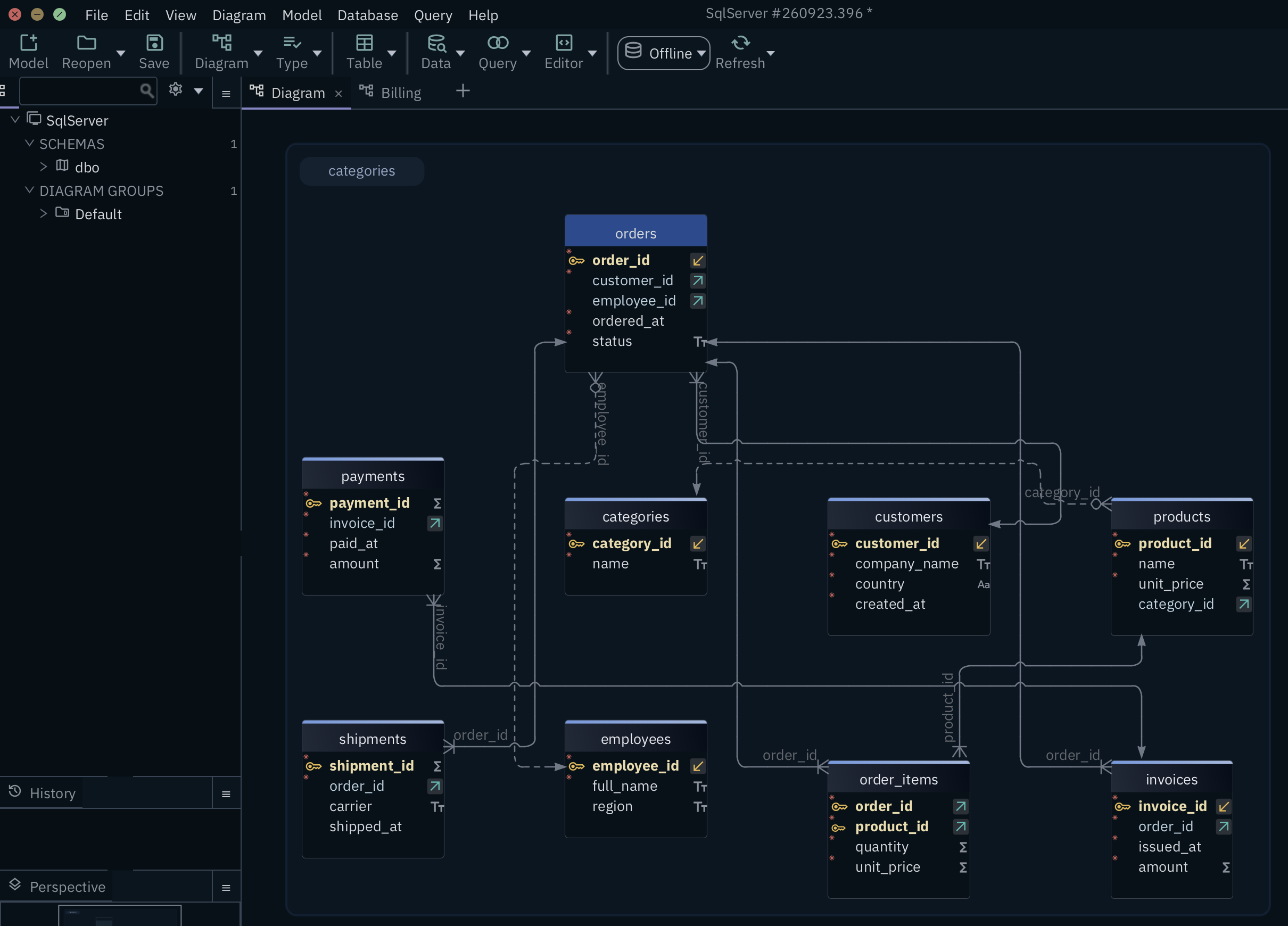
03 order_itemsDiagram → Auto Arrange Tables placed every table by its foreign keys, inside one group box.
04 invoicesThe same table also sits on the Billing diagram. Each team sees its own part of the schema.
Plan a change offline and run a SQL Server schema compare
With the model saved, you decide when a change reaches SQL Server. These steps need DbSchema Pro[5].
- Choose Database → Offline (connect later). Offline, your edits stay in the model, and the database doesn't change.
- To add a column, double-click the table header, and in the Columns tab press Add.
- Click the connection button in the toolbar, which shows the name of the connection, and choose your connection. The dialog Connected to the Database opens.
- Choose Compare.
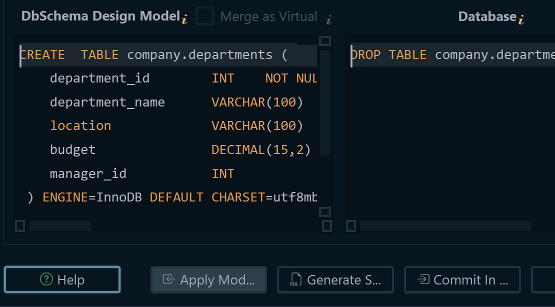
- In Synchronize Model and Database, the DbSchema Model column shows the model's version and the Database column the database's. In the Action column of each row, the left button keeps the model's version in the model, and the right button writes it into the database. Then press Generate SQL script.
01 The countHow many differences the compare found, and which way each one goes: into the model, into the database, or ignored.
02 Your changebirth_date is present in the model and absent in the database. Create writes it into the database, and the ALTER TABLE below shows what would run.
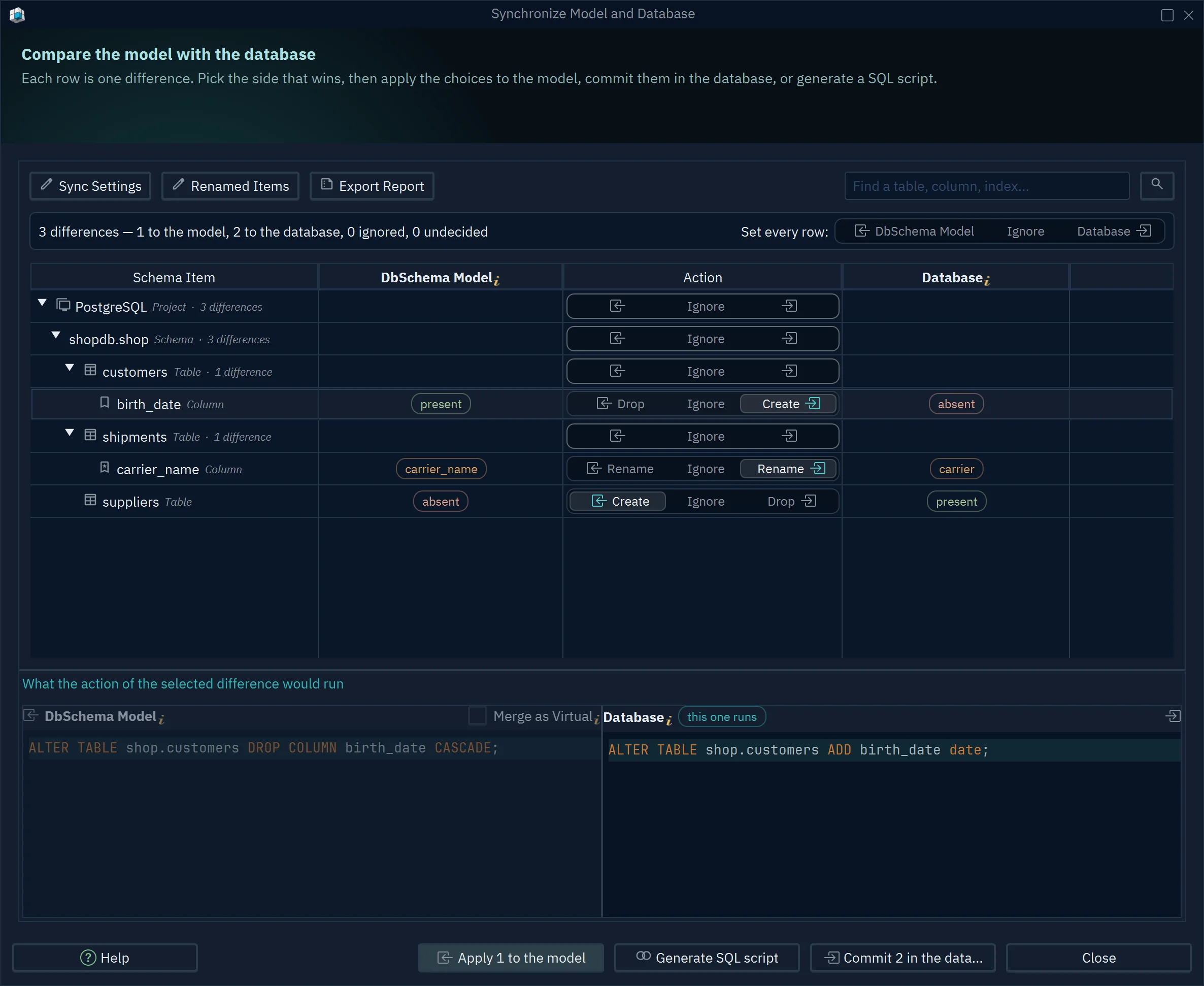
03 A colleague's changesuppliers exists only in the database. By default it comes into the model, so nobody's table is dropped by accident.
04 Generate SQL scriptWrites one script for all rows set to the database. You read it first; nothing has run yet.
The script runs nothing until you choose to run it. A colleague's change shows up as its own difference row, so you decide about it instead of overwriting it.
Design before the tables exist with DbSchema Architect
A diagram of a live database shows the physical model: real tables with SQL Server data types. Some decisions come earlier: what the system stores and how the parts relate. A logical model answers those questions without data types. It names entities, such as customer or order, and the relations between them. An entity is a thing the business keeps records of. A relation is the link between two entities, such as "a customer places orders".
DbSchema Architect has this logical design[6]. You can start an empty one, or convert the SQL Server model you just imported.
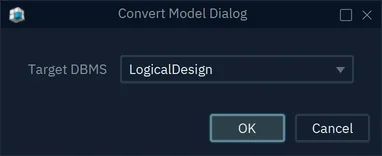
- Open the model and choose Model → Convert Model.
- Set Target DBMS, the database type to convert to, to LogicalDesign and press OK.
- Check the Model Conversion Rules and press Convert.
The logical model writes names in plain words, so customer_id becomes customer id. You set the cardinality of each relation yourself. Cardinality says how many orders one customer can have, and whether an order needs a customer. When the design is agreed, Model → Generate Physical Model turns it back into tables for SQL Server. Then the compare from the section above writes the script.
Architect also draws flow diagrams generated from your SQL. They show which stored procedures, functions, triggers and scripts read and write each table. A stored procedure is a saved block of SQL that runs on the server. A function is a saved piece of SQL that returns a value; a trigger runs by itself when rows change. So you see which code uses a table before you change it.
Who each DbSchema edition is for
DbSchema Architect is the edition for architects and lead developers who plan new parts of the system before the tables exist, or who must know which procedures and triggers touch a table before they change it. It includes everything in Pro. DbSchema Pro fits teams where several people change the same database: the design lives in a model file, and every change reaches SQL Server as a script someone has read. The pricing page lists every edition.
Download DbSchema and reverse-engineer your SQL Server database. For the logical design and the flow diagrams, choose DbSchema Architect.
Sources
- Microsoft Learn, SQL Server Management Studio FAQ (learn.microsoft.com), read 19 November 2026.
- Microsoft Learn, Save database diagrams, and Reconcile a database diagram with a modified database, read 19 November 2026.
- DbSchema documentation: Connect to a database
- DbSchema documentation: Diagrams
- DbSchema documentation: Schema synchronization
- DbSchema documentation: Logical design
Draw your SQL Server database without touching it
DbSchema Architect plans the logical design before the tables exist, and DbSchema Pro keeps the SQL Server design in a model file with every change as a reviewed script.