Rolling Out DbSchema to a Team: From One Trial to 20 Seats
How one DbSchema trial becomes a team setup, from choosing a seat for each person to assigning seats, sharing one model and giving readers the schema without a seat.
On this page
You've used DbSchema on your own for a few weeks, and now the rest of the team needs it. To roll DbSchema out, buy commercial seats, assign each seat to a person's email in the Customer Area, and have everyone sign in with their DbSchema account, so nobody passes license keys around. Decide who gets which seat before you buy, because a seat you assign by hand stays with that email for three months.
Short answer
A DbSchema license is per developer, so each person who designs every day gets a regular seat, and a group that uses DbSchema now and then shares a floating license. The license owner assigns the seats by email in the Customer Area, and each person registers DbSchema with that email. No key file changes hands.
- Daily designers get a regular Pro or Architect seat; occasional users share a floating license.
- Seats go to people by email in the Customer Area, and each person signs in with their DbSchema account.
- The design lives in one model file in Git, and readers get HTML5 documentation instead of a seat.
Match each seat type to a role before you buy
DbSchema licenses are per developer: one person installs a regular seat on two computers and uses one at a time. Only a floating license is shared, and as many people as you bought seats for can work at the same time. That gives you two kinds of seat, and the editions decide what each person can do with it.
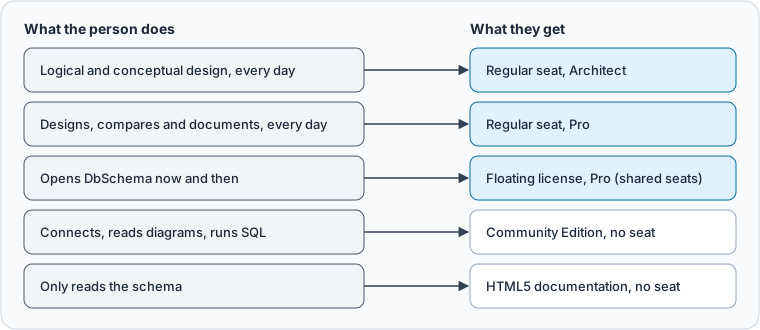
The edition boundaries are short. Community is free and covers connecting, diagrams and the SQL editor. Pro adds, among others, saving the model to a file, comparing it with a database, and HTML5 documentation. Architect adds logical and conceptual design, and flow diagrams generated from SQL. A person who designs and reviews the schema every day needs Pro at least, and the one who models the domain before a database exists needs Architect.
The floating license is a Pro license. Someone who needs logical design gets a regular Architect seat, even if they open DbSchema only once a week. A floating pool fits the people who need Pro now and then, such as a tester who checks a model before a release. How floating licenses work for a database team covers when a pool pays off, and which edition a team needs goes through the edition choice feature by feature.
People who only connect, read diagrams and run SQL can stay on the free Community Edition, and people who only read the schema need no DbSchema at all, as the documentation section below shows.
Assign seats by email in the Customer Area
The Customer Area is where the license owner hands out seats. You sign in with the email of the purchase and receive a one-time login link; there is no password. The dashboard lists your subscriptions, and Keys opens the Manage End-Users page of a subscription.
-
Open the subscription
In the Customer Area, press Keys on the subscription, or choose
⋯ → End-Users & Keys. -
Give each seat an email
In the Assign End-Users panel, edit the email of each seat. Seat 1 starts with the end-user email of the order.
-
Add the users of a floating license
On a floating subscription, type each address into End-User Email and press Add User. The list can be longer than the number of seats.
Two rules shape how you plan this. Only a commercial license can be reassigned, so buy commercial seats for a team, not personal ones. And a seat you assigned by hand stays with that email for three months, while a seat assigned automatically can change at any time. If someone leaves after a month, their seat moves only when the three months are up, so don't assign seats to people who are still deciding.
On a floating subscription, the user list limits who may take a seat, and the seat count limits how many people work at the same time. For example, twelve people listed on a five-seat floating license can share it across time zones, five at a time, and a thirteenth person can't take a seat until you add their email.
Everyone signs in with their DbSchema account
Once a seat carries a person's email, that person registers DbSchema with their account. Signing in needs no key to copy, and it works for regular and floating licenses alike.
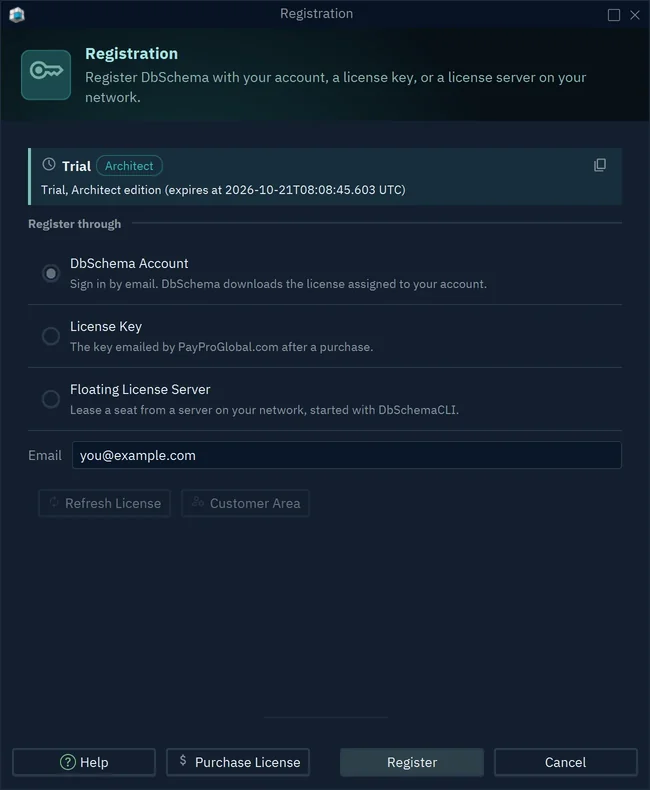
- 1DbSchema Account: no key file
- 2The email the seat was assigned to
- 3Register sends a validation code
-
Open the registration
In DbSchema, choose
Help → Register Licenseand pick DbSchema Account. -
Register with the assigned email
Type the email the seat was assigned to in Email, not the buyer's, and press Register.
-
Confirm the code
DbSchema emails a validation code. Type it into the Validation Code dialog and press OK. DbSchema downloads the license, and on a floating license it takes a seat.
A floating seat stays taken while DbSchema runs, however long it sits idle, and comes free when the person closes DbSchema or chooses Help → Unregister License. Ask occasional users to close DbSchema at the end of the day, or the pool runs dry.
On a network without internet access, run your own floating license server, and set the environment variable DBSCHEMA_FLS_URL on each computer so DbSchema fills in the server address for every user. Update that server before you roll out a new DbSchema version, because DbSchema 10.4 and later refuse a server older than themselves.
Keep one model in Git with a reviewer
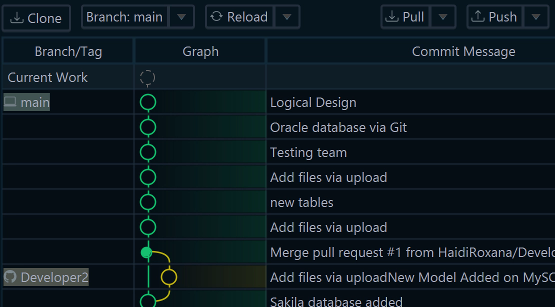
Seats give everyone DbSchema; a shared model keeps them on one design. DbSchema saves the whole design in one model file, and keeping that file in a Git repository lets the team share one design with the history of every change. Git is built into DbSchema, so nobody needs another Git program, and saving the model to a file needs Pro.
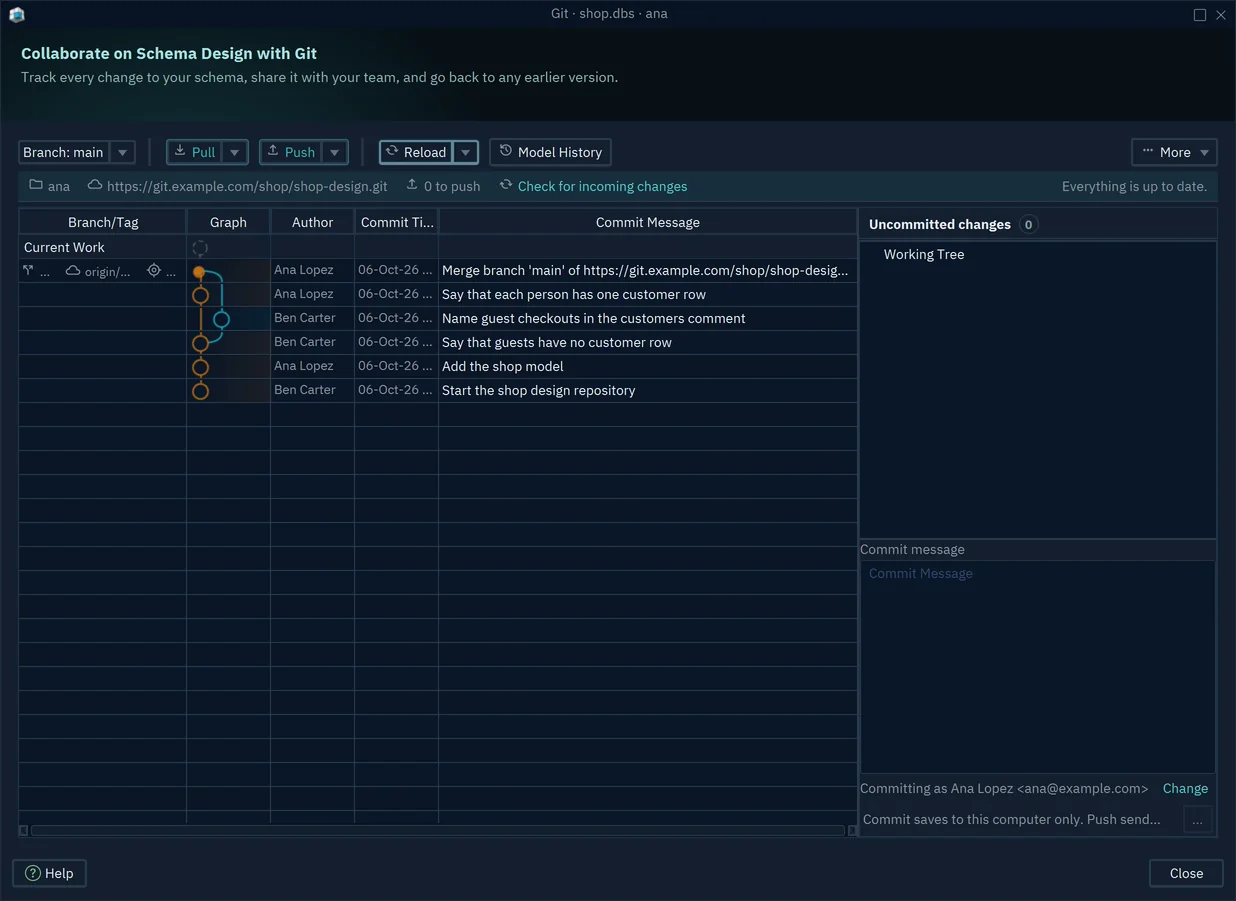
For a team, the open question is who approves a change before it reaches main. Pull request reviews let people comment on changes, approve them or request changes before code is merged, and on GitHub a code owners file requests that review automatically. A line like the one below sends every change to a model file to the people who own the design:
*.dbs @your-org/data-architects
Replace @your-org/data-architects with your own GitHub team; GitHub requests its review only if the team has write access to the repository. Turn on Require review from Code Owners in the branch protection rule, and nobody merges a model change without one of them. If several people should merge into one repository, the integration-manager workflow in the Git book is the model to follow. Team collaboration in schema design with Git walks through branches, merges and conflicts on a .dbs file in DbSchema.
Give readers HTML5 documentation instead of a seat
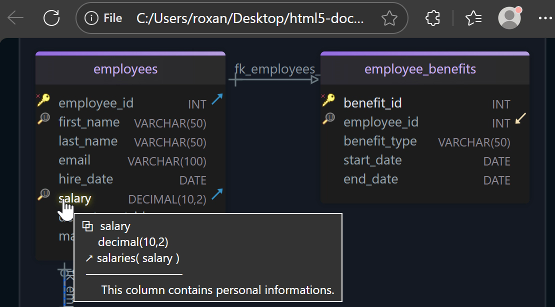
A product manager, a reviewer or an auditor often needs to read the schema without running DbSchema. DbSchema writes the documentation for them as one HTML5 file, a PDF or a Markdown file, with the diagram and a description of every table, column, index and foreign key. DbSchema Pro documents any diagram, so one Pro seat serves every reader.
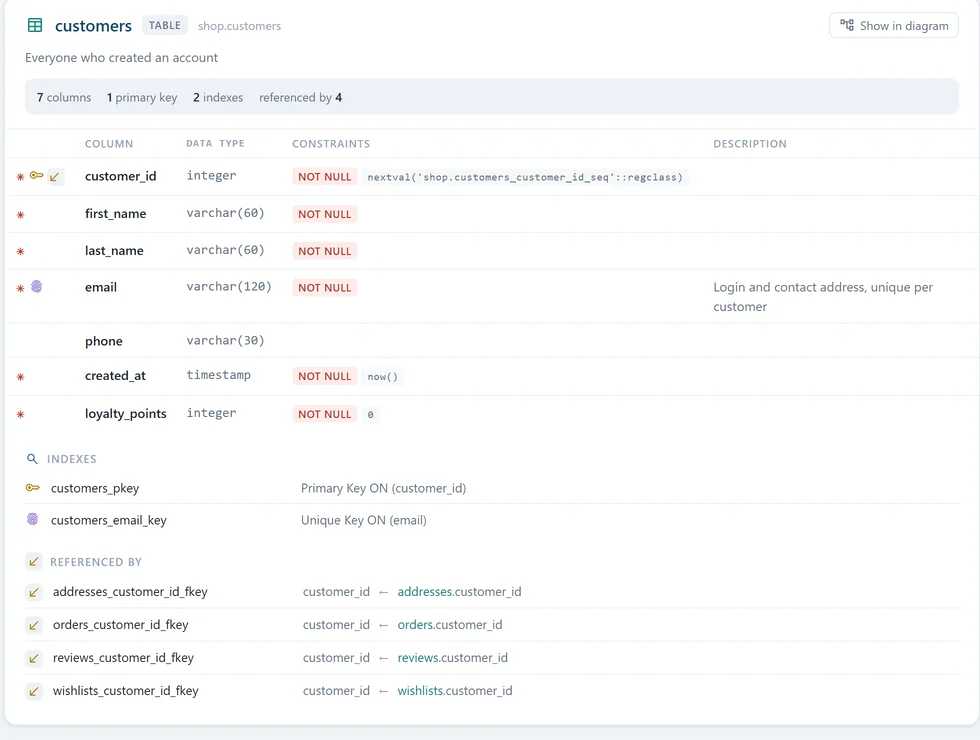
Generate it with File → Export As... → HTML5/PDF Documentation, and publish the file wherever your team keeps its internal pages. Generating reads the model and changes neither the model nor the database. To keep it current, the documentation can also be generated on a schedule with a Groovy script, as Automation Scripts shows.
Upgrade, renew and move seats as the team changes
Teams change after the rollout, and three things come up.
A designer who starts on logical design needs Architect. The Customer Area offers to upgrade a perpetual Pro license to Architect, so the designer keeps the same license and moves up an edition. The offer is for a perpetual Pro license only: for someone on a monthly or floating Pro license, buy a regular Architect seat.
A perpetual license runs every DbSchema version released within one year of its purchase, and keeps running those versions afterwards. A renewal adds another year of new versions and keeps the license ID and its activations. If someone installs a version released after that year, DbSchema shows "License expired: Renew your license", so renew before the team updates.
A regular key is active on at most two computers. When someone gets a new laptop, they choose Help → Unregister License on the old one before they register on the new one. If the old computer is gone, a support ticket clears its activations.
Rollout checklist
- Start the trial with the people who will get the first seats. Every download includes a 15-day trial of all features, and signing in to the Customer Area extends it by 15 days.
- List each person's role and give them a seat type, as in Figure 1.
- Buy commercial seats on the purchase page. For a purchase order, get a quote for your purchasing team, or buy through a reseller in your region.
- Assign every seat to an email in the Customer Area, and add the users of each floating license.
- Send everyone the steps above:
Help → Register License, DbSchema Account, their own email. - Put the model file in a Git repository and add a code owners line for
*.dbs. - Export the HTML5 documentation and publish it for readers.
- Put the renewal date in the team calendar.
Download DbSchema and start the trial with the people who will get the first seats. The rollout on this page, model file, Git and HTML5 documentation, needs DbSchema Pro, and logical and conceptual design needs DbSchema Architect.
Sources
Start the trial with the people who get the first seats
Every DbSchema download starts with a 15-day trial of all features. Saving the model to a file, Git and HTML5 documentation are in DbSchema Pro; logical and conceptual design is in DbSchema Architect.