Team Collaboration in Schema Design with Git
For the person deciding how a team will share one DbSchema model, who already keeps the team's code in Git.
On this page
Two people change the same table in the same week: one adds a column, the other renames one. Both save the model over the copy on the shared drive. The last save wins, and afterwards nobody can say what the other change was. A DbSchema design is a single file, so it goes into Git with the code: commit the .dbs file, branch for each change, compare the two versions, merge. Team roles and the review process around them are a separate subject, covered in collaborative database design.
How a team shares one schema model through Git
The whole design lives in one .dbs file: plain indented XML holding the schema plus every diagram, layout, group, colour and comment. Git treats that file the way it treats a source file, comparing it line by line and printing the added and removed lines[1], while a binary file is skipped in a diff unless you force it. So a schema change arrives in a pull request as lines a reviewer can read.
Four things follow from that one property. The team gets a single history of who changed which table and when. Two people can work on different parts of the schema at once, each on their own branch. A change can be looked at before it reaches anyone else's database. And there is one copy of the design that everyone pulls from, instead of a folder of files named with dates.
How it works in DbSchema
Open the Model menu in DbSchema and choose Git — Collaborative Design. The Git dialog is a Git client inside the application, so the model never has to leave DbSchema to be versioned.
Paste your team's repository URL into it, pick an empty local folder, and DbSchema clones the repository into that folder. GitHub, GitLab, Bitbucket and a Git server on your own network all work the same way here. Then save the .dbs model file inside the cloned folder, which is the step that puts the design under version control. One repository can hold several .dbs files, one per database or per component of the system.
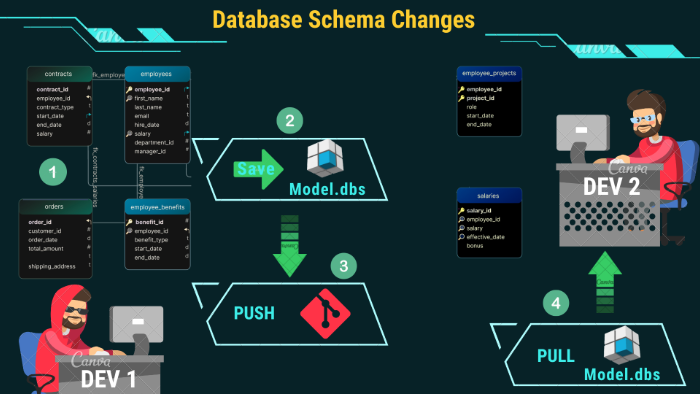
Sharing a change is three clicks in the same dialog. Select the modified files and click Stage. Type a message and click Commit, which writes the snapshot to your local repository. Click Push to send it to the remote, where your teammates can pull it. GitHub and Bitbucket will not accept the push against an account password, so use a personal access token.
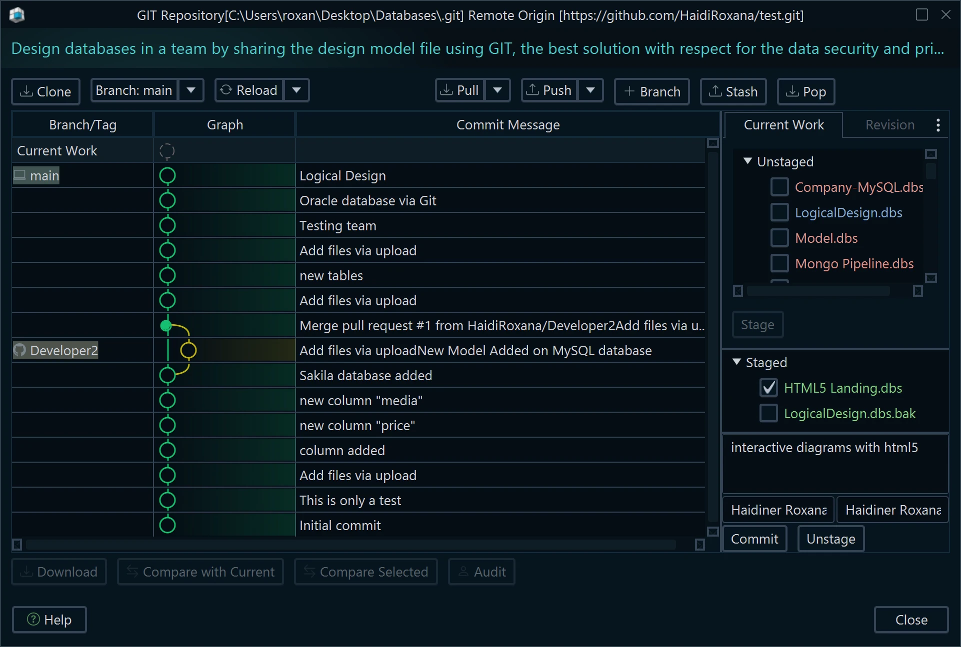
Pull does the reverse and merges the newest commits into your working folder. Create Branch starts a branch for a piece of work you want to keep apart, and Stash parks uncommitted changes so you can switch branches without losing them, with Pop to bring them back.
Every action in that dialog moves the model file and the repository. None of them touches a database: the schema reaches the database in a separate step, described further down. Saving the model to a file and schema synchronization are Pro features, so a team working this way is on Pro. The free Community Edition connects, reverse-engineers and draws interactive diagrams, and Pro adds the .dbs file that Git versions.
Best practices for schema design in Git
Keep one repository holding the model file, so there is a single answer to the question of which schema is current. Inside it, branch for each change rather than committing to main, and name the branch after the change (feature/add-payments). Each person commits inside their own branch and merges into main after a review, which is what stops two people from overwriting each other. Pull before you push, every time, so you find out about a teammate's change while it is still a comparison and not yet a conflict.
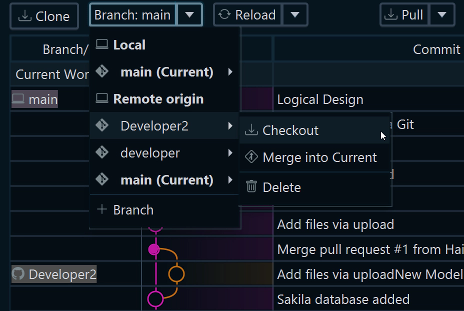
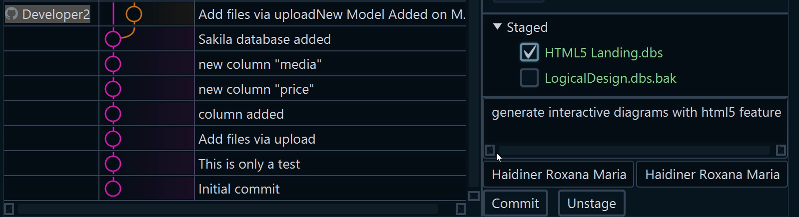
The commit message is the only place where the reason for a schema change gets written down, and the diff of an XML file will not supply it. Say what changed to the schema:
- "Added Customers table with PK"
- "Linked Orders to Customers with FK"
- "Renamed column email_address to email"
Compare and review before a merge
Reading an XML diff tells you which lines moved. It does not tell you that a column lost its NOT NULL, which is what a reviewer needs. DbSchema compares in two directions, and both are worth running before a merge.
To see what a pull brought in, click Compare with Current in the Git dialog. DbSchema opens the Synchronization Dialog on the version you just pulled against the model you have open. Two .dbs files can also be open at once and compared against each other, which covers the case where the other version came from a branch rather than from the remote.
To compare the model against the live database instead, open Schema → Compare Model with Database, or click Review Changes after a refresh. Schema → Refresh Schema from Database goes the other way and pulls the current database state into the model.
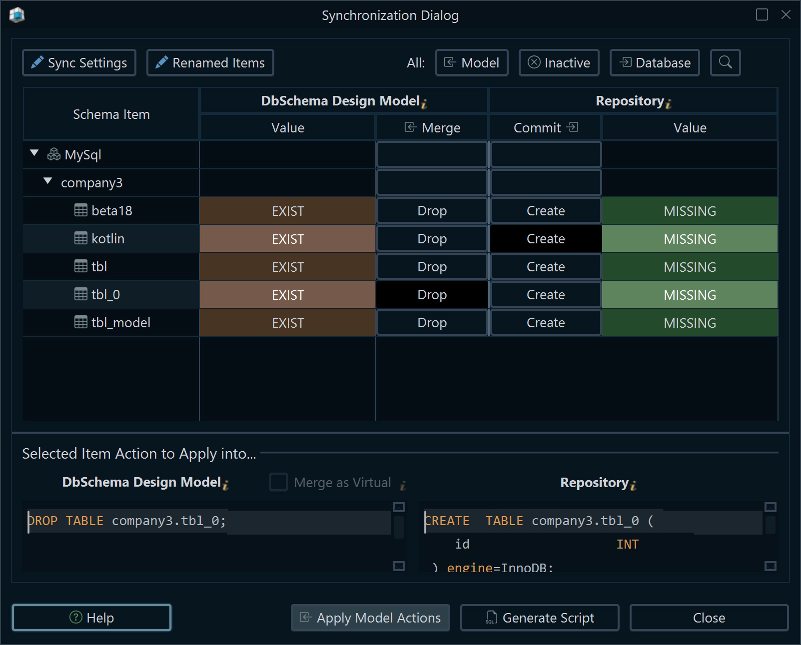
in the Model
in the Repository
Both directions end in the same place: a tree of the objects that differ, table by table and column by column. Each difference is one decision. Update the model from the other side, push the change to the database, or leave it alone. DbSchema can also write the differences out as a migration script instead of executing them, which is the form a change takes when it has to go through a deployment pipeline.
Resolving schema conflicts between branches
Git conflicts only where two branches changed the same region of a file, so two developers who work on different tables merge cleanly: their edits land in different parts of the XML. A conflict appears when both branches edit the same lines, which in practice means the same table.
Take two developers who both add a column to the users table on separate branches. One adds last_login, the other adds profile_picture_url. Git sees two edits to the same column list and stops.
Resolve that as a schema question rather than as an XML question. Check out each branch in turn and save its version of the model under its own file name. Open both files in DbSchema and compare them: the Synchronization Dialog lists the users table with both new columns, one side against the other, and you take the columns one at a time. Save the merged model over the conflicted file and complete the merge in Git. A block of conflict markers nobody can read has turned into a decision about two columns, which is a decision you can make.
Schema design workflow with Git
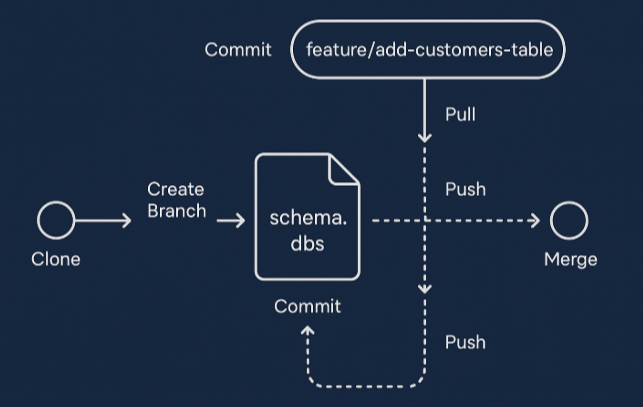
Put together, the loop a team runs for each schema change is:
- Clone the repository to get the latest .dbs model.
- Branch off main for your task (feature/add-customers-table).
- Design the change in DbSchema, adding the tables, the keys and the diagram.
- Commit with a message that says what changed.
- Pull before you push, so a teammate's commit shows up as a comparison.
- Push your branch.
- Merge into main after the review.
- Apply the merged model to the database with
Schema → Create or Upgrade Schema in Database, or generate the migration script and hand it to your pipeline.
Steps 1 to 7 move a file. Step 8 is the only one that changes a database, and it is deliberately the last.
Put the .dbs file in the repository your code already lives in, and a schema change becomes reviewable the way a code change is. Download DbSchema at https://dbschema.com/download.html, open the Model menu, clone your team's repository from the Git dialog, and save your model inside the working copy. Saving the model to a file, schema synchronization and the model comparison described here are Pro features, and the download includes a 15-day Architect trial you can extend by another 15 days.
Sources
Put your schema model in Git
DbSchema saves the design as a single .dbs XML file that diffs in a pull request, and compares two versions of it row by row. Offline design and schema synchronization are Pro; the download includes a 15-day trial.









