MySQL INSERT INTO Guide with Practical Examples
For someone with a MySQL table that needs rows in it; every statement was run on MySQL 8.0.29 and 9.1.0 and is shown with what MySQL printed back.
On this page
Your table exists and holds nothing yet. INSERT INTO adds the rows: name the table, list the columns you are filling, and give VALUES one value per column, in the same order. Several rows fit in one statement, their value lists separated by commas:
INSERT INTO table_name (column1, column2, column3)
VALUES (value1, value2, value3);

INSERT INTO table_name (column1, column2, column3)
VALUES (value1, value2, value3),
       (value4, value5, value6);
The examples below fill this table. Both servers printed the same output, and the links go to the MySQL 8.0 reference manual:
CREATE TABLE customers (
  customer_id INT AUTO_INCREMENT PRIMARY KEY,
  email       VARCHAR(100) NOT NULL UNIQUE,
  name        VARCHAR(50)  NOT NULL,
  city        VARCHAR(50)  DEFAULT 'unknown'
);
MySQL numbers the customers, refuses a repeated email, and fills in city when you leave it out, as MySQL CREATE TABLE explains.
Insert a row from the mysql client
Log in and select the database first, because INSERT writes into the selected one:
mysql -u username -p
USE shop;
INSERT INTO customers (email, name, city) VALUES ('[email protected]', 'Ada', 'Lisbon');
Query OK, 1 row affected (0.02 sec)
Without the USE, it fails with ERROR 1046 (3D000): No database selected. Text goes in single quotes; numbers and NULL go without. MySQL generates the missing customer_id:
SELECT * FROM customers;
| customer_id | name | city | |
|---|---|---|---|
| 1 | [email protected] | Ada | Lisbon |
Your account needs the INSERT privilege on the table, which MySQL CREATE USER shows how to grant. MySQL also takes a SET form, one row at a time:
INSERT INTO customers SET email = '[email protected]', name = 'Joan', city = 'Porto';
Insert several rows in one statement
One INSERT takes as many value lists as you give it, in one round trip to the server:
INSERT INTO customers (email, name, city) VALUES
  ('[email protected]', 'Grace', 'Porto'),
  ('[email protected]', 'Linus', 'Braga'),
  ('[email protected]',  'Rosa',  'Lisbon');
Query OK, 3 rows affected (0.01 sec)
Records: 3  Duplicates: 0  Warnings: 0
Read the second line: Records counts the rows processed, Duplicates the rows that hit an existing unique value, and Warnings the values MySQL complained about. Two records and one duplicate means one row was written.
One bad row stops the whole statement. Here the second row repeats Ada's email:
INSERT INTO customers (email, name) VALUES
  ('[email protected]', 'Mary'),
  ('[email protected]',  'Ada');
ERROR 1062 (23000): Duplicate entry '[email protected]' for key 'customers.email'
Mary is not in the table either: SELECT COUNT(*) FROM customers WHERE email = '[email protected]' returns 0. InnoDB rolls back the failed statement, not the rest of your transaction.
The statement has to fit in max_allowed_packet, 64 MB by default (67108864 on both servers). For a large file, load the CSV instead.
Get the AUTO_INCREMENT id MySQL generated
LAST_INSERT_ID() returns the id your connection generated last. Straight after the three-row insert, it returns Grace's id, not Rosa's:
SELECT LAST_INSERT_ID();
| LAST_INSERT_ID() |
|---|
| 3 |
After a multi-row insert, the manual says, it returns the first row's id. Inserts from other connections leave your value alone.
Expect gaps in the ids. The next customer gets 8, not 6:
INSERT INTO customers (email, name, city) VALUES ('[email protected]', 'Alan', 'Faro');
SELECT LAST_INSERT_ID();
| LAST_INSERT_ID() |
|---|
| 8 |
The failed two-row insert used up 6 and 7, and InnoDB never reuses a generated value. Never compute the next id as MAX(customer_id) + 1.
What MySQL puts in the columns you leave out
A column missing from the list still gets a value. city takes its default, unless you give it NULL:
INSERT INTO customers (email, name) VALUES ('[email protected]', 'Edsger');
INSERT INTO customers (email, name, city) VALUES ('[email protected]', 'Barbara', NULL);
SELECT name, city FROM customers WHERE email IN ('[email protected]', '[email protected]');
| name | city |
|---|---|
| Barbara | NULL |
| Edsger | unknown |
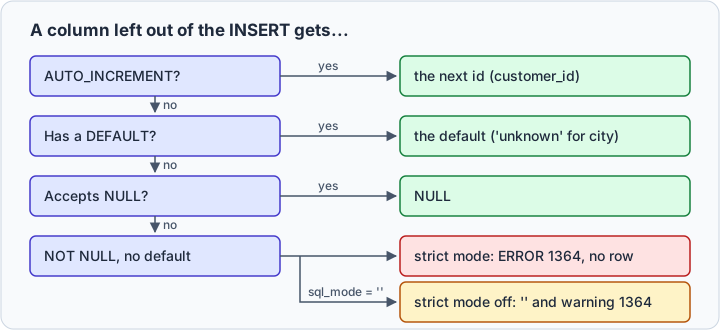
name is NOT NULL with no default. Strict SQL mode, on in the default SQL mode, rejects the row:
INSERT INTO customers (email) VALUES ('[email protected]');
ERROR 1364 (HY000): Field 'name' doesn't have a default value
With strict mode off, the row goes in with a warning and an empty name:
SET SESSION sql_mode = '';
INSERT INTO customers (email) VALUES ('[email protected]');
Query OK, 1 row affected, 1 warning (0.01 sec)

Warning (Code 1364): Field 'name' doesn't have a default value
SET SESSION sql_mode = DEFAULT brings strict mode back.
Without a column list, MySQL wants every column, in table order, the id included:
INSERT INTO customers VALUES ('[email protected]', 'Ken', 'Faro');
ERROR 1136 (21S01): Column count doesn't match value count at row 1
VALUES (DEFAULT, '[email protected]', 'Ken', 'Faro') works, with a generated id, but breaks the day someone adds a column. Keep the column list in anything you save.
Copy rows from another table with INSERT ... SELECT
A SELECT can replace VALUES. It copies rows from another table:
CREATE TABLE signups (
  email     VARCHAR(100),
  full_name VARCHAR(50),
  confirmed BOOLEAN
);

INSERT INTO signups VALUES
  ('[email protected]', 'Nina', TRUE),
  ('[email protected]', 'Omar', FALSE);

INSERT INTO customers (email, name)
SELECT email, full_name FROM signups WHERE confirmed;
Query OK, 1 row affected (0.02 sec)
Records: 1  Duplicates: 0  Warnings: 0
The selected columns fill the list by position, not by name: full_name lands in name because both come second. See the manual's INSERT ... SELECT rules, or SQL INSERT INTO SELECT for other engines.
When the row already exists
A plain INSERT of an existing email fails with ERROR 1062, as shown above. Three statements handle the duplicate instead, each leaving a different row:
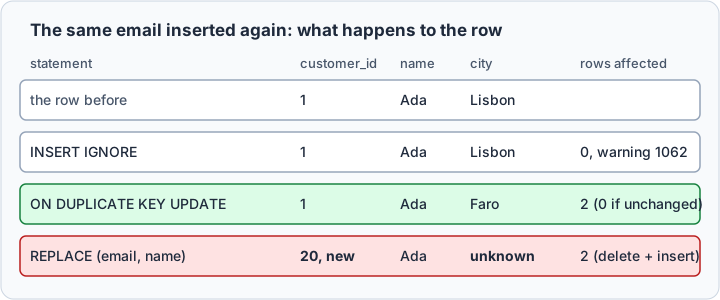
INSERT IGNORE skips the duplicate and inserts the rest:
INSERT IGNORE INTO customers (email, name, city) VALUES
  ('[email protected]', 'Ada', 'Faro'),
  ('[email protected]', NULL,  'Faro');
Query OK, 1 row affected, 2 warnings (0.01 sec)
Records: 2  Duplicates: 1  Warnings: 2

Warning (Code 1062): Duplicate entry '[email protected]' for key 'customers.email'
Warning (Code 1048): Column 'name' cannot be null
IGNORE downgrades more than duplicates: Tim's NULL name went in as an empty string.
ON DUPLICATE KEY UPDATE updates the existing row instead. The row alias after VALUES, here new, names the values you tried to insert:
INSERT INTO customers (email, name, city) VALUES ('[email protected]', 'Ada', 'Faro') AS new
  ON DUPLICATE KEY UPDATE city = new.city;
Query OK, 2 rows affected (0.01 sec)
The manual counts 1 for a new row, 2 for an updated one, and 0 when nothing changed; the second run printed 0 rows affected. The alias needs MySQL 8.0.19 or later. The older city = VALUES(city) still runs, with warning 1287: "'VALUES function' is deprecated".
REPLACE deletes the old row and inserts the new one:
REPLACE INTO customers (email, name) VALUES ('[email protected]', 'Ada');
SELECT customer_id, email, name, city FROM customers WHERE email = '[email protected]';
Query OK, 2 rows affected (0.01 sec)
| customer_id | name | city | |
|---|---|---|---|
| 20 | [email protected] | Ada | unknown |
Ada lost her id and her city: REPLACE writes a whole new row, and city was not in the list. A row in another table that stored customer 1 no longer finds her, and REPLACE needs the DELETE privilege too. To change an existing row, use ON DUPLICATE KEY UPDATE.

Insert and import data in DbSchema
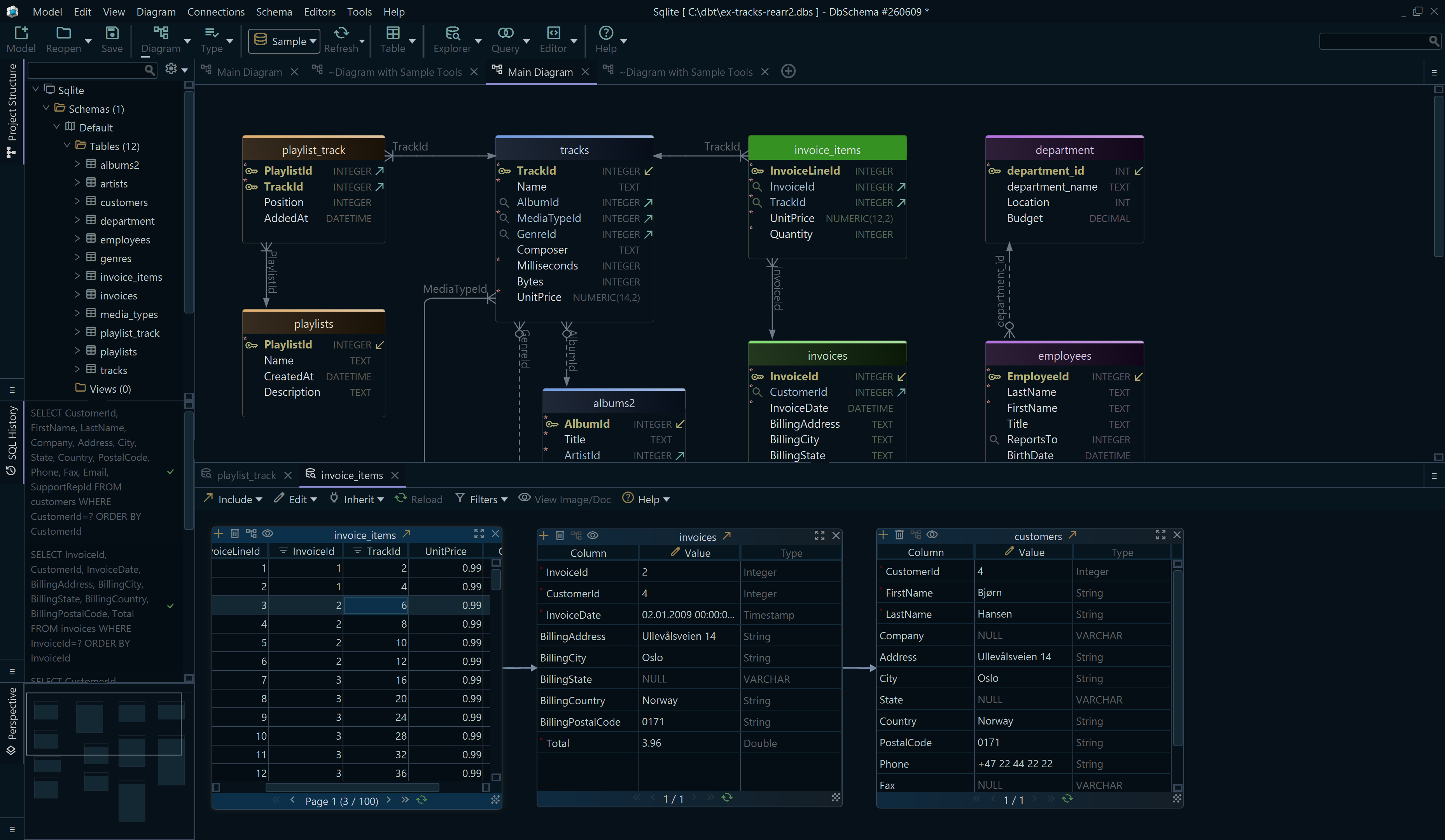
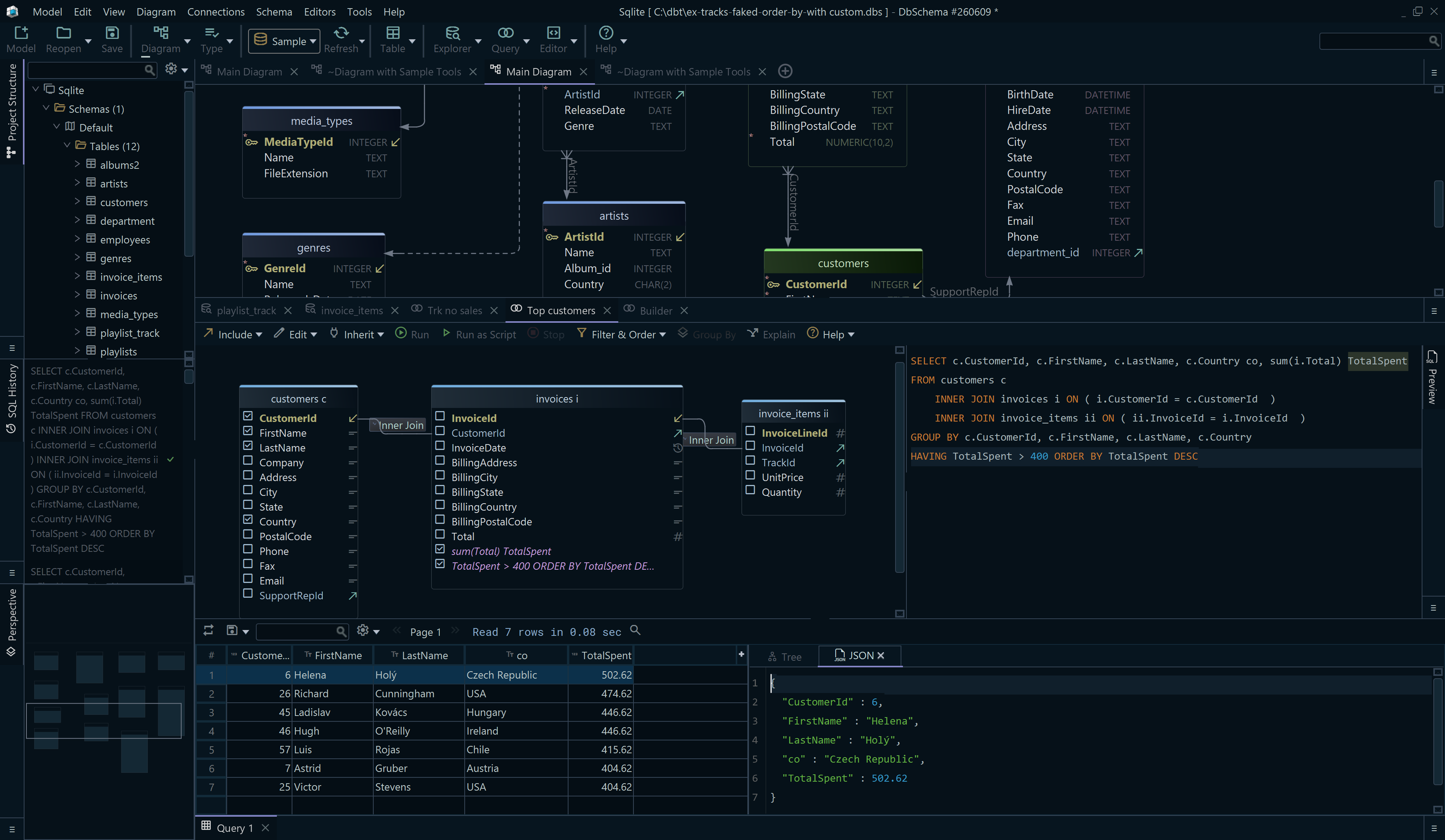
DbSchema is a MySQL client and visual designer. Connected to MySQL, DbSchema writes rows to the live database in three ways; none of them changes the DbSchema model file.
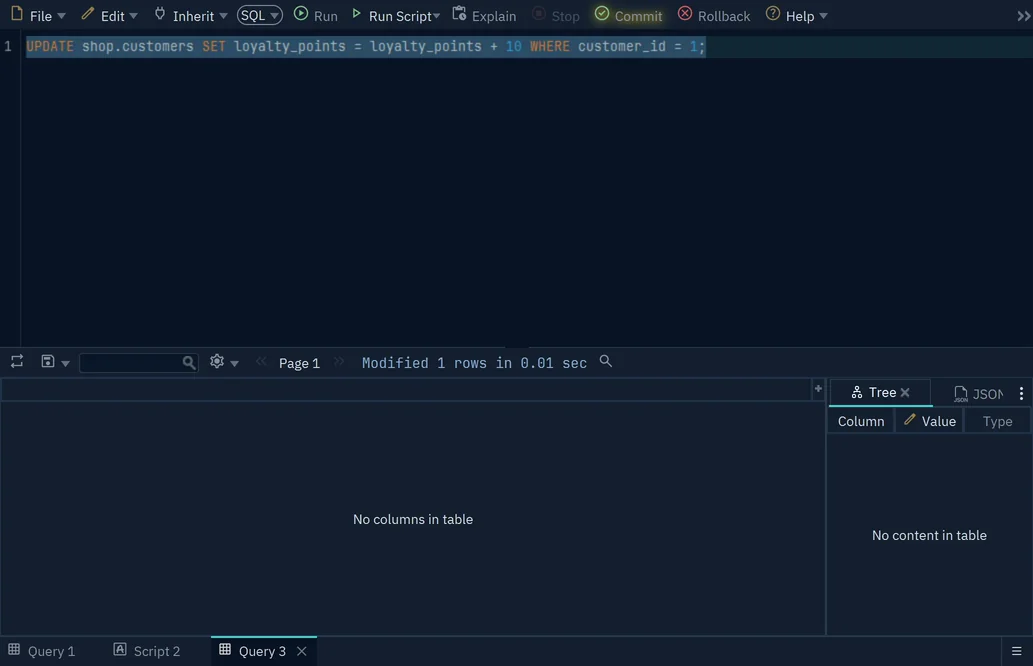
In the SQL Editor, opened with Query → SQL Editor, type the INSERT and press Run. DbSchema holds it in an open transaction, unseen by other sessions, until you press Commit or Rollback.
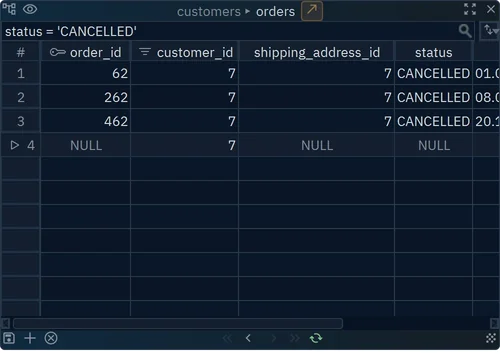
To type rows into a grid, right-click the table on the diagram and choose Data Explorer. Press + at the bottom, fill in the values, and press the save button next to +. DbSchema writes the row at once.
The Data Importer loads a CSV, Excel, XML or JSON file. Choose Database → Data Importer, press Choose to pick the file, then pick the Schema and the Existing Table.
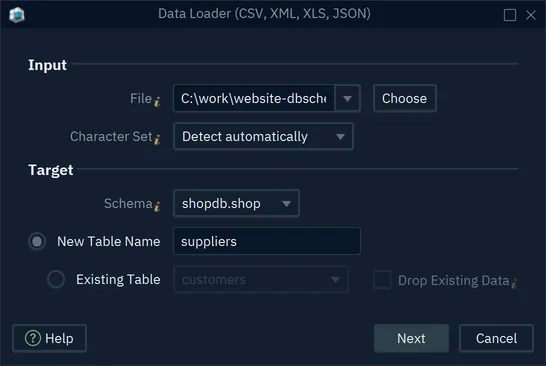
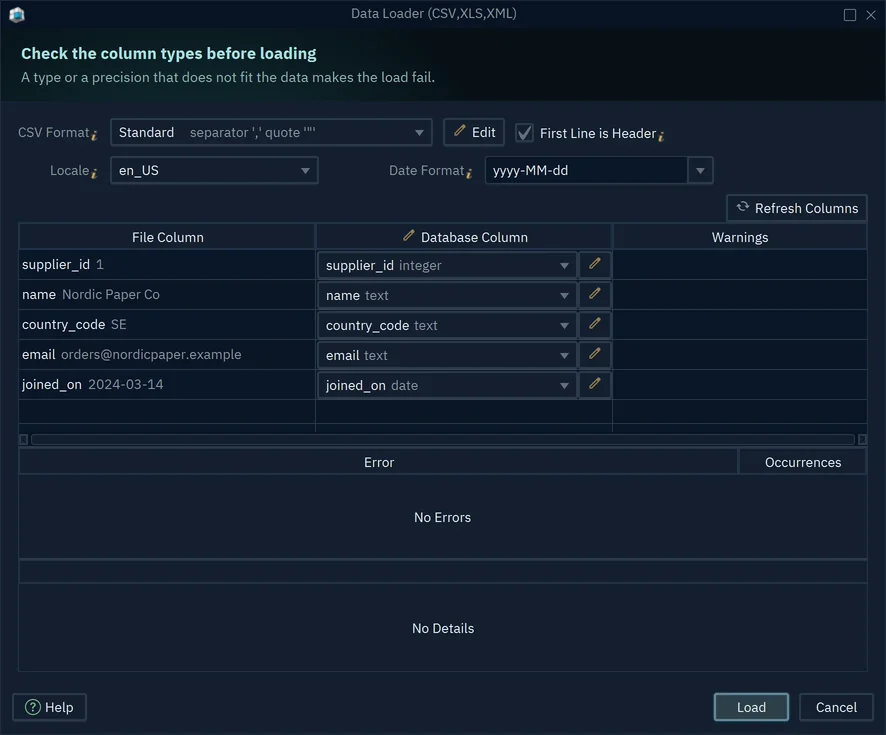
Press Next, check each File Column against its Database Column, and press Load. DbSchema reports how many rows went in and how many failed, with each kind of error in the Error list.
Get DbSchema from https://dbschema.com/download.html, connect it to your MySQL server, and run your next INSERT in the SQL Editor, which is in the free Community Edition. The Data Explorer and the Data Importer need DbSchema Pro.









