Schema Management Tools: Design, Compare and Deploy from One Model
The three kinds of schema management tool, why a model you design once keeps dev, test and production in step, and what that costs per seat.
On this page
Most teams run separate copies of a database for development, test and production. All three should hold the same tables, columns and keys. That shared structure is the schema, and a schema management tool keeps it the same everywhere.
The tools sold under that name start from different places. The starting point decides what they can do.
Short answer
DbSchema keeps the design in a model: its own copy of the schema, saved in one file. It compares that model with each database and generates the ALTER script, the SQL that changes the existing tables. Every DbSchema download starts with a 15-day trial of all features, and DbSchema Community Edition stays free.
- Pick a tool that keeps the design as a model, not only as a list of scripts.
- Compare the model with each environment and deploy only the difference.
- DbSchema Pro costs 444 USD per seat in total over three years. That is the lowest published price among tools that design, compare and deploy.
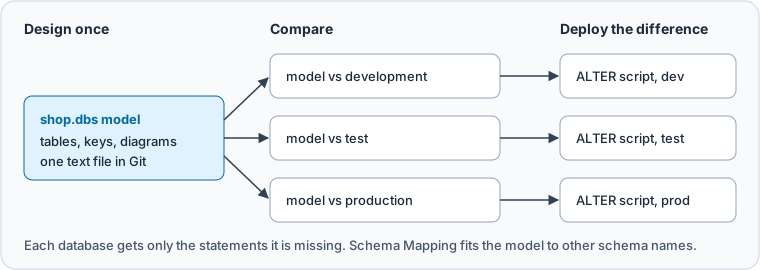
DbSchema is built for this loop. You design the model, compare it with a database, and deploy the difference.
What DbSchema adds to schema management
- One design for every environment. DbSchema saves the whole design, with tables, keys and diagrams, in one model file with the extension
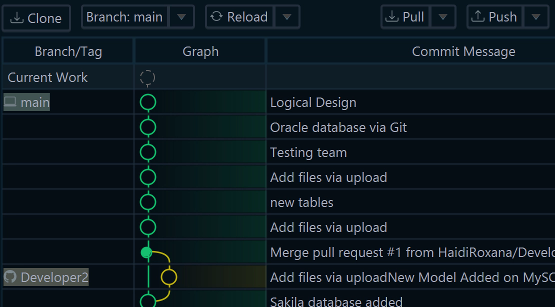
.dbs. Saving the model to a file needs DbSchema Pro. - Schema changes reviewed like code. DbSchema has Git built in. You save versions of the model file and share them with your team, without another program. Git Collaboration shows how, in DbSchema Pro.
- Each database gets only the SQL it lacks. Schema Synchronization, a feature of DbSchema Pro, compares the model with a database, one row per difference. Generate SQL script writes the statements without running them.
- One model for differently named schemas. Schema Mapping lets the model's
shopschema, a named group of tables, match a schema calledshop_prodin production. It sits on the Access and Model tab of the connection dialog, so one model serves development and production. - A new database built from the design. The menu item Database → Create or Upgrade Model in the Database creates the whole schema in an empty database. It is part of Schema Synchronization in DbSchema Pro.
The steps are under Design, compare and deploy in DbSchema.
Know the three kinds of schema management tool
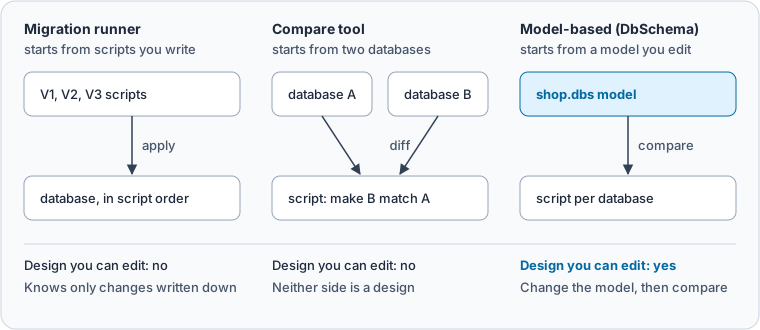
Every schema management tool starts from one of three places. The table shows where each kind starts and which jobs it covers.
| Kind | Examples | Starts from | Designs the schema | Compares | Deploys |
|---|---|---|---|---|---|
| Model-based | DbSchema, Navicat Premium Enterprise | A model you draw | Yes | Model with database | Generated script |
| Migration runner | Flyway, Liquibase | Scripts you write | No | Flyway Enterprise, Liquibase diff | The scripts, in order |
| Compare tool | Redgate SQL Compare, dbForge Schema Compare | Two databases | No | Database with database | Generated script |
A migration script is a file of SQL statements that moves a schema from one version to the next. A migration runner applies these scripts in a fixed order and records which ones ran. Liquibase calls its list of scripts a changelog.
The runner only knows the changes someone wrote down. Liquibase, Flyway or a visual schema compare covers this in detail.
A compare tool reads two databases and lists how they differ. Then it generates a script that makes one match the other. Both sides are live databases, so there is no design you can edit first.
A model-based tool keeps the design itself. You change the model, then compare it with each environment.
Keep the design in one model file
A DbSchema model file is plain text in XML. XML is a format that marks each part of a file with tags. Each table, column and foreign key is its own element.
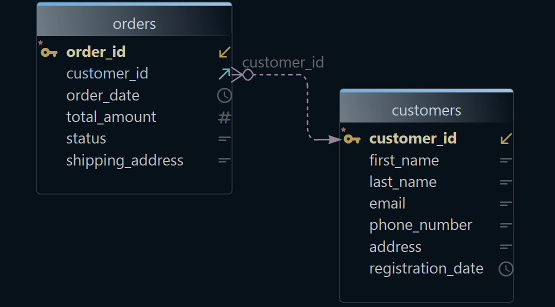
A foreign key is a column that points to a row in another table, such as an order's customer.
This is how the model stores a foreign key:
<fk name="tasks_parent_task_id_fkey" to_schema="dbschema_demo.public" to_table="tasks" delete_action="cascade" options="" >
	<fk_column name="parent_task_id" pk="id" />
</fk>
Git is the version control system most teams keep their code in. It records each change to a file, with who made it and when.
A Git diff is the view of what changed between two versions. Because the model is text, the diff shows which table or column changed.
So a schema change gets the same review as a code change. One person edits the model and a second person reads the diff. Only then does the change reach a database.
Design, compare and deploy in DbSchema
Start from the database you already have. Reverse-engineering means DbSchema reads the existing tables and draws them as a model.
- Choose File → New Model, keep Connect to Database, and connect to your development database. In Reverse Engineer the Database, tick the schemas and press Import. DbSchema Community Edition does this for free.
- Save the model with File → Save Model to File. This needs DbSchema Pro.
- Choose File → Git Collaboration. Tick the
.dbsfile, type a Commit message and press Commit to save a version. Press Push to send it to your team's shared repository. - To change the design without touching the database, work offline: click the connection button and choose Offline (connect later). Edit tables and columns, then save the model.
- Click the connection button and choose Add Connection to reach the test database. If its schema has another name, set Schema Mapping on the Access and Model tab.
- DbSchema asks how to bring the model and the database together. Choose "Compare, then decide difference by difference", tick the tables, and press the Compare button.
- In the Synchronize Model and Database dialog, click the winning side in the Action column of each row.
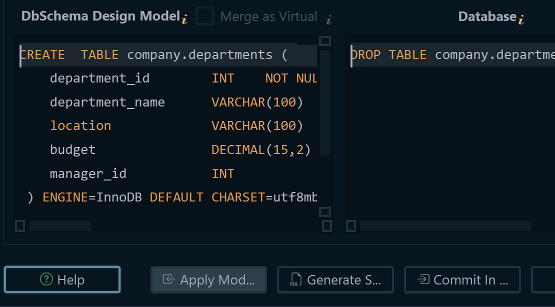
- Press Generate SQL script to review the statements first. Or press Commit in the database, which shows one statement at a time before it runs.
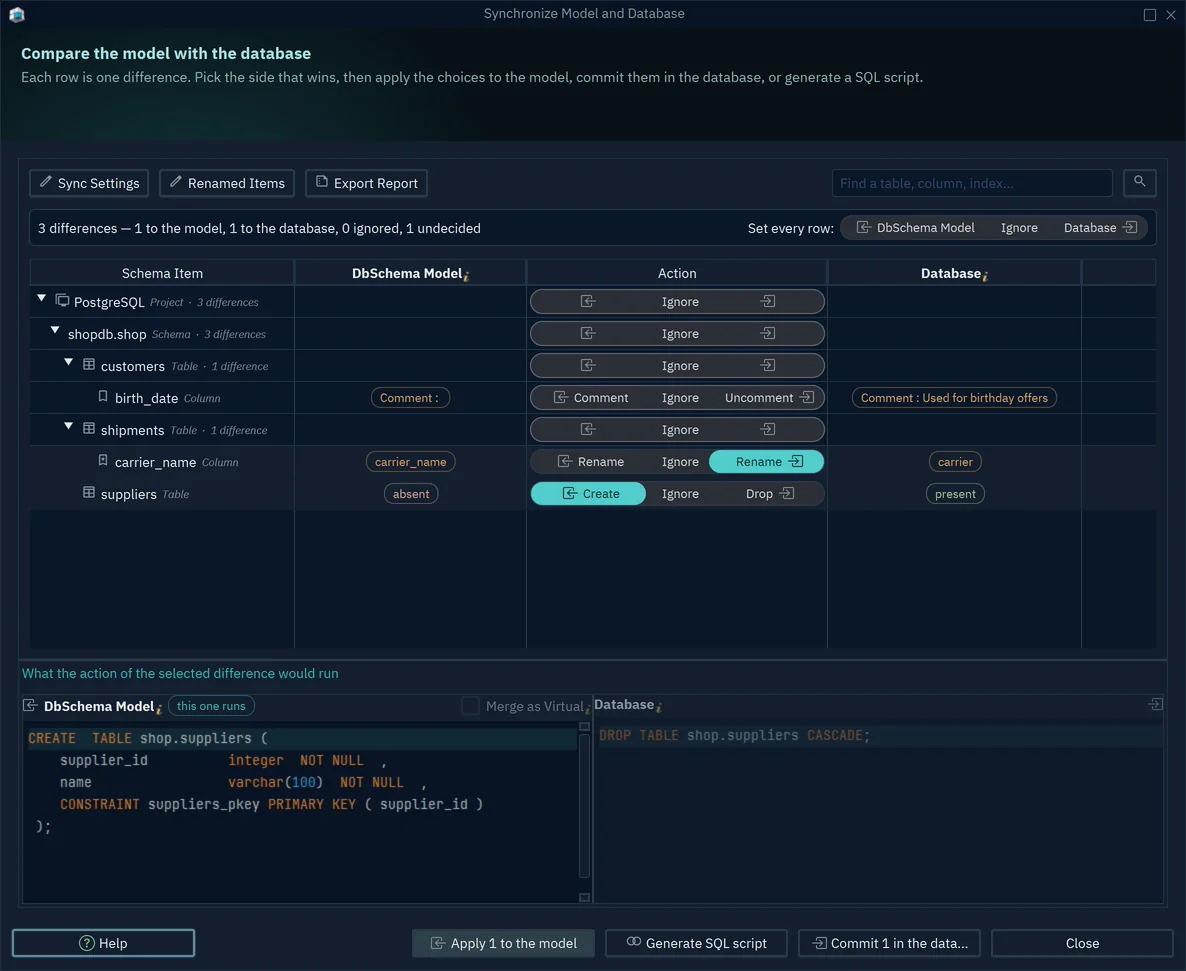
- 1Choose the side that wins
- 2The statement that will run
Nothing in the database changes while you compare.
Some databases don't exist yet. For them, Database → Create or Upgrade Model in the Database creates the whole schema from the model. To check each environment every night for changes nobody planned, see scheduled schema compare.
Keep the data when the design changes
A rename is where a careless deploy loses data. If a renamed column is deleted and created again, it comes back empty.
When you rename a table or a column in DbSchema, the model remembers its previous name. Schema synchronization then renames the table or column in the database with RENAME, so the data stays. Renamed Items in the synchronization dialog lists each renamed object with its Name and Previous Name.
You can also compare two versions of the design before any database is involved. Choose Model → Compare Model with Other Model From File and pick the older .dbs file. The same dialog opens, and nothing runs in a database.
Rename tracking and the model-to-model compare are part of Schema Synchronization in DbSchema Pro.
Choose the edition by how far you design
DbSchema Community Edition connects to every database DbSchema supports. It reads an existing schema into a diagram, draws interactive diagrams and runs SQL. Managing a schema from a model needs more:
- DbSchema Pro saves the model to a file, works offline, compares and synchronizes the schema and writes migration scripts. It also writes HTML5, PDF and Markdown documentation. It adds the visual query builder, the data generator and the AI Assistant with your own key.
- DbSchema Architect adds logical and conceptual design, for a design you agree on before you choose the database. It also draws flow diagrams generated from SQL.
Compare the price per seat over three years
Prices come from each vendor's own page, in USD per user, checked on 15 November 2026.
| Tool | Designs, compares, deploys | Price per user | 3 years |
|---|---|---|---|
| DbSchema Pro | Yes | 294 one-time, updates 75 a year from year 2 | 444 |
| DbSchema Architect | Yes, plus logical design | 470.40 one-time, updates 120 a year from year 2 | 710.40 |
| Navicat Premium Enterprise | Yes | 1,999 one-time incl. 1 year maintenance, 2 more years 479.76 | 2,478.76 |
| Flyway Enterprise | Compares and deploys | Price on request | On request |
| Liquibase Secure | Deploys changelogs | Quote only | On request |
Navicat Premium includes its data modeling tool in the Enterprise edition. Flyway includes its schema comparison tool only in the Enterprise edition. Every Liquibase Secure plan is sold by quote, with a Professional Services package.
Flyway Community and Liquibase Open Source run scripts for free, without a model to design in.
DbSchema's licence is perpetual. The version you bought keeps working for good, and the yearly fee only pays for updates.
Saving the model, synchronization and migration scripts need DbSchema Pro. Logical design needs DbSchema Architect. Both are on the purchase page.
Download DbSchema and try all features free for 15 days, without registration. Reverse-engineer your development database into a model, then compare it with test.
Sources
Design once, deploy the difference everywhere
DbSchema Pro keeps the design in one model file, compares it with each database and generates the migration script. DbSchema Architect adds logical and conceptual design. Try all features free for 15 days.