Moving a dbdiagram.io Schema to a Connected Model
For the developer whose schema was drafted in dbdiagram.io and now has to reach a real database, with the design kept somewhere the team can review it.
On this page
The DBML draft did its job while the schema was an idea, and now there are tables to deploy, a staging database that has moved on, and a review that needs more than a picture. The route out is a SQL DDL export: dbdiagram.io writes the CREATE TABLE statements, DbSchema parses them into a design model, and from there the model connects to the database, compares itself against it, and generates the migration script. dbdiagram.io reports over 3M diagrams created on the platform[1], so this is a well-worn path.
What follows is the export path, what survives it, what does not, and how the imported model reaches a live database. If you are still choosing, the dbdiagram.io alternatives comparison covers the connected tools side by side.
Exporting your dbdiagram.io schema to SQL
The bridge is a standard DDL script, and you can produce it from the dbdiagram.io editor or from the open-source DBML command-line tool. The exporter targets four relational dialects: PostgreSQL, MySQL, SQL Server and Oracle[2]. Pick the one that matches the database you intend to deploy to, so the data types and constraint syntax come out right the first time.
From the web editor, open your project, click Export at the top of the editor, choose the target dialect, and save the .sql file into your project repository.
From the command line, dbml2sql takes the same four flags. PostgreSQL is the default when you name none, and -o writes the result to a file instead of standard output. The same package converts the other way with sql2dbml, which reads a SQL dump and prints DBML, so the export is not a one-way door if you want to keep the dbdiagram.io project alive alongside the model[3].
| Target database | dbml2sql flag |
|---|---|
| PostgreSQL | --postgres (the default) |
| MySQL | --mysql |
| Microsoft SQL Server | --mssql |
| Oracle Database | --oracle |
What carries over: tables, keys and relations
Everything that has a SQL equivalent survives, because the DDL script is the transfer format and DbSchema parses it the way a database would.
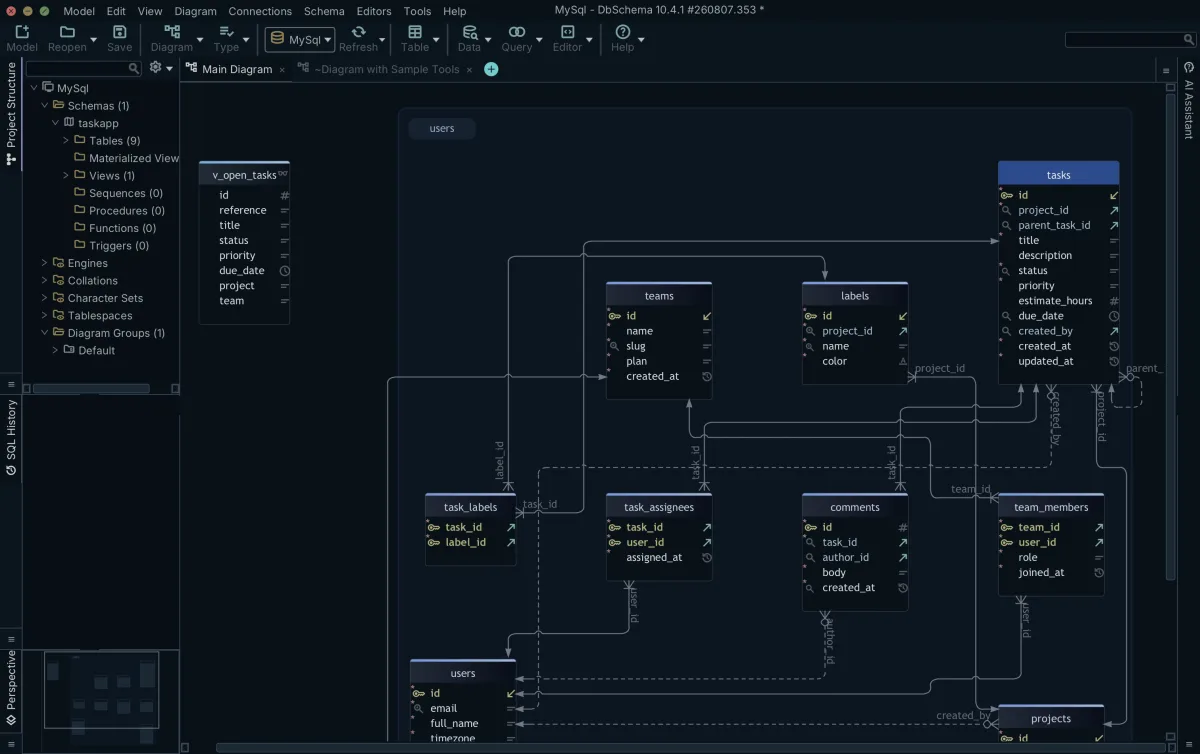
The CREATE TABLE statements become table entities. Column names, native data types, nullability and default values come across as written. Single-column and composite PRIMARY KEY constraints are recognized as primary keys. The references you declared in DBML arrive as FOREIGN KEY constraints naming the referenced columns, and UNIQUE declarations and multi-column indexes arrive as indexes.
The dividing line is DBML's own: the constructs in its core syntax, which include tables, columns, defaults, checks, indexes, relationships and enums, are the ones documented as mapping directly to SQL output[5]. Anything you wrote from that list is in the script DbSchema reads.
Because the constraints are explicit in the script, DbSchema has the relations before it has a layout: it draws the connector lines between the tables on the diagram from the foreign keys it just parsed, with nothing for you to redraw.
What breaks: layouts, colors and table groups
The DBML documentation draws the line for you. Its enrichment and visualization constructs, the ones "specific to diagram & wiki tools like dbdiagram.io & dbdocs.io", have no SQL equivalent and exist only to annotate the picture[4]. Everything in that group stays behind when you export.
That covers more than the layout. Table and column notes fall in it, so the descriptions you wrote in DBML do not arrive as SQL comments. So do headercolor on a table, color on a relationship, a table group or a sticky note, the TableGroup blocks themselves, the sticky notes, and the DiagramView definitions. Canvas coordinates were never in the language, and the sharing links, permissions and version history stay in the dbdiagram.io workspace.
None of that stops the import. DbSchema arranges the parsed tables automatically, so you open a readable diagram and then move it to suit the schema rather than starting from a pile.
Importing the SQL DDL script into DbSchema
The import runs entirely against the file. No connection is needed, and nothing is executed: DbSchema reads the script as text and builds the model from it.
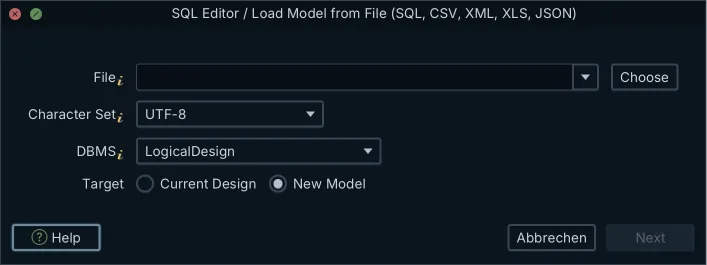
Two documented routes import the script. On the Welcome Screen, choose Open SQL File to open the script in the SQL Editor and have DbSchema parse it into a diagram. Or, from an open model, use Model → Import from External Format and leave Source on Files, then pick the .sql file. A file holding SQL DDL takes the direct route in both cases: DbSchema parses its CREATE TABLE statements straight into the model, with no column mapping step.
What you get is a .dbs design model file: readable XML you can commit to your Git repository next to the application code. From here you can add tables, define indexes and draw virtual relations in offline design mode, and every one of those edits writes to the model file alone. No database is touched until the synchronization step below. Saving the model to a file is a Pro feature.
Several diagrams inside one model file
A schema of any size is hard to read on one canvas, which is what the lost TableGroups were compensating for. DbSchema replaces them with several diagrams inside the same model file, each holding the tables of one subject area, each with its own layout and visibility settings while the schema definition stays shared.
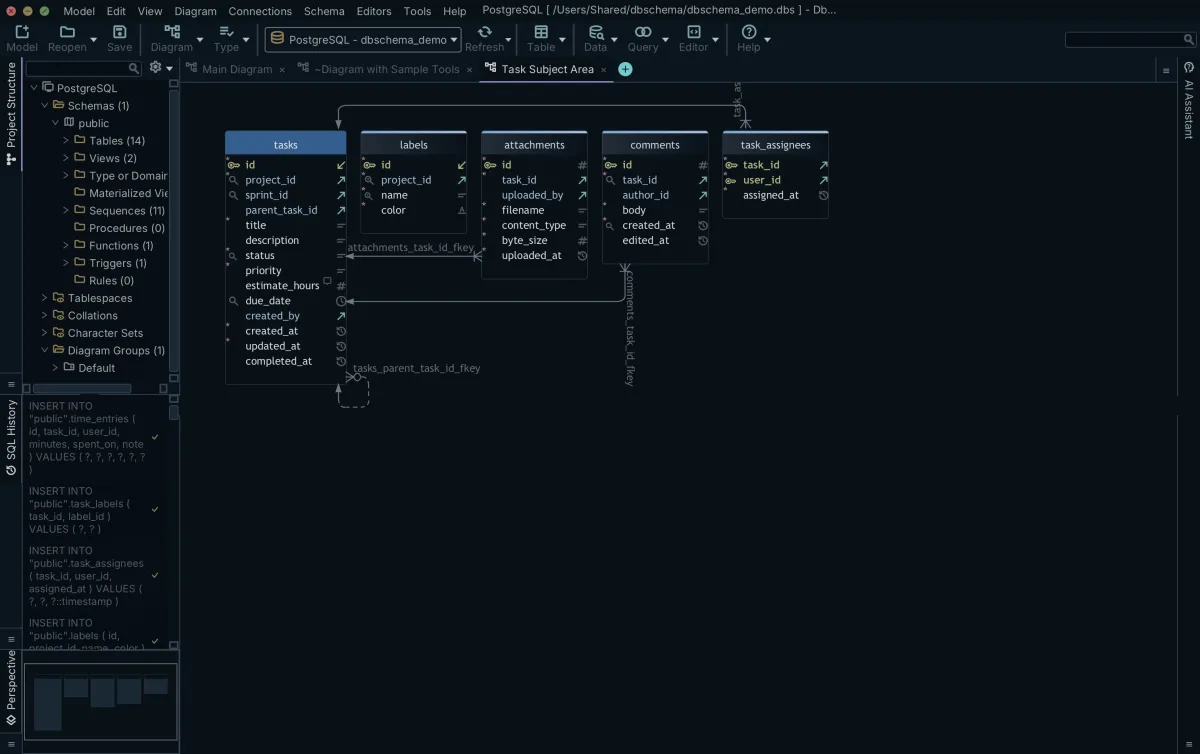
Add a diagram from the Diagram menu, or by clicking the + tab at the top of the diagram area, then drag the tables you want onto it from the schema tree on the left. A table can appear on several diagrams; it is one object in the model, drawn in more than one place. Colors go back on the same way, table by table, which is how the headercolor grouping comes back after the export dropped it.
All of it, the diagrams, the table positions and the colors, is stored in the single .dbs file, so reopening the project restores the arrangement exactly. That is also what makes the layout reviewable: it is in the file your colleague pulls from Git.
Synchronizing the schema with a live database
The synchronization step is the one that changes a database. Everything before it changed only the model file.
Create the connection first. Pick the engine and DbSchema downloads the JDBC driver it needs; where downloads are blocked, the Driver Manager at Connections → Manage JDBC Drivers takes a .jar you supply[6].
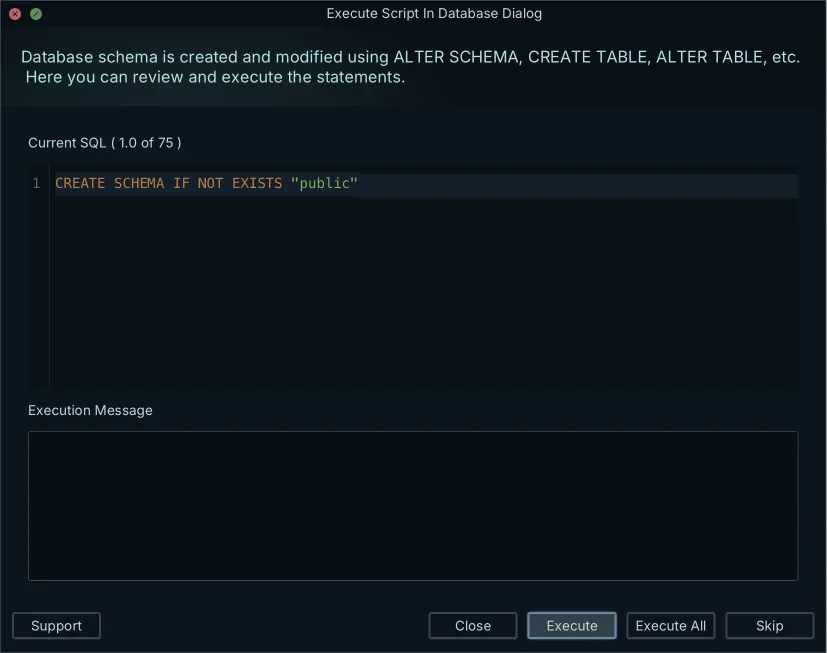
For a database that does not have these tables yet, Schema → Create or Upgrade Schema in Database generates the DDL for the objects in your model and runs it after you review it. For a database that already has a version of the schema, open Schema → Compare Model with Database. DbSchema lists the added, removed and modified tables, columns, indexes and foreign keys, and you decide per difference whether to update the model, push the change to the database, or skip it. Schema → Synchronize Model with Database then writes the SQL for what you accepted, and you can edit those statements in the dialog before clicking Execute. Schema synchronization is a Pro feature. The full schema migration picture covers what happens after that script runs.
Download DbSchema at https://dbschema.com/download.html, open the .sql file you exported from dbdiagram.io, and let DbSchema parse it into a diagram. Parsing the script, the interactive diagrams and the SQL editor are in the free Community Edition; saving the design to a .dbs file, schema synchronization and the interactive HTML5 documentation are Pro.
Frequently asked questions
How do I export a schema from dbdiagram.io?
Click Export at the top of the editor and choose the dialect of the database you intend to deploy to. The export section above lists the four dialects DbSchema will read back, with the matching dbml2sql flags.
Can I import DBML into DbSchema?
DbSchema parses SQL DDL rather than DBML, so export the dbdiagram.io project to a .sql file first. In Model → Import from External Format, the Target setting decides where the parsed tables land: New Model builds a fresh model in the DBMS syntax you choose, and Current Design measures them against the model you already have. The second route opens the synchronization dialog, so a re-export after a DBML change arrives as a list of differences rather than as a second model.
Will dbdiagram.io table colors export to SQL?
headercolor sits in DBML's enrichment and visualization group, which the DBML documentation says has no SQL equivalent. DbSchema gives the grouping back on the diagram itself: right-click the canvas, choose New Group, and drag the related tables into it. The group is named and colored, moves as a unit, and is stored in the .dbs file with the rest of the layout.
How do I connect my exported schema to a live database?
Create the connection for the target engine, then take the create or the compare route described in the synchronization section above. On the Settings tab of the Connection Dialog, Highlight colors a connection as Production, Development or Test, so you can see which database the Sync Dialog is pointed at. Read Only Connection on the same tab makes the database refuse every change sent through that connection[6].
Does the SQL export keep foreign key relationships?
The declared references arrive as FOREIGN KEY constraints and DbSchema draws the connector lines from them. A relation the script leaves unconstrained you draw yourself: drag a column onto the column it points at and choose a virtual foreign key, which DbSchema stores in the .dbs file and never creates in the database. The Query Builder and the Relational Data Editor, both Pro, join over a virtual key the way they join over a real one.
Sources
Open your dbdiagram.io export against a real database
DbSchema parses your SQL DDL export into a visual model you can edit offline and synchronize against a live database. The free Community Edition covers ER diagrams, SQL editing and schema reverse-engineering.









