Running the Same Query Against Several Engines
Learn how to run the same query against multiple databases from a single editor, exploring data without opening a second tab.
On this page
Why backend developers query multiple engines
Your application splits its data across relational stores for transactional consistency and document stores for flexible attributes. Testing queries across these databases requires opening separate client tools, switching connections, and translating SQL dialects manually. DbSchema removes that overhead: you connect through JDBC drivers in one window, test SQL statements, and inspect returned records directly.
Backend services frequently combine relational databases with document stores and data warehouses:
- PostgreSQL for transactional order processing and customer accounts
- MongoDB for dynamic product catalogs and semi-structured documents
- Snowflake or BigQuery for analytical aggregation and reporting
- Redis for session state and in-memory caching
Switching between separate client applications for each system slows down debugging and breaks your context. DbSchema registers all of these engines in one environment, so you execute statements and inspect results across systems without opening new windows.
What a multi-model database is
A multi-model database is a single database engine designed to store, index, and query data across several data models, such as relational tables, JSON documents, graph structures, and key-value pairs, within one unified backend. Polyglot persistence is the opposite arrangement: the term, popularised by Martin Fowler in 2011 and credited by him to Scott Leberknight, describes using several different data storage technologies inside one application, each chosen for the workload it fits best[1].
When your team uses a multi-model database such as Azure Cosmos DB or OrientDB, a single engine handles document collections alongside graph relationships. When your team uses a multi-engine architecture, separate database instances handle each workload independently. Both setups require an editor that can interpret distinct schemas, handle different driver protocols, and display structured results clearly.
| Architecture | Engines Deployed | Data Model Storage | Driver Protocol |
|---|---|---|---|
| Multi-model database | Single engine | Unified engine across tables, documents, or graphs | Single driver or API set |
| Multi-engine architecture | Multiple distinct engines | Separate storage per specialized database | Dedicated JDBC driver per engine |
DbSchema handles both architectures: you either keep a saved connection per engine and switch the active one, or connect to a multi-model endpoint through its own JDBC driver.
Connecting to several environments in one window
Connections are made with standard JDBC drivers, and the driver is downloaded automatically when you choose a database engine from the connection dialog. DbSchema saves every connection you create, so PostgreSQL, MySQL, Oracle, and MongoDB connections all sit in one list, and you pick which one is active from the Connections menu or the toolbar's database picker without opening a separate application window.
Tools like SQL Server Management Studio support multiserver queries: you group registered servers under a local server group or a Central Management Server, then run one Transact-SQL statement against every server in the group and merge the results into a single grid[2]. That mechanism assumes every target speaks the same dialect, and DbSchema covers the case where the PostgreSQL, MySQL, and MongoDB connections you switch between speak different dialects.
- Open the Connection dialog and select your database engine.
- Enter the host, port, database name, and authentication credentials.
- Click Connect to reverse-engineer the schema into your local model.
- Open Connections > Add Connection to register a second engine.
Once registered, a connection is stored and reappears in the Connections manager and the engine picker in later sessions, so selecting it as the active database re-points the SQL editor at that engine.
Saving the query builder and editor state with the model
Query editor tabs and visual query builder layouts are saved directly inside the local XML design model file in DbSchema Pro Edition. When you close an editor, DbSchema asks whether to keep it in the design model, so the SQL scripts and query builder canvases you kept reopen from the Editors menu, and they travel with the model file when you commit it to Git.
Storing queries in the model file keeps your investigative queries and validation routines attached to the project repository.
- Open SQL Editor tabs and the SQL scripts they hold
- Visual Query Builder join graphs and selected projection columns
- Virtual foreign key relationships defined across tables
Because the query state is part of the model file, switching your active connection from staging to development does not discard your constructed queries.
Browsing results across an unlimited number of related tables
Executing a query across multiple tables often requires checking dependent records to verify whether child rows exist or why a join produced empty sets. The Relational Data Editor lets you browse data across related tables simultaneously, cascading from one parent table to its child records across an unlimited number of levels.
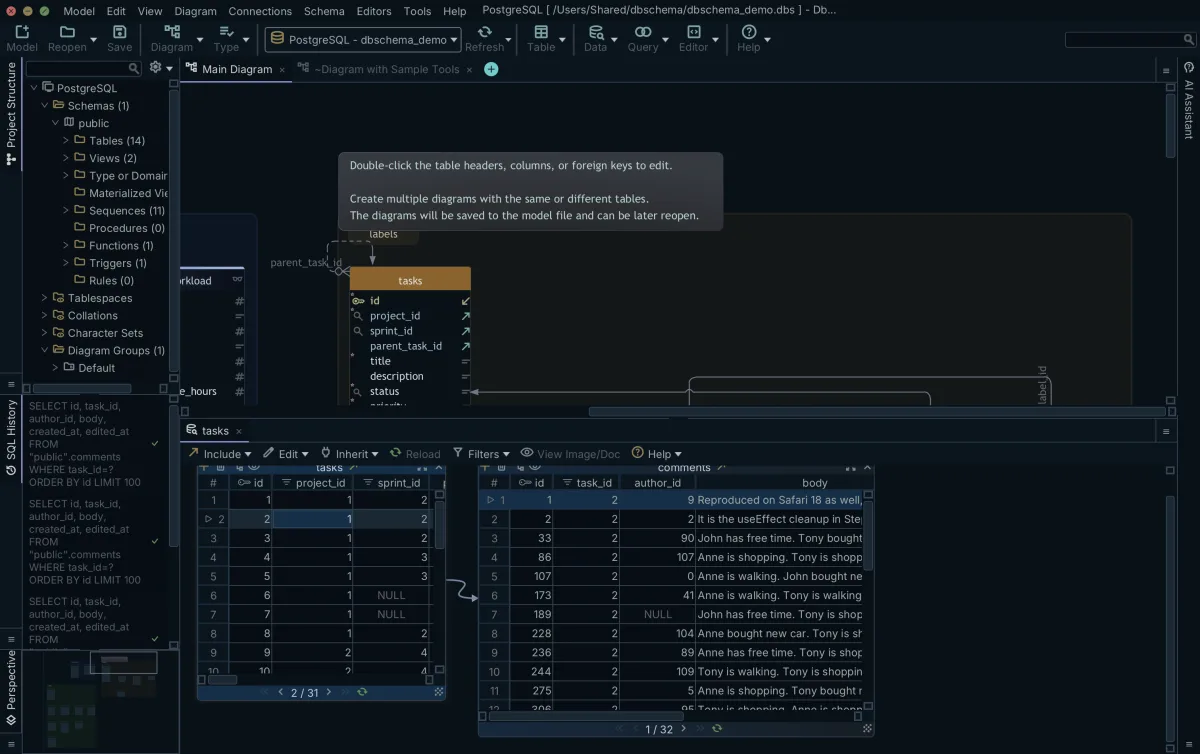
When you select a row in a parent table, child panes automatically filter to show matching records. If your schema lacks physical foreign key constraints, you can create virtual foreign keys by dragging a column from one table onto another in the diagram, saving the relation in the model file without modifying the live database.
You can insert, edit, and delete rows directly in the Relational Data Editor; the changes are pending until you press Commit, and Rollback discards them.
What DbSchema does not let you do to production
Running queries against a production database requires strict safeguards against accidental writes and unintended data exposure. The separation between model editing and live execution is a mode you choose, not a default. Connected in online mode, schema changes you make to tables, foreign keys, or comments are executed against the live database straight away and logged in the SQL History pane. Switch the connection to offline (disconnected) and the same edits accumulate in the local model file instead, to be reviewed and selectively applied when you reconnect.
Tick Read Only Connection on the Settings tab of the connection dialog, and DbSchema blocks every schema and data modification made through that connection, which is the setting to use on production.
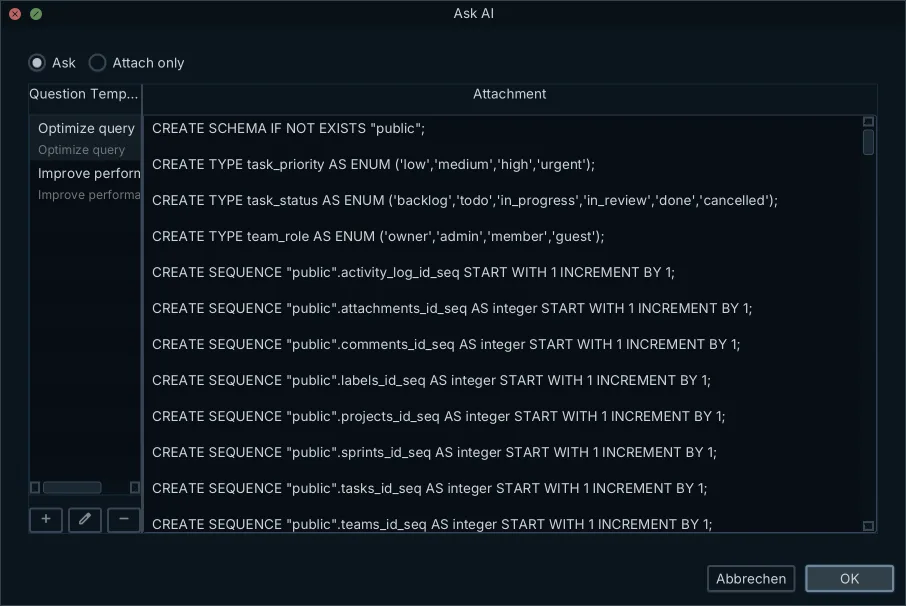
When using the integrated AI Assistant, the AI has no access to the actual data stored in your database tables. Only the DDL structure of the specific tables you explicitly choose to expose is sent, protecting sensitive table rows from external AI models.
- Offline (disconnected) mode keeps model edits in the XML file until you reconnect and apply them
- Read-only connection mode blocks write operations on production instances
- AI queries receive only explicitly selected table DDL, with zero data row transmission
- SSL and TLS parameters configure securely through standard JDBC driver properties
What to check after the query runs
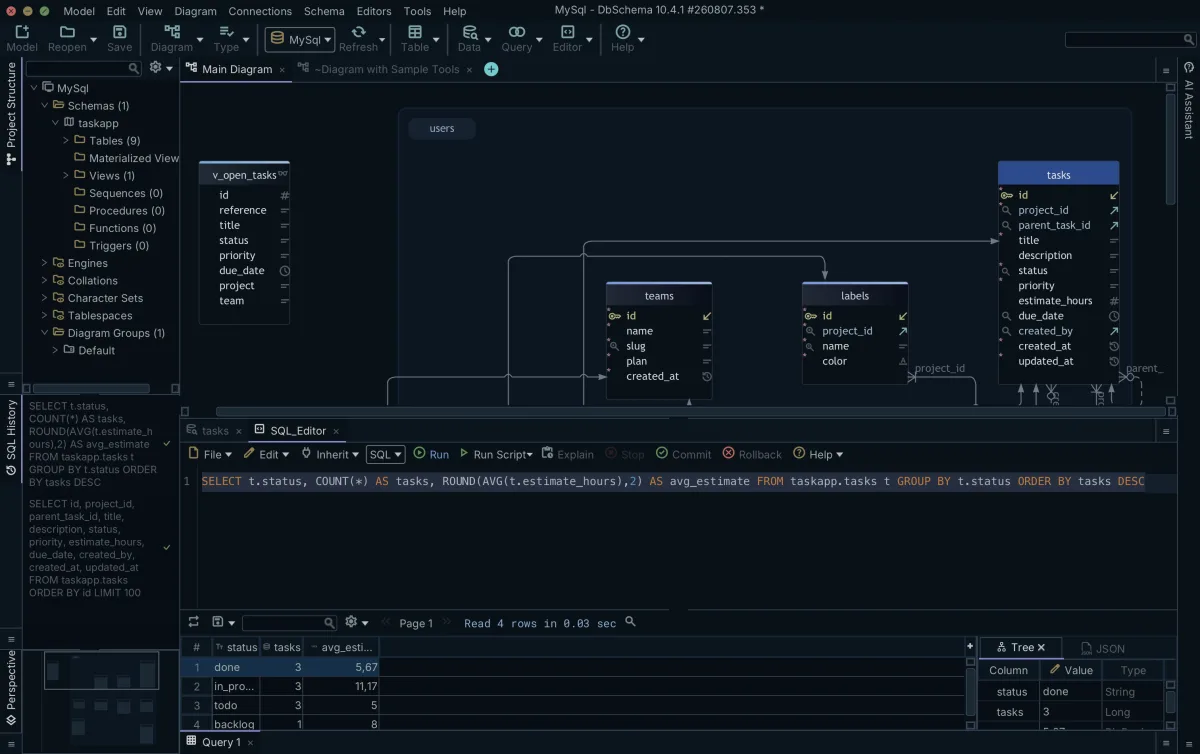
When you run the same query or equivalent logic against different engines, verifying the returned data requires checking more than just row counts. Different database engines handle date formats, numeric precision, and NULL sorting with subtle differences that affect application logic.
| Inspection Area | PostgreSQL | MySQL | MongoDB (via JDBC / SQL) |
|---|---|---|---|
| Timestamp with Time Zone | timestamptz preserves UTC offset | DATETIME stores no zone; TIMESTAMP converts to UTC | ISODate stores UTC representation |
| NULL sorting in ORDER BY | NULLS LAST by default on ASC | NULLS FIRST by default on ASC | Null values sort before non-nulls |
| Boolean evaluation | Strict boolean type (TRUE/FALSE) | TINYINT(1) numeric evaluation (1/0) | BSON boolean type |
Check the execution time and query plan across engines. A query that executes in 2 milliseconds on PostgreSQL using an index scan might perform a full collection scan on a document store if the corresponding index was not defined.
Examine numeric data types in the result grid. A decimal value returned from Oracle or PostgreSQL might be cast to a floating-point number in systems that do not enforce strict numeric precision, leading to rounding discrepancies in downstream calculations.
The common failure and its fix
Dialect syntax variation is the most frequent cause of query failures when executing statements across multiple database engines. Standard ANSI SQL functions like string concatenation, pagination, and date arithmetic use conflicting syntax across PostgreSQL, MySQL, Oracle, and SQL Server.
Consider string concatenation across different engines:
-- PostgreSQL and SQLite string concatenation
SELECT customer_id, first_name || ' ' || last_name AS full_name FROM customers;

-- MySQL string concatenation equivalent
SELECT customer_id, CONCAT(first_name, ' ', last_name) AS full_name FROM customers;
Running the double-pipe concatenation operator in default MySQL installations fails or evaluates to logical OR unless the PIPES_AS_CONCAT SQL mode is active. Building the statement in the DbSchema visual query builder avoids most dialect conflicts, because the generated SQL follows the syntax of whichever engine the tab is connected to.
Download DbSchema at DbSchema download to connect to your databases, reverse-engineer your schemas, and run queries across multiple engines from a single workspace. Schema synchronization, visual query building, and relational data exploration are included in DbSchema Pro Edition.
Frequently asked questions
Can I run a query on multiple databases at once?
You can connect to several engines in one editor and run the same query against them sequentially. SQL Server Management Studio allows simultaneous execution against a group of registered SQL Server instances, and DbSchema keeps one connection per engine so you can verify syntax across different engines like PostgreSQL and MySQL.
How does a multi-database editor handle different SQL dialects?
When running the same query against several engines, syntax differences often cause failures. The DbSchema visual query builder, a Pro feature, abstracts these differences, generating the correct SQL dialect for the engine you are currently connected to.
Are my queries saved when I switch database engines?
In DbSchema, the SQL editors and query builders you keep are saved with the design model file. You do not lose them when closing the application or switching to a different database connection.
How do I explore results across multiple tables?
After running a query, the DbSchema Relational Data Editor, a Pro feature, lets you browse rows across an unlimited number of related tables in a single view. You can follow foreign-key links, filtering and sorting inline, even if the database does not enforce those relationships.
Is it safe to connect a multi-database editor to production?
Yes, provided you enforce safeguards. The DbSchema AI Assistant cannot read table data and sees only the DDL you explicitly expose. You can also tick Read Only Connection on the connection's Settings tab, so the database refuses every change made through it.
Sources
Query several engines from one window
DbSchema connects over JDBC and reverse-engineers your schema into a design model file you can keep in Git. The free Community Edition covers connecting and diagramming; the visual query builder, relational data browsing and schema synchronization are Pro.









