Improve Azure Synapse Database Design and Management with DbSchema
For the analyst, developer or DBA working on an Azure Synapse dedicated SQL pool who needs the warehouse schema drawn, documented and kept in step with a design.
On this page
A dedicated SQL pool holds fact tables, dimensions and staging tables that join to each other all day, and it declares almost none of that. Microsoft's documentation is explicit: the "FOREIGN KEY constraint isn't supported in dedicated SQL pool", a PRIMARY KEY is accepted only as NONCLUSTERED NOT ENFORCED, and a UNIQUE constraint only as NOT ENFORCED. The relationships in a Synapse warehouse therefore live in the ETL code and in people's heads. DbSchema puts them on a diagram and keeps them in a file.
Which Synapse endpoint to connect to
A Synapse workspace publishes two endpoints and they lead to different things. The overview page in the Azure portal lists a Dedicated SQL endpoint and a Serverless SQL endpoint, both ending in .sql.azuresynapse.net; the dedicated one reaches a dedicated SQL pool, and the serverless one queries the lake. Take the host from the workspace, not from the pool.
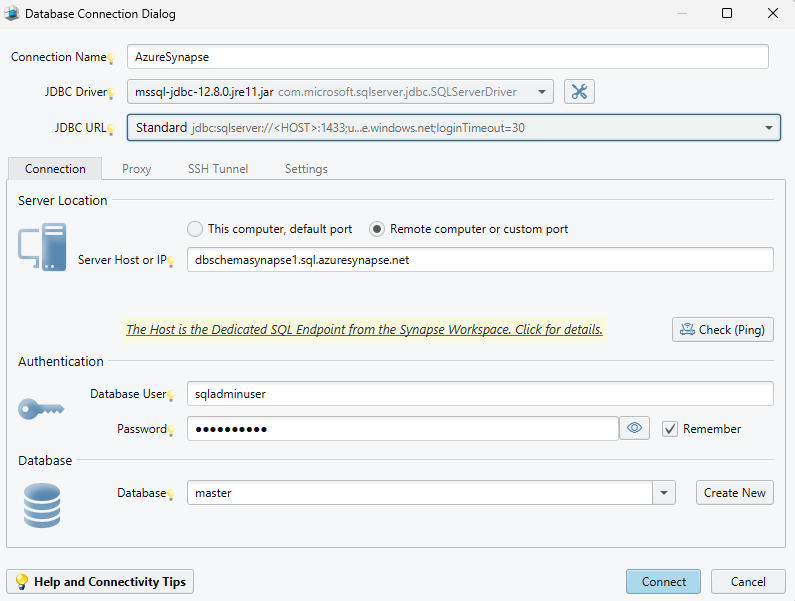
Choose Connect to Database, pick Azure Synapse, paste the endpoint as the host and enter the database, user and password; Synapse listens on port 1433. Two things account for most failed first attempts: the workspace needs an IP firewall rule covering your address, and outbound 1433 is often blocked on a corporate network, which produces a timeout that looks exactly like the missing rule. To sign in with Microsoft Entra ID instead of a SQL login, pick one of the Active Directory entries in the Method list. Once the connection opens, DbSchema reverse-engineers the schema and draws it.
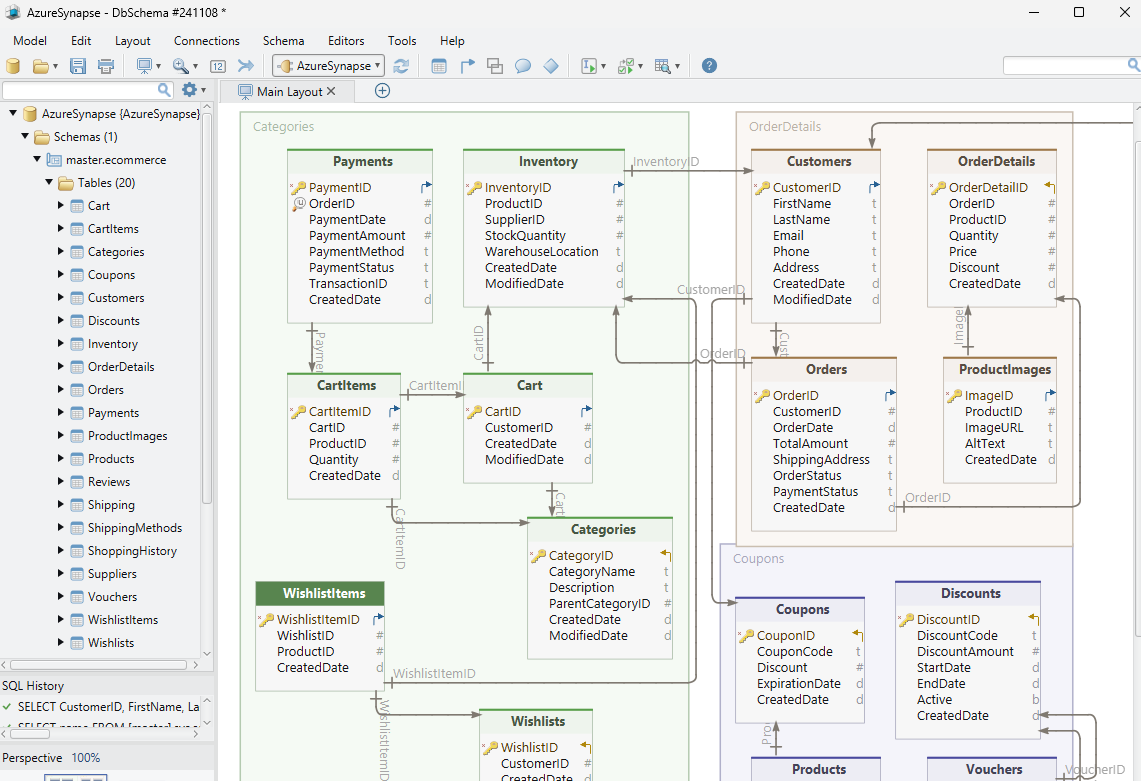
What the diagram of a dedicated SQL pool shows
Tables arrive with their columns, data types and whatever keys were declared, and the canvas is editable: double-click a table to change a column, and split a wide warehouse across several named diagrams so the star schema and the staging area stop competing for space.
What arrives without lines is the interesting part. Because Synapse declares no foreign keys, drag the referencing column onto the matching column in the other table and DbSchema records a virtual foreign key: a connector line saved in the design model file and never sent to the database. That is the only place the relationship gets written down, and it is worth writing down for a second reason. A declared key in a dedicated SQL pool is a hint for the optimizer rather than a guarantee. Microsoft warns that duplicate values in a column covered by a NOT ENFORCED primary key or unique constraint "may cause the query to return inaccurate result". A diagram that records which column is supposed to be unique is what a reviewer checks that assumption against.
Hand the schema to someone without a Synapse login
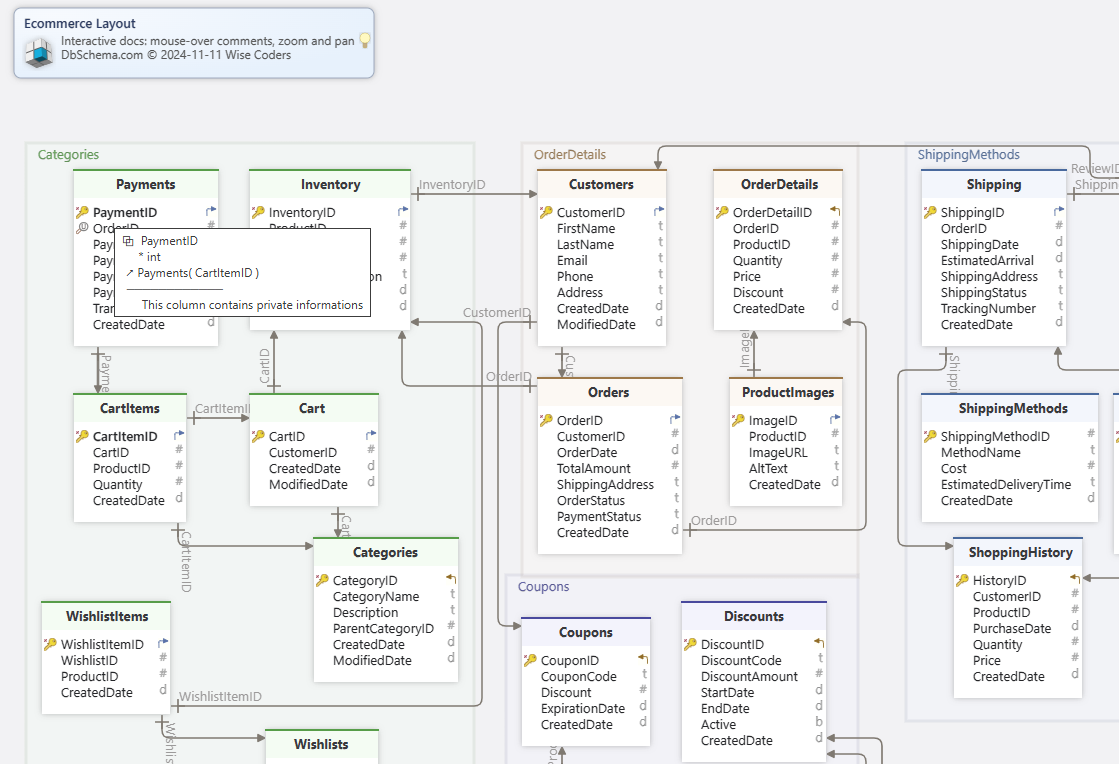
Diagram → Export HTML5 or PDF Documentation writes the model out as HTML5, PDF or Markdown. The HTML5 output is a single page that opens in any browser with no server behind it: a vector diagram, a searchable list of tables, and the full column details, with the description you typed against a table or column shown as a mouse-over tooltip.
For a warehouse this is usually the artifact people actually read. An analyst who will never be given a pool login gets the column list, the data types and the note explaining what a dimension means, and the virtual relations are drawn on the diagram alongside the declared keys. Documentation export is a Pro Edition feature.
The model file in Git
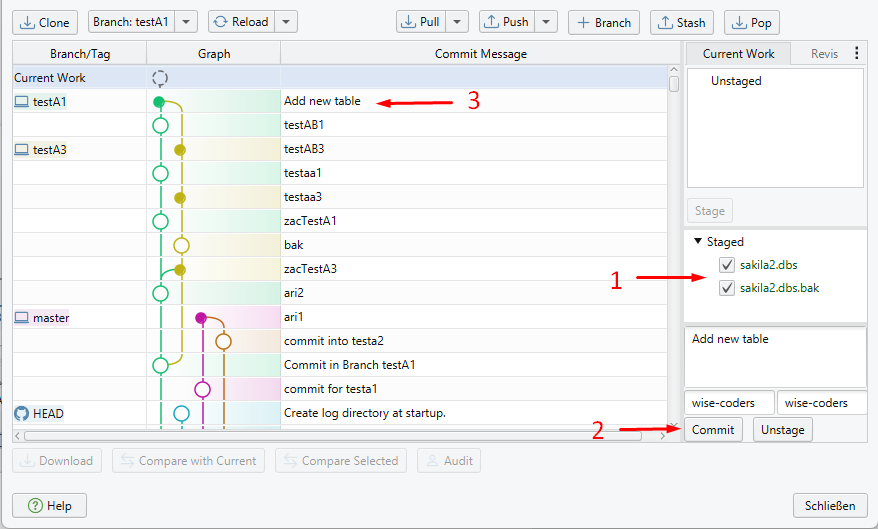
DbSchema saves the design as a .dbs file in XML, so it diffs and merges like source code. Choose Git — Collaborative Design from the Model menu to open the Git dialog, clone a repository into an empty folder, and Stage, Commit and Push publish your changes; a colleague pulls the file and opens the same diagram.
Warehouse schemas change in bursts, and a history of those bursts is worth having: which release added the column, which branch tried the wider dimension, what the model looked like before the reload. None of it touches Azure until you synchronize. The saved model file the workflow versions is a Pro Edition feature.
Build the query or write the T-SQL
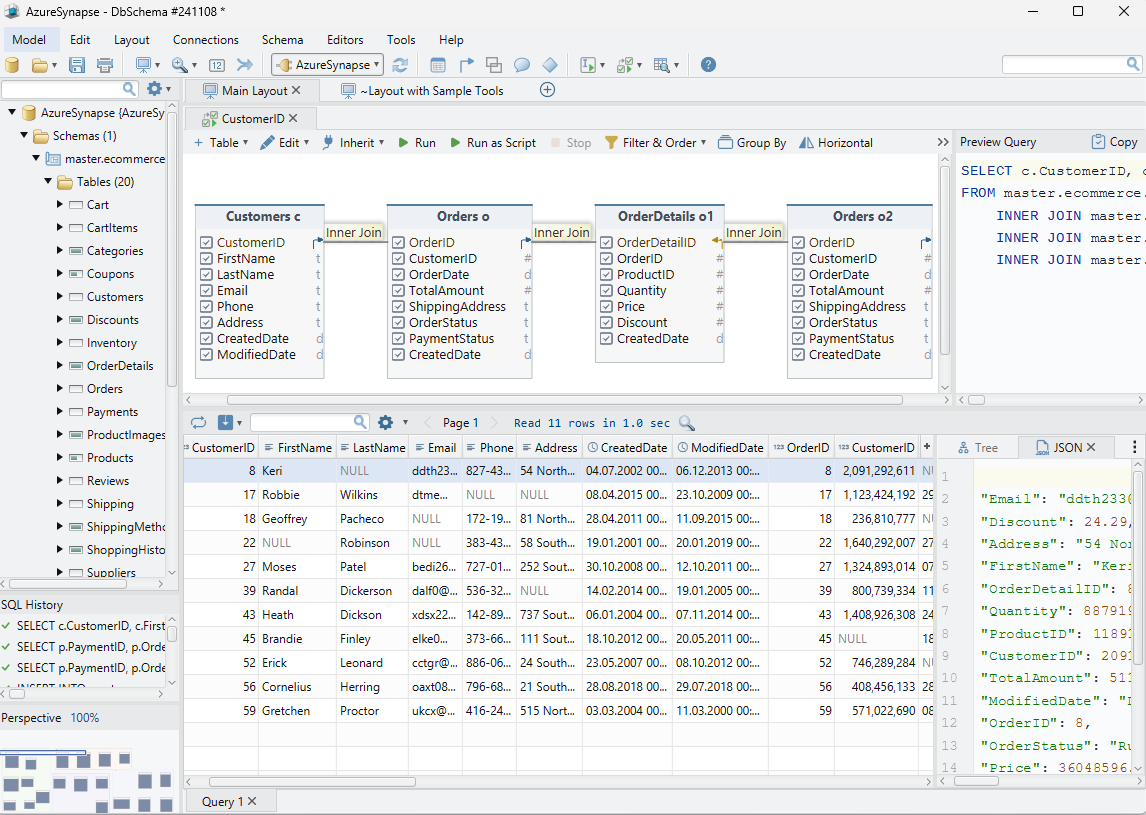
Click a table header in the diagram and the Query Builder opens with that table loaded. Tick the columns you want in the result, follow a virtual foreign key to pull in the dimension with its join already written, and click the join label to switch between INNER JOIN, LEFT JOIN and EXISTS. Right-click a column for a WHERE condition, or turn on Group By to add SUM, AVG or COUNT. The generated SQL updates live at the bottom of the builder.
The SQL editor is the other route, with autocomplete over the schema and the rows coming back in the result pane. The SQL editor is in the free Community Edition; the Query Builder is Pro.
Keep the model and the pool in step
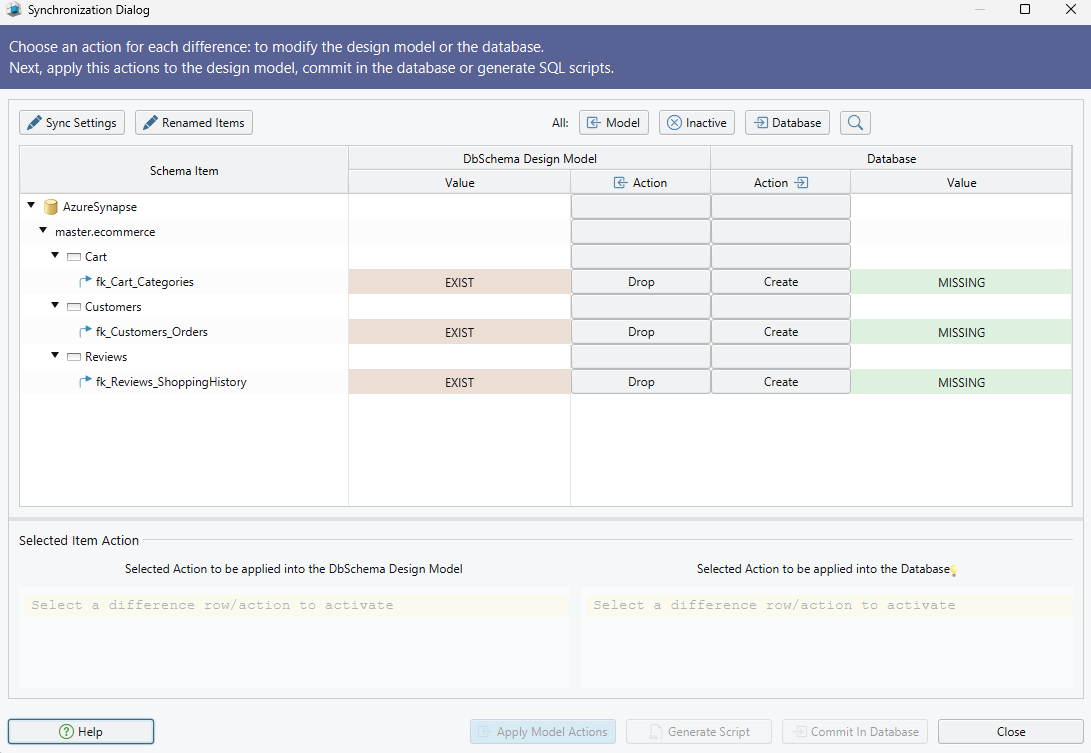
Schema → Compare Model with Database lists every difference between the design model and the Synapse database, object by object: a table one side has and the other does not, a column whose type changed, an index that was dropped. Each difference is decided on its own, and you can update the model, push the change to Synapse, or skip it.
Schema → Synchronize Model with Database then opens the Sync Dialog, which generates the statements for exactly what you approved. Read them, edit them, and click Execute when you want them to run. Save the model first, so a run that goes wrong has a file to restore from. DbSchema can also open two model files at once and synchronize between them, which compares a development pool against production without connecting to both at the same time. Schema synchronization is a Pro Edition feature.
Read related rows, and fill a table for a test
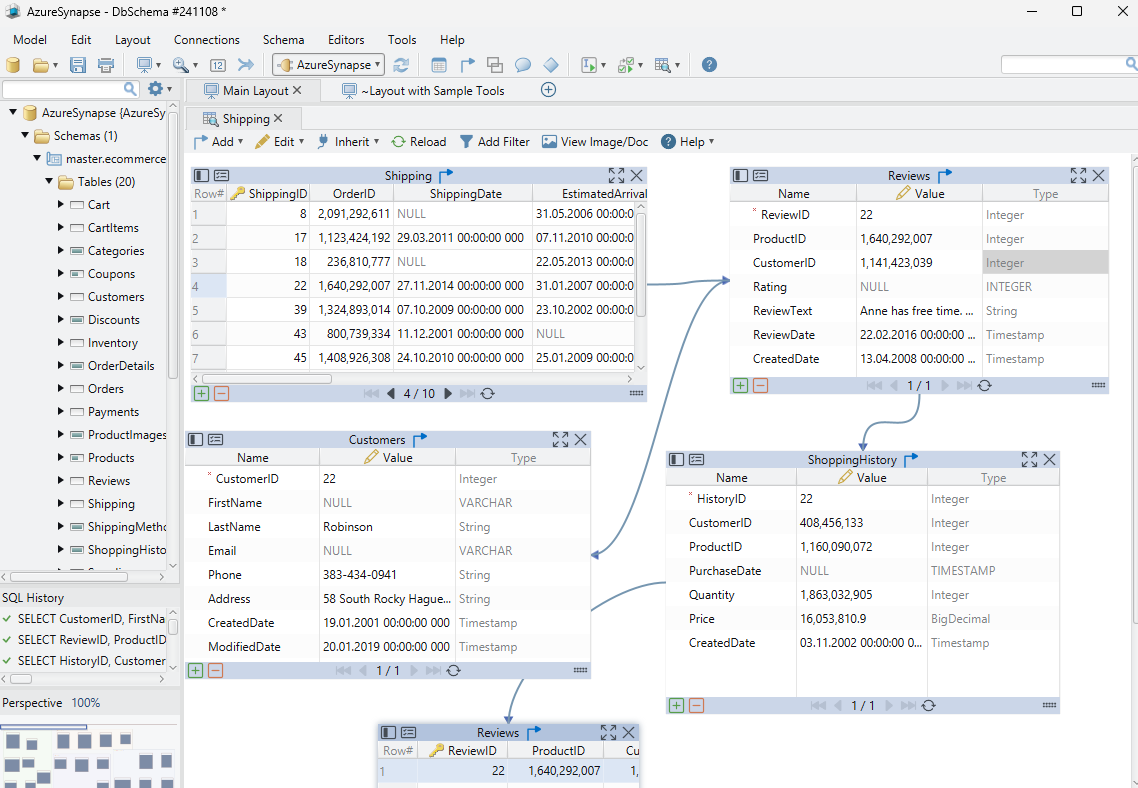
Right-click a table header and choose Open in Relational Data Editor. The table opens as a grid, and the foreign key button on its header panel adds a second pane for a related table; click a row in the parent pane and the child pane refilters to the rows that match. On Synapse this runs on the virtual relations you drew, because there are no declared ones, which turns a fact-to-dimension lookup into two clicks instead of a join you type out.
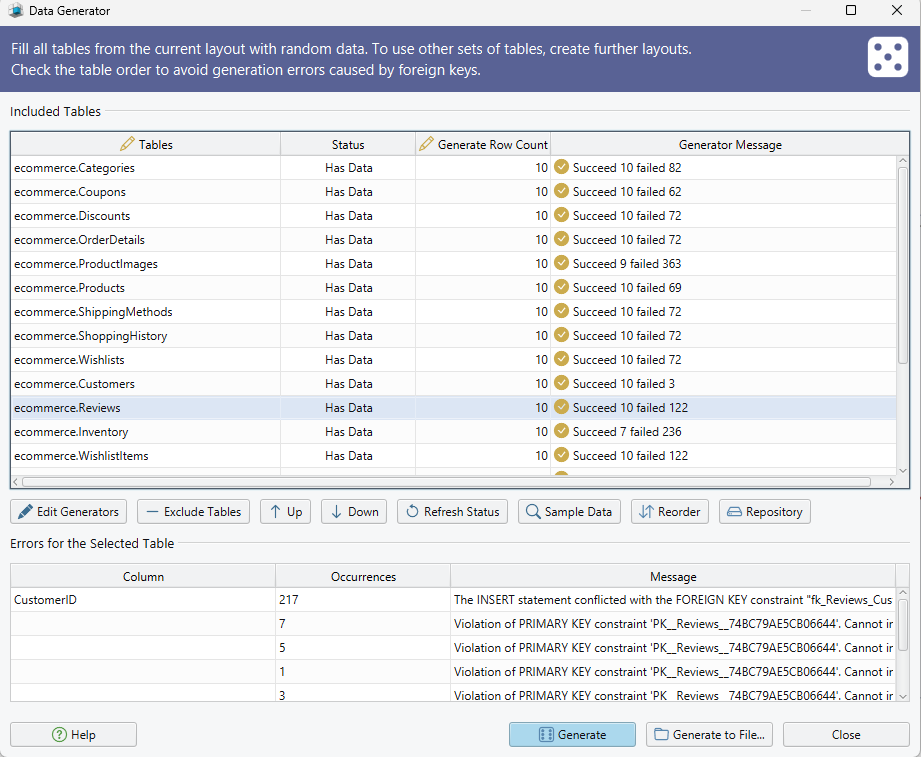
For test rows, open the Data Generator from Data Tools → Generate Random Data, set a row count per table and give each column a pattern: a date range, a name, a numeric range, a reverse regular expression, or a Groovy script where none of them fit. Fill a referenced table before the table that points at it, and give the referencing column the load_values_from_pk pattern so its values come from keys that already exist. Both tools write to the Synapse database rather than to the model file, so aim them at a development pool. Relational data browse and the Data Generator are Pro Edition features.
Download DbSchema at https://dbschema.com/download.html, connect with your Dedicated SQL endpoint and draw the relationships the pool cannot declare. Connecting, reverse-engineering, the interactive diagrams and the SQL editor are in the free Community Edition. The saved model file, HTML5 documentation, the Query Builder, schema synchronization, relational data browse and the Data Generator are in the Pro Edition.









