AI Assistants in Database Tools: What They Do and What They Cost
What an AI assistant in a database tool is shown of your schema, how each vendor bills for it, and what a seat with AI costs over three years.
On this page
An AI assistant in a database tool turns a question into SQL, the language databases are queried in. It also explains queries and reviews table designs. It only knows what the tool sends it.
DbSchema sends only the structure of the tables you pick. Every change the AI suggests goes into DbSchema's design copy of your database first, so you can review it.
Every DbSchema download starts with a 15-day trial of all features, with no registration. After that, the Community Edition stays free forever, for any use.
The AI Assistant is a paid add-on for 9 USD a month, and it works in every edition. It has its own free trial.
Short answer
AI assistants in database tools do four jobs:
- Write SQL from a question in plain words.
- Explain or fix a query.
- Review a table design, for example for repeated data.
- Draft new tables as SQL that creates them.
They differ in how the AI is paid. DbSchema sells it as an add-on, or lets DbSchema Pro (294 USD once) use your own AI account.
DataGrip and dbForge sell yearly AI plans. DBeaver's paid editions use your own AI account.
- The AI answers only from what the tool sends it, so check what that is.
- DbSchema bills the AI as a 9 USD a month add-on in any edition, or uses your own AI account in DbSchema Pro.
- DbSchema Pro keeps the AI's changes in a file your team reviews before they reach the database.
Worried that an AI-written change slips into production unchecked? DbSchema puts every suggestion into a model first, so you review it before it runs.
What DbSchema adds to AI-assisted database work
A model, in DbSchema, is a design copy of your database: tables, columns, keys and diagrams in one file. A SQL client, a tool that runs queries, shows you the live database. DbSchema gives you the model as well, and the AI Assistant works on it:
- Answers that use your real table names. You select tables on the diagram and choose Attach to AI. DbSchema sends their
CREATE TABLEstatements with your question (AI Assistant, add-on in any edition). - Your data stays on your computer. Table rows, query results, passwords and connection details are never sent. The Run button runs a query in your database, and the result stays there.
- No account at an AI company. You pay DbSchema for the add-on, and DbSchema pays the AI company. The AI trial, separate from the 15-day trial, gives two weeks and up to 100 questions, with no credit card.
- Your own AI key, or a model on your machine. DbSchema Pro and Architect can use your own AI provider, such as OpenAI, Claude or Gemini. With Ollama, a program that runs the model locally, nothing leaves your computer.
- Changes you review before they run. Merge adds an AI suggestion to the model, not to the database. DbSchema Pro saves the model in a file your team reviews in Git. Then schema synchronization brings the reviewed change to the database.
The steps are under Use the AI Assistant in DbSchema.
An assistant answers only from what it is shown
An AI model, such as ChatGPT or Claude, knows nothing about your database. It sees only the text the tool sends with your question. That text is called the context.
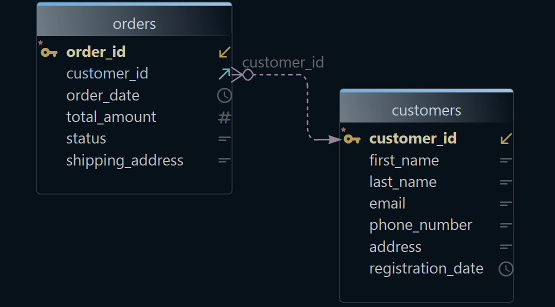
Good context is the structure of your tables. The structure is written as DDL, short for data definition language: the CREATE TABLE statements that list each table's columns and keys. With the DDL, the AI writes customers.email instead of guessing a column name.
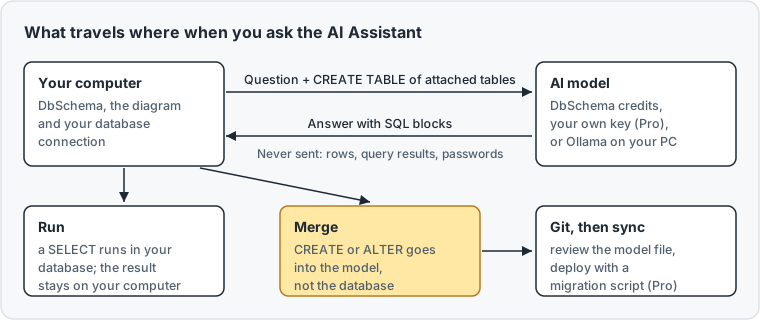
In DbSchema, the context holds four things:
- Your question.
- The earlier questions and answers of the conversation.
- The DDL of the tables you attached.
- The system message, the standing instructions sent with every question, such as the SQL dialect to answer in.
You can add your own rules to the system message, such as a naming convention, in Edit → Settings → AI Assistant.
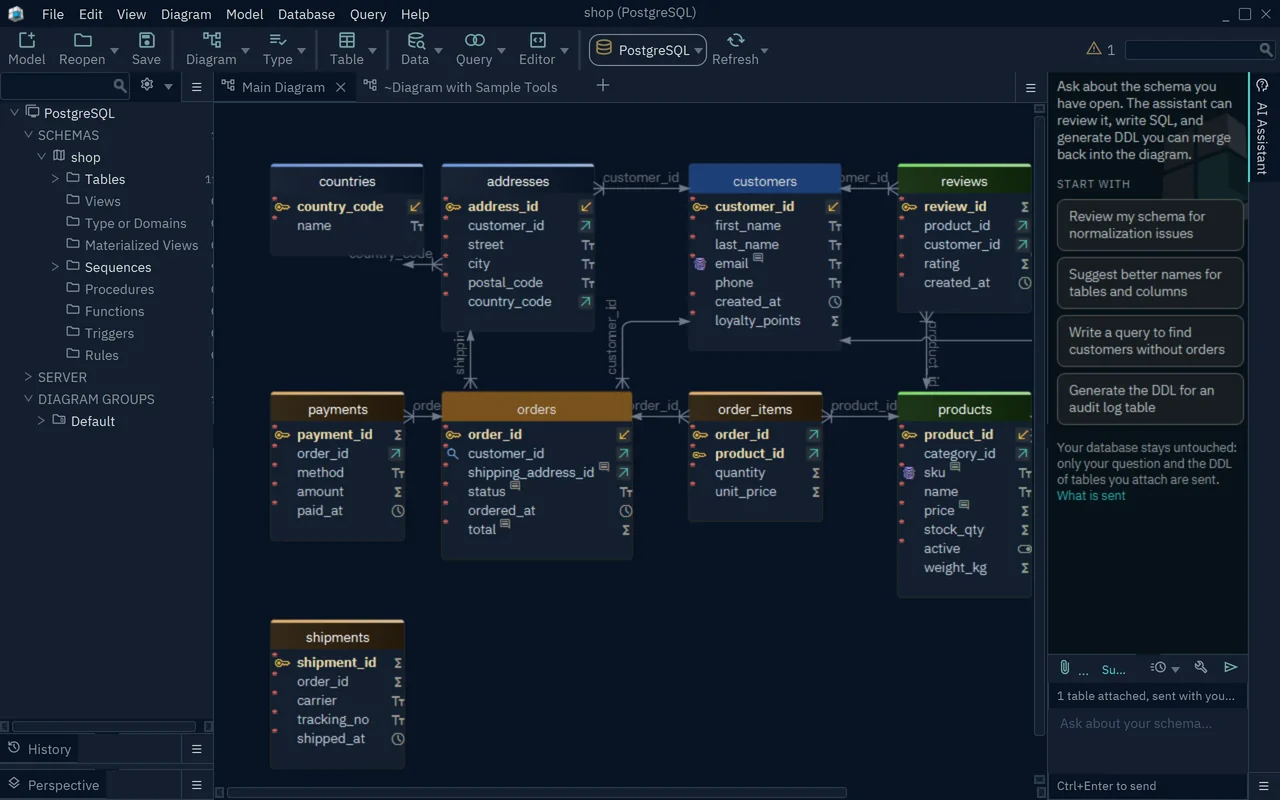
- 1Suggested first questions
- 2Attached tables, sent with the next question
Each SQL block in the answer has buttons. Run runs a SELECT in your database.
Merge adds a CREATE or ALTER statement to the model. Preview shows a new table on a diagram before you merge it. Text-to-SQL tools and when to trust them lists the checks a generated query should pass.
How each tool bills for the AI
AI use costs money, so every vendor passes it on. Some sell credits, a prepaid amount of AI questions. Others let you bring a provider key: an API key, a password-like code from OpenAI or another AI company, which then bills you directly.
Vendor pages checked on 15 November 2026, prices without tax:
| Tool | How the paid AI is billed | Tool licence | 3 years, one seat with paid AI |
|---|---|---|---|
| DbSchema | Add-on, 9 USD a month, any edition; or own key with Pro | Community free; Pro 294 USD once | 324 USD (Community + add-on); 444 USD + provider (Pro, own key) |
| DataGrip | AI Pro, 100 EUR per user per year | Commercial, individual: 109 EUR, then 87 EUR, then 65 EUR a year | 561 EUR |
| dbForge | AI Assistant Professional, 99.95 USD a year | Sold separately for each dbForge product | 299.85 USD, plus the dbForge licence |
| DBeaver | Your own provider account | Lite 113 USD a year | 339 USD, plus your provider's bill |
The DbSchema AI Assistant add-on buys credits for ChatGPT, Claude and DeepSeek models. It works with Community, Pro and Architect alike. So the free Community Edition plus the add-on is the whole bill: 36 months at 9 USD, or 324 USD over three years.
JetBrains AI Pro[1] is the 100 EUR plan in the table. It adds 10 AI credits every 30 days to a DataGrip licence[2]. At JetBrains, one credit equals 1 USD of AI use.
The dbForge AI Assistant[3] needs dbForge 2025.1 or later. DBeaver's editions page[4] lists AI features in its paid editions, from Lite up.
A perpetual licence is one you buy once and keep. DbSchema Pro is one: 294 USD once, plus 75 USD a year for updates from year two, so 444 USD over three years. With your own key, you add only what your AI provider charges.
Keep AI changes in a model you review
An AI suggestion can be wrong in quiet ways.
It may drop a constraint, a rule such as "every order needs a customer". Or it may pick the wrong data type. So the question is where a suggested change lands first.
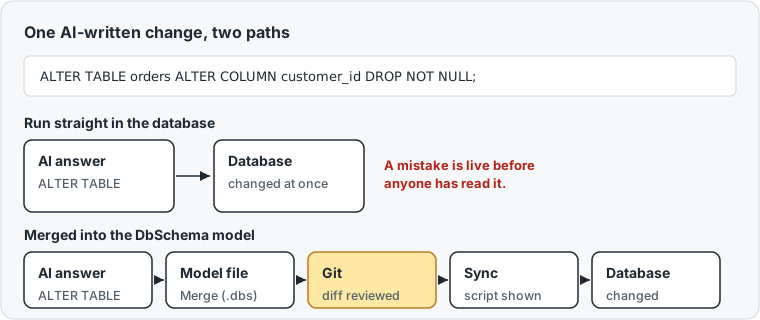
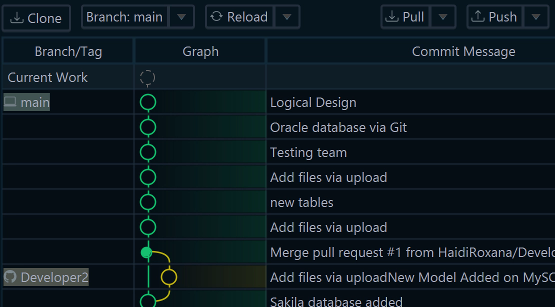
In DbSchema, Merge puts the change into the model. DbSchema Pro saves the model as a .dbs file, its own file format. You commit that file to Git, the version control system that records who changed what.
A colleague reviews the diff, the list of changed lines, as with any code change.
Then schema synchronization brings the change to the database. Schema synchronization compares the model with the live database and lists every difference.
For the ones you pick, DbSchema writes a migration script, the SQL that changes the database, and shows it before it runs. The same reviewed change can move from development to test to production.
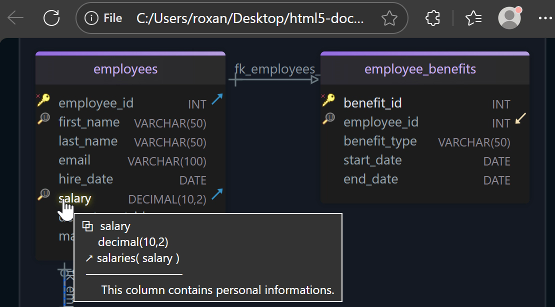
Documentation is a separate job. DbSchema Pro generates HTML5, PDF and Markdown documentation from the model itself. It describes the schema as it is, not as an AI guessed it.
Does AI replace database design tools? explains why the review step matters more with AI-written changes.
Use the AI Assistant in DbSchema
The trial and the add-on work in every edition. Steps 5 and 6 need DbSchema Pro, or the 15-day trial.
-
Open the AI Assistant
Click the vertical AI Assistant tab at the right edge of the DbSchema window.
-
Start the free trial
In Start your free AI trial, type your email and press Start Free Trial. Paste the activation code from the email. After the trial, Purchase Credits buys more questions.
-
Attach your tables
Select the tables on the diagram. Right-click one and choose Attach to AI. Check the Attachment in the Ask AI dialog and press OK.
-
Ask and use the answer
Type the question, such as "Write a query to find customers without orders", and press Send. Under each SQL block, press Run for a
SELECTor Merge for a change to the model. -
Review the change in Git Pro
Save the model with File → Save Model to File. Open File → Git Collaboration, type a Commit message, press Commit, then Push.
-
Deploy it Pro
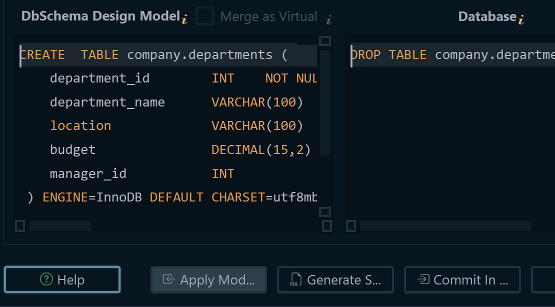
Connect to the database. In the dialog that opens, choose Compare, then decide difference by difference. Tick the tables and press Compare. Press Generate SQL script to see the migration script, or Commit in the database to run it.
To use your own key, press Settings in the side bar. In AI Settings, choose the company in Subscription by, paste the Api Key, choose the Model and press OK. This needs DbSchema Pro or Architect.
You can now ask the AI about your real tables and keep its changes in a model. The add-on covers the AI in any edition.
DbSchema Pro adds the model file for Git, schema synchronization, documentation and your own AI key, as a one-time licence on the purchase page. Download DbSchema, start the free AI trial and ask for the query you need.
Sources
AI help without a second tool licence
The AI Assistant is a 9 USD a month add-on that works in every DbSchema edition. DbSchema Pro keeps the model in a file you review in Git, adds documentation, schema sync and the AI Assistant with your own key, as a one-time licence. Try all features free for 15 days.