Design SQL Server Schemas Visually with DbSchema
For developers and database administrators who work on a SQL Server database nobody has drawn; each DbSchema feature below says which edition covers it.
On this page
You inherit a SQL Server database with a couple of hundred tables in it, and the only account of how they relate to each other is the application code that queries them. DbSchema connects to the instance over JDBC, reverse-engineers the schema, and lays the tables out as diagrams with the foreign keys drawn between them, which is the fastest way to see the shape of a database you did not design.
Why use DbSchema with SQL Server
Everything DbSchema does after the connection works on two things: the live database, and a design model DbSchema holds locally and can save as a .dbs file. Reading a table, running a query and generating a migration script touch the database. Diagram layouts, comments, virtual foreign keys, query builders and data-generator patterns live in the model. Knowing which of the two a given action changes is what makes the rest of this article, and DbSchema itself, predictable. There is a feature table at the end if you want the short version first.
The connection, and what DbSchema reads from it
SQL Server accepts two authentication methods: Windows Authentication and SQL Server Authentication. Choose Connect to Database, pick SQL Server from the list, and DbSchema opens the Connection Dialog pre-configured for it. The Connection tab takes the Server Host and Port, or a local default, plus the Database User and Password; Test Connection checks that the server answers before you commit to it. Where the cloud console hands you a full connection string instead, switch Method to Paste a JDBC URL and paste it.
The JDBC driver runs inside DbSchema on your own computer and talks to the SQL Server instance directly, with no DbSchema server in between, and DbSchema downloads that driver for you the first time. Connecting reads the structure only: table names, columns, keys. Table data is read when you open a table or run a query. On a production instance, tick Read Only Connection on the Settings tab and SQL Server refuses every change made through that connection.
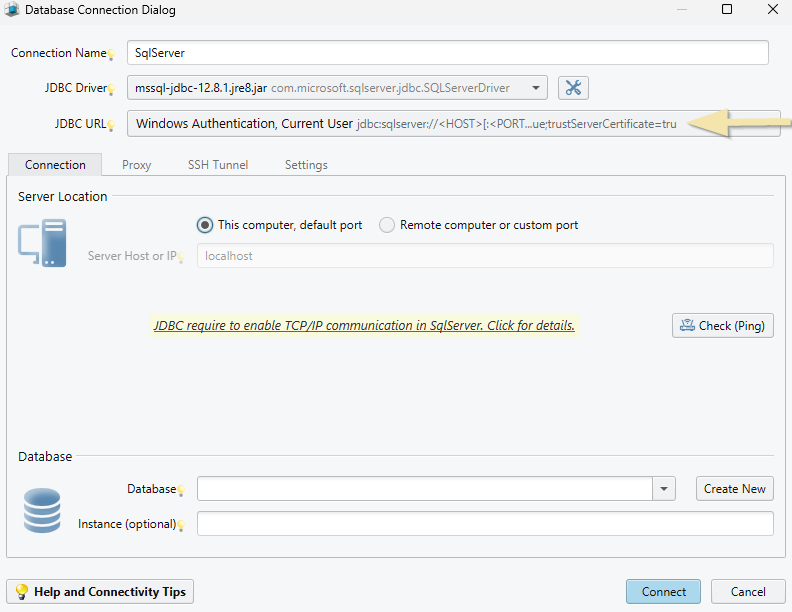
Once connected, DbSchema reverse-engineers the database and you can start reading it immediately. Connecting and reverse-engineering are in the free Community Edition.
What the diagram shows about tables and relationships
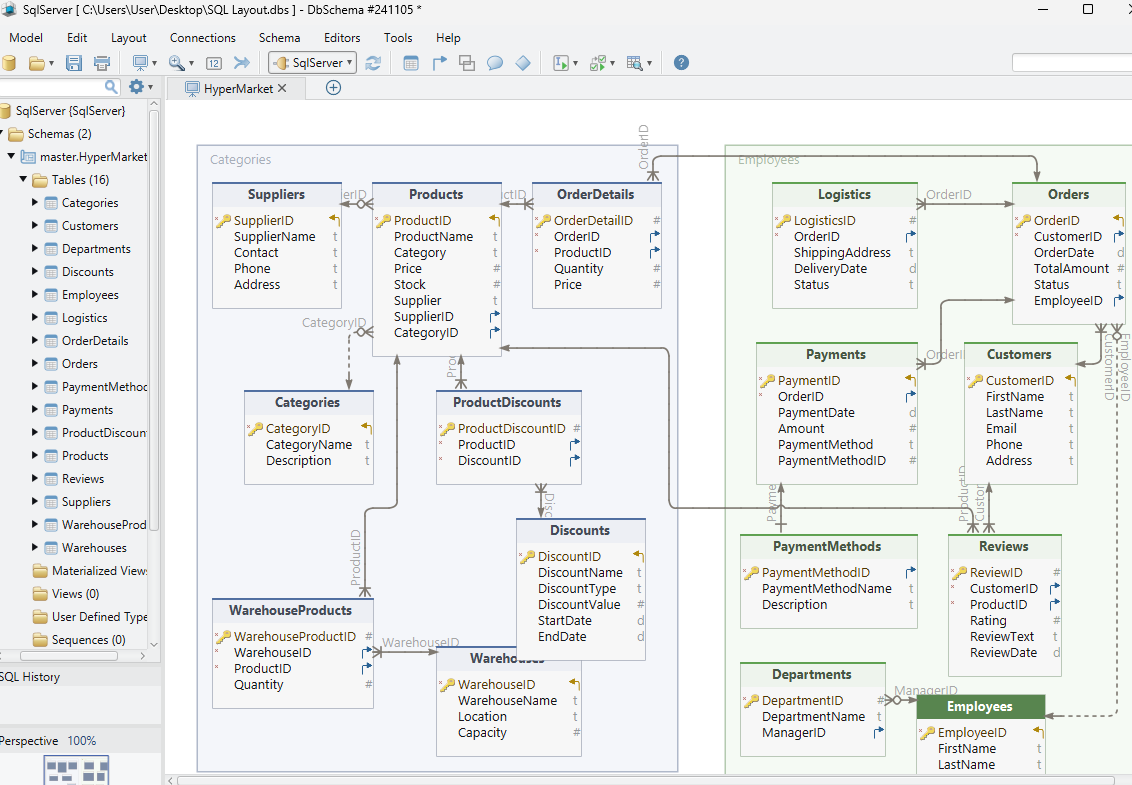
A DbSchema diagram is a canvas holding tables and the foreign key lines between them. Each table box lists its columns with primary key markers; open the Diagram menu and enable Show Column Types to put the data types beside them. The arrow notation on a foreign key line shows the cardinality, and DbSchema supports several notations, switchable from the same menu.
The same table can appear on more than one diagram, so a 200-table SQL Server database becomes several readable views instead of one unreadable poster: billing on one diagram, catalog on another. Double-click a table header to open the Table Dialog and rename the table, add comments, or manage its columns, indexes and foreign keys. Right-click the empty canvas and choose New Table to add one that does not exist yet.
Positions, groups, notes and virtual foreign keys are all part of the design model. Saving them to a .dbs file so they survive the session is a Pro edition feature; the interactive diagrams themselves are in Community.
Interactive HTML5 documentation for readers without database access
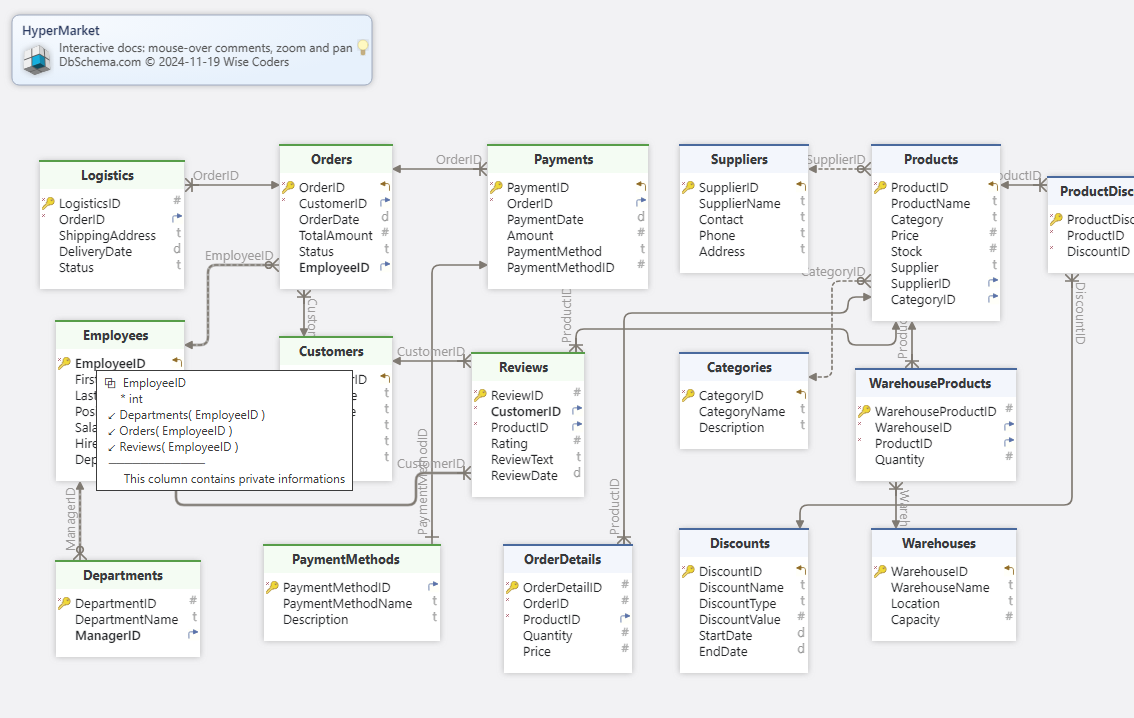
Analysts, testers and reviewers usually need to read the schema, not connect to it. From Diagram → Export HTML5 or PDF Documentation, DbSchema generates schema documentation as HTML5, PDF or Markdown. The HTML5 output opens in any browser with no server behind it, and carries the diagram as a vector image, a searchable table list and the full column details. Clicking a table jumps to its definition.
The text in that output comes from the Description field of each table and column, and in the HTML5 version those descriptions also appear as mouse-over tooltips. Beside free text, DbSchema supports comment tags, key-value pairs attached to a table or column, which is where structured metadata such as an owner or a sensitivity level goes. Generating documentation in any of the three formats is a Pro edition feature.
Git as version control for the design file
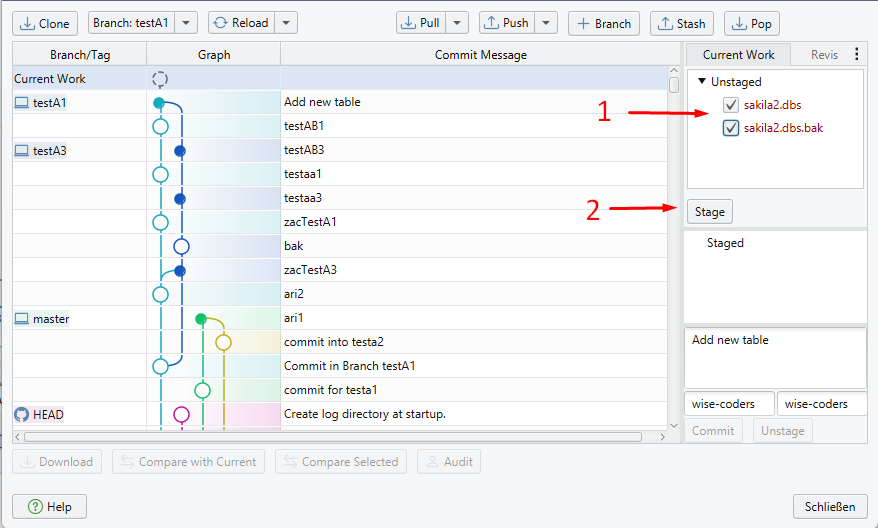
DbSchema saves the whole design, tables, columns, foreign keys and diagrams, into a single .dbs file in XML format. Kept in a Git repository, that file gives the team a versioned history of every schema change, with branching, merging and rollback exactly as source code has.
Open the Model menu and choose Git — Collaborative Design to reach the Git dialog, where you enter the repository URL and your credentials, clone into an empty local folder, then Stage, Commit and Push your changes and Pull your colleagues'. The workflow that follows is worth stating plainly: a developer edits the schema and saves the .dbs file, the file goes through the same pull request and review path as code, teammates pull it and open it, and DbSchema then compares that file against the live database and generates the SQL that brings the database up to date. Saving the model to a file is a Pro edition feature.
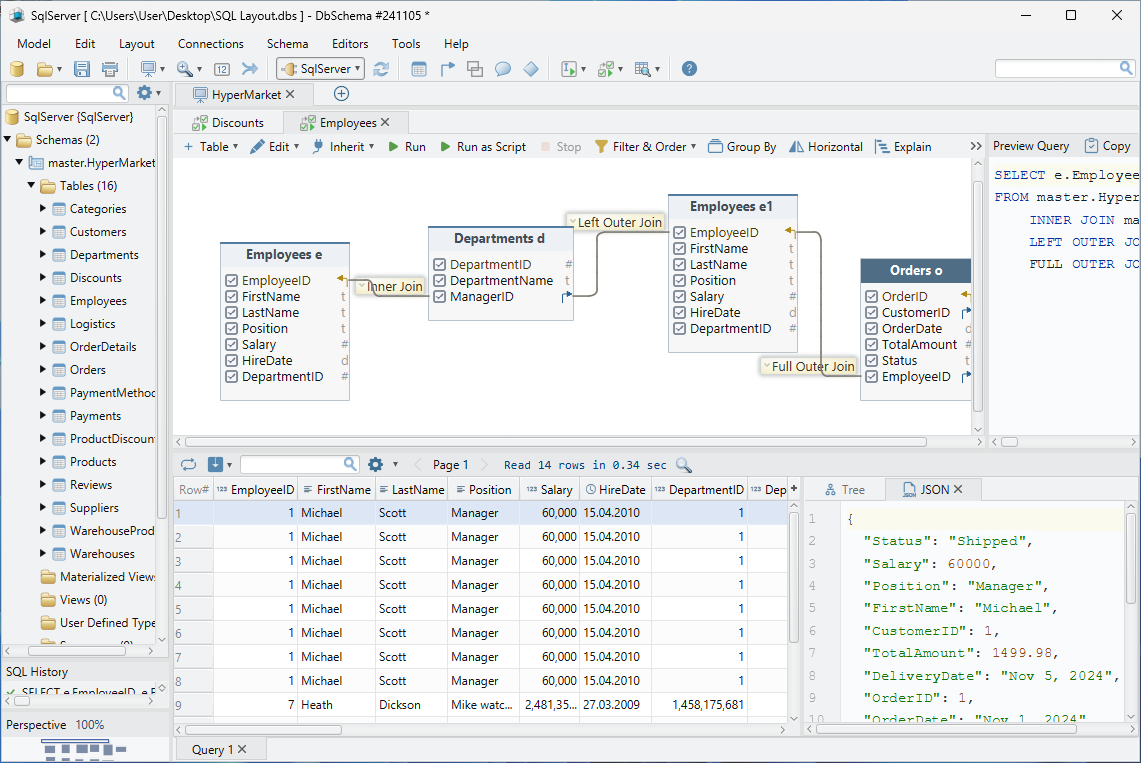
The Query Builder and the SQL Editor
The Query Builder constructs a SELECT with the mouse. Click a table header in the diagram to open it pre-loaded with that table, or choose New Query Builder from the Editors menu and drag tables in. Follow a foreign key with the small arrow next to a column to add the related table, and click the join type on the connecting line to switch between INNER JOIN, LEFT JOIN and EXISTS. Tick the columns you want in the SELECT list, right-click a column and choose Filter for a WHERE condition, or turn on Group By and choose Aggregate for MIN, MAX, SUM, AVG or COUNT. The generated SQL updates live at the bottom of the builder.
When you would rather type, the SQL Editor runs SQL straight against the connected SQL Server database. Execute Query runs the statement at the cursor and shows the result as a table; Run Script runs the whole editor content and prints the output as text. Ctrl+Space opens auto-complete over the tables, columns, keywords and functions of the connected schema, the SQL History pane keeps every statement of the session, and Commit and Rollback finalize or cancel pending changes. The SQL Editor is in the free Community Edition; the Query Builder is Pro.
Schema synchronization between the model and the database
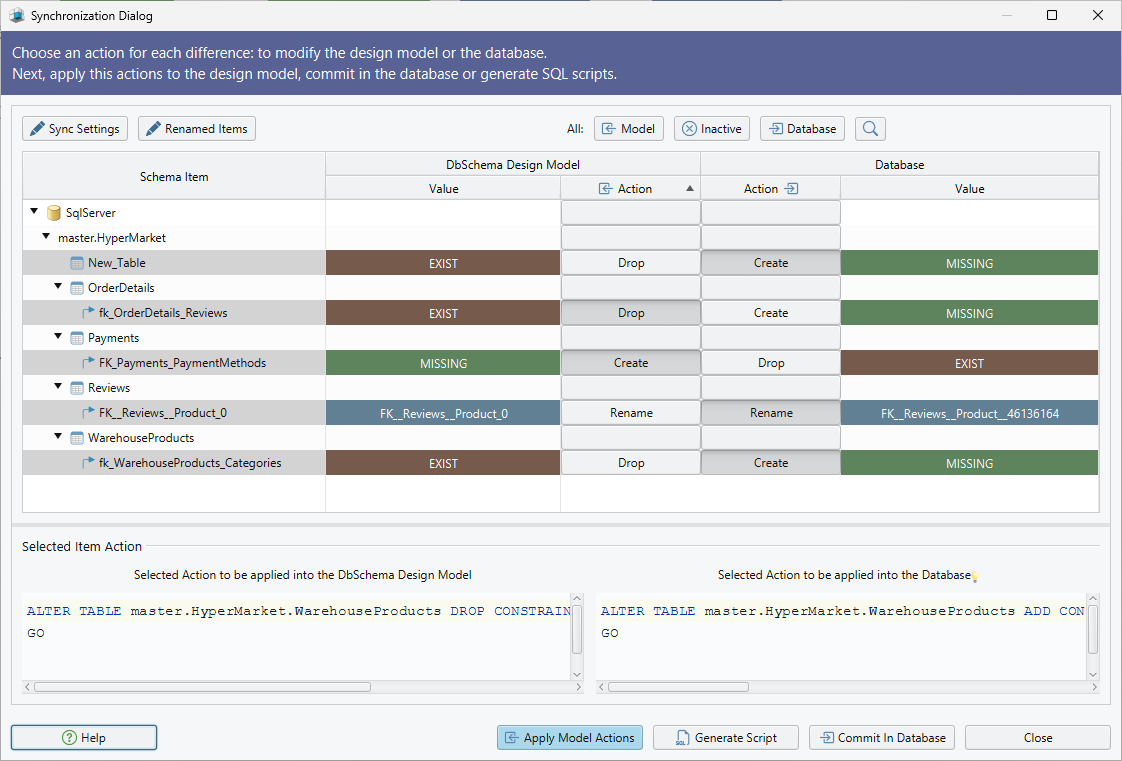
Two people editing a SQL Server schema drift apart within a week. DbSchema's synchronization closes the gap in either direction. Schema → Refresh Schema from Database pulls the current database state into the model, and when the database has moved since your last sync, DbSchema detects the differences and asks what to do about each one. Schema → Compare Model with Database opens the diff view, which lists added, removed and modified tables, columns, indexes and foreign keys, and lets you update the model, push the change to the database, or skip it per difference.
Schema → Synchronize Model with Database generates the SQL migration statements that bring the database in line with the model. You can edit those statements in the dialog before Execute runs them, which is the step where the live SQL Server database actually changes. For a schema designed offline that does not exist in a database yet, Schema → Create or Upgrade Schema in Database generates the DDL instead. Save the .dbs file before synchronizing, so you can restore the previous state if a migration goes sideways.
The same synchronization can run without the interface, scripted through Groovy automation scripts or DbSchemaCLI, which is how it fits into a CI/CD pipeline. Schema synchronization is a Pro edition feature.
The Relational Data Editor for related rows
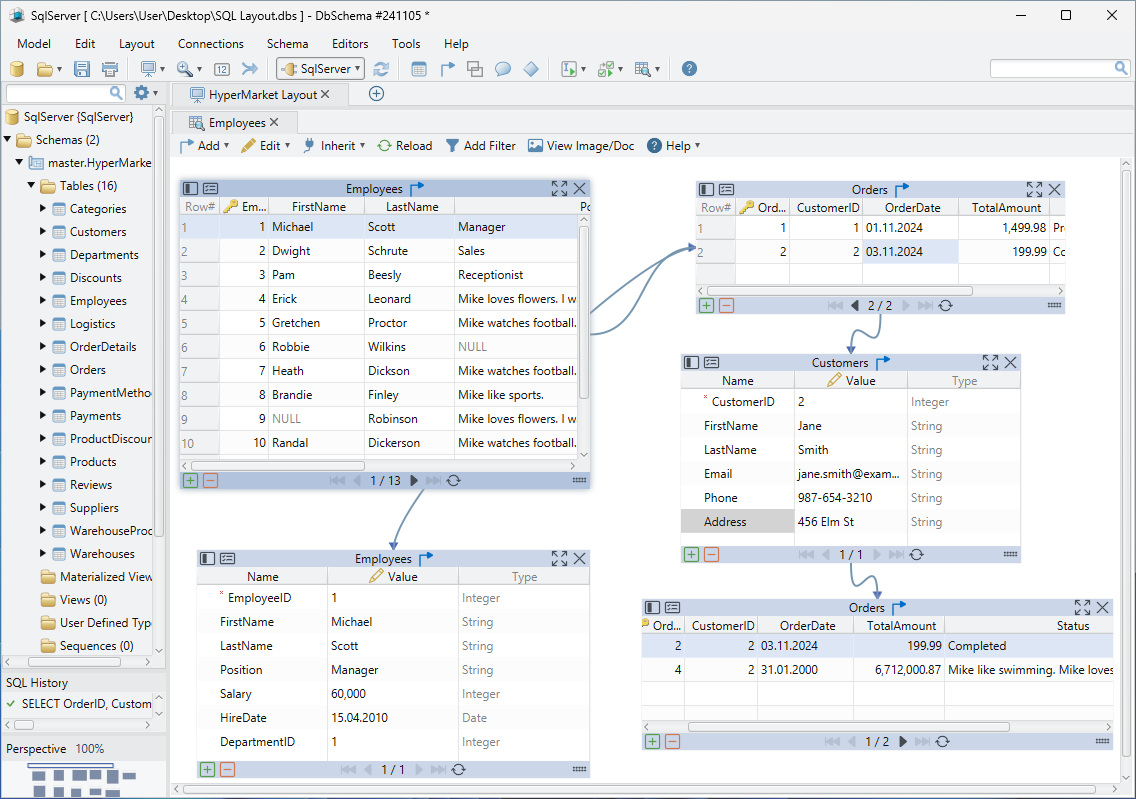
An order row means little without its customer and its lines. The Relational Data Editor opens several related SQL Server tables at once: select a row in the parent pane and every child pane refilters to the matching records, cascading as many levels deep as the foreign keys allow. Open it from the Editors menu with New Relational Data Editor, or right-click a table header in the diagram and choose Open in Relational Data Editor; it appears in the Tools panel at the bottom, and the foreign key button on a table header descends into a child table.
Where the SQL Server schema declares no foreign key between two tables that are related in practice, drag one column onto the other in the diagram to create a virtual foreign key. It is stored in the model file, never in the database, and the editor cascades through it exactly as through a real one. Editing works through Insert, Edit and Delete in the table footer, and a Commit is what persists the change to SQL Server, with Rollback discarding it. Browsing data over relations is a Pro edition feature.
Sample data from the Data Generator
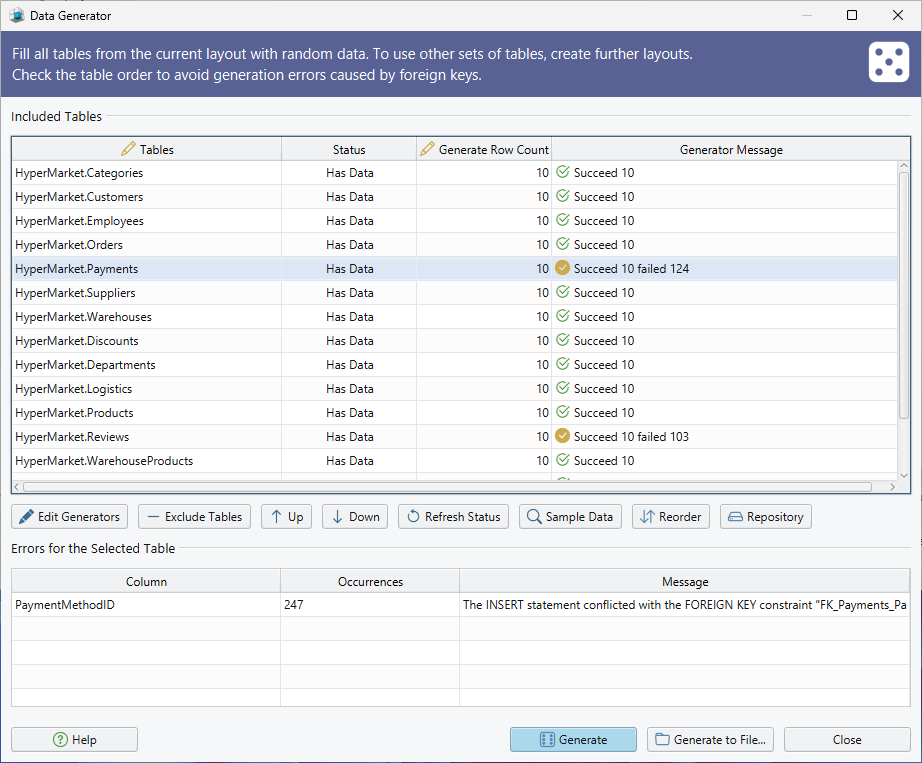
A new SQL Server schema with empty tables tells you nothing about how it behaves. The Data Generator fills the tables with realistic values: open it from Data Tools → Generate Random Data, or right-click a table header and choose Generate Random Data. Set the number of rows per table, and reorder the tables so that a table referenced by a foreign key is populated before the table referring to it.
Each column gets a pattern, which DbSchema auto-detects the first time and you then adjust. Double-click a table in the generator dialog to open its column pattern editor, where Nulls sets the percentage of NULL values, Seed makes a column's sequence reproducible, and the pattern repository offers ready-made patterns for first names, cities, email addresses and phone numbers. Patterns are saved in the .dbs model file and reused across sessions; the generated rows go into the live database. DbSchema asks whether to drop the existing data before generating, so keep this one off production. The Data Generator is a Pro edition feature.
Key features of DbSchema for SQL Server
| Feature | What it produces | Changes | Edition |
|---|---|---|---|
| Connect and reverse-engineer | diagrams of the existing schema | model | Community |
| Interactive diagrams | tables, columns, foreign key lines | model | Community |
| SQL Editor | query results, executed statements | database | Community |
| Save the design | a .dbs file you can commit | model | Pro |
| HTML5, PDF and Markdown documentation | a shareable schema report | model | Pro |
| Query Builder | a generated SELECT | model | Pro |
| Schema synchronization | reviewable migration SQL | database | Pro |
| Relational Data Editor | related rows across tables | database | Pro |
| Data Generator | test rows per table | database | Pro |
Connect DbSchema to your SQL Server instance and the schema stops being something you reconstruct from queries. Download it at https://dbschema.com/download.html and read the database in the free Community Edition. The documentation, the Query Builder, the synchronization and the data tools described above are in the Pro edition, which the same download includes as a 15-day trial with no credit card.









