How to Generate Snowflake Database Documentation with DbSchema
For anyone who has to explain a Snowflake schema to colleagues with no Snowflake login, in something they can open, search and read.
On this page
An analyst asks what is actually in the warehouse, and the honest answer is a web console they have no account for. DbSchema reverse-engineers the Snowflake schema into a model and exports it as HTML5, PDF or Markdown: the diagram as a vector image, a searchable table list, and every column with its type and its description, in files you can attach to a message.
Connect DbSchema to the Snowflake account you want to document
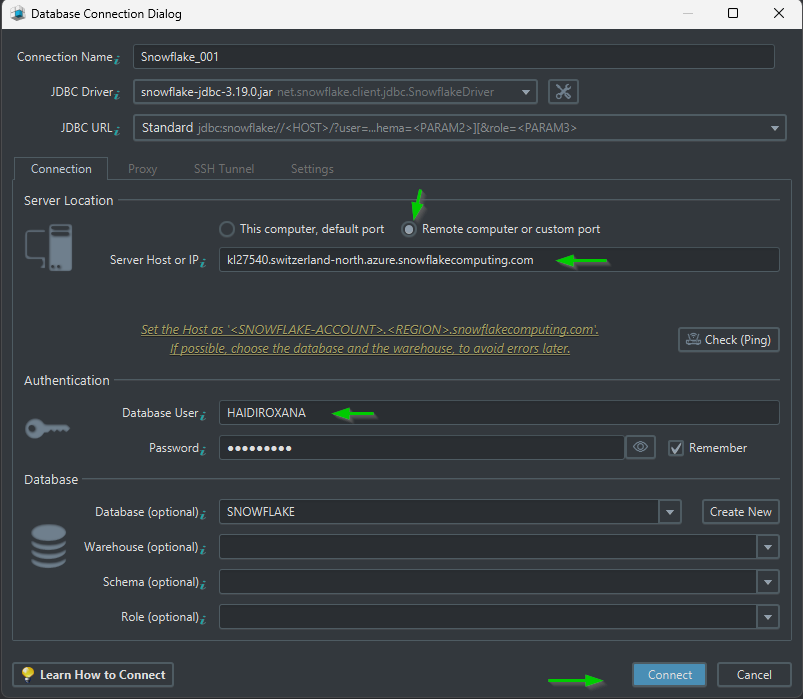
Pick Snowflake from the database list and DbSchema opens the Connection Dialog with the fields the Snowflake driver wants. The host is your account identifier followed by .snowflakecomputing.com; take the identifier from the account rather than assembling one, because older accounts use an account locator with the region and the cloud instead of the newer organization and account form. Fill in the user and the password, and name the warehouse, the database, the schema and the role.
The role matters here more than anywhere else. A role that lacks USAGE on the warehouse you named returns an empty schema instead of an error, which is why the role field is worth checking before the export rather than after. The Connection Mode list also carries the authentication entry to pick: Password is the default, External Browser is the one for Okta and other SAML single sign-on, and Private Key File covers key-pair authentication.
Click Connect and DbSchema reads the structure of what your role can see: databases, schemas, tables, columns, views and the declared foreign keys. That read builds the model on your machine and changes nothing in Snowflake. The Snowflake page goes through the connection field by field. Documentation export is a Pro feature, and a new DbSchema installation starts a 15-day Architect trial with every Pro feature unlocked, so you can produce the first document before deciding anything.
What goes into the generated documentation
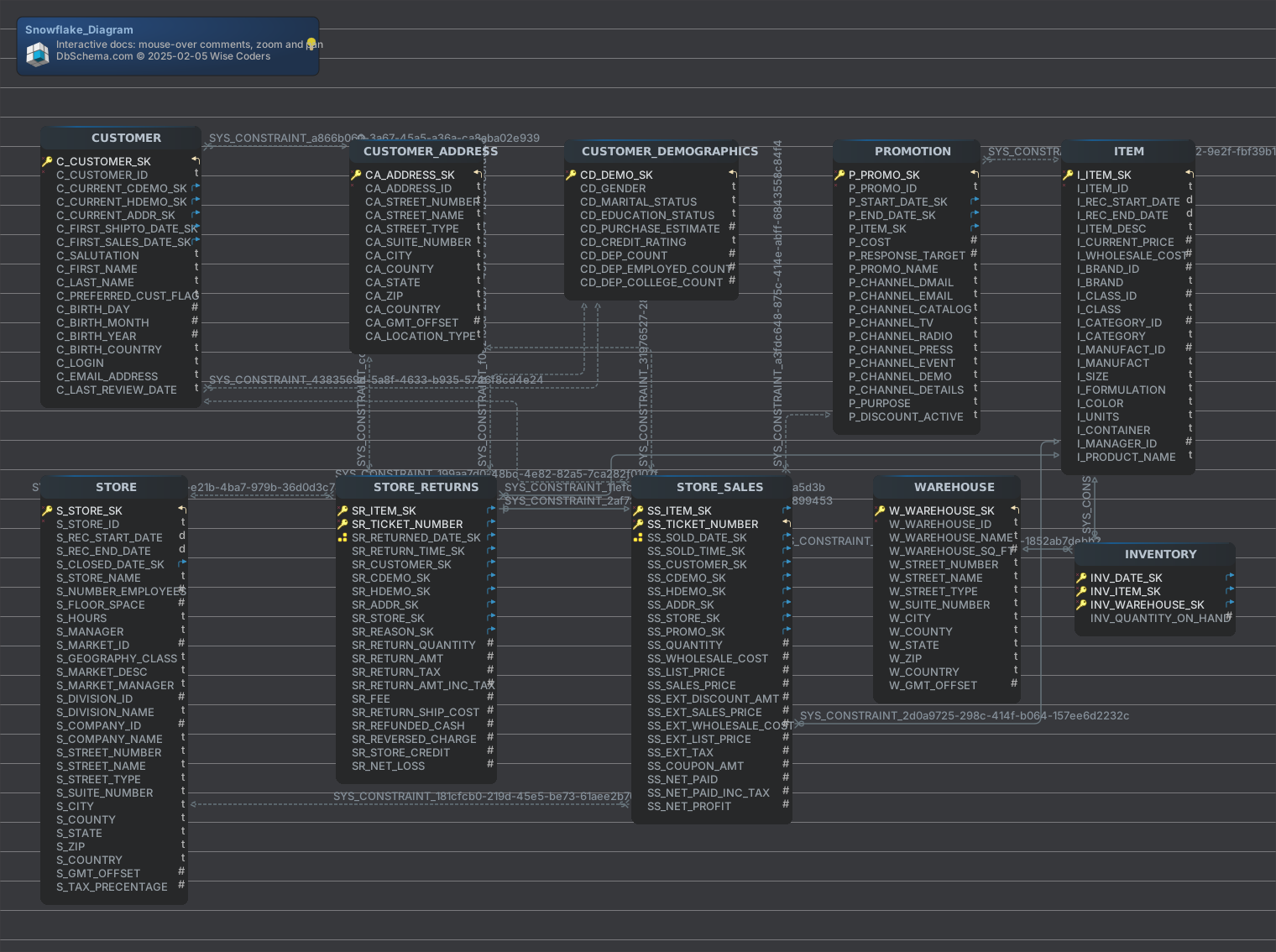
Build the diagrams before you export. DbSchema documents the diagrams you made, so several diagrams, each holding one area of the warehouse, produce a document organised by subject instead of one page carrying every table in the account.
Then open Diagram → Export HTML5 or PDF Documentation. The documentation dialog asks for three things. The first is the format, HTML5, PDF or Markdown. The second is which diagrams go in, whether that is the current one, all the open ones, a selection you make, or every diagram carrying the tag documentation, in which case the tag's value decides the order they appear in. The third is which schema elements travel with the diagrams, from the columns and foreign keys to the indexes and the comments.
Text you type into the Description field of a table or a column becomes content in all three formats. Beside free text, DbSchema stores comment tags, key and value pairs attached to a table or a column, which is where metadata such as an owner, a sensitivity level or a deprecation status goes. Tags appear in the generated documentation and are readable from Automation Scripts, so the same annotations can drive a check in a script.
Export the schema as interactive HTML5
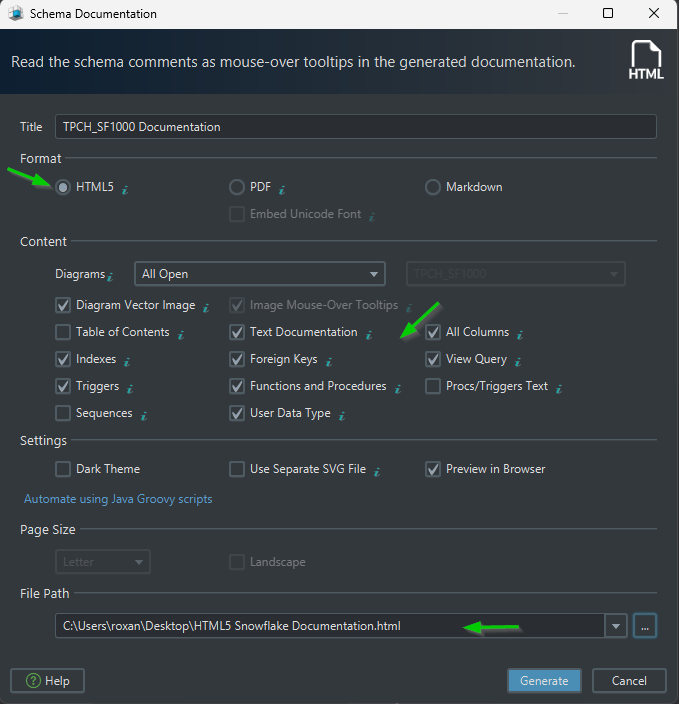
HTML5 is the format to hand to a person rather than a pipeline. The output opens in any browser with no server behind it, so it travels as a folder or a zip. It carries the diagram as a vector image, a searchable list of tables, and the full column detail underneath. Click a table to jump to its definition; hover over a column and its description appears as a tooltip, which is the payoff for filling in the Description fields.
How much of that goes in is a setting rather than a fixed shape. Edit → Settings has an HTML5 Documentation entry on the General tab covering the diagram's vector image and whether column comments are rendered as tooltips, so a document meant for an analyst and one meant for an auditor can come out of the same model with different content.
To see what the output looks like before you install anything, open the sample below.
Export the same model as PDF or Markdown
PDF is the format for a review that ends in a signature. It is a printable report holding the full schema structure, the diagram images, the table details and every column description, which is what an audit or a formal design review asks for. Where the schema carries Russian, Chinese or Japanese text, switch on Embed Unicode Font in the PDF options before you export.
Download a sample PDF generated from a Snowflake schema to see the layout.
Markdown is the format for the repository. Each table becomes a Markdown section with its columns, types and descriptions in a readable text table, which reads correctly in a GitHub pull request and on an internal wiki. Committing the Markdown next to the code that queries Snowflake puts a schema change and its documentation in the same diff.
Regenerating the documentation when the Snowflake schema changes
Documentation goes stale the moment someone adds a column. Schema → Refresh Schema from Database pulls the current Snowflake state into the model and lists what differs: added, removed and modified tables, columns, indexes and foreign keys. Settle each difference, then export again. That refresh is in the Pro edition, along with the export itself.
For a warehouse that changes weekly, do the export without opening the window at all. DbSchema starts headless and runs a Groovy script from the command line:
DbSchema.exe -x path/to/script.groovy
The script has the model, the connection and the DbSchema API available to it, and the Automation Scripts page has the variables it is given and a library of samples; Tools → Automation Scripts is where you keep and run the same scripts from inside DbSchema. Point that command at a CI job and the Snowflake documentation is rebuilt on a schedule rather than when someone remembers.
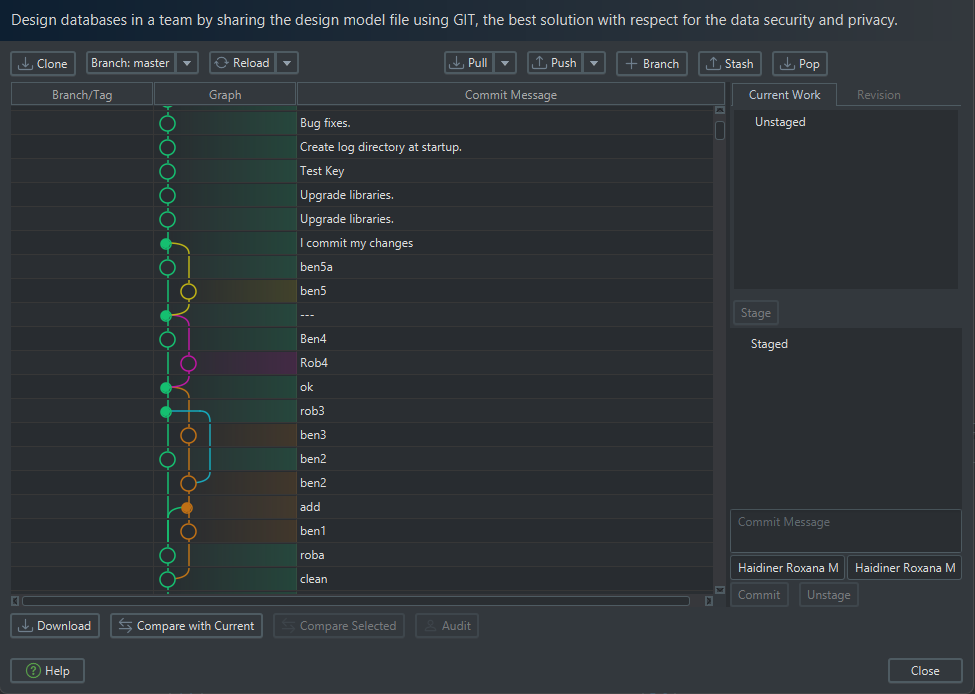
The design itself belongs in the same repository. It is a single .dbs file in XML, so Model → Git — Collaborative Design opens the Git dialog where you stage, commit and push it, and a teammate's pull brings back a model you can compare before anything reaches the warehouse.
Install DbSchema from https://dbschema.com/download.html, connect with a role that sees the tables the analyst was asking about, split the warehouse across a few diagrams, and export the first HTML5 document before you write a single description. Filling in the descriptions is easier once you can see where the blanks are. The connection, the reverse engineering and the diagrams are in the free Community Edition. The export itself in all three formats, the saved model file and Schema → Refresh Schema from Database are Pro features, and the purchase page shows what they cost in your own currency on separate tabs for Business, Personal and Universities & Students.









