MongoDB Create Database – mongosh, Atlas, Compass, Docker, and DbSchema | DbSchema
- Introduction to MongoDB
- Installation & Database Creation (You are here).
- CRUD Operations
- Embedded Documents and Arrays
- Validation Rules - Enforcing Structure in MongoDB
- Visualize MongoDB Relationships (Embedded vs Referenced)
- What Is an Index in MongoDB?
- Aggregation Pipeline Explained
In this lecture, you will learn how to install MongoDB Server, work with Mongo Shell to create your first database, and set up collections within that database. This is a crucial step for working with MongoDB because it lays the foundation for everything you'll do with this NoSQL database.
Table of Contents
- Install MongoDB Server
- Create a database in mongosh
- Create a database in MongoDB Atlas
- Create a database in MongoDB Compass
- Create a database with Docker
- Create a database visually in DbSchema
- FAQ
I. Install MongoDB Server
Before you can begin creating databases and collections, you need to have MongoDB installed on your machine. Here’s how you can do it:
For Windows:
-
Go to the Official MongoDB Website and download the latest version for Windows.
-
Run the installer and follow the instructions on screen. Ensure you select the option to install MongoDB as a Service during installation.

-
After the installation, open Command Prompt and type
mongoshto confirm MongoDB has been installed successfully. If it opens up the MongoDB shell, you're ready to start.
For macOS:
- Open the Terminal and use Homebrew to install MongoDB with the following command:
brew tap mongodb/brew brew install mongodb-community - Once the installation is complete, you can start MongoDB using the command:
brew services start mongodb/brew/mongodb-community
For Linux:
-
You can install MongoDB on Linux using Ubuntu.
sudo apt-get install -y mongodb -
Start the MongoDb service:
sudo service mongodb start
II. Run Mongo Shell
No matter what type of operating system you're using, the Mongo Shell is basically the place where you insert all your commands to interact with your MongoDB server.
For this tutorial, I will be using Windows. In the Command Prompt, type the mongosh command to open the Mongo Shell:
Method I. Create a MongoDB Database
In the shell you can run show dbs to see which database you have on MongoDb Server.
Since you don't have any database created yet you will get these ones:
admin....0.000GB
config...0.000GB
local....0.000GB
A database can be created with this simple command:
use flights
This allows you to reference the database you're currently working in. In this case, we're already in the flights database, as indicated by db.
Create a MongoDB Collection
To create a MongoDB collection, you can use the following method db.flightData.insertOne({}) to insert a document into the flightData collection:
 db.flightData.insertOne({
 "departureAirport": "LHR",
 "arrivalAirport": "TXL",
 "aircraft": "Airbus A320",
 "distance": 950,
 "intercontinental": false
})
After pressing ENTER, you will receive a confirmation message indicating that the operation was successful. MongoDB will also automatically assign an Object ID to the newly inserted document.
Retrieve Data from the Collection
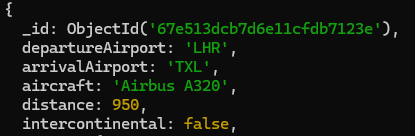
To retrieve data from the collection, use the following command:
db.flightData.find().pretty()
Note: .pretty() method is used to format the output in a more readable way, but it is not required for the query to work.
Once executed, the results will be displayed in a more structured format, similar to this:
Next Lesson: CRUD Operations
In the next article, we will go deeper into CRUD operations:
- Find documents using queries
- Insert multiple records
- Update existing data
- Delete documents
Create a database in MongoDB Atlas
Many top-ranking guides also cover MongoDB Atlas, because a lot of teams start in the cloud instead of on a local server.
- Sign in to MongoDB Atlas and create or open a cluster.
- Add your database user and allow your IP address to connect.
- Open Browse Collections.
- Click Create Database.
- Enter the database name and the first collection name, then confirm.
Atlas is useful when you want hosted infrastructure, easy sharing, and a quick way to connect tools like DbSchema or Compass without managing the server yourself.
Create a database in MongoDB Compass
If you prefer a desktop GUI, MongoDB Compass provides a simple path:
- Connect to your local or remote MongoDB instance.
- Click Create Database.
- Enter the database name and initial collection name.
- Confirm, then open the new database and browse the collection list.
Compass is a good fit when you want the official MongoDB GUI for browsing data, validating schemas, and inspecting aggregations.
Create a database with Docker
Docker is useful for local development, tutorials, and reproducible team setups:
docker run --name mongodb-dev -p 27017:27017 -d mongo:8
docker exec -it mongodb-dev mongosh
After that, create the database as usual:
use flights
db.flightData.insertOne({ departureAirport: "LHR" })
This approach is convenient when you want a disposable local environment without installing MongoDB directly on the host OS.
Method II. Using DbSchema (a GUI Tool for MongoDB)
If you prefer a more visual and intuitive way to explore MongoDB, you can use a GUI tool like DbSchema. It helps you understand your database structure, manage collections, and run queries easily without needing to type commands manually.
👉 Download DbSchema for free here and simplify your MongoDB experience!
Read about how to connect to MongoDB and explore all the powerful features that DbSchema offers for working with MongoDB in this article.
Creating a New Database Visually in DbSchema
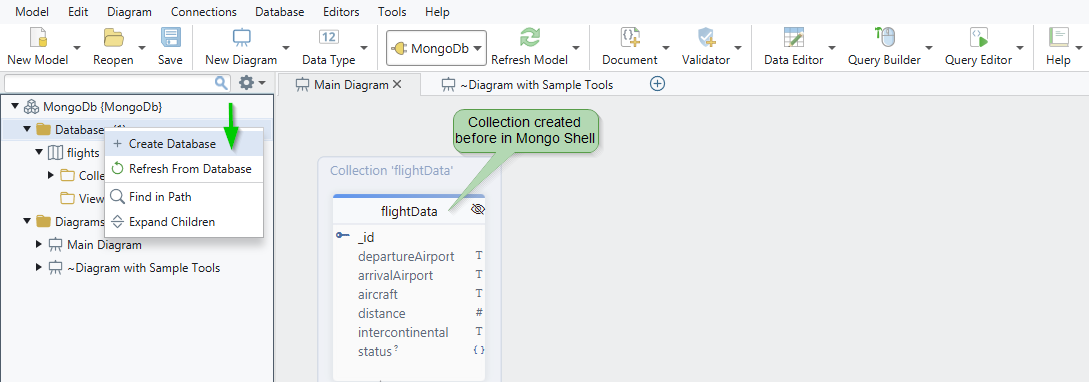
Once you're connected to your MongoDB database with DbSchema, you can create a new database easily using just your mouse.
- Right-click on the left side of the Project Structure panel.
- Select "Create Database" from the menu.
- A pop-up window will appear: simply enter the name of your new database. Let's call it "flights2"
- Click OK, and that's it! Your new database is now created on your MongoDB server.
Create a MongoDB Collection
-
Ensure that you have selected "flights2" on the left side to create a new collection in this database.
-
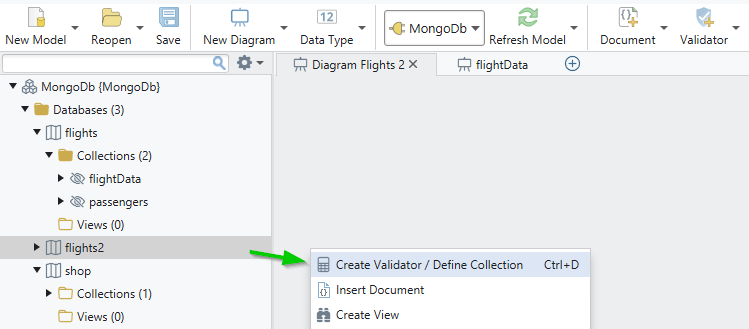
To create a new collection, simply right-click on the main screen and choose Create Validator / Define Collection (we will discuss what a Validator is later in this course).
- Name the collection "flightData", just as we did in MongoShell. This will help us better understand how our database and collections appear in a GUI tool.
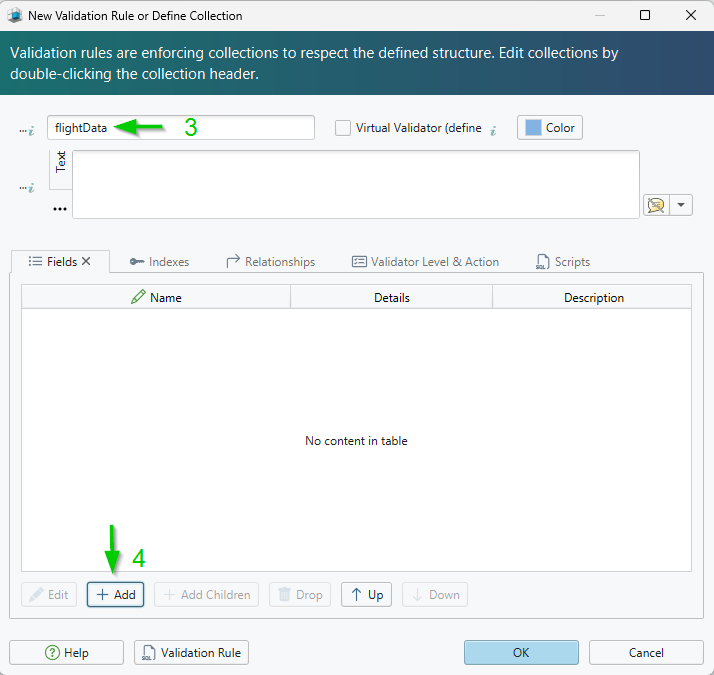
- Click the "Add" button to add fields to this collection:
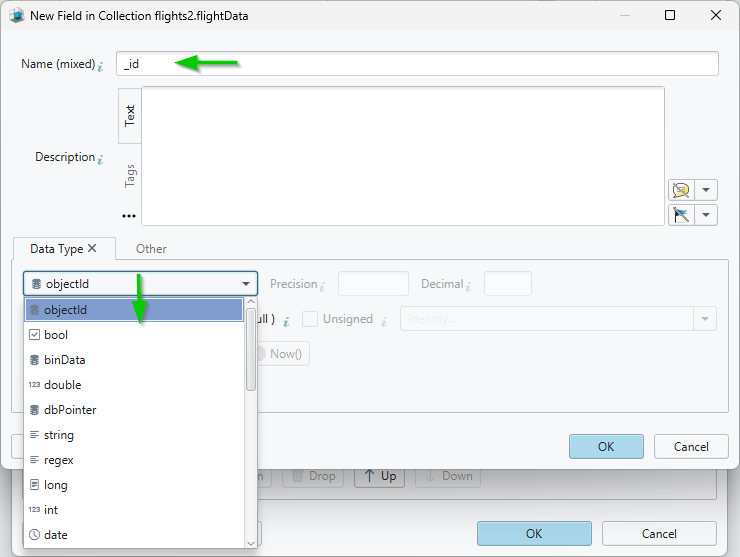
- Enter the field name "_id".
- Select the Data Type (in this case, "ObjectId") and check the Mandatory box.
- Add the rest of the fields to your collection, then click OK.
- You will now see the structure of the newly created collection displayed in the diagram. At this stage, the collection is empty.
Insert Data into the Collection
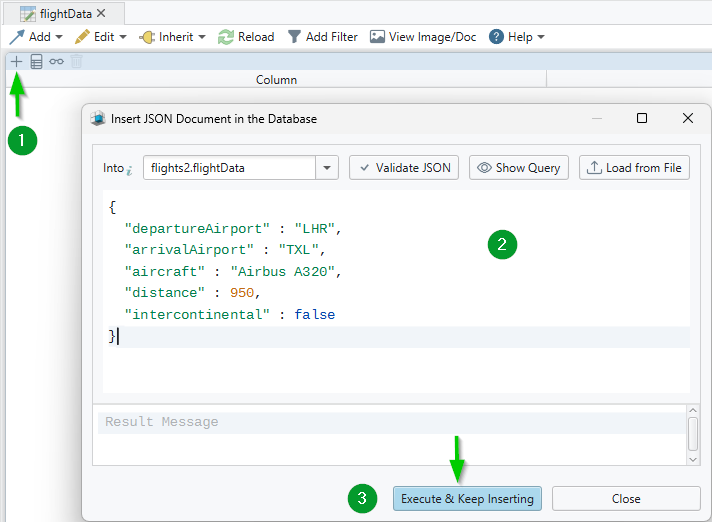
Now, let's add data to this collection using the Data Editor in DbSchema.
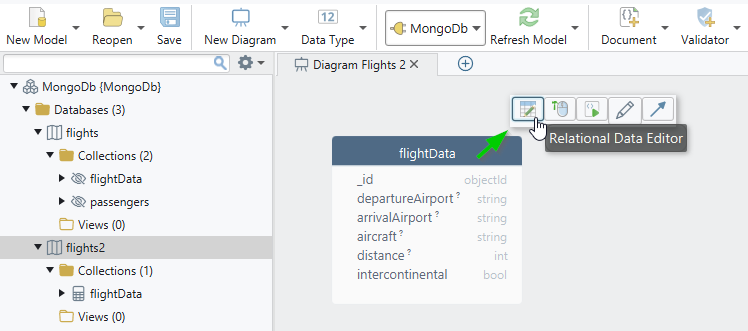
- In the table header, click on the first icon, "Relational Data Editor". A new tool will open, allowing you to start adding data.
- Click the "+" icon.
- Insert data into the JSON Document, which is already well-structured.
- Click "Execute & Keep Inserting".
Retrieve Data from the Collection
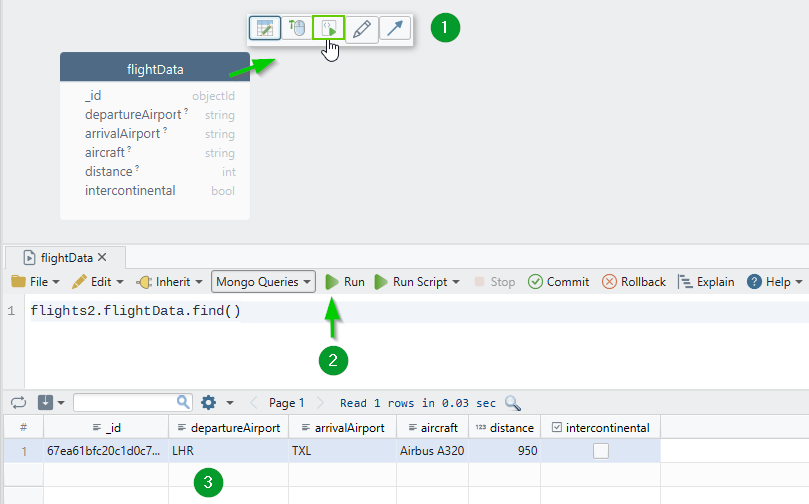
Now, let’s retrieve the data that we inserted into the collection.
- Click on the collection header and select "Query Editor".
- DbSchema automatically generates the
findquery - just click "Run". - The results will be displayed in a table format, similar to Excel.
And that’s it! This is how you can work with MongoDB in a simple and visual way, making everything easy to understand.
If you want to continue beyond setup, the next helpful guides are MongoDB CRUD Operations, MongoDB $lookup, and MongoDB relationships. DbSchema is especially useful when you want to move from database creation into visual design, documentation, and sample-data generation.
FAQ
Does use flights create a MongoDB database immediately?
Not fully. MongoDB shows the database after you create data inside it, such as inserting a document or creating a collection.
Can I create a MongoDB database from Atlas or Compass?
Yes. Both Atlas and Compass let you create a database and its first collection through the GUI.
What is the easiest way to create a MongoDB database for local testing?
For many developers, Docker is the quickest option because it avoids a full local installation and is easy to reset.
Can I create a MongoDB database visually in DbSchema?
Yes. DbSchema lets you create the database, define collections, insert sample data, and then continue with visual modeling and documentation.
Click here to read the Next Lesson and learn how to dive deeper into CRUD operations:
- Find documents using queries
- Insert multiple records
- Update existing data
- Delete documents
Click here to read the first article about Introduction to MongoDB.