Visual DynamoDB Design and Documentation with DbSchema
For the developer or architect who already runs DynamoDB tables and wants the key design, the indexes and the relationships between tables in one picture.
On this page
A DynamoDB table declares its primary key and nothing else. Amazon's documentation says it plainly: other than the primary key, a table "is schemaless, which means that neither the attributes nor their data types need to be defined beforehand". The shape of your data therefore lives in the items rather than in a definition anyone can read. DbSchema connects to DynamoDB, reads the tables, their keys and their indexes, and draws them as a diagram you lay out, annotate and export.
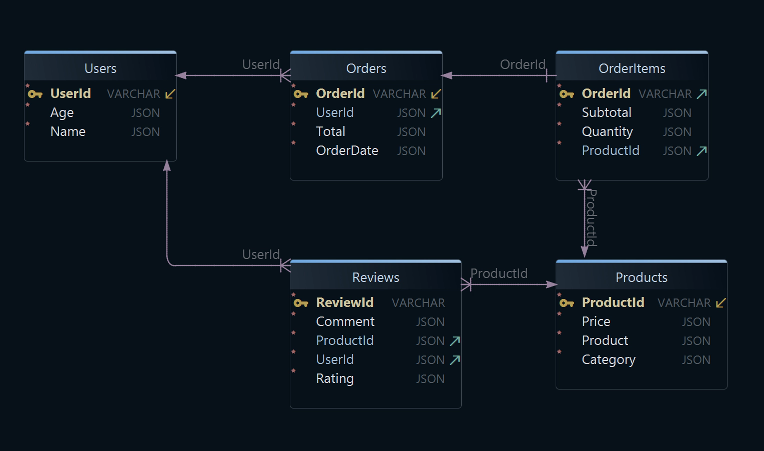
Reverse-engineer or design your DynamoDB structure
Point DbSchema at your AWS account and it reads the tables that are already there. The connection uses a JDBC driver that DbSchema downloads for you when you create the connection, and the Connection Dialog takes the host, the database user and the password on its Connection tab. Reverse-engineering reads the structure only, and it puts what it finds into a design model, which DbSchema Pro saves as a .dbs file on your own computer.
What comes back is the part DynamoDB does define. Each table has a partition key, and optionally a sort key alongside it, which Amazon calls a composite primary key. Every key attribute has to be a scalar, and the only types allowed for one are string, number and binary. Around the keys sit the secondary indexes: a global secondary index has a partition key and sort key that can differ from the table's, a local secondary index shares the table's partition key and changes the sort key, and a table is limited by default to 20 of the first kind and 5 of the second.
The example below is a small online shop, with five tables and the keys DbSchema draws on them:
Users       partition UserId (String)
Products    partition ProductId (String)
Orders      partition OrderId (String)      + attribute UserId
OrderItems  partition OrderId (String), sort ProductId (String)
Reviews     partition ReviewId (String)
Only the key columns of that list are structure DynamoDB knows about. Orders.UserId is an ordinary attribute that happens to hold the key of a user, and the service neither knows nor checks that.
Creating tables in DbSchema
Starting from nothing works the same way as in any other database DbSchema supports. Right-click the diagram canvas and choose New Table, then double-click the new table's header to open the Table Dialog and add the attributes on the Columns tab. The Indexes tab is where you flag the attribute that carries the key.
The key comes first because DynamoDB requires it: creating a table means naming the table and its primary key in the same breath. Everything else is optional, and that is visible in the diagram as well. The remaining attributes turn up on the table once items carry them, so an empty table you have just created shows its key and little else.
| Attribute | Type | Key |
|---|---|---|
| UserId | VARCHAR | Partition key |
| Name | JSON | |
| Age | JSON |
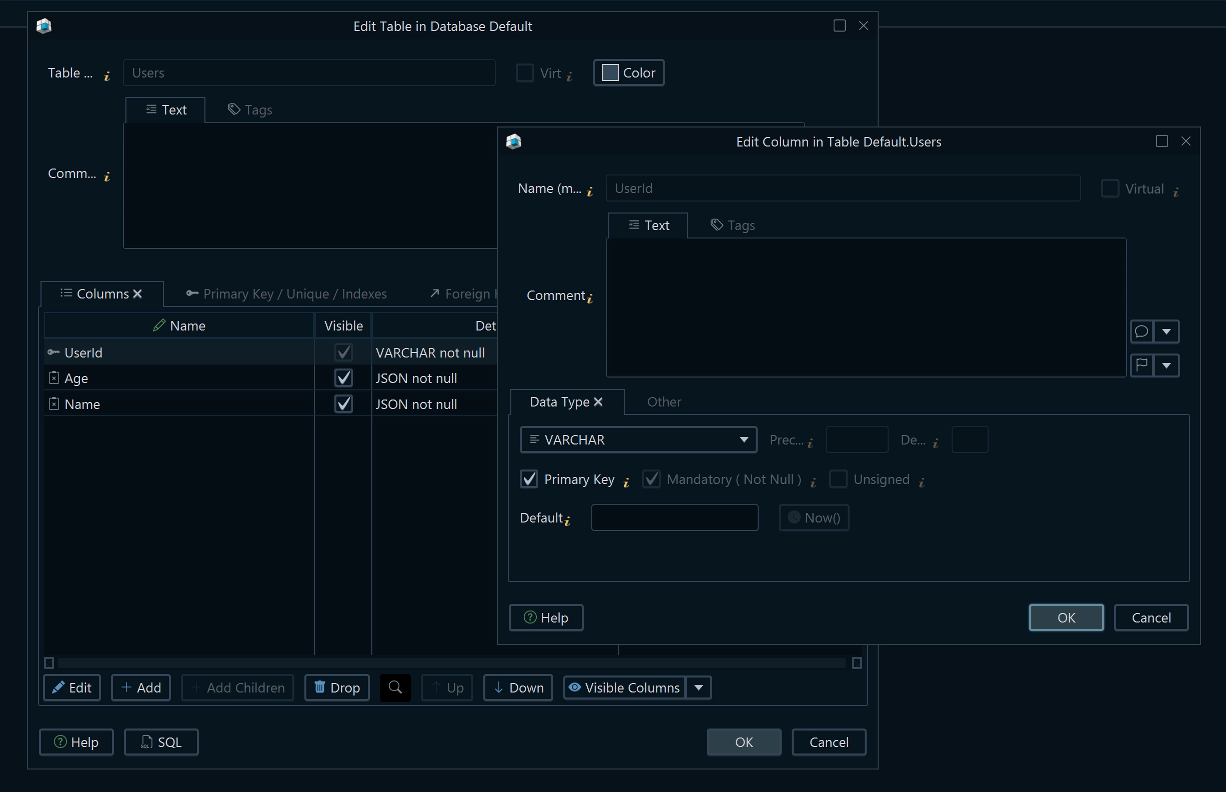
Both steps so far change the DbSchema model file and leave AWS alone. The table reaches DynamoDB when you open Schema → Synchronize Model with Database, read the statements DbSchema generates and click Execute.
Insert data into a DynamoDB table
Rows go in without leaving the diagram. Right-click a table header and choose Open in Relational Data Editor, then click Insert in the table footer and fill in the fields. Edits are held until you click Commit, and Rollback throws away everything you have not committed yet, which is the safer way to try an insert against a table that matters.
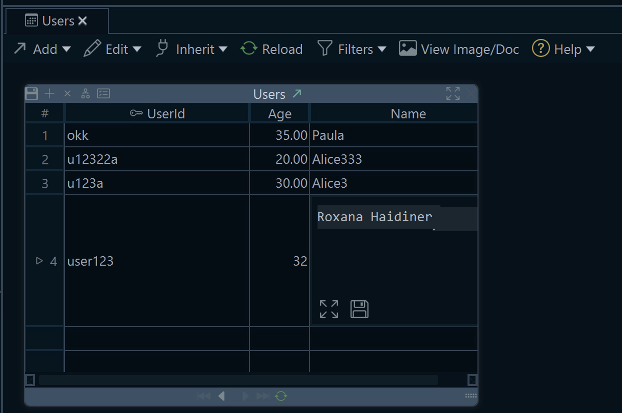
The other route is to write the statements yourself. DynamoDB accepts PartiQL, so an insert is close enough to SQL to type from memory, and the SQL Editor opens from the Editors menu and sends it to the database. PartiQL takes one item per statement, which is why the four inserts below are four statements rather than one:
INSERT INTO Users VALUE {'UserId': 'u123a', 'Name': 'Alice', 'Age': 30}
INSERT INTO Users VALUE {'UserId': 'u124b', 'Name': 'John', 'Age': 25}

INSERT INTO Products VALUE {'ProductId': 'p101', 'Product': 'Wireless Mouse', 'Price': 29.99}
INSERT INTO Products VALUE {'ProductId': 'p102', 'Product': 'Mechanical Keyboard', 'Price': 79.50}
Run them with Run Script, which executes the whole editor content in one go, and then read the two items back:
SELECT UserId, Name, Age FROM Users;
| UserId | Name | Age |
|---|---|---|
| u123a | Alice | 30 |
| u124b | John | 25 |
A scan promises no particular order, so read those two rows as a set rather than as a sequence. Both the editor and the statements above write to DynamoDB itself, unlike everything in the previous section.
Visual relationships using virtual foreign keys
DynamoDB has no foreign keys, and an order that names a user it no longer has is a valid item as far as the service is concerned. The relationships still exist in your application, and DbSchema lets you record them on the diagram as virtual foreign keys: connector lines that live in the .dbs model file and create no constraint in the database.
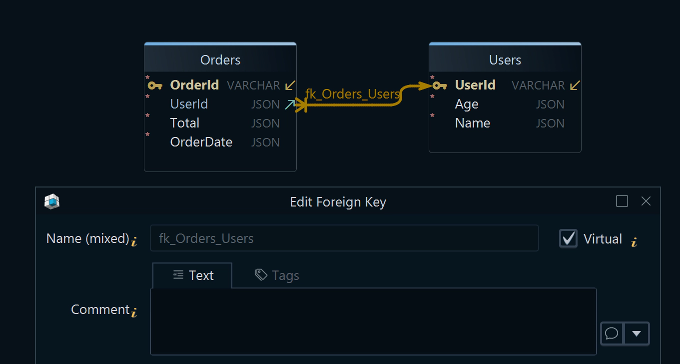
In the shop above, two of them carry most of the meaning. Orders.UserId points at Users.UserId, because each order belongs to one user, and OrderItems.OrderId points at Orders.OrderId, because each line of an order belongs to one order. Drawing them is worth more than a tidier picture: the Relational Data Editor uses those links to cascade, so selecting an order in one pane refilters the pane below it to that order's items, as many levels deep as you have drawn.
How to create a virtual foreign key in DbSchema
- Open the diagram that holds the DynamoDB tables.
- Hover over the referencing attribute, for example
Orders.UserId, until the connector handle appears on the right edge of the column. - Drag from that handle to the matching attribute in the other table, here
Users.UserId. - Choose virtual rather than real when DbSchema asks which kind of foreign key to create.
- Double-click the line to open the Foreign Key Editor and check which columns it pairs.
Generate interactive HTML5 documentation
The diagram is worth exporting once it says something. Open Diagram → Export HTML5 or PDF Documentation and pick the format, the diagrams to include and the schema elements you want in the output. HTML5 gives you a page that opens in any browser with no server behind it, carrying the diagram as a vector image, a searchable list of tables and the full attribute details.
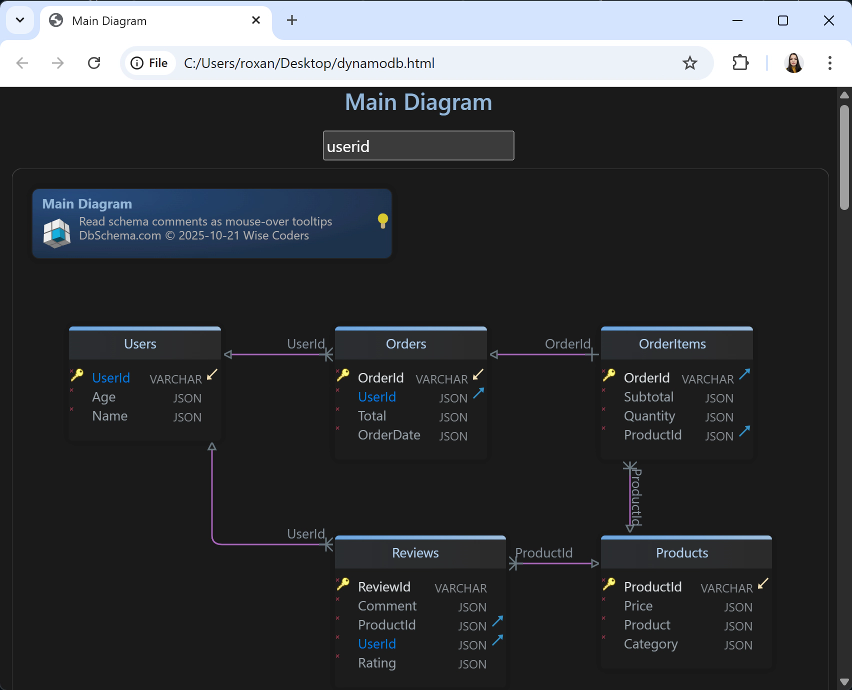
A reader clicks a table to jump to its definition and hovers over an attribute to read its description, which is the text you typed into the Description field of that attribute. Comment tags sit beside the descriptions as key-value pairs, and a DynamoDB model is a good place for them: which access pattern a global secondary index exists for is exactly the kind of fact that is nowhere in the table itself. The export reads the model and writes files, so nothing is sent to AWS while it runs.
Collaborate using Git
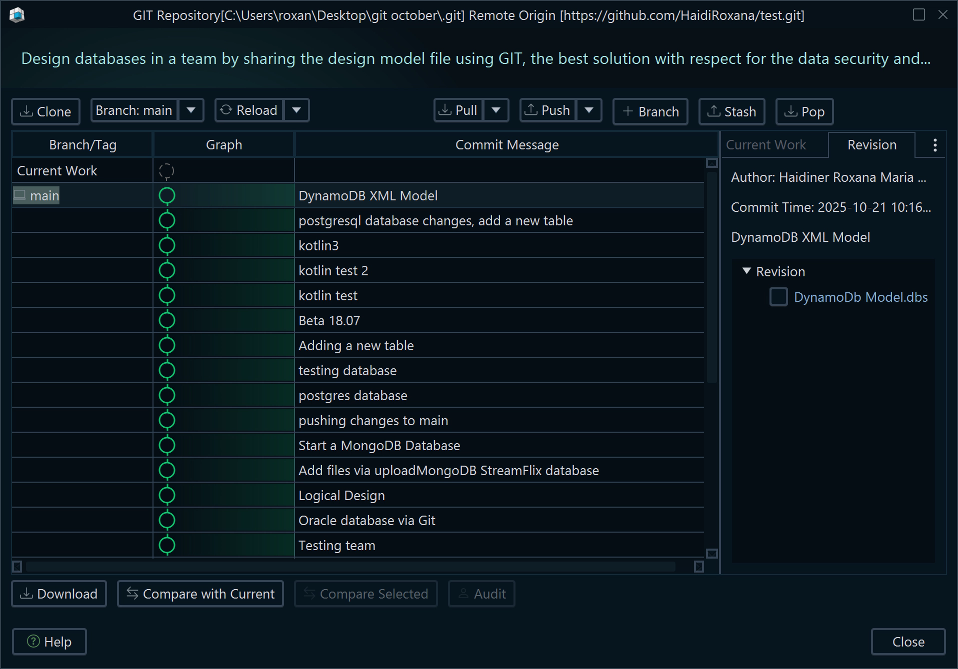
The .dbs model file is XML, which means it diffs and merges the way source code does. DbSchema has Git built in: choose Git — Collaborative Design from the Model menu and the Git dialog opens, where you clone a repository into an empty folder. Stage, Commit and Push publish your changes, and Pull fetches what your colleagues pushed. Create Branch keeps an experiment off the main line, and Stash parks uncommitted work while you pull.
After a pull, Compare with Current opens the Synchronization Dialog and shows what changed between the file you just received and the database you are connected to. That separation is the useful part on DynamoDB: the branch, the merge and the review all happen on a file, and the tables in AWS change only when someone runs the synchronization.
Why use DbSchema with DynamoDB
What DbSchema adds to DynamoDB is a readable structure and a place to keep it. It reverse-engineers the tables, the keys and the secondary indexes into a diagram, lets you design new tables on the same canvas, and carries the relationships the service does not store as virtual foreign keys. Data goes in and out through the Relational Data Editor or through PartiQL in the SQL Editor. The result exports as HTML5, PDF or Markdown documentation for people who will never open a database client, and the model file behind all of it lives in Git with the rest of your code.
Download DbSchema at https://dbschema.com/download.html, connect to your AWS region and let it draw your tables. Connecting, reverse-engineering and the interactive diagram are in the free Community Edition. Saving the model to a file, the Relational Data Editor and the HTML5 documentation export are in Pro, which is also what the Git workflow above needs.









