Design MariaDB Databases Faster with DbSchema | Visual Modeling & Management Tools
For the developer who runs a MariaDB database and wants its tables, keys and relationships drawn, documented and versioned instead of read out of the DDL.
On this page
You reverse-engineer a MariaDB database, and half the diagram has relationship lines while the other half has none. The tables are related, and the application joins them every day, but the constraints were never declared, or they were declared on a table whose storage engine drops them on the floor. Getting the missing lines onto the diagram is the first thing worth doing in a MariaDB model, and it takes a drag of the mouse.
Why some MariaDB tables have no relationship lines
MariaDB picks a storage engine per table, and the choice decides what the table can declare. Foreign keys "can only be used with storage engines that support them", and the MariaDB documentation is direct about which one that is: the default InnoDB supports them, and the limitations section records that they are "Supported only by InnoDB". A table on Aria, on MyISAM, or on any of the other engines MariaDB ships carries no foreign key for DbSchema to read, so nothing connects it to its parent on the canvas.
DbSchema draws every declared foreign key as a connector line, and for the rest you draw the line yourself. Hover over the referencing column in the diagram, drag from its handle to the matching column in the other table, and choose a virtual foreign key. A virtual foreign key lives in the design model file and never reaches MariaDB, so it constrains nothing and breaks nothing; it tells DbSchema how the tables relate. The Query Builder follows it to add a join, and the Relational Data Editor follows it to cascade between panes, exactly as they follow a declared one.
Connect to MariaDB and read the diagram
Connecting takes the host, the port, the database, a user and a password. Choose Connect to Database, pick MariaDB from the list, and DbSchema downloads the JDBC driver for you; Test Connection checks the server answers before you go further. Then tick the schemas and object types to reverse-engineer, and the model opens.

Every table arrives with its columns, data types, primary key and constraints, and the diagram is where you work from there. Double-click a table to change a column, split a large schema across several named diagrams so one canvas stays readable, and rearrange the layout until the picture matches how the application thinks about the data. While DbSchema is connected, a schema edit is executed against MariaDB straight away. Switch to disconnected mode and the same edit is written only to the model, which is how you design a change before anyone deploys it. Connecting, reverse-engineering, the interactive diagrams and the SQL editor are in the free Community Edition.

Documentation your team can read, and a model Git can diff
Diagram → Export HTML5 or PDF Documentation writes the model out as HTML5, PDF or Markdown. The HTML5 output is one page that opens in any browser with no server behind it: a vector diagram, a searchable list of tables, and the full column details, with the description you typed against a table or column appearing as a mouse-over tooltip. Someone who has no MariaDB access reads the schema from that file.
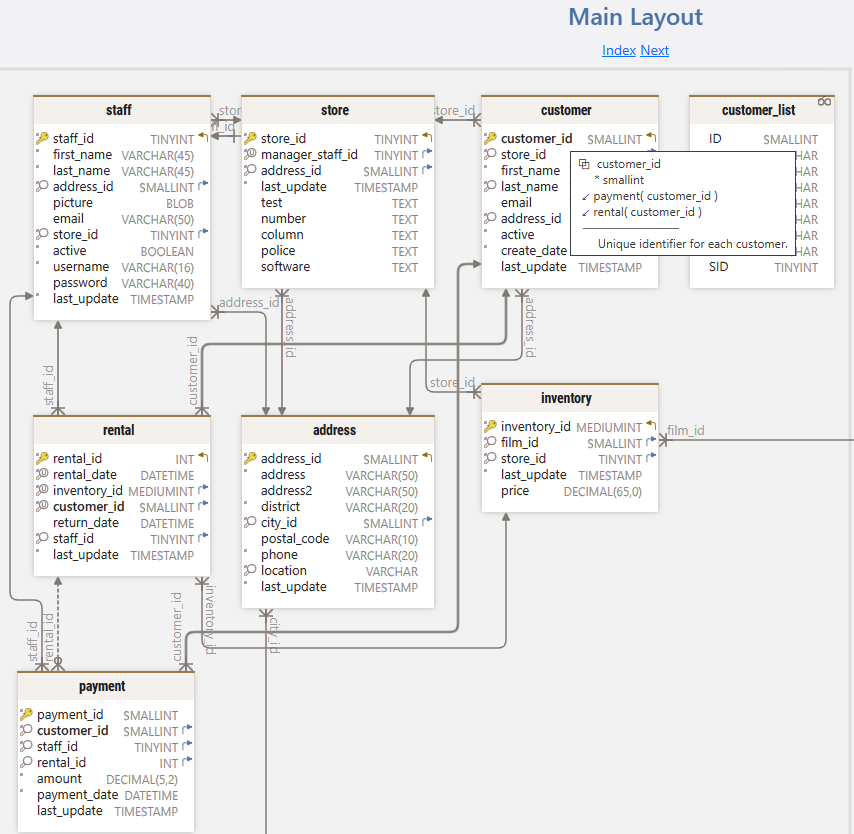
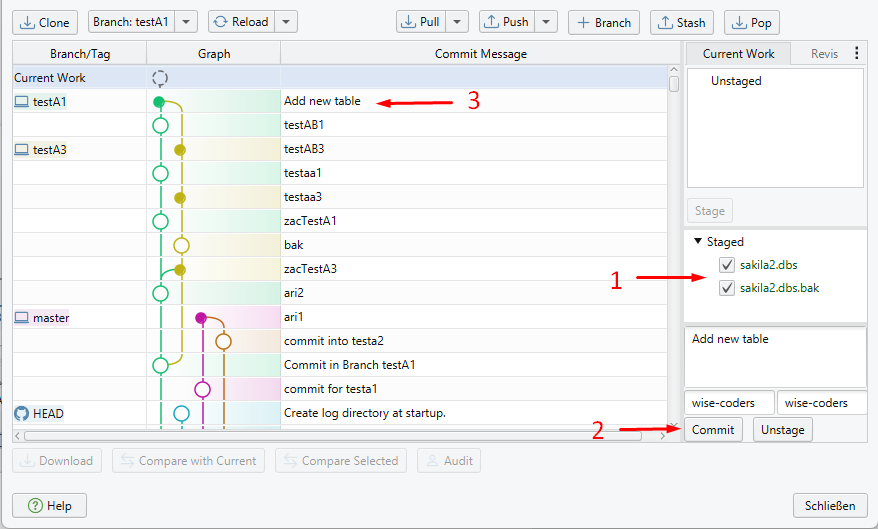
The model itself is a .dbs file in XML, so it belongs in the repository beside the code. Choose Git — Collaborative Design from the Model menu to open the Git dialog, clone a repository into an empty folder, and Stage, Commit and Push publish what you changed while a colleague pulls the same file and opens the same diagram. Branch a redesign, review the diff, drop the branch if it goes nowhere. The database sees none of this until you synchronize. Documentation export and the saved model file are Pro Edition features.
Build the query or write it
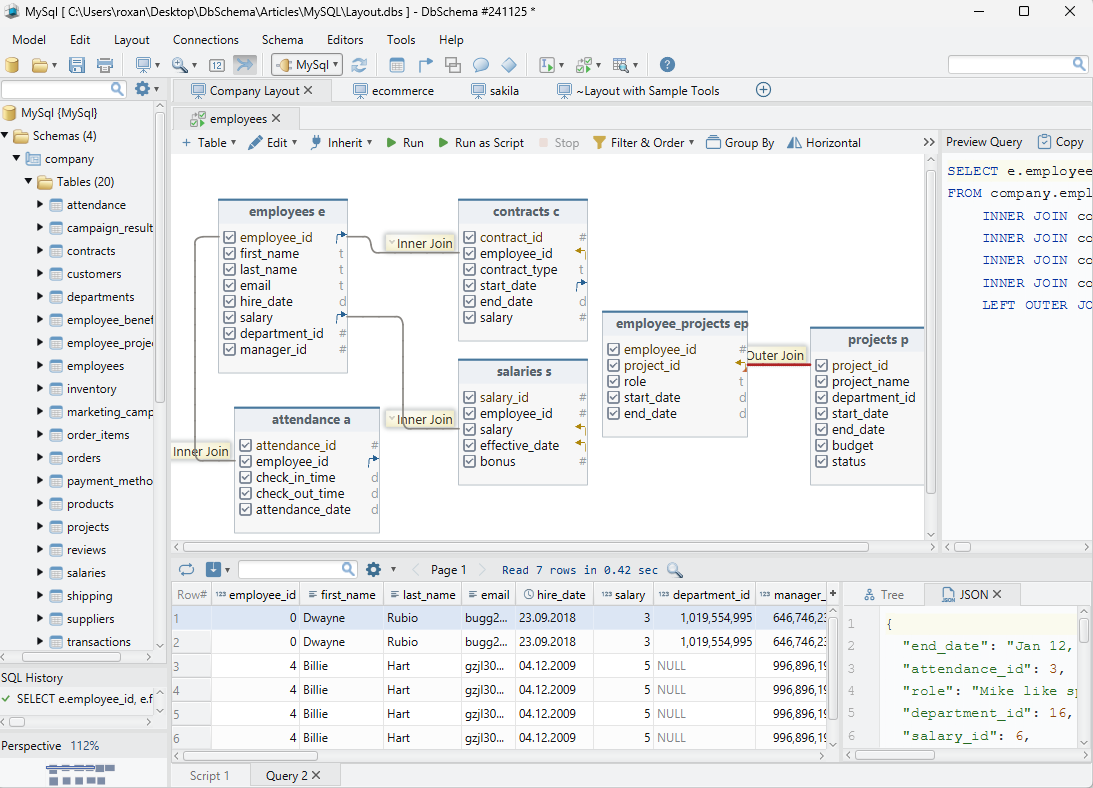
Click a table header in the diagram and the Query Builder opens with that table loaded. Tick the columns you want, follow a foreign key or a virtual one to pull in the related table, and the join comes with it; clicking the join label switches between INNER JOIN, LEFT JOIN and EXISTS. Right-click a column to add a WHERE condition or an aggregate. The generated SQL updates live at the bottom of the builder, which makes the builder a decent way to read the SQL for a join before you paste it into code.
The SQL editor is the other route: autocomplete over the schema, syntax highlighting, and the rows in the result pane when you run the statement. The SQL editor is in the Community Edition; the Query Builder is Pro.
Keep the model and the MariaDB database in step
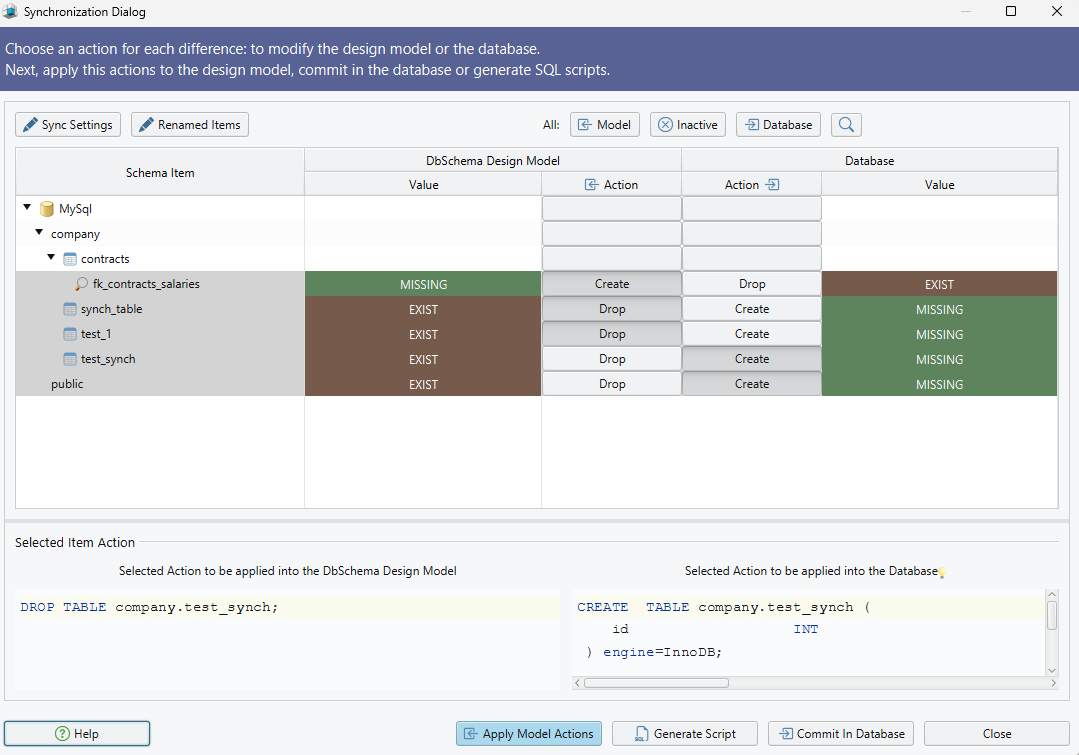
Schema → Compare Model with Database lists every difference between the design and the live database, object by object, and each one is decided on its own: update the model, push the change to MariaDB, or skip it. Nothing runs while you read.
Schema → Synchronize Model with Database then opens the Sync Dialog and generates the SQL for exactly the differences you approved. The statements are editable before they execute, and MariaDB changes when you click Execute and not before. Save the model to a file first, so a run that goes wrong has something to restore from. DbSchema can also open two model files at once and synchronize between them, which is how you compare a staging database against production without connecting to both at once. Schema synchronization is a Pro Edition feature.
Browse related rows and fill the tables for a test
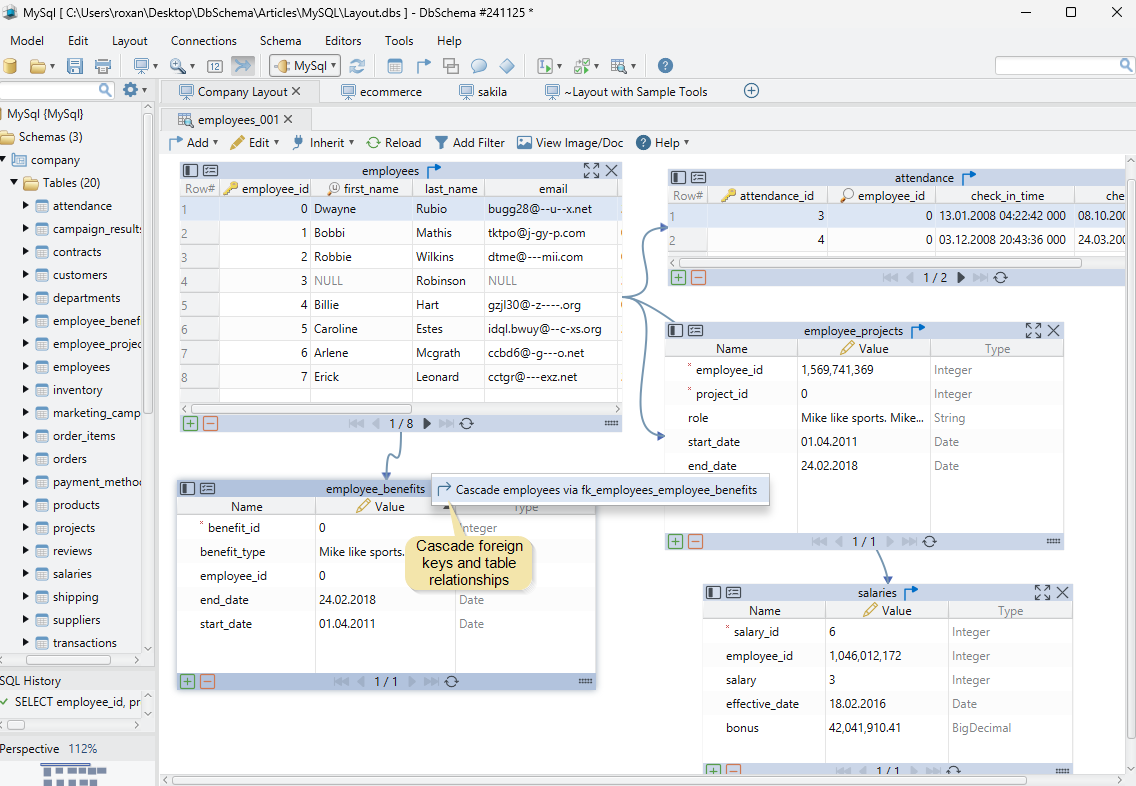
Right-click a table header and choose Open in Relational Data Editor. The table opens as a grid, and the foreign key button on its header panel adds a child table as a second pane; click a parent row and the child pane refilters to the rows that match it, cascading as deep as the relationships go. Virtual foreign keys work here too, which is the payoff for drawing them earlier. Rows are editable in the grid, each pane filters and sorts on its own, and what you are looking at exports to CSV, JSON or XML.
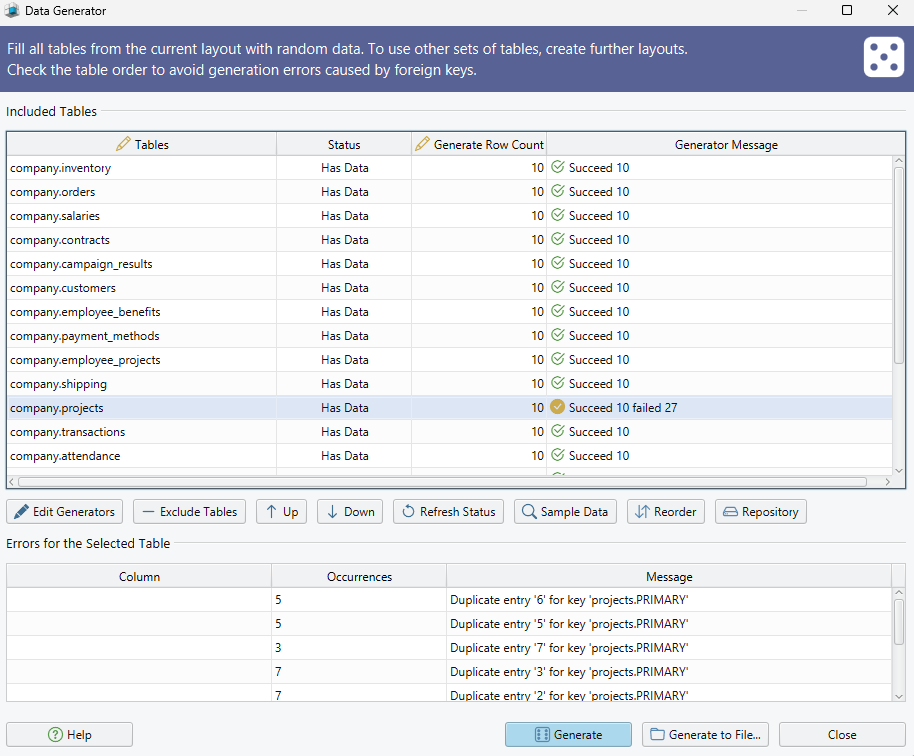
For test rows, open the Data Generator from Data Tools → Generate Random Data, set a row count per table and give each column a pattern: a name, a date range, a reverse regular expression, or a Groovy script for the awkward ones. Reorder the tables so a referenced table is filled first, and give the referencing column the load_values_from_pk pattern, which takes its values from the primary keys already in the parent table, so the generated rows join to something. A seed makes the run repeatable. Both tools write to MariaDB rather than to the model, so point them at a development database. Relational data browse and the Data Generator are Pro Edition features.
Download DbSchema at https://dbschema.com/download.html, connect to your MariaDB database and draw the relations the InnoDB constraints do not cover. Connecting, reverse-engineering, the diagrams and the SQL editor are in the free Community Edition. The saved model file, HTML5 documentation, the Query Builder, schema synchronization, relational data browse and the Data Generator are in the Pro Edition.









