HeidiSQL Alternative: A MariaDB and MySQL GUI Client With Diagrams
How DbSchema draws your MariaDB and MySQL tables, keeps the design in a file and shows every schema change before it runs.
On this page
Words in this article
Words in this article
- SQL client
- A program to run queries and edit rows in a database.
- MariaDB
- A database that began as a fork, a separate copy, of MySQL.
- ER diagram
- A picture of your tables and the links between them.
- Foreign key
- A column that points to a row in another table.
- Schema
- The set of tables, columns and keys in a database.
- Model
- DbSchema's design file: its own copy of the schema, saved in a .dbs file.
- Git
- A version control system that keeps every version of a file and who changed it.
- Migration script
- The SQL statements that bring a database up to date.
The short answer
You run your MariaDB or MySQL queries in HeidiSQL, and the schema keeps growing. Now you need to see how the tables connect, change them without breaking anything, and share the design with your team, maybe from a Mac or a Linux laptop. DbSchema is a MariaDB and MySQL GUI client that does that work on Windows, macOS and Linux. MariaDB began as a fork, a separate copy, of MySQL, and DbSchema works with both:
How do the tables connect?
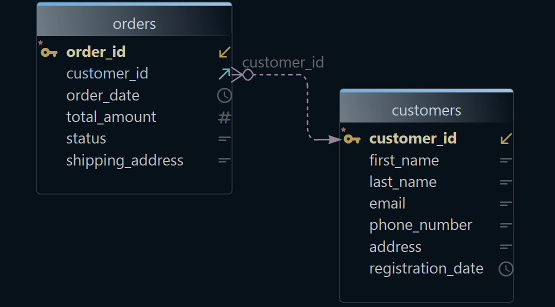
DbSchema draws your MariaDB or MySQL tables as an ER diagram.
Change the schema safely: DbSchema Pro
Compares the design with the server and runs only the differences you pick.
Share the design: DbSchema Pro
Saves the schema as a
.dbsfile that your team keeps in Git.
What DbSchema adds to MariaDB and MySQL work
Why DbSchema
A SQL client shows you the database. DbSchema gives you the model as well. The schema is the set of tables, columns and keys in a database. The model is DbSchema's design file: its own copy of that schema, saved in a file with the extension .dbs.
See how your tables connect
DbSchema reads your MariaDB tables and draws them as an ER diagram (Connect to Database).
A design you review like code
DbSchema Pro saves the design as a
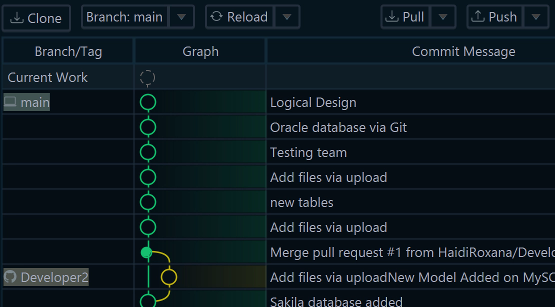
.dbsfile. File → Git Collaboration commits it (Git Collaboration).You see each change before it runs
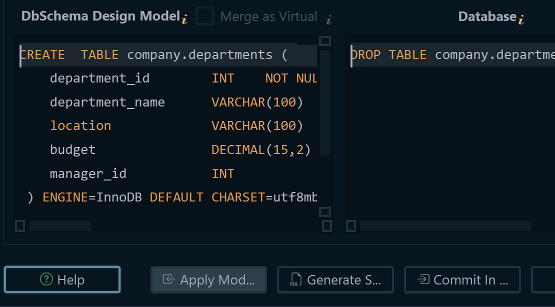
DbSchema Pro compares the design with MariaDB, lists each difference and shows its SQL. Only the differences you pick run (Schema Synchronization).
Documentation for the rest of the team
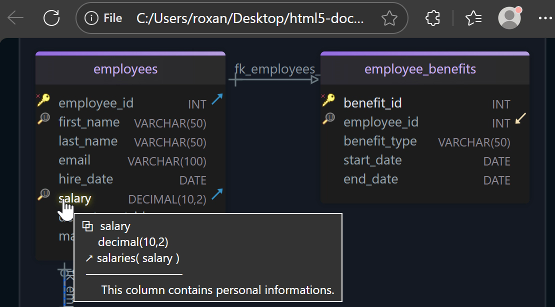
DbSchema Pro exports the schema as HTML5, PDF or Markdown, with the diagram (Schema Documentation).
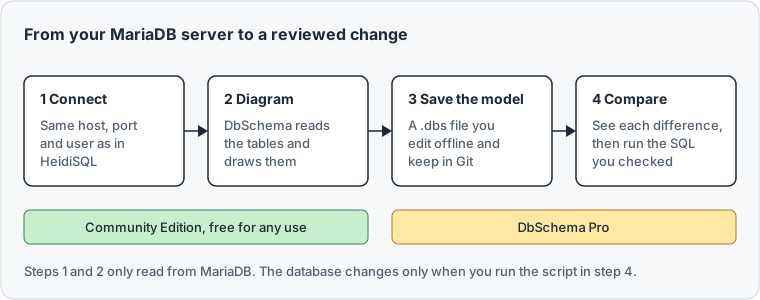
Then, in DbSchema:ConnectDiagramSave the modelCompare
Key takeaways
- With the diagram in view, you see at once which tables a change touches.
- Everyone on the team works from the same design and its full history.
- Nothing reaches the server until you have read the SQL that DbSchema wrote.
A MariaDB GUI and MySQL client in one tool
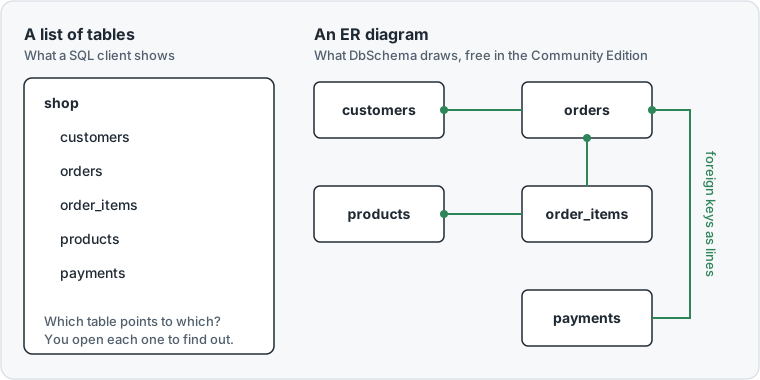
As a MariaDB client, DbSchema connects, runs SQL and draws the tables as an ER diagram. An ER diagram shows each table as a box. Each foreign key is a line between two boxes. A foreign key is a column that points to a row in another table, such as orders.customer_id. With the lines in view, you see at once which tables an order touches.
DbSchema runs natively on both Intel and Apple Silicon Macs, so everyone on the team can use the same tool, whatever Mac they have.
The same window also connects to PostgreSQL, SQL Server, MongoDB and more than 100 other databases. A team that runs MariaDB next to another database keeps one tool and one way of working.
HeidiSQL is built for rows: it runs queries, edits table data in a grid and exports results. Its feature list names no ER diagram, no design file and no schema compare. That is the work DbSchema takes on.
What users say
Visual and easy to use, DbSchema can help you visually design and manage databases in a team …
Direct database integration - option to have model actions reflected immediately in database.
Move from HeidiSQL to DbSchema
You need the host, port, user and password that you use in HeidiSQL. A port is the number the MariaDB server listens on, usually 3306.
-
Pick MariaDB Community
Choose File → New Model and keep Connect to Database selected. Click MariaDB, or type it in Search databases. On the right, choose New Connection.
-
Fill in the connection Community
Press Connect to MariaDB. Choose the Method Standard, then Remote computer or custom port. Type the Server Host, the Port, the Database User and the Password, enter the Schema (optional), which is the database to open, and press Connect. DbSchema downloads the JDBC driver the first time. A JDBC driver is a small Java library that lets DbSchema talk to MariaDB.
-
Draw the diagram Community
In Reverse Engineer the Database, tick your schema and press Import. Reverse-engineering means reading the existing tables and drawing them. It only reads from MariaDB and changes nothing.
-
Save the design Pro
Choose File → Save Model to File. To change the design without touching the server, choose Database → Offline (connect later). Your edits now stay in the
.dbsfile. -
Compare and deploy Pro
In the toolbar, click the connection button: it shows Offline while you work offline. Choose your MariaDB connection. DbSchema asks how to bring the model and the database together: choose Compare, then decide difference by difference. The Synchronize Model and Database dialog lists one difference per row. In the Action column, the left button writes the difference into the model. The right button marks it to be written into the database. Select a row to read its SQL in the lower pane.
01 StandardThe Method for a host, a port and a database user.
02 Remote computer or custom portShows Server Host and Port, for a MariaDB server on another machine.
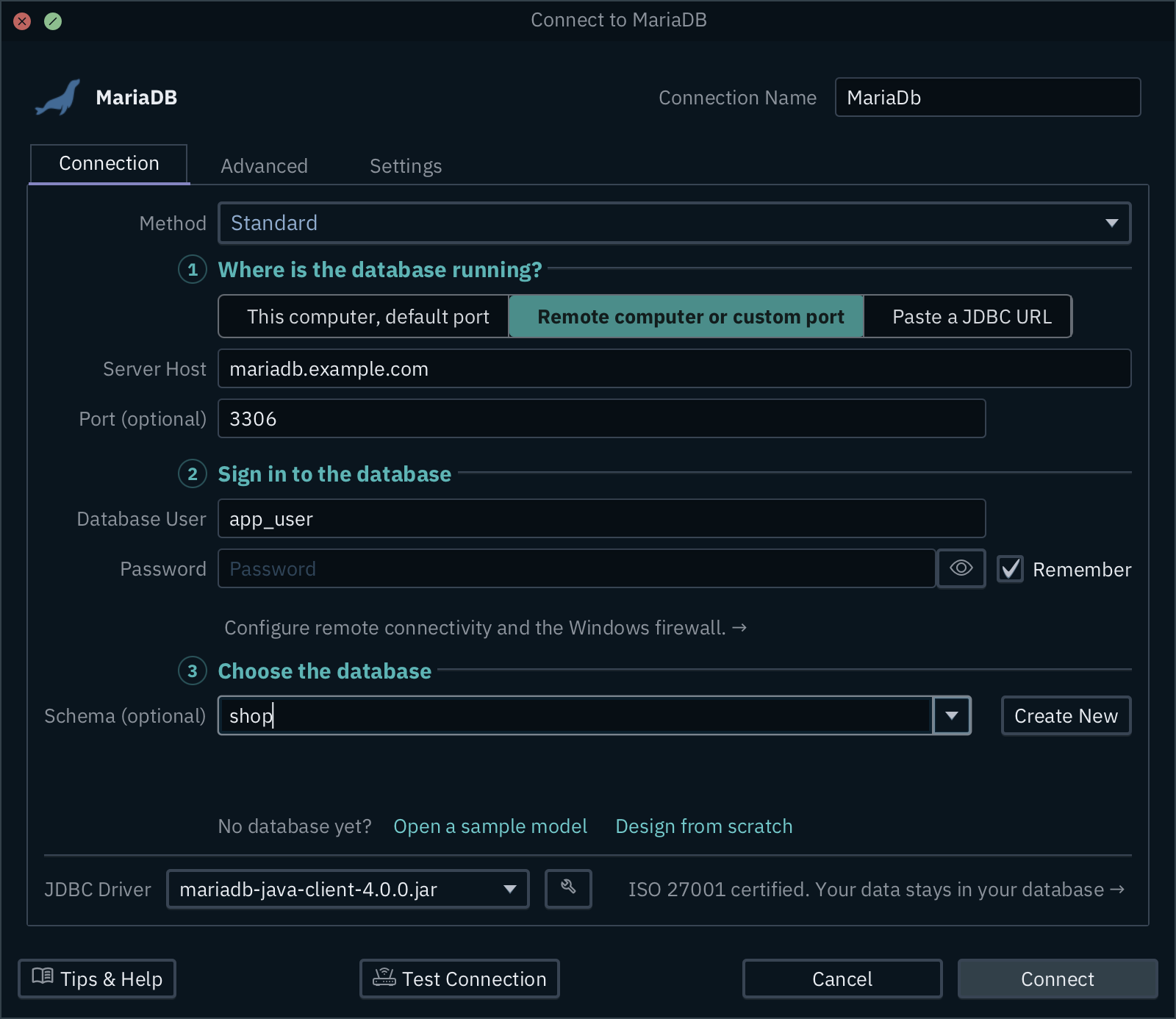
03 mariadb-java-clientDbSchema downloads the MariaDB JDBC driver the first time you connect.
04 Server HostType the host, port, user and password you use in HeidiSQL. The port is usually 3306.
Review every schema change before it runs
Schema synchronization is the compare in the last step. It lists every difference between the design file and the server. For the differences you send to the database, DbSchema writes the migration script: the SQL statements that bring the server up to date. MariaDB changes only when you press Commit in the database.
The compare also works the other way. When someone changed the server with a migration script, Database → Refresh Model from Database shows what changed. If nothing differs, DbSchema says "Schemas are identical". Otherwise you review each difference, so the model and the server never drift apart unnoticed.
Share the schema with your team
Git is a version control system: it keeps every version of a file and who changed it. DbSchema has Git built in, so you need no other Git program. Save the model, then choose File → Git Collaboration to commit your change and push it to the shared repository. A colleague pulls it and sees the same design, with the history of every change.
For people who don't run DbSchema, such as a reviewer or a new developer, choose File → Export As... → HTML5/PDF Documentation. DbSchema writes the diagram and every table as one HTML5 file, a PDF or a Markdown file.
Which DbSchema edition fits you
DbSchema Pro fits you if you change a growing schema with other developers: the design lives in a file you keep in Git, and every change reaches the server as a script you have read. DbSchema Architect fits teams that plan new parts of the system before they build them. Its logical design lets you sketch entities and relations first, then generate the tables for MariaDB or any other database (Logical Design). The pricing page lists the editions and their prices.
Download DbSchema, connect it to your MariaDB server and try all features for 15 days; afterwards the Community Edition stays free. For schema work in a team, choose DbSchema Pro.
Sources
- HeidiSQL, home page and feature list (heidisql.com), read 19 November 2026.
- DbSchema, Connect to Database, Schema Synchronization, Git Collaboration, Schema Documentation, Logical Design.
- DbSchema, MariaDB setup, supported databases and pricing.
Keep your MariaDB design in a file with DbSchema Pro
DbSchema Pro adds the design file, Git, schema synchronization and documentation to your MariaDB and MySQL work. Try all features for 15 days.