How to Document SQL Server Schemas Visually
For the person who owns a SQL Server schema nobody has written down, and has to hand a readable version of it to developers, auditors or a new colleague.
On this page
A new developer opens the database in SQL Server Management Studio and gets a flat list of two hundred tables. The list can't say which tables belong to billing, which foreign key ties an invoice to its customer, or what a table ending in _old was for. Write those answers into SQL Server itself, as an extended property named MS_Description, then reverse-engineer the schema into DbSchema diagrams and export them as documentation:
- Put a description on each table and column with
sys.sp_addextendedproperty, under the property nameMS_Description. - Connect DbSchema to the database and reverse-engineer the schema. DbSchema reads the descriptions along with the tables.
- Spread the tables over several diagrams, one for each area of the schema.
- Export the diagrams as HTML5, PDF or Markdown documentation.
- When the database changes, refresh the DbSchema model from the database and export again.
The SQL below follows Microsoft's reference for SQL Server 2025, which the links point to.
Where SQL Server keeps a description
In SQL Server, a description is an extended property: a name and a value attached to a schema, a table, a column or another object. These three tables are enough to show how it works:
CREATE TABLE dbo.Customer (
    CustomerId int           NOT NULL PRIMARY KEY,
    Name       nvarchar(100) NOT NULL
);

CREATE TABLE dbo.Invoice (
    InvoiceId  int  NOT NULL PRIMARY KEY,
    CustomerId int  NOT NULL REFERENCES dbo.Customer (CustomerId),
    DueDate    date NOT NULL
);

CREATE TABLE dbo.user_event_log_old (
    EventId int           NOT NULL,
    Payload nvarchar(max) NULL
);
sys.sp_addextendedproperty attaches a property. The level arguments say where it goes: the schema at level 0, the table at level 1, and for a column, the column at level 2. The first call describes the Invoice table, the second its DueDate column:
EXECUTE sys.sp_addextendedproperty
    @name = N'MS_Description',
    @value = N'One row per invoice sent to a customer.',
    @level0type = N'SCHEMA', @level0name = N'dbo',
    @level1type = N'TABLE',  @level1name = N'Invoice';

EXECUTE sys.sp_addextendedproperty
    @name = N'MS_Description',
    @value = N'Date by which the customer has to pay.',
    @level0type = N'SCHEMA', @level0name = N'dbo',
    @level1type = N'TABLE',  @level1name = N'Invoice',
    @level2type = N'COLUMN', @level2name = N'DueDate';
SQL Server accepts any property name. MS_Description is the one that Microsoft's sample databases use for their descriptions, and the one DbSchema reads and writes. sys.fn_listextendedproperty reads the properties back. With default in place of a column name, it returns the properties of every column in the table:
SELECT objtype, objname, name, value
FROM sys.fn_listextendedproperty(NULL, 'schema', 'dbo', 'table', 'Invoice', 'column', default);
| objtype | objname | name | value |
|---|---|---|---|
| COLUMN | DueDate | MS_Description | Date by which the customer has to pay. |
The rules a description follows:
- An object holds one value per property name.
sys.sp_updateextendedproperty, called with the same arguments, changes a description.sys.sp_dropextendedpropertyremoves one.- The value is a
sql_variantof at most 7,500 bytes. - The object's owner can add a description, and so can anyone with
ALTERorCONTROLon the object, or a member ofdb_ownerordb_ddladmin. - A user sees only the properties of objects they own or hold some permission on.
- Without that permission,
fn_listextendedpropertyreturns an empty result rather than an error. - System objects and memory-optimized tables can't carry extended properties.
A data dictionary from the catalog views
The catalog view sys.extended_properties holds one row per property. For a table or a column, class is 1 and major_id is the table's object_id. The minor_id tells them apart: 0 for the table itself, and the column_id for a column. DueDate is the third column of dbo.Invoice, so its row has minor_id 3:
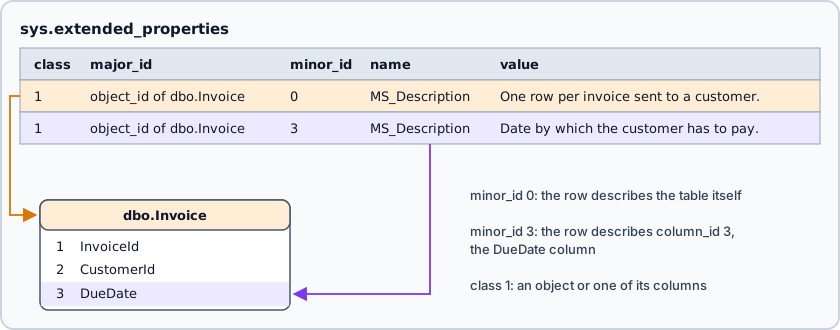
Join those rows to sys.tables and sys.columns, and you have a data dictionary: every column, its type and its description.
SELECT t.name AS table_name,
       c.name AS column_name,
       TYPE_NAME(c.user_type_id) AS data_type,
       CAST(ep.value AS nvarchar(4000)) AS description
FROM sys.tables AS t
JOIN sys.columns AS c
    ON c.object_id = t.object_id
LEFT JOIN sys.extended_properties AS ep
    ON ep.class = 1
   AND ep.major_id = c.object_id
   AND ep.minor_id = c.column_id
   AND ep.name = N'MS_Description'
WHERE t.schema_id = SCHEMA_ID(N'dbo')
ORDER BY t.name, c.column_id;
| table_name | column_name | data_type | description |
|---|---|---|---|
| Customer | CustomerId | int | NULL |
| Customer | Name | nvarchar | NULL |
| Invoice | InvoiceId | int | NULL |
| Invoice | CustomerId | int | NULL |
| Invoice | DueDate | date | Date by which the customer has to pay. |
| user_event_log_old | EventId | int | NULL |
| user_event_log_old | Payload | nvarchar | NULL |
Every NULL in the last column is a gap. Add AND ep.value IS NULL to the WHERE clause, and the same query lists only the columns that nobody described: the work list before an audit or a new colleague's first week.
The query gives you the text, but not the shape. It can't show that dbo.Invoice hangs off dbo.Customer, or which tables make up billing. That picture is what the diagram adds.
The diagram DbSchema draws from the live schema
DbSchema connects to your SQL Server instance and reads the schema over JDBC: tables, columns, keys, indexes, and the MS_Description of each. It lays the tables out on a diagram with a line for every foreign key. If the layout comes back overlapping, select all tables with Ctrl+A and choose Diagram → Auto Arrange. Reading the schema changes nothing in SQL Server. Everything you arrange is stored in the DbSchema model file, a .dbs XML file on your computer.
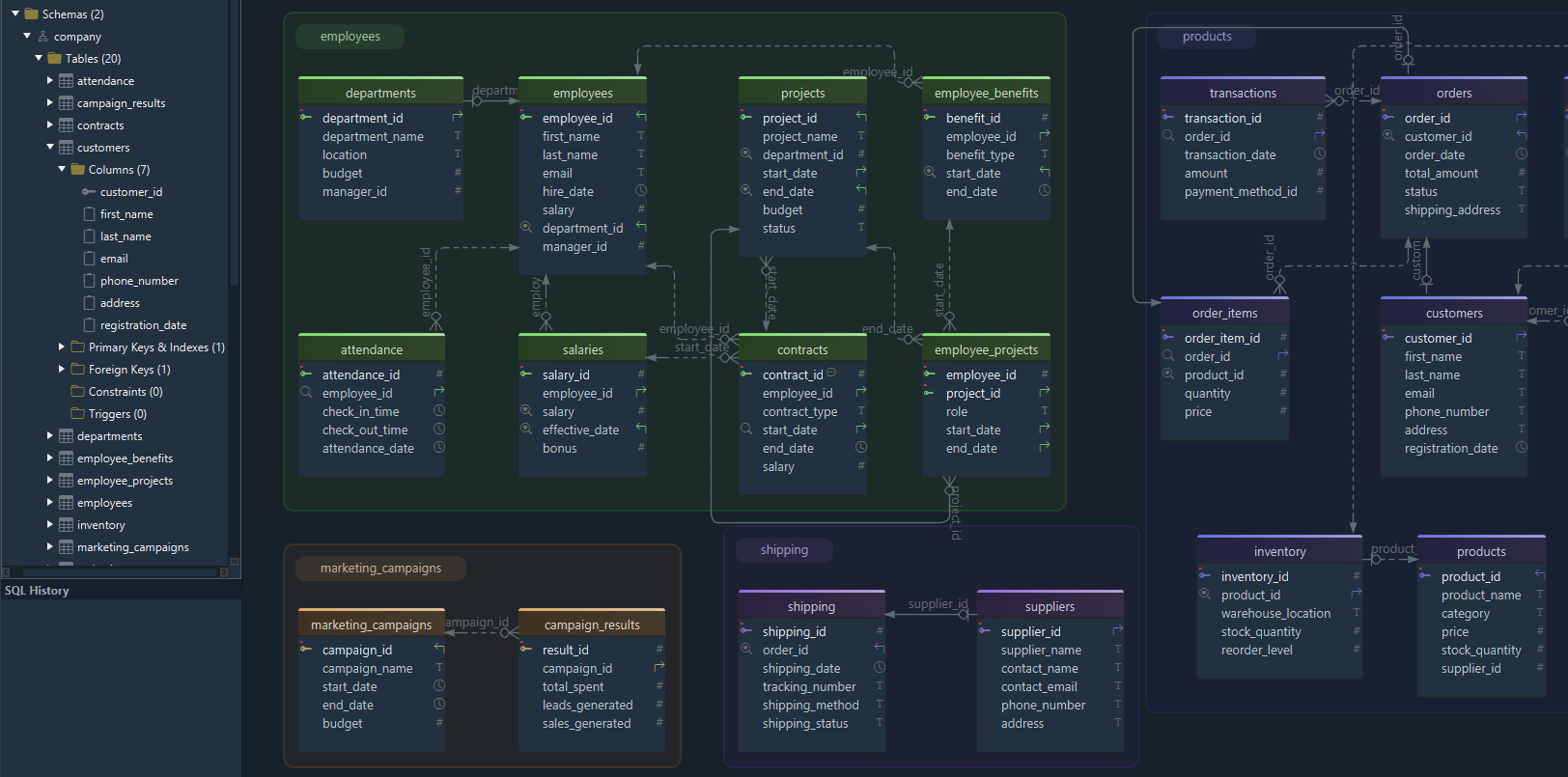
One diagram for two hundred tables helps nobody. A DbSchema project holds many diagrams, each with its own layout and its own visible tables, so billing, reporting and staging each get a picture a person can read. The same table can sit on several diagrams. Within a diagram, related tables go into a named, colored group that moves as a unit.
Views, procedures, functions and triggers hold much of what a SQL Server database does. JDBC's metadata calls list procedures and functions but not their code, and have no call for triggers, so DbSchema reads all three with per-database queries that you can inspect and adjust. The Project Structure panel lists them next to the tables. Right-click one to open its data, edit its structure or add it to a diagram, which is how a view that joins six tables ends up on the same picture as the tables it reads. A description on a view or a procedure is an MS_Description property too, and DbSchema reads it the same way.
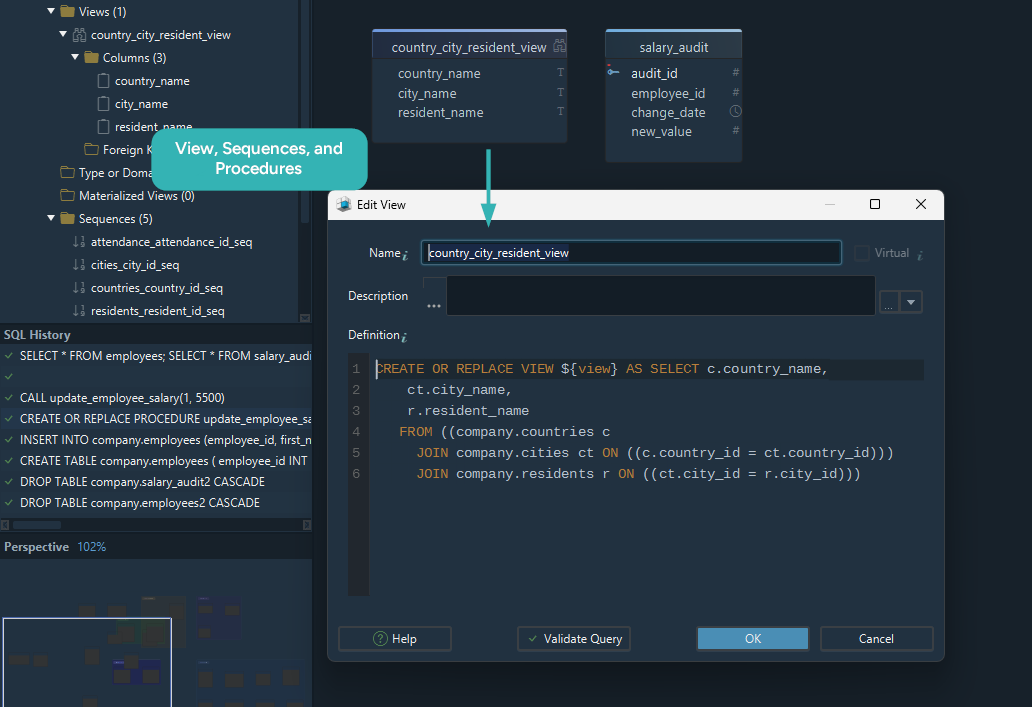
Where a description written in DbSchema goes
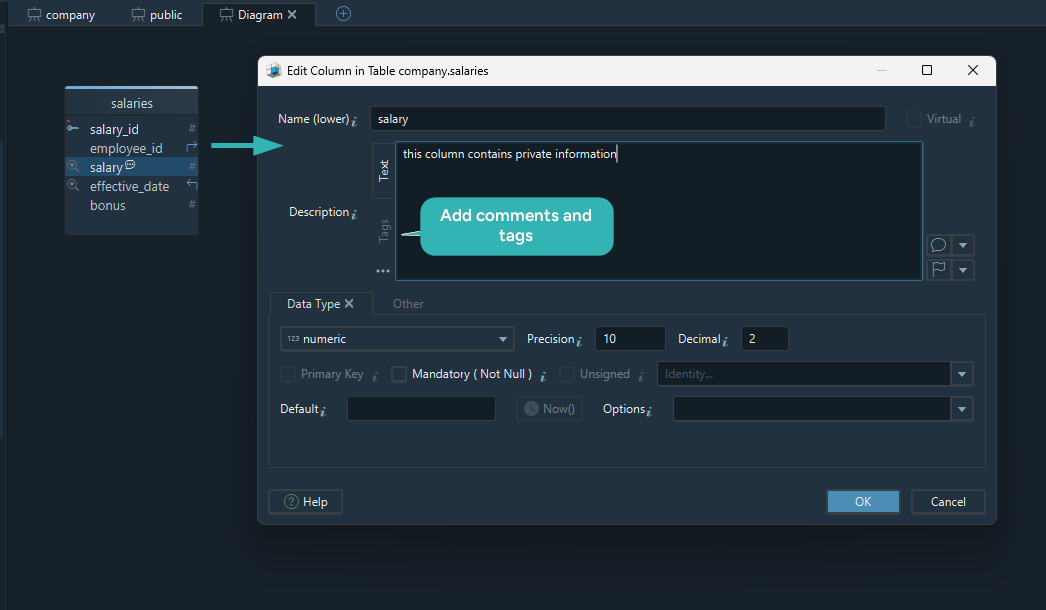
Double-click a table's header on the diagram to open the table dialog. The Comment field holds the table's description, and the Description column of the Columns tab holds each column's.

What pressing OK does depends on whether DbSchema is connected. Connected, DbSchema runs the change against the database at once and lists the statement in the SQL History pane. A new description runs the same sys.sp_addextendedproperty call as the first example; a changed one runs sys.sp_updateextendedproperty, and a cleared one sys.sp_dropextendedproperty. Disconnected, the description changes only in the model file. It reaches SQL Server when you reconnect and apply the difference in the Synchronization Dialog.
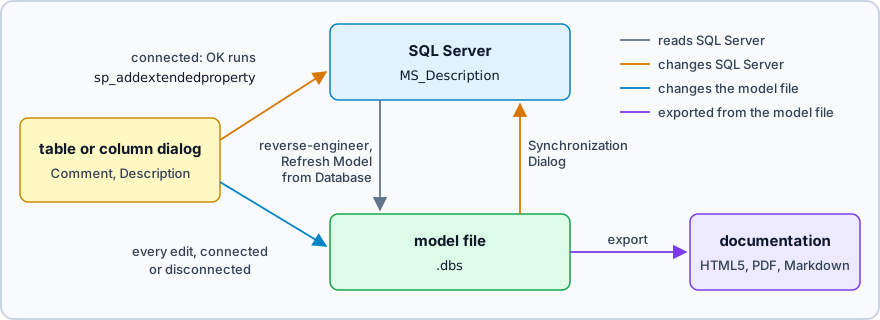
Either way, the model file keeps the description, and the export reads it from there.
The column dialog has a Tags tab beside the text. A tag is a key-value pair, such as an owner or a sensitivity level, that you define once in the Tag Manager and fill in per table or column. Tags are saved in the model file and appear in the HTML5 documentation. Automation scripts can read them too, which is how a nightly script can list every column tagged as personal data.
HTML5, PDF and Markdown documentation from one dialog

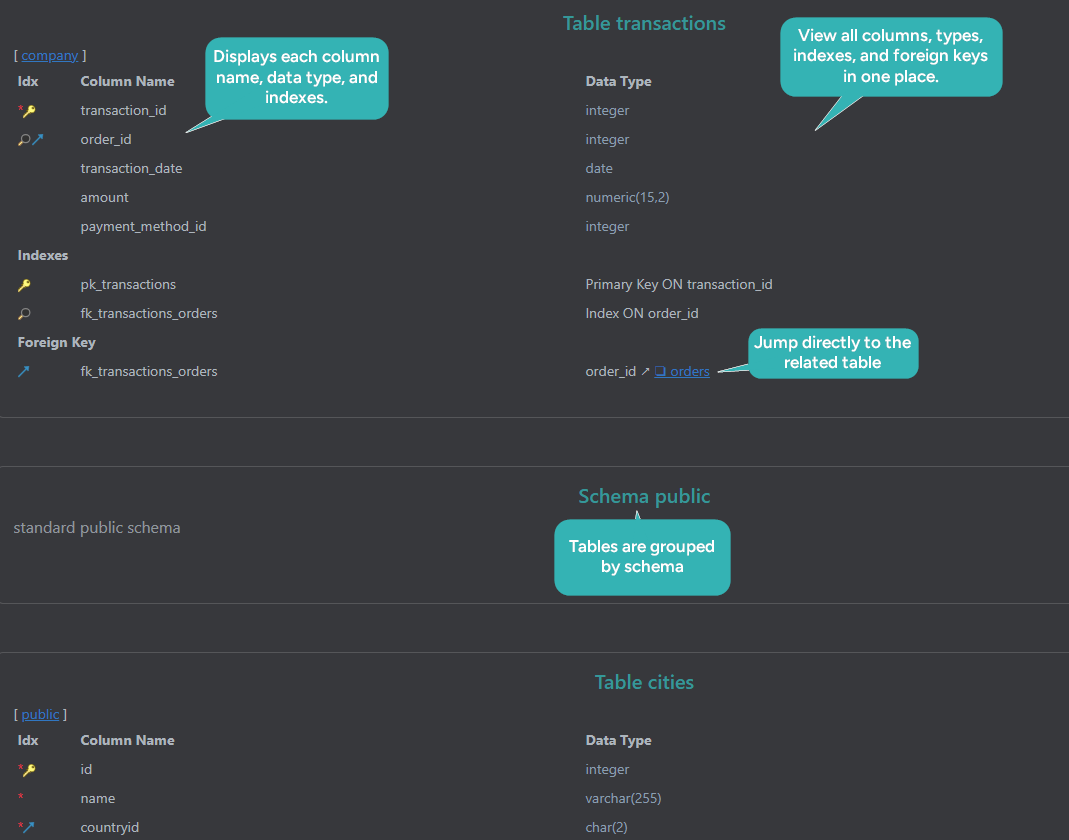
Diagram → Export HTML5 or PDF Documentation opens the documentation dialog. Choose the format, the diagrams to include, and the schema elements that go in: tables, columns, foreign keys, indexes, comments. If you tag diagrams with the tag documentation, the dialog can export exactly those, in the order the tag values set.
| format | opens in | suits |
|---|---|---|
| HTML5 | any browser, with no server | browsing, searching, reading descriptions on hover |
| any PDF reader | an audit or a formal review | |
| Markdown | a text editor, GitHub or a wiki | committing next to the source code |
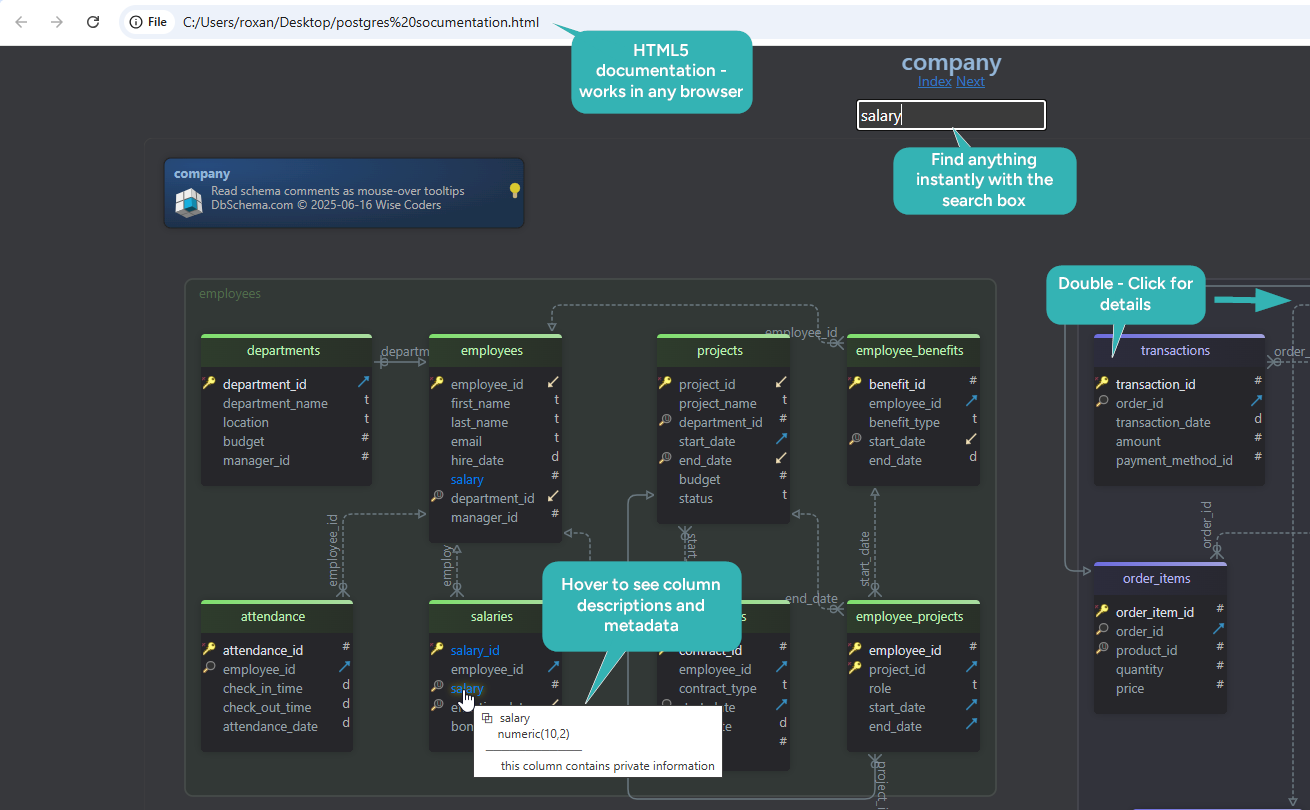
The HTML5 file carries the diagram as a vector image, a searchable table list and the full column details. A reviewer clicks a table on the diagram to jump to its columns, and hovers over a column to read its description. The HTML5 and Markdown files also list the procedures, functions and triggers with their code. Documentation export is a Pro feature.
When the database changes after the export
Documentation goes stale the first time someone runs ALTER TABLE in SSMS. Keep the model file in Git, and refresh the model from the database before each export.
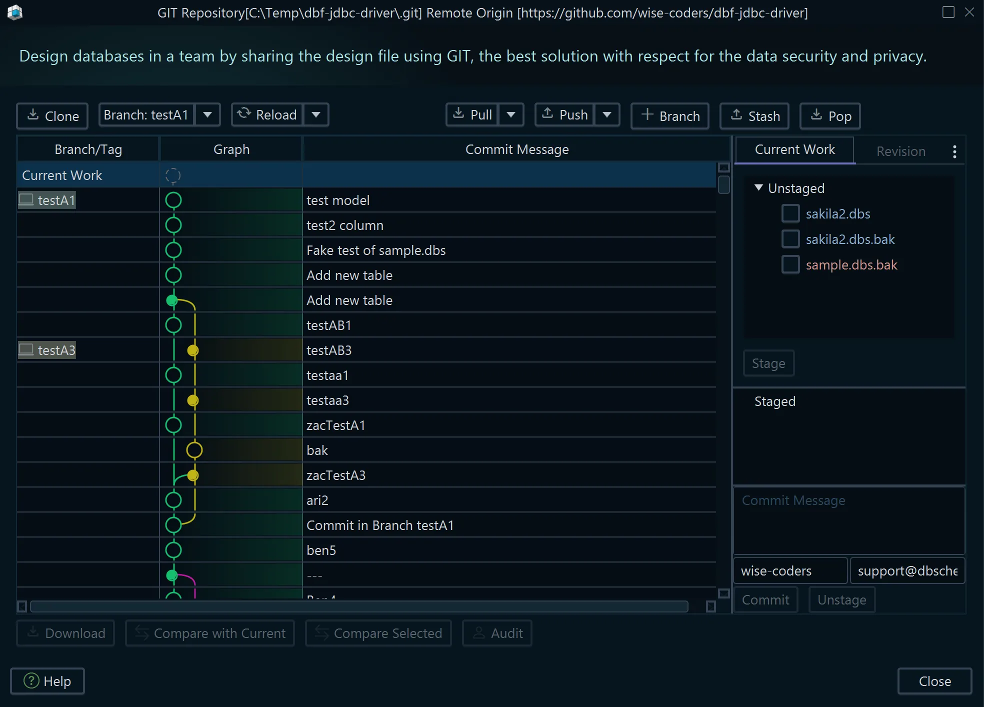
The .dbs file is XML, so it versions like source code. Open the Model menu, choose Git — Collaborative Design, and enter the repository URL and your credentials. From that dialog you Stage the changed file, Commit it with a message and Push it. Pull brings back what a colleague pushed, and Compare with Current opens the Synchronization Dialog on it, so you see which tables, columns and descriptions changed before any of it reaches a database. The Git guide walks through the cycle.
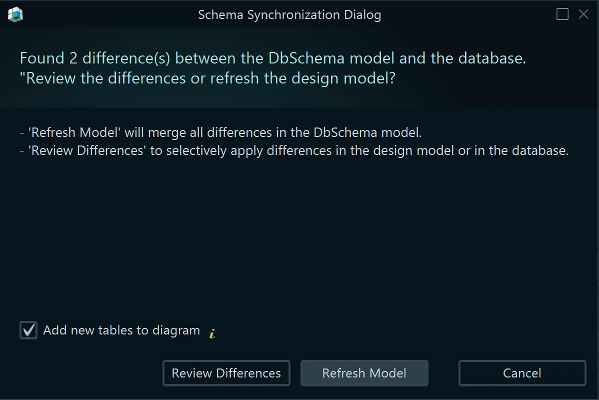
When someone changes the database directly, reconnect and click Refresh Model from Database. DbSchema compares the model with the live schema and lists every difference, including a description that someone changed in SQL Server. In the Synchronization Dialog you decide each one: update the model, apply it to the database, or generate a migration script for whoever runs deployments. Then export again. Saving the model to a file and schema synchronization are Pro features, so the Git workflow around the file is Pro too.
Sample rows and related data
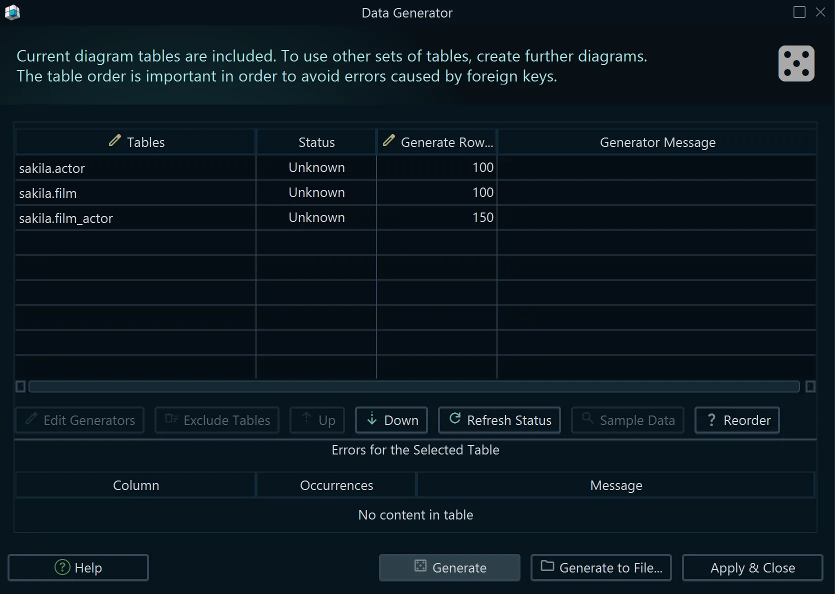
A diagram of empty tables is a poor demo, and QA can't test against a schema with no rows. Data Tools → Generate Random Data opens the Data Generator. Each column gets a pattern, from plain numbers and dates to reverse regular expressions and Groovy scripts, and you set the number of rows per table. Put dbo.Customer before dbo.Invoice, because a table has to be filled before the table that references it.
This step writes rows into SQL Server, and DbSchema asks whether to drop the existing data first. Point it at a development database, never at production. The Data Generator is a Pro feature, and its patterns are saved in the model file.
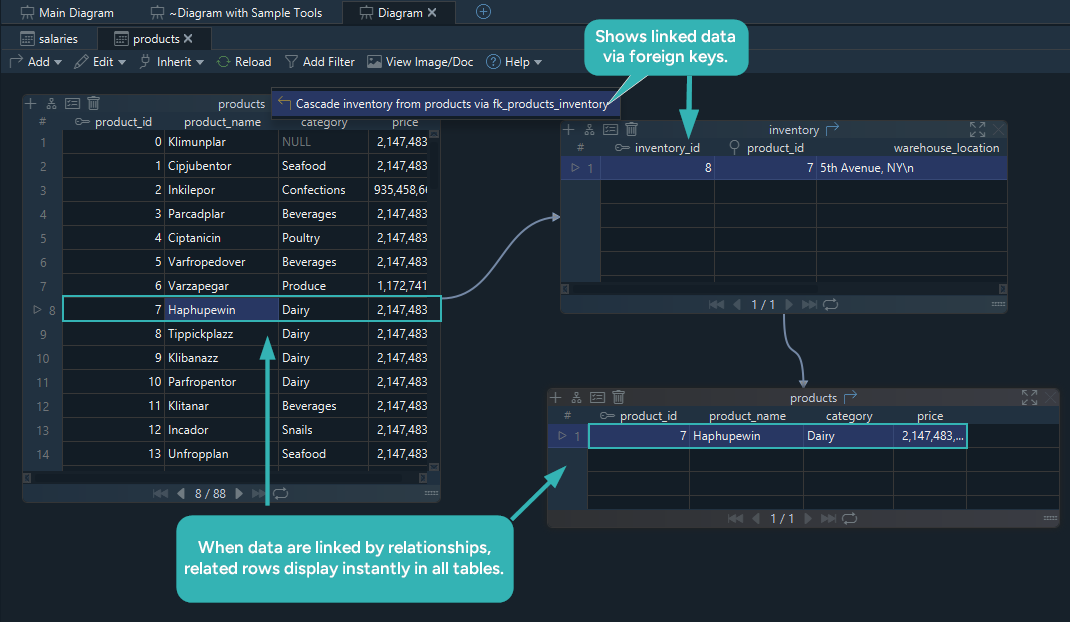
Descriptions explain the structure, and the rows show what it means. The Relational Data Editor opens a table and its related tables side by side. Click a customer's row, and the invoice pane shows only that customer's invoices, as many levels deep as the foreign keys go. Where SQL Server has no foreign key, drag one column onto another in the diagram to create a virtual foreign key. It's stored in the model file, changes nothing in the database, and the editor follows it like a real one. Open dbo.user_event_log_old there, and its rows tell you what nobody wrote down. Edits in the editor stay pending until you click Commit. The Relational Data Editor is in the Pro edition.
Documenting a SQL Server schema stops being a separate project when the descriptions live in the database and the documentation comes out of the design you already keep. Download DbSchema, connect to your database and read the diagram in the free Community Edition. The HTML5, PDF and Markdown documentation, saving the model for Git, schema synchronization, the Data Generator and the Relational Data Editor are in Pro.









