MySQL Default Username and Password
For anyone who installed MySQL, or took over a MySQL server, and can't log in as root. You can open a terminal; every command is shown.
On this page
You installed MySQL, or took over a server, and the login asks for a password that nobody gave you. The default username is root. MySQL has no default password: the password of root depends on how MySQL was installed.
| How MySQL was installed | Password of root |
|---|---|
RPM package, or mysqld --initialize | Random and expired, written to the server error log |
| macOS installer | Random, shown in a dialog box during the installation |
| Windows MSI with MySQL Configurator | The password chosen during setup |
| Debian package from MySQL | The password chosen during setup |
Ubuntu's own mysql-server package | None. Run sudo mysql |
mysqld --initialize-insecure | None |
Docker image mysql | The value of MYSQL_ROOT_PASSWORD |
| XAMPP | None |
| MAMP | root |
Log in with the mysql client. The -p option makes the client ask for the password:
mysql -u root -p
The rows for MySQL's own installers come from the MySQL 8.4 manual, and the commands in this article were run on MySQL 9.1. If the password chosen during setup is lost, reset it on Windows or on Linux or macOS.
Find the temporary root password
An RPM installation writes a random password for root to the server error log, and so does mysqld --initialize. On RHEL, Oracle Linux, CentOS and Fedora, read the password with this command from the manual's RPM installation page:
sudo grep 'temporary password' /var/log/mysqld.log
On SUSE Linux Enterprise Server, the log is /var/log/mysql/mysqld.log. The command prints one line, which ends with the password:
[Note] [MY-010454] [Server] A temporary password is generated for root@localhost: R<B16(h)e1tg
Log in with the temporary password. MySQL has marked that password as expired, so it refuses every statement until you set a new password:
ERROR 1820 (HY000): You must reset your password using ALTER USER statement before executing this statement.
Set the new password with ALTER USER, typed at the mysql> prompt:
ALTER USER 'root'@'localhost' IDENTIFIED BY 'MyNewPass1!';
Root with no password
mysqld --initialize-insecure creates root with no password, and so does XAMPP. The XAMPP FAQ says: "The MySQL administrator (root) has no password." Connect without a password:
mysql -u root --skip-password
Set a password right away, with the ALTER USER statement of the section above. Until then, anyone who can connect to the server gets in as root.
MAMP creates root with the password root (MAMP documentation). Change that password in the same way.
Ubuntu's own mysql-server package gives root no password either. There, root uses the auth_socket plugin, which checks the Linux user in place of a password. The Ubuntu Server documentation says: "No password is required by MySQL as it authenticates with auth_socket." Log in on the server itself, as the Linux user root:
sudo mysql
Root in a Docker container
If MySQL runs in a Docker container, the password of root was set when the container first started. The official mysql image refuses to start without one of three variables:
[ERROR] [Entrypoint]: Database is uninitialized and password option is not specified
    You need to specify one of the following as an environment variable:
    - MYSQL_ROOT_PASSWORD
    - MYSQL_ALLOW_EMPTY_PASSWORD
    - MYSQL_RANDOM_ROOT_PASSWORD
| Variable | Password of root |
|---|---|
MYSQL_ROOT_PASSWORD | The value of the variable |
MYSQL_ALLOW_EMPTY_PASSWORD | None |
MYSQL_RANDOM_ROOT_PASSWORD | Random, printed to the container log |
Both commands below find the password of a container named mysql1. The first prints the random password from the log. The second prints the variable that the container was started with:
docker logs mysql1 2>&1 | grep GENERATED
docker inspect mysql1 | grep MYSQL_ROOT_PASSWORD
The image reads the variables only when the container creates its database. The image's documentation says that none of them has any effect on "a data directory that already contains a database". To change the password after that, use ALTER USER.
How to check the current root account
Once you are logged in, list the root accounts:
SELECT user, host, plugin
FROM mysql.user
WHERE user = 'root';
A new MySQL 9.1 server returns one row:
| user | host | plugin |
|---|---|---|
| root | localhost | caching_sha2_password |
The host column says where root may connect from. localhost means the machine that runs MySQL. The same password from another machine is refused, and the error names the machine that asked:
ERROR 1045 (28000): Access denied for user 'root'@'172.17.0.4' (using password: YES)
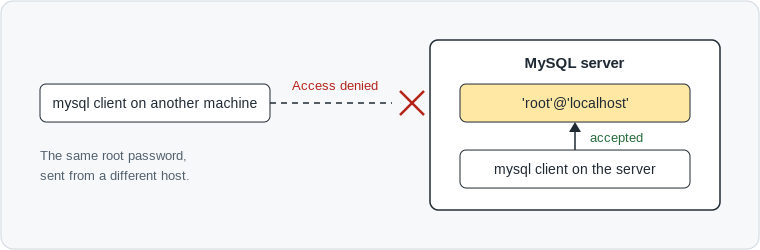
In a Docker container, the query returns a second row for root, with the host %. The account 'root'@'%' accepts a connection from any machine.
The plugin column says how the password is checked. caching_sha2_password is the default. MySQL 8.4 switches the older mysql_native_password plugin off by default, and MySQL 9.0 removed it.
Reset the MySQL root password on Windows
If the password is lost, give MySQL an init file: a file of statements that the server runs while it starts. The steps come from the manual's page on resetting the root password.
- Stop the MySQL service in the Services manager.
- Save this statement as
C:\mysql-init.txt:
ALTER USER 'root'@'localhost' IDENTIFIED BY 'MyNewPass1!';
- Open a terminal window, and start the server with the file. Type the path with doubled backslashes, as the manual does:
cd "C:\Program Files\MySQL\MySQL Server 8.4\bin"
mysqld --init-file=C:\\mysql-init.txt
- In a second terminal window, log in with the new password. Then stop that server with
mysqladmin -u root -p shutdown. - Delete
C:\mysql-init.txt, and start the MySQL service again.
Delete the file because it holds the new password as plain text.
If MySQL was installed with the MySQL Installation Wizard, you may also have to name the configuration file. Add --defaults-file="C:\\ProgramData\\MySQL\\MySQL Server 8.4\\my.ini" before --init-file. The Services manager shows the real path in the properties of the MySQL service, under Path to executable.
Reset the MySQL root password on Linux or macOS
The same init file works here. Log on as the system user that runs the server, usually mysql, and save the ALTER USER statement as /home/me/mysql-init. Then stop the server and start it with the file. Replace the two paths with yours:
kill `cat /mysql-data-directory/host_name.pid`
mysqld --init-file=/home/me/mysql-init &
Log in with the new password and delete the file. Then stop that server with mysqladmin -u root -p shutdown, and start the MySQL service again.
If the init file can't be used, start the server with --skip-grant-tables. The server then lets anyone in without a password, with every privilege. It also switches on skip_networking, so it accepts no connection from another machine.
mysqld --skip-grant-tables &
mysql
In that session, run FLUSH PRIVILEGES before ALTER USER:
FLUSH PRIVILEGES;
ALTER USER 'root'@'localhost' IDENTIFIED BY 'MyNewPass1!';
FLUSH PRIVILEGES makes the server load its accounts. Without it, ALTER USER fails:
ERROR 1290 (HY000): The MySQL server is running with the --skip-grant-tables option so it cannot execute this statement
Stop that server as soon as the password is changed, and start the MySQL service again.
Give each application its own account
Keep root for administration. Give an application its own account, with privileges only on its own database, here shop:
CREATE USER 'app_user'@'localhost' IDENTIFIED BY 'Long-Random-Pass-1';
GRANT SELECT, INSERT, UPDATE, DELETE ON shop.* TO 'app_user'@'localhost';
As with root, the host after the @ says where the account connects from. For an application on another machine, write that machine's name or address in place of localhost. Create a new user in MySQL covers the other options.
On a server installed from packages, run mysql_secure_installation too. The program sets a root password, removes anonymous users and remote root accounts, and removes the test database.
Connect DbSchema with its own account
DbSchema needs no root password to draw a diagram of a MySQL database. As root, create an account for DbSchema that can only read:
CREATE USER 'dbschema'@'localhost' IDENTIFIED BY 'Another-Long-Pass-2';
GRANT SELECT ON shop.* TO 'dbschema'@'localhost';
In DbSchema, choose File → New Model, keep Connect to Database selected, and click MySQL. In the connection dialog, enter the Server Host, the Port, and the Database User and Password of the new account. Tick Remember, and DbSchema saves the password in a file on your computer.
On the Access and Model tab of the dialog, tick Read Only Connection. DbSchema then refuses to change the schema through that connection. Highlight colors the connection button as Production, Development or Test, so you see which server you are on.
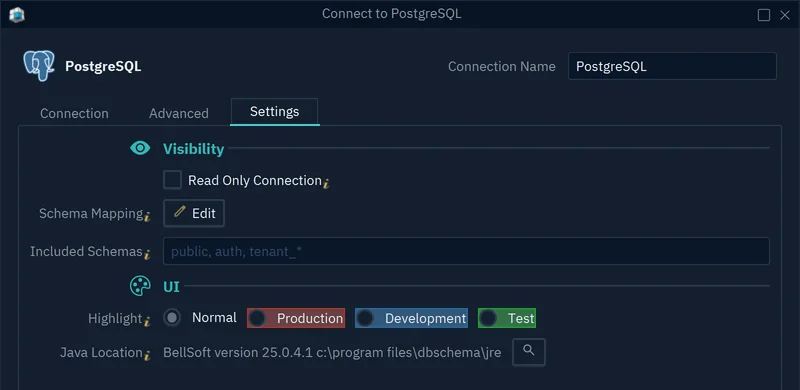
Press Connect, and DbSchema reads the tables and draws them as a diagram. The diagram is DbSchema's model of the schema. Moving a table in the diagram changes nothing on the server.
Download DbSchema at https://dbschema.com/download.html, and connect with the read-only account. Connecting, reverse-engineering and the diagrams are in the free Community Edition.