Firebird BLOB Guide in isql and DbSchema
For a developer who stores files or long text in Firebird and works in isql, with the same columns open in DbSchema.
On this page
A Firebird VARCHAR stops at 32,765 bytes, so the first PDF or log file you try to store fails on the column width rather than on anything you did wrong. BLOB is the type for that content: one column, no declared length, and two subtypes that decide whether Firebird reads the bytes as text or leaves them alone. Everything below runs on Firebird 5.0.
Declaring a BLOB column
CREATE TABLE ATTACHMENTS (
  ID INTEGER NOT NULL,
  FILENAME VARCHAR(60) NOT NULL,
  BODY BLOB SUB_TYPE TEXT,
  SCAN BLOB SUB_TYPE BINARY,
  CONSTRAINT PK_ATTACHMENTS PRIMARY KEY (ID)
);
Two subtypes cover what applications store. Subtype 0 has the alias BINARY and is what a bare
BLOB means: any byte stream Firebird should not interpret, such as images, audio, word processor
files and PDFs. Subtype 1 has the alias TEXT and holds plain text too long for a string type; it
takes a CHARACTER SET and a COLLATE clause, and naming a character set without a subtype implies
SUB_TYPE TEXT. Custom subtypes run from -1 down to -32,768, because Firebird uses the positive
numbers from 2 upward for its own metadata. The
binary data types section
of the Firebird 5.0 Language Reference lists all of it.
The syntax also accepts SEGMENT SIZE. That reference calls specifying it "a throwback to times
past" and says it is now effectively irrelevant, so leave the clause out. The
maximum size of a BLOB field is 4 GB for most built-in functions, and the exact ceiling depends on
the database page size and on how the value was written.
What a BLOB can do inside a query
INSERT INTO ATTACHMENTS (ID, FILENAME, BODY)
  VALUES (1, 'notes.txt', 'Ship the invoice on Monday.');
INSERT INTO ATTACHMENTS (ID, FILENAME, BODY)
  VALUES (2, 'empty.txt', '');
A text BLOB is an operand almost everywhere a VARCHAR is. Assignment, the six comparison operators,
concatenation with ||, BETWEEN, IN, IS [NOT] DISTINCT FROM, ANY, SOME and ALL all work
on it, so filtering on the content is an ordinary WHERE clause:
SELECT ID, FILENAME
FROM ATTACHMENTS
WHERE BODY = 'Ship the invoice on Monday.';
| ID | FILENAME |
|---|---|
| 1 | notes.txt |
OCTET_LENGTH gives the length in bytes, and returns a BIGINT when the argument is a BLOB:
SELECT ID, FILENAME, OCTET_LENGTH(BODY) AS BYTES
FROM ATTACHMENTS
ORDER BY ID;
| ID | FILENAME | BYTES |
|---|---|---|
| 1 | notes.txt | 27 |
| 2 | empty.txt | 0 |
Building a value up with || creates an intermediate BLOB at every step. BLOB_APPEND was made for
that case: it returns a BLOB left open for writing, so a chain of appends keeps adding to one object
instead of allocating a new one each time.
UPDATE ATTACHMENTS SET BODY = BLOB_APPEND(BODY, ' Confirmed.') WHERE ID = 1;
SELECT OCTET_LENGTH(BODY) AS BYTES FROM ATTACHMENTS WHERE ID = 1;
| BYTES |
|---|
| 38 |
Three behaviors are worth knowing before a report reads a BLOB column, and the same reference
records all three. LIKE, CONTAINING and STARTING WITH raise an error once the search argument
reaches 32 KB. Aggregation clauses work on the blob id rather than on the content, so
SELECT DISTINCT returns several NULL values by mistake when more than one is present, and
GROUP BY folds equal strings together only when they are adjacent, not when they are far apart in
the result.
Loading and exporting binary data with isql
A binary BLOB reaches the column through a client program: your code opens the file, reads the bytes,
and passes them as a statement parameter. In Python with the fdb driver that looks like this.
import fdb

def read_file(file):
    with open(file, 'rb') as f:
        photo = f.read()
    return photo

def insert_blob(file):
    try:
        firebird_connection = fdb.connect(dsn='localhost:/path/to/your/firebird.fdb',
                                          user='your_username', password='your_password')
        cursor = firebird_connection.cursor()
        firebird_insert_blob_query = """ INSERT INTO ATTACHMENTS
                                      (ID, FILENAME, SCAN) VALUES (?, ?, ?)"""

        fileData = read_file(file)
        converted_picture = fdb.Binary(fileData)
        data_tuple = (3, 'scan.jpg', converted_picture)
        cursor.execute(firebird_insert_blob_query, data_tuple)
        firebird_connection.commit()
        cursor.close()

    except fdb.Error as error:
        print("Failed to insert blob data into Firebird table", error)
    finally:
        if (firebird_connection):
            firebird_connection.close()

insert_blob("/path/to/your/file")
Replace the DSN, the user and the password with the values for your own server, and keep the column list matching the table.
Getting the bytes back out does not need a program. isql has BLOBDUMP blob_id filename, which
copies one BLOB into a file, and BLOBVIEW blob_id, which opens the same content in an external
editor and blocks isql until you close it. The blob id is a pair of hexadecimal numbers separated by
a colon, the relation id of the table and a sequential number inside the database, and isql prints it
in the column position when you select a BLOB. SET BLOBDISPLAY OFF leaves the id on its own,
SET BLOBDISPLAY ALL prints the content of every subtype underneath it, and SET BLOBDISPLAY 1
restricts that to text. isql does not check what it is writing: give a text BLOB a .jpg name and
BLOBDUMP produces the file without complaint, and no image viewer will open it. The
isql manual
documents these commands for Firebird up to and including 5.0.
BLOB columns in DbSchema
Connect DbSchema to the Firebird database and it reverse-engineers the schema into a diagram, BLOB
columns included. To add one, right-click the diagram canvas in DbSchema and choose
New Table, then double-click the table header to open the Table Dialog
and add the column on the Columns tab. While the connection is
online, DbSchema runs each schema change against the
live database as you make it and records the statement in the SQL History pane; the diagram is the
design model, and writing that model to a .dbs file is a Pro feature.
Putting a file into a column happens in the Relational Data Editor. Right-click the table header in the diagram and choose Open in Relational Data Editor, or choose New Relational Data Editor from the Editors menu. Click Insert in the table footer to add a row and fill in the fields. Right-click a cell in a BLOB column and choose View Data, give the extension the content should be treated as, and DbSchema saves it to a temporary file and opens it in the application your system registers for that extension. You can upload a new file from the same place to replace the stored value. Nothing reaches the database until you click Commit, and Rollback throws the pending changes away. The Relational Data Editor is in the Pro edition.
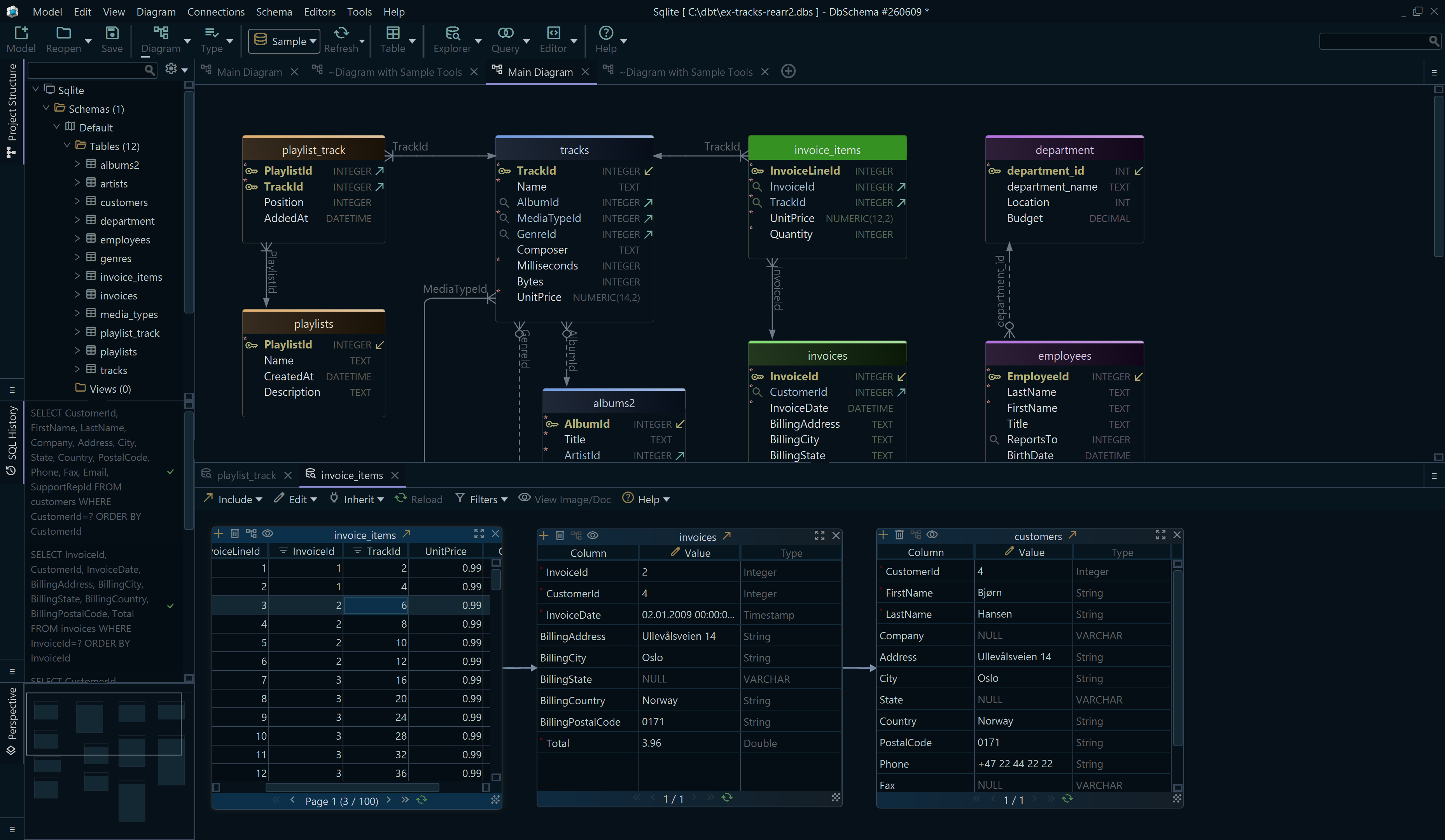
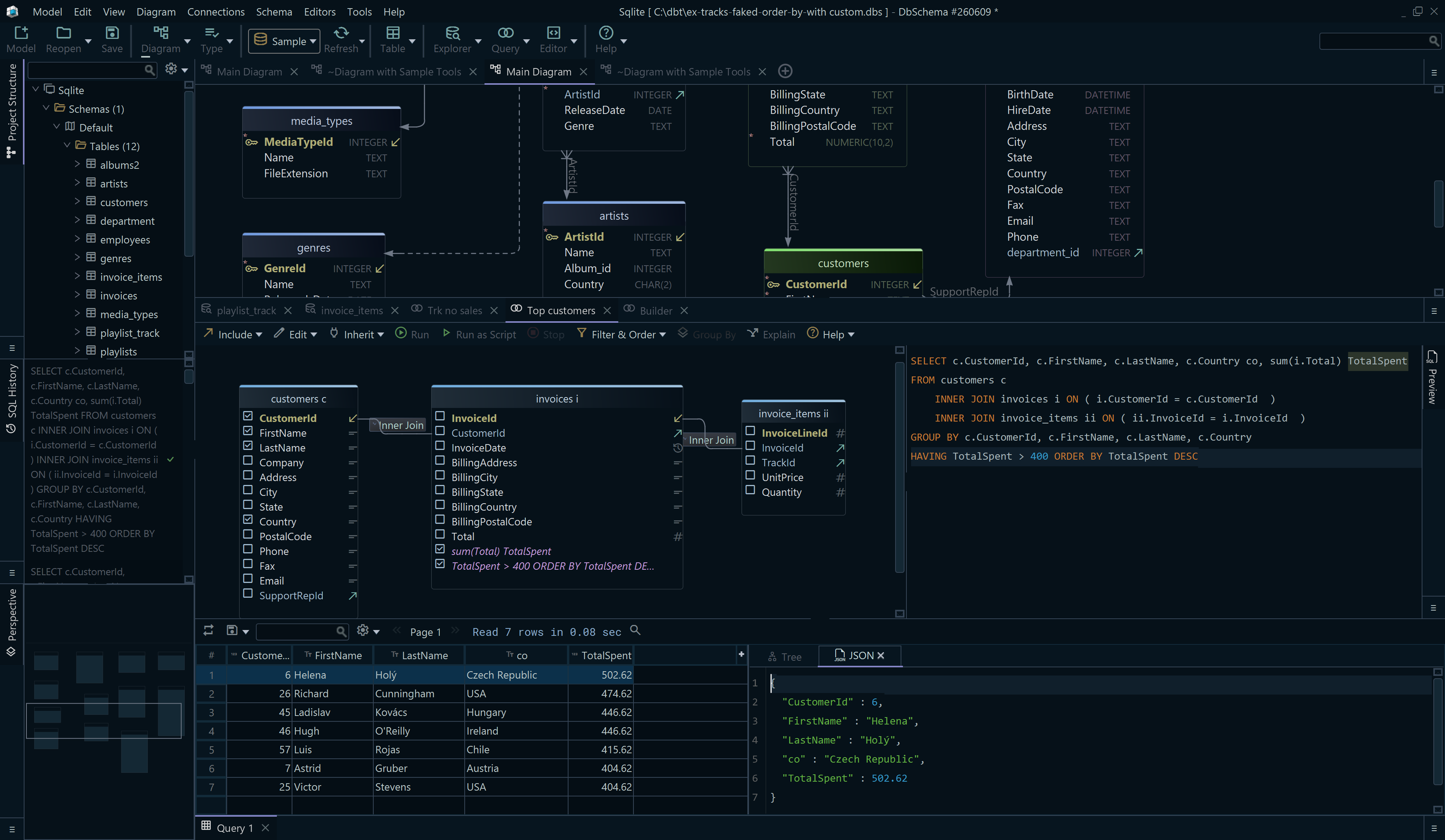

A BLOB is easier to work with when you can see it in the row it belongs to instead of as a hexadecimal id in a terminal. Download DbSchema at https://dbschema.com/download.html, connect to your Firebird database, and open the table in the Relational Data Editor of the Pro edition to view the stored file and replace it.









