Free CSV Editor for Large Files
For anyone holding a CSV file too big for a spreadsheet, who wants a free editor that opens it on their own machine, corrects it and saves it back.
On this page
A CSV export with two million rows opens in Excel with almost half of them missing, because a worksheet ends at row 1,048,576. The free editor to use instead is the DbSchema CSV Editor. It is part of the free Community Edition, runs on Windows, macOS and Linux, needs no database, and reads the file from your own disk. How large a file it opens depends on the memory DbSchema may use, which is 8 GB on a new installation.
Three kinds of free CSV editor, and where each one stops
The tools that come up for this search are of three kinds, and the kind decides what happens to a large file.
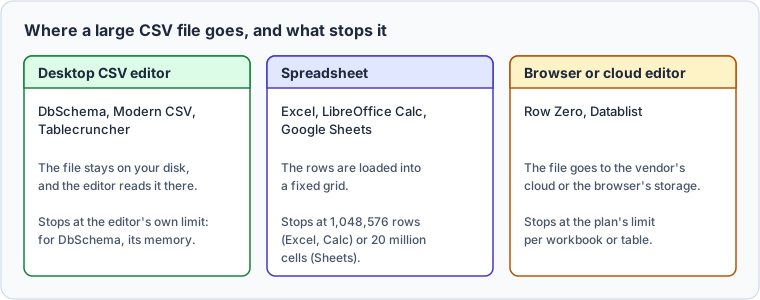
A spreadsheet loads the rows into a grid of fixed size. Excel's worksheet holds 1,048,576 rows by 16,384 columns. When a CSV file has more, Excel loads the rows that fit and warns that the data set is too large for the Excel grid: saving the workbook then loses the rows it never loaded. LibreOffice Calc has the same 1,048,576 rows and 16,384 columns per sheet since version 7.4, and Google Sheets allows 20 million cells per spreadsheet.
A browser or cloud editor moves the file off your machine, into the vendor's cloud or into the browser's own storage, and its plan sets the limit. A desktop CSV editor leaves the file where it is and reads it there, which is what you want for an export holding customer data.
Count the lines before you choose. Here is a test file of two million generated sign-ups, checked in a Bash shell (Git Bash on Windows, Terminal on macOS and Linux):
head -3 signups.csv
wc -l signups.csv
du -h signups.csv
customer_id,first_name,last_name,email,signup_date
1,Marco,Bianchi,[email protected],2025-01-02
2,Jonas,Brown,[email protected],2025-01-03
2000001 signups.csv
117M	signups.csv
The header and two million rows make 2,000,001 lines. Excel would load the first 1,048,576 and leave out 951,425. The file is 117 MB on disk, and a new DbSchema installation may use up to 8 GB of memory.
Open a CSV file in the DbSchema CSV Editor
- In DbSchema, choose Query → CSV Editor.
- Press Choose and pick the file.
- Check the Charset, the Delimiter, the Record Separator and the Quote Character.
- Tick First Row is Header if the first line holds the column names.
- Press Open.
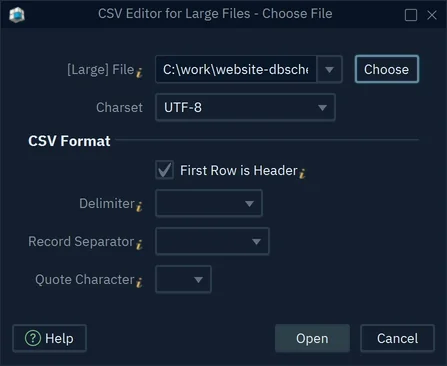
DbSchema detects the Charset from the file once you pick it. The Delimiter offers comma, pipe, space, tab, semicolon, colon and tilde, and the Quote Character offers ", ', ` and ´. Set both to what the file uses, because DbSchema reads the whole file with the values the dialog holds when you press Open.
A semicolon file with a quoted name shows why both matter:
supplier_id;name;city
1;"Weber; Sohn GmbH";Hamburg
2;Atelier Roux;Lyon
Python's csv module, reading line 2 of that file with each pair of settings, splits it like this:
| Delimiter | Quote Character | Values in line 2 |
|---|---|---|
; | " | 1, Weber; Sohn GmbH, Hamburg |
, | " | the whole line as one value |
; | ' | 1, "Weber, Sohn GmbH", Hamburg |
Only the first pair gives three columns with the name in one piece.
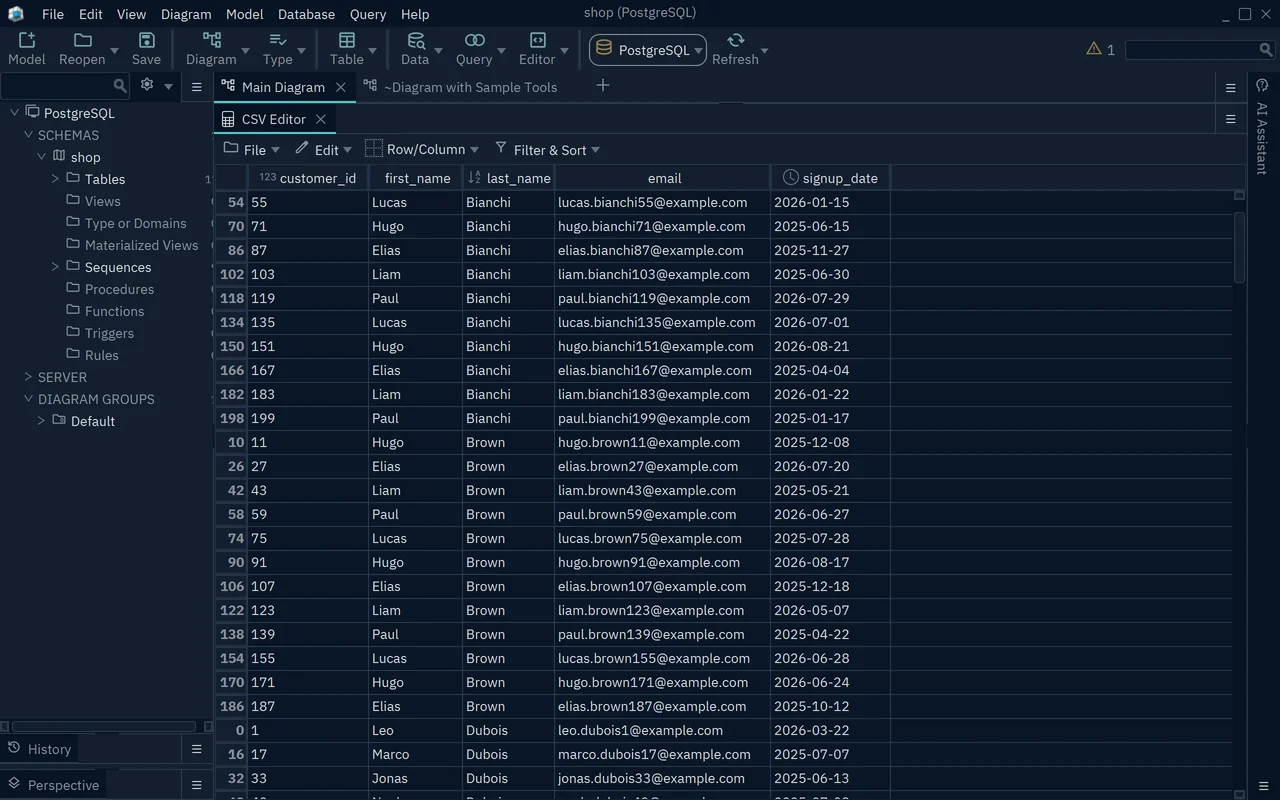
The file opens as a CSV Editor tab under the diagram, and a progress bar counts the records while DbSchema reads them. Double-click the tab to give it the whole diagram area. An icon in a column header marks the columns that hold numbers or dates.
How large a file the CSV Editor opens
The CSV Editor reads every row into memory, so the file it can open is bounded by the memory DbSchema may use, not by a row count. Help → About DbSchema shows that figure on its Memory line, beside the memory in use now.

A new installation of DbSchema sets 8 GB. An installation updated from an older version keeps its old setting, such as 1 GB, as in the picture. To raise it, edit the line that starts with -Xmx in DbSchema.vmoptions, next to DbSchema.exe on Windows and next to the DbSchema launcher on Linux (on macOS the file is DbSchema.app/Contents/vmoptions.txt), and start DbSchema again:
-Xmx16G
Keep the value below the memory of your computer, so other programs have room to run. The Memory and Java Options page has the details.
Edit cells, rows and columns
- Double-click a cell, type the new value and press Enter.
- To add or remove rows and columns, click a cell and open Row/Column: Insert Column Left, Insert Column Right, Insert Row Before, Insert Row After, Delete Row or Delete Column.
- To rename a column, right-click a cell of it and choose Rename Column.
Edit → Undo, or Ctrl+Z, takes back a change, and Edit → Find Replace replaces text across the whole file. Every one of these changes happens in the grid in memory. The file on disk stays as it was until you save.
Filter and sort the data
A filter hides the rows that do not match, so you can work on one part of a large file.
- Click a cell in the column to filter, such as
last_name. - Choose Filter & Sort → Filter.
- Choose the operator, such as equals, type the value and press Ok.
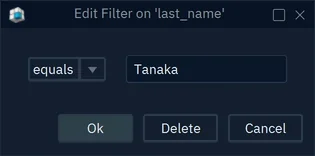
A funnel icon marks the filtered column, and the grid shows only the matching rows. Filter & Sort → Clear Filters shows every row again.
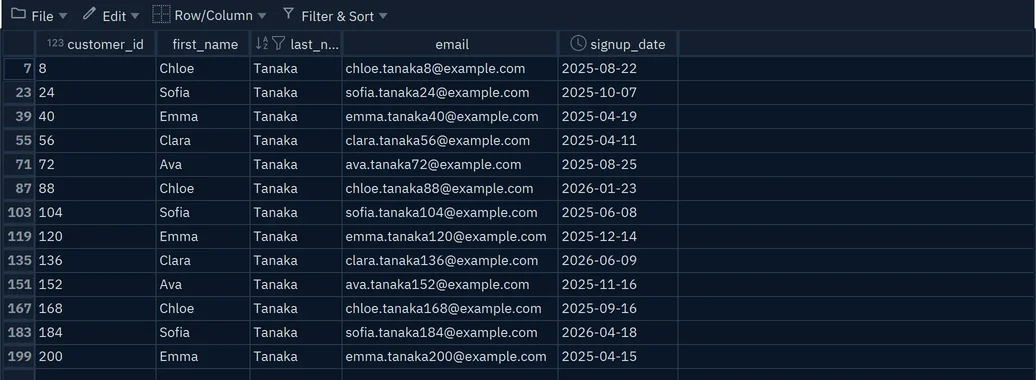
To sort, click a cell in the column and choose Filter & Sort → Sort Ascending or Sort Descending. Every value in a CSV file is text, but a column in which every value is a number sorts by value, so 10 comes after 9 rather than after 1.
Save the file, or change its delimiter and encoding
File → Save, or Ctrl+S, writes the grid back to the file you opened. DbSchema writes the rows the grid shows, in the order it shows them.
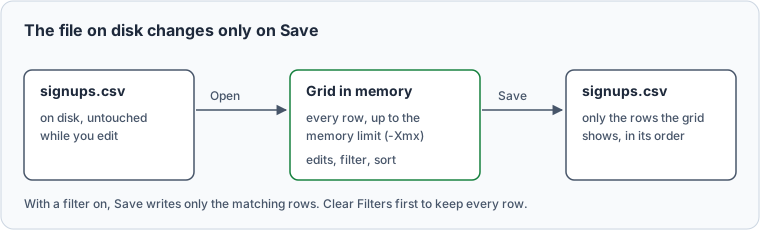
So a filter left on when you save writes only the matching rows. Choose Filter & Sort → Clear Filters before File → Save to keep every row. The same behavior is useful the other way round: with a filter on, File → Save As writes just the matching rows to a new file, such as last month's sign-ups out of the whole log.
File → Save As opens the dialog you opened the file with, and DbSchema writes the new file with the Charset, the Delimiter and the Quote Character you set there. A comma file that a loader wants pipe-delimited, or a UTF-8 file that has to arrive as ISO-8859-1, takes one Save As.
Other free CSV editors
The vendor pages behind this table were checked on 2026-10-22. Each size is the vendor's own figure.
| Editor | Kind | Free edition | Platforms | Size the vendor states |
|---|---|---|---|---|
| DbSchema Community Edition | Desktop CSV editor | Open, edit, filter, sort, save | Windows, macOS, Linux | The memory DbSchema may use, 8 GB on a new installation |
| Modern CSV | Desktop CSV editor | Free edition; Premium adds features | Windows, macOS, Linux | 2,147,483,647 rows or columns |
| Tablecruncher | Desktop CSV editor | Free and open source | Windows, macOS, Linux | Files over 2 GB and 15 million rows |
| Ron's Data Edit Lite | Desktop CSV editor | Saves at most 2,500 rows | Windows | Loads any number of rows |
| EmEditor Free | Text editor | Personal use; no CSV tools, Sort or Filter | Windows | 16 TB (64-bit) |
| Row Zero | Cloud spreadsheet | One workbook; no Export to CSV | Browser | 5 GB per workbook |
| Datablist | Browser editor | Data kept in the browser | Browser | 2 million records per table |
Modern CSV has a free edition with no file size limit. Premium, at $39 one time for personal use on its buy page, adds date conversion, transposing, case conversion and printing. For a file over 100 MB, Modern CSV asks by default whether to open it in a read-only mode that sorts and filters but cannot save the file; Save Visible Data As writes the sorted or filtered rows to a new file. Tablecruncher became free and open source in 2025 and saves in UTF-8, UTF-16, Latin-1 and Windows 1252. Ron's Data Edit Lite loads any number of rows but saves at most 2,500; Pro removes that limit for $37.50. EmEditor Free is licensed for personal use at home or at school, and its CSV tools, Sort and Filter are in EmEditor Professional, a subscription.
The two browser tools keep the file off your disk. Row Zero is a cloud spreadsheet whose free plan holds one workbook of up to 5 GB, and Export to CSV starts at its Pro plan. Datablist keeps the free plan's data in the browser, with no cloud backup.
Import a CSV into a database table
Editing the file is one job; querying its rows with SQL is another, and for that the rows have to reach a table. DbSchema loads them with the Data Importer, which needs DbSchema Pro. This is the step that writes to the live database; the CSV Editor never does.
Choose Database → Data Importer; the dialog is titled Data Loader. Pick the file, choose the schema and either a new table name or an existing table, then check the columns in the second step. There each file column sits beside the database column and type it goes into, and you can Skip the ones you do not want. The same step sets the CSV Format, First Line is Header, the Locale and the Date Format. After the load, the Error list shows each kind of error and the lines of the file that caused it. The steps for one engine are in import a CSV into MySQL.
Download DbSchema, choose Query → CSV Editor, and open the file your spreadsheet cut short. The CSV Editor is part of the free Community Edition; loading the same file into a database table with the Data Importer needs DbSchema Pro.
Edit large CSV files without a database
DbSchema's CSV Editor opens large CSV files on your own machine, edits cells, rows and columns, and filters and sorts the grid. It is included in the free Community Edition.









